Verticals: GP, Dental, Pharmacy, Allied, & Specialist
PMS: Not Applicable
Where in Calendar we create the availability of the practitioner, in the section Appointments setup' and then 'Appointment types', we confirm and create what services your practitioner offers.
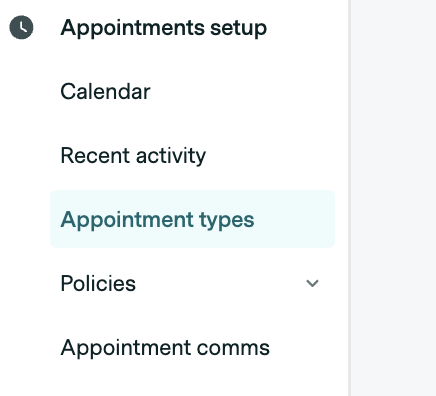
To add, edit or remove an appointment type from a practitioner, simply navigate to 'Appointments setup' and then 'Appointment types' in your Practice Admin Portal.
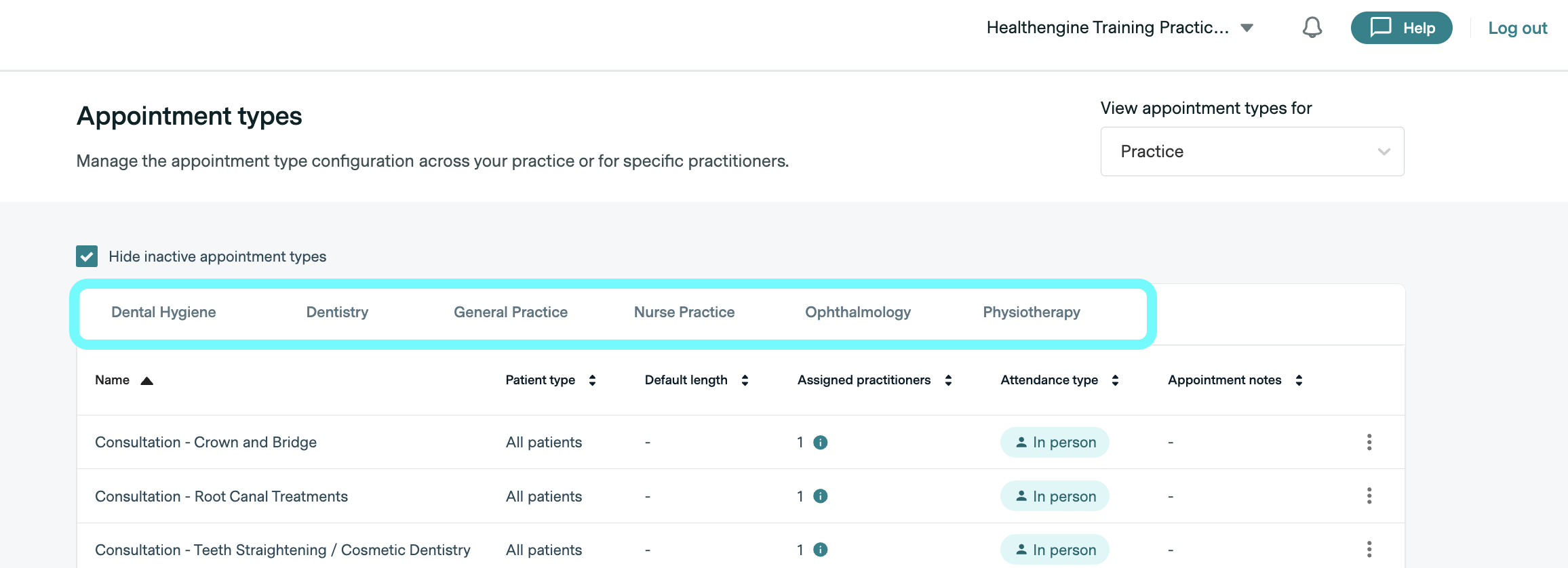
You will then come to a page that lists all the specialties added to your practice's profile at the top (as shown outlined in blue below), and any appointment types added for each specialty are shown when you select it:
How to Add an Appointment Type
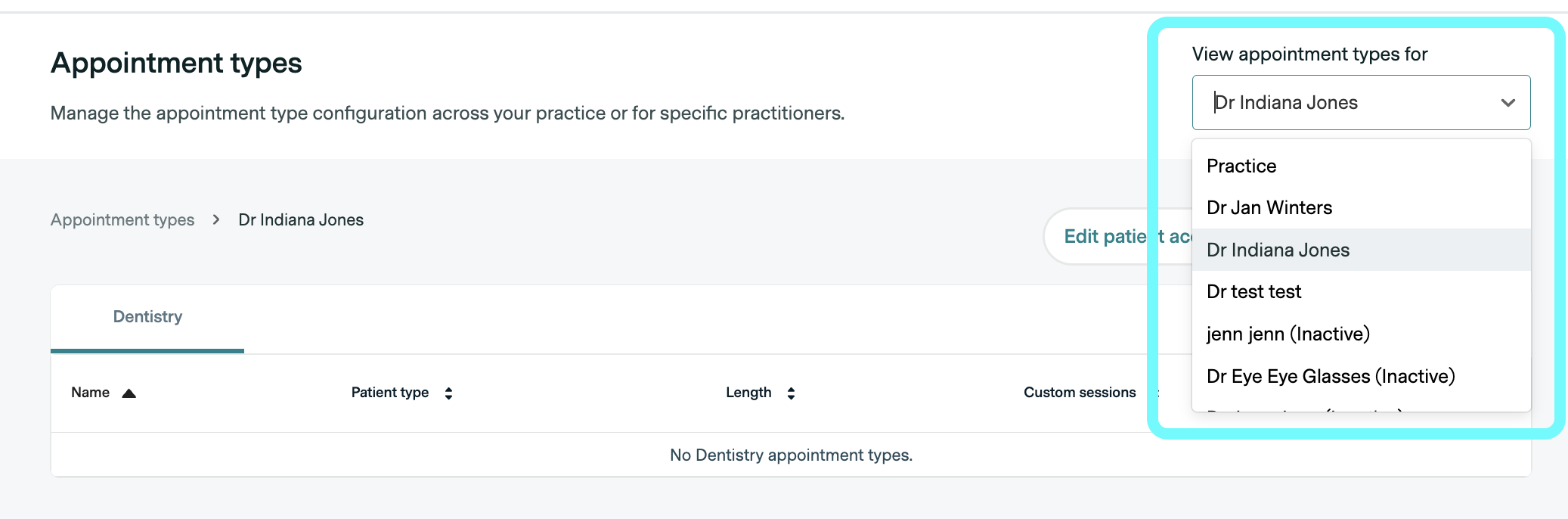
To add an appointment type to a practitioner, first select the practitioner from the menu (shown outlined in blue below).
Next, click the Create New Type button.
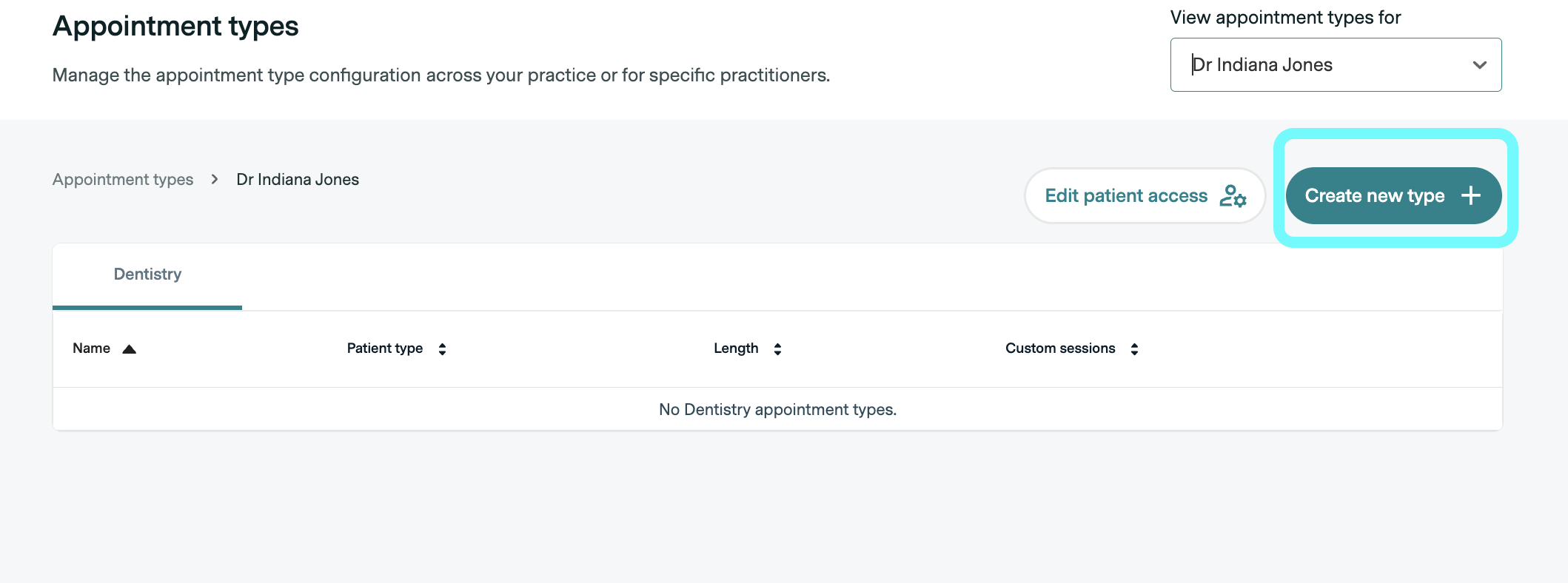
This will then display the following screen, allowing you to set up the appointment type.
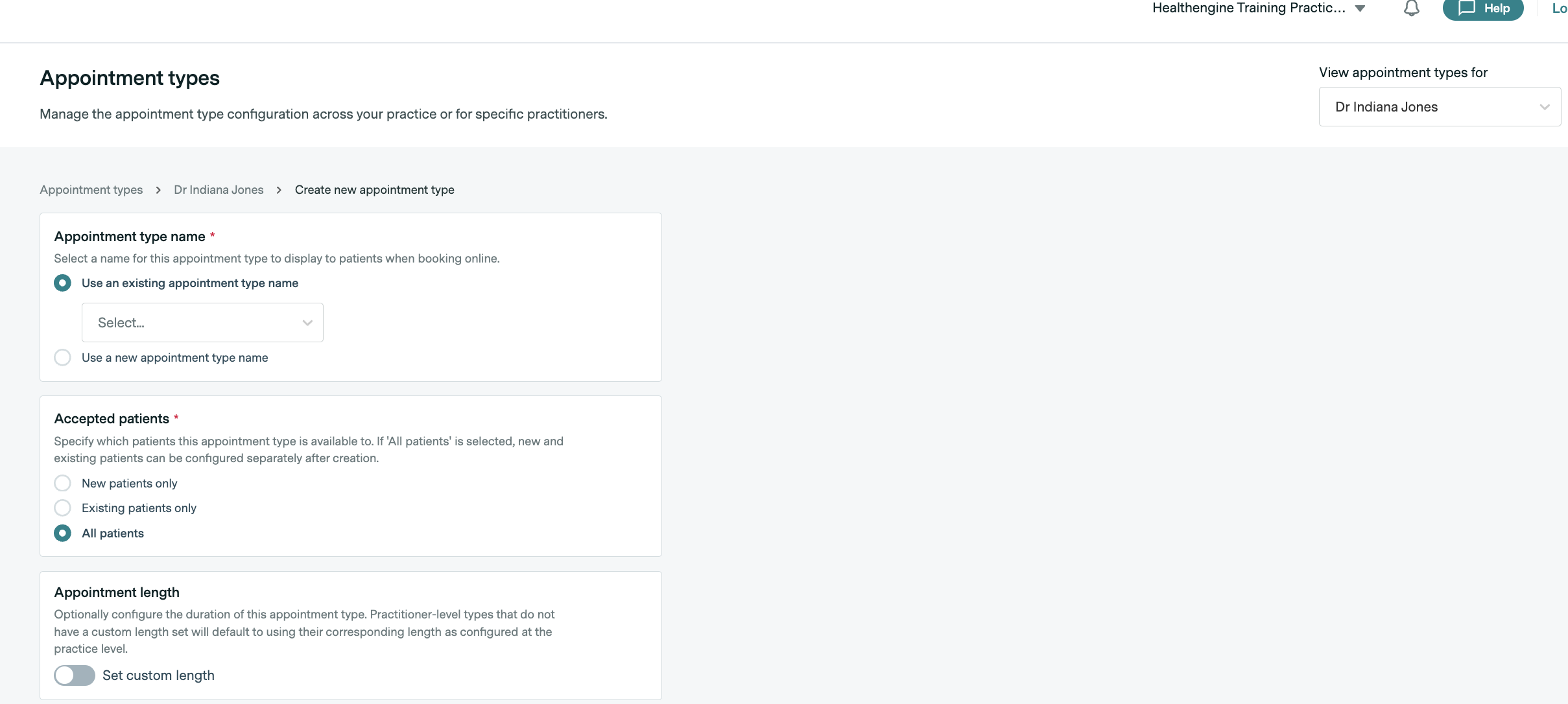
- The first box for Appointment type name allows you to either select from a list of appointment types already added (for GP, it is an extensive list of all GP types, not just the ones listed at your practice), along with the option to use a new appointment type name that allows you to freely type your appointment type name.
- The second box allows you to choose whether that appointment type is displayed as an option for all patients, or just those who say they have visited your practice before, or only those who say they are new to the practice.
- The third box allows you to set the length of the appointment type.
To save your changes and create the appointment type, click the 'Create' button in the bottom left-hand corner of the page, as shown below.
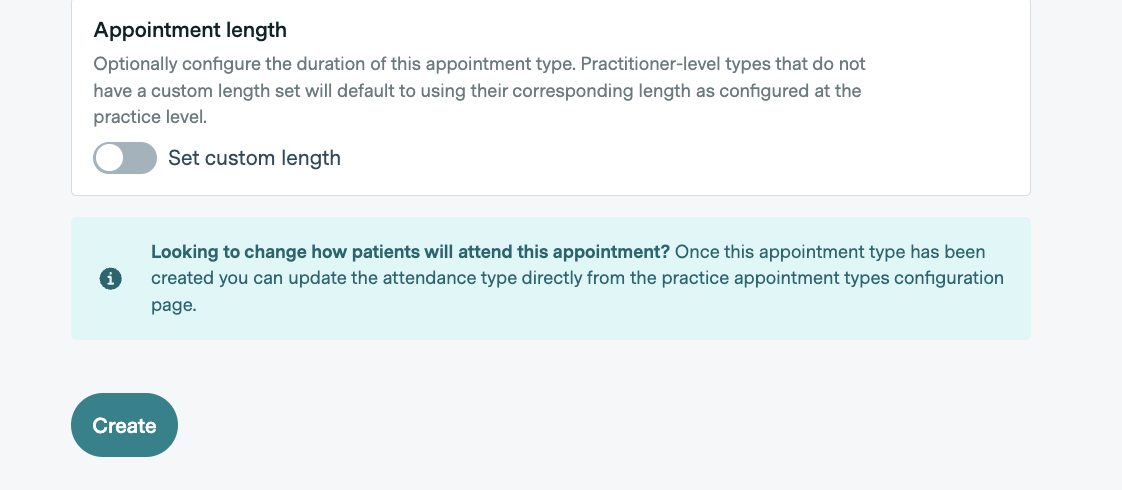
Please note: If no length is set up for the appointment, it will go as standard, with the appointment length set up in the practitioner schedule under Calendar.
If you set up a length, please make sure it is in multiples of the appointment length set up in the practitioner schedule under Calendar.
How to Remove an Appointment Type
To remove an appointment type, first select the practitioner you wish to remove it from, then click the three dots to the right of the appointment type you wish to delete. You will see a list of preferences you can set for that appointment type, as shown below, and the last option shown is to delete it.
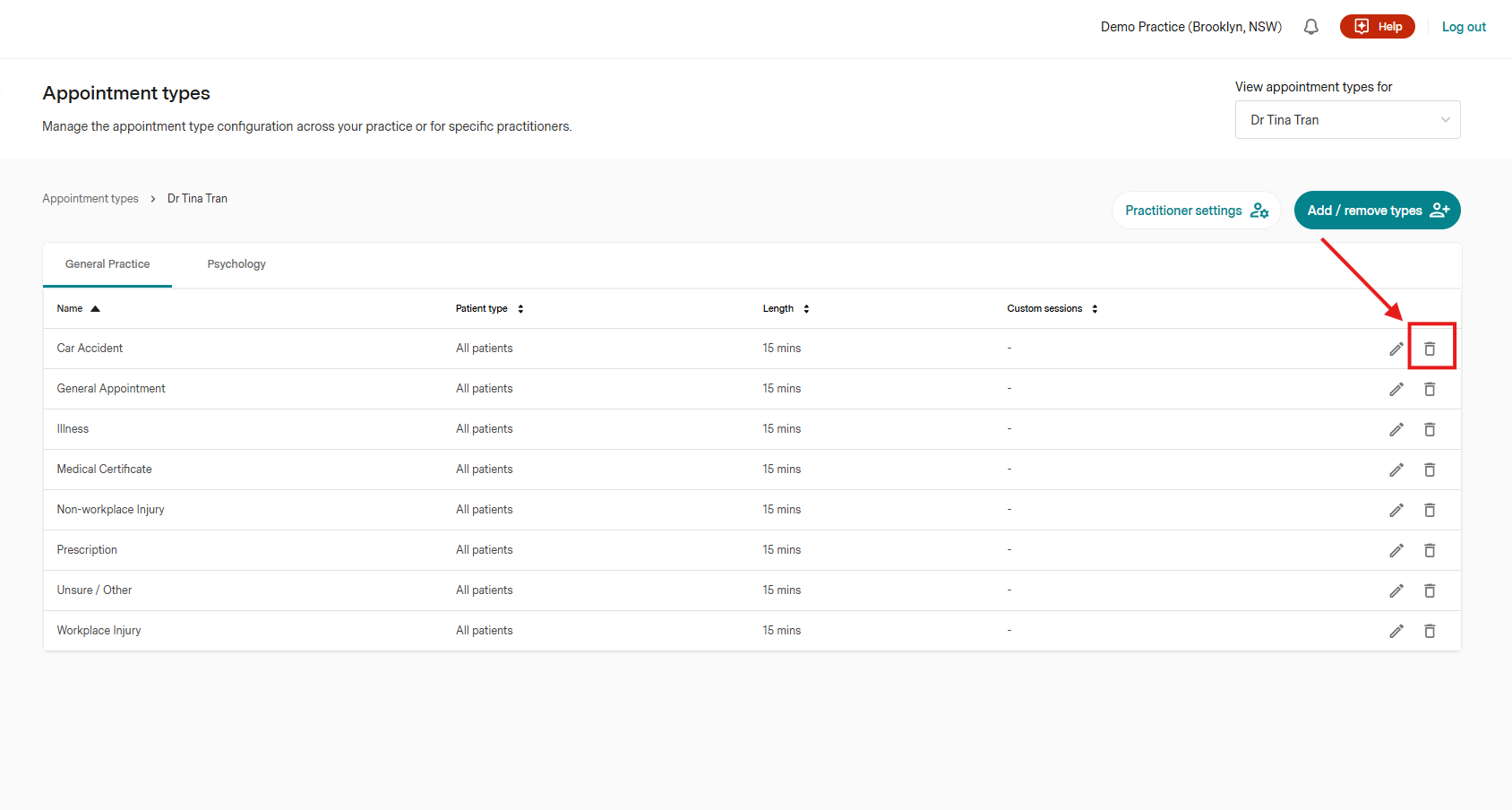
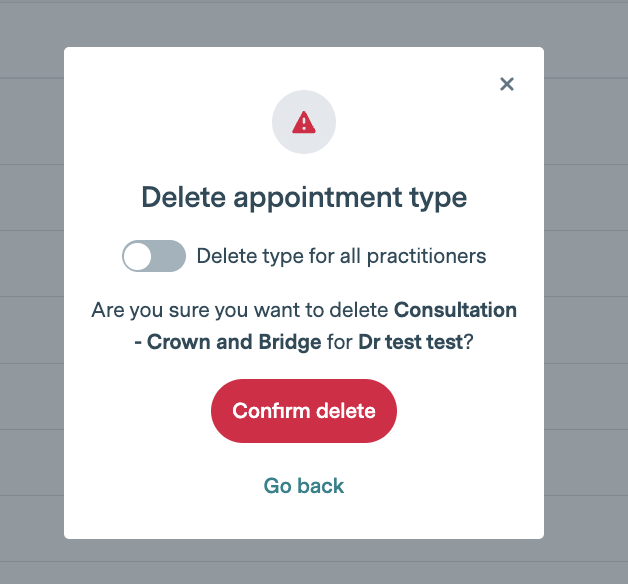
You will be asked to confirm if you'd like to delete this appointment type, and if you would like to delete it from all practitioners at the same time, use the toggle as shown below. Then click Confirm delete.
How to Assign a Pre-existing Appointment to a New Practitioner
You can also assign a pre-existing appointment to a new practitioner in two different ways:
Via Appointment setup-> Appointment types, selecting the pencil icon and clicking on the "edit assigned practitioner":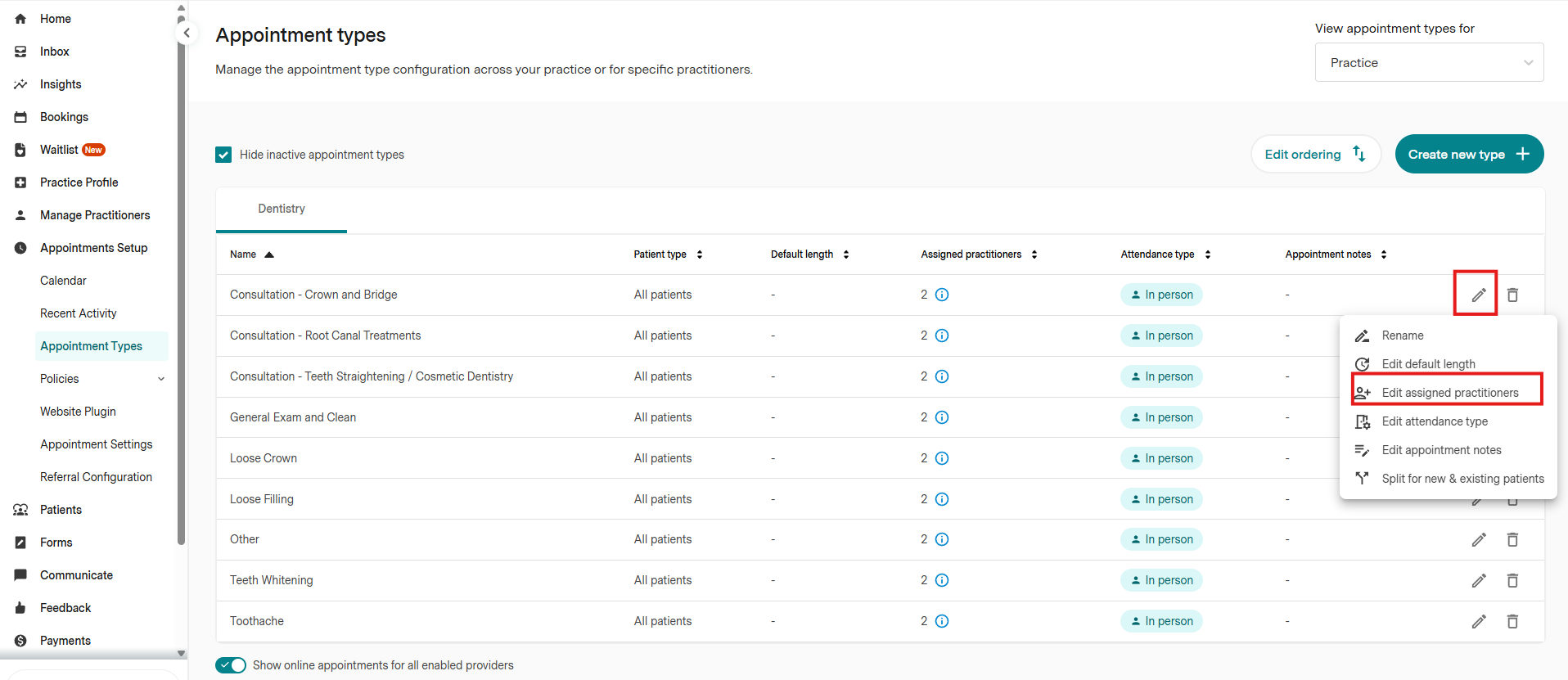
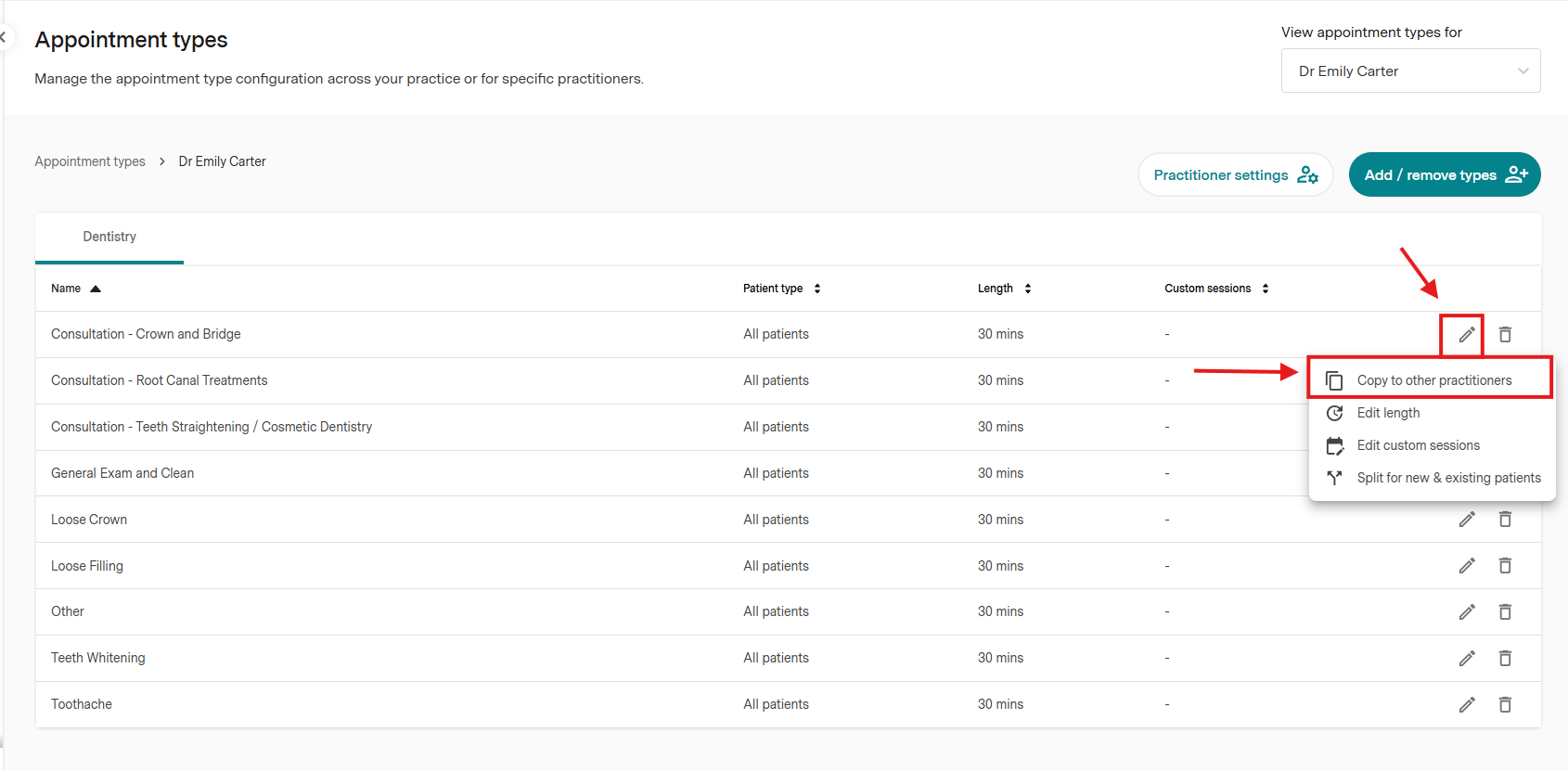
Or using the copying function from an existing practitioner, via Manage practitioners-> edit appointment types, click on the pencil icon and select "copy to other practitioner":