
Have you received an email saying your Best Practice connection has been lost? This usually means Halo Connect, which links Best Practice to Healthengine, has stopped sharing your availability. Patients cannot book with you online until it is restored.
Please Note: Once the connection is back, check your Healthengine profile to confirm your appointments are showing.
Page Contents- Step 1: Check Your Internet Connection
- Step 2: Check the Healthengine Integration
- Step 3: Run the Comprehensive Data Updates
- Step 4: If You Have Moved to a New Server
- Step 5: Reset the Integration
- Step 6: Check Your Appointments Are Showing
- Contact Our Support Team
Check that the internet is working on your Best Practice server. If it is not, please contact your IT provider.
Step 2: Check the Healthengine Integration- Open Best Practice and go to Setup > Configuration.
- Select Database from the left-hand side menu, then click Setup third-party integrations.
- Check that Healthengine (via Halo Connect) is ticked. If it is not, tick it and click Save.
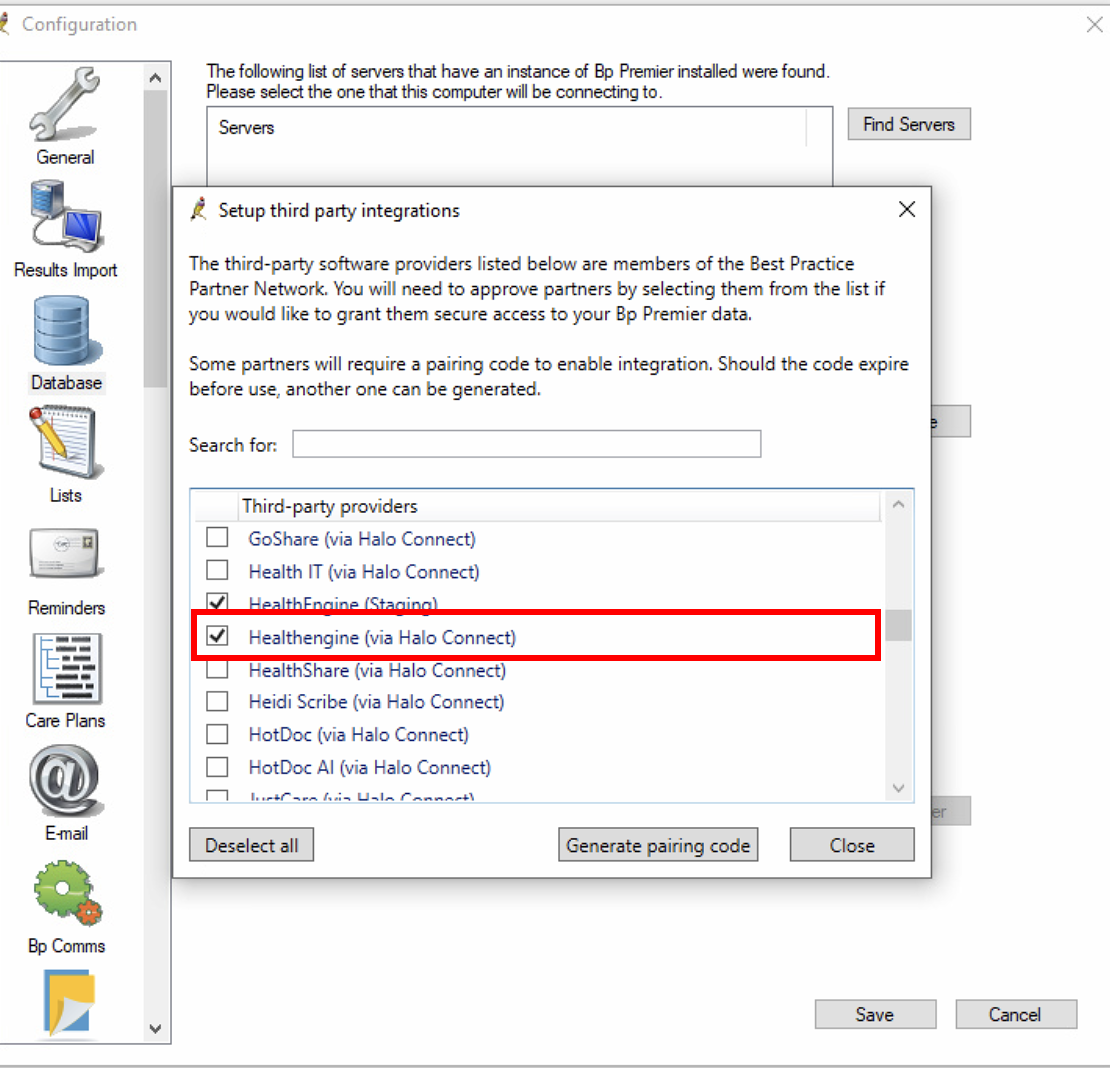
For more detail, see Enabling Healthengine as Third-Party Integration for Best Practice (via Halo Connect).
Step 3: Run the Comprehensive Data UpdatesIn Best Practice, go to Help > Comprehensive Data Update. Run all available updates, one at a time, letting each one finish before you start the next.
If Best Practice shows errors after an upgrade, please contact Best Practice Premier Support on 1300 401 111.
Step 4: If You Have Moved to a New ServerSkip this step if Best Practice is still on the same server.
Halo Connect needs to move with Best Practice. Please ask your IT provider to follow the Best Practice guide Moving BP to a new server. They then need to email support@haloconnect.io with:
- your Site ID, found in Best Practice under Help > About
- the new HaloGUID
- the old and new server names
- your preferred activation time
Please ask them to CC support@healthengine.com.au so we can help.
Step 5: Reset the IntegrationIf your appointments are still not showing, reset the integration. This creates a new Site ID and Pairing Code.
- Go to Setup > Configuration, select Database, then click Setup third-party integrations.
- Untick Healthengine (via Halo Connect) and click Save.
- Tick Healthengine (via Halo Connect) again and click Save.
- Note down the new Site ID and Pairing Code that appear.
- Contact our Support team with both codes so we can reconnect you.
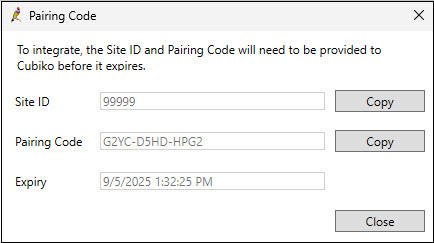
Please Note: It can take up to 24 hours for your connection to be restored after a reset.
Step 6: Check Your Appointments Are ShowingWait a few minutes, then check your Healthengine profile to confirm your appointments are showing.
Contact Our Support TeamDifferent teams can help, depending on the issue:
- Healthengine Support for connection issues, or to send your Site ID and Pairing Code
- Halo Connect Support for Halo Connect or server move issues, on support@haloconnect.io or (07) 3911 1360
- Best Practice Premier Support for problems with Best Practice itself, on 1300 401 111
If you contact us, our Support team is happy to help. To help us resolve the issue quickly, please have the following ready:
- your practice name
- your Site ID and Pairing Code, if you reset the integration
For ways to reach us, see Need more support? Here’s how to contact us.
You may also find this article helpful: Best Practice - Healthengine's Integration: Benefits & Troubleshooting