
Vertical: GP
PMS: BP
This article will go over the most common problems we see with Best Practice and how you can attempt to troubleshoot them.
Troubleshooting Missing Appointment Availability
There are a number of reasons why availability may not be showing for Best Practice users. We'll cover these off below.
Manually Created Availability
Creating appointments manually in Best Practice will cause them not to be published on Healthengine. This is done by right-clicking in the appointment book and choosing 'Available'.
Signs that indicate that this is the problem include:
- Missing availability that is not consistent on a certain day from week to week. It is random in respect to the day and time that is missing.
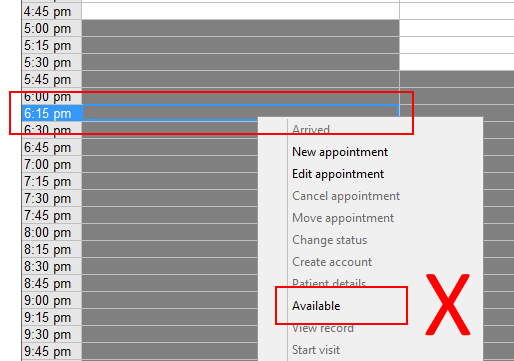
The Healthengine system will publish any available appointment within a Standard or Extra Session that is created for a practitioner. Any availability that has been created manually in the appointment book (as shown above) before a standard or special session is created will void the availability within that session.
For example, if a practitioner has manually availability created within the appointment book between 8 am and 10 am on a Monday, and a standard session is then created for Mondays from 8 am until 5 pm on top of this, the time between 8 am and 10 am will not be shown online.
In order to fix this issue, the session must be deleted, the manual availability must be 'undone', and the session then re-created.
The following steps must be completed in this exact order...
- In the main screen of Best Practice, go to Setup > Sessions.
- Choose the practitioner with the missing availability.
- Select the session that's missing availability and write down the details so you know how to recreate it later.
- Now delete that session. It won't affect existing appointments.
- Close the sessions window and open the appointment book.
- Look in the appointment book for the problem practitioner, date or time, and you will see that the practitioner in question still looks available (white slots will be seen). Right-click on each white cell and choose 'Unavailable'.
Please note: When you do that, the slot should turn plain grey with no text inside. If it has 'Unavailable' written in it, you are making a real session unavailable - it could be a special session.
- Once you have removed all manually created availability in the appointment book, go back to the main screen of Best Practice, Setup > Sessions, choose the practitioner and re-create the session using the details from step 3.
- The missing availability should show within a short period (up to one hour).
On the Day Appointments
Healthengine does not publish 'On the Day' appointments created in Best Practice by default, even once they become available on the day.
IMPORTANT: Should you wish us to consider "On the Day schedules" as part of your online published schedule, please reach out to our customer support team.
If you are missing availability online, it could be that the times have been created as 'On the Day' appointments.
'On the Day' appointments created under 'Practice Defaults' will affect online availability for every practitioner. Our system will not show any of these appointments.
To check your 'On the Day' appointments, go to the Best Practice main screen, Setup > Sessions and select 'On the Day' appointments. An example of 'On the Day' appointments created in Practice Defaults can be seen below.
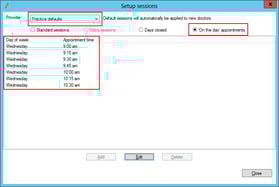
Each of the times listed in the above example will not be published online for any practitioner.
If you wish for these to be displayed online, you will need to delete the 'On the Day' appointments. If they need to be kept as 'On the Day' appointments, Healthengine unfortunately will not publish these times.
If you wish to delete them, see below for step-by-step instructions.
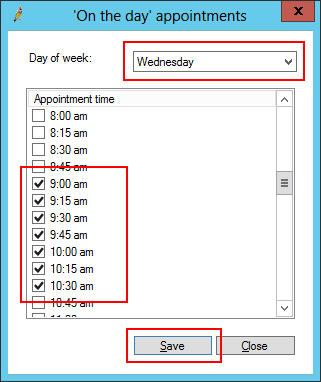
- Click Edit
- Choose Wednesday from the drop-down list
- Uncheck the times from 9:00 am to 10:30 am
- Click save
- The appointment times should show online within a few minutes.
Please Remember:
- Don't forget to check 'On the Day' appointments under your other practitioners as well.
- Healthengine will never publish 'On the Day' appointments at any time.
Sessions misconfigured
Below are some things to check in Best Practice that could be affecting online availability.
- Make sure the correct 'Location' is selected for every session and for every practitioner. If the location is set to 'Default', it will not be displayed online.
- Check all the settings thoroughly, including the appointment length, start and finish dates, week cycles and cycle start date.
- Check each practitioner's 'Extra Sessions', 'Days Away', and 'On the Day' appointments as these may affect your online availability.
- Check 'On the Day' appointments in 'practice defaults' as these will have an effect on the online availability for all practitioners.
Recent changes to locations, practitioners or new practitioners
Any changes to a practitioner's name, standard appointment length or location name will create a new instance in the setup at Healthengine and will result in the practitioner's appointments going offline.
You may be able to reconnect their appointment book in your practice admin portal under Appointments setup > Appointment types. Click 'Change Appointment Book' for the practitioner you have changed and select their new appointment book from the drop-down menu.
Not every practice has the ability to connect its own appointment books.
In circumstances where you do not see the 'change appointment book' option, just let us know via email or chat so that we can update our system and ensure that your appointments are kept online.
Is the Healthengine integration enabled?
Healthengine connects to Best Practice through Halo Connect, so there is no Healthengine software running on your server to check. If availability is still missing after working through the steps above, confirm the integration is switched on in Best Practice:
- Open Best Practice and go to Setup > Configuration.
- Select Database from the left-hand side menu, then click Setup third-party integrations.
- Check that both Healthengine and Healthengine (via Halo Connect) are ticked.
- If either is unticked, follow the steps in Enabling Healthengine as Third-Party Integration for Best Practice (via Halo Connect) to enable it.
If both are ticked and your availability is still not showing online, contact our customer support team.
Enabling Healthengine as Third-Party Integration for Best Practice (via Halo Connect)
For Best Practice practices connecting via Halo Connect, see Enabling Healthengine as Third-Party Integration for Best Practice (via Halo Connect)
Enabling Healthengine as Third-Party Integration for Best Practice Jade
If you have recently updated to Best Practice Jade, there are a few new steps you need to take to set Healthengine up as a third-party integration for your practice so that we can continue accessing your Best Practice software for products and services such as online bookings via the Online Booking System, online bookings via the Healthengine Network, Recalls, Reminders, Scripts and other products.
The steps are a quick and easy guide on how to enable Healthengine as a third-party integration in your Best Practice and apply those new partner credentials.
-
Open Best Practice
-
Go to ‘Setup’
-
Select ‘Configuration
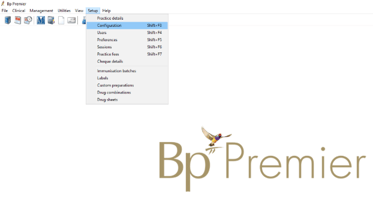
- Select ‘Database’ from the left-hand side menu
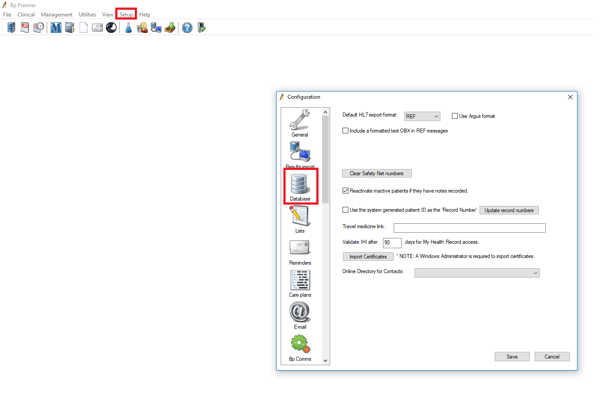
- Click on ‘Setup third-party integrations’
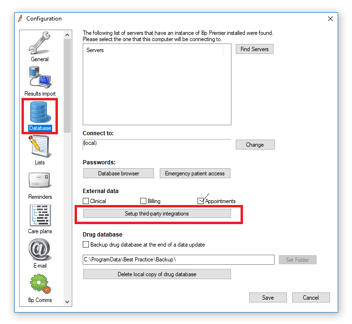
-
Tick ‘Healthengine’
-
Press ‘Save’
-
Press ‘Save’ in the Configuration box
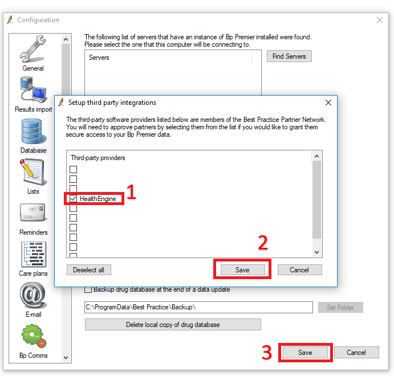
Please note: Your Healthengine Appointment Connector may take a few minutes to restart.
-
The process is now complete; Healthengine is now an allowed third-party integration for your practice!