
💡 From 1 July 2026, Medicare is expanding electronic Assignment of Benefit (AoB) beyond Telehealth. This change is primarily about patient consent and auditability - making sure consent is clearly captured, attributable, retained, and can be evidenced if required.
📆 Healthengine is hosting a webinar to help you prepare with all the changes pertaining to the Assignment of Benefits. We invite you to attend to prepare your practice by 1 July!
- Jun 25, 2026 12:00nn AEST via Zoom
- Register here
Vertical: GP
PMS Eligible: BP, Pracsoft
Table of contents
- Step 1: Set up Bulk Bill Consent (Practice Admin)
- Step 2: What to do on the day (in clinic)
- Step 3: Generate the invoice (after the appointment)
- Step 4: Patient completes consent (SMS / email)
- Step 5: Track and resend requests (Practice Admin)
- Step 6: PMS updates and record keeping
- If the patient doesn’t provide consent
Step 1: Set up Bulk Bill Consent (Practice Admin)
- Enable Bulk Billing Consent in Practice Admin:
- Go to Products → Bulk Bill Consent in the left-hand menu, click Activate and follow the prompts.
- Ensure your PMS location is enabled under Location Settings, then enable the relevant PMS appointment types. (If you don't see "Configure locations" after activating, your locations are already enabled.)
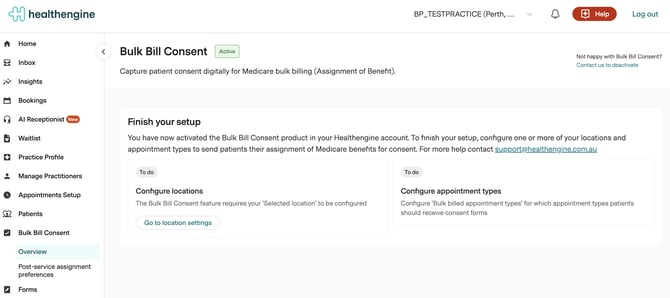
- Configure Post-service assignment preferences:
- Appointment types: all appointment types or selected appointment types.
- Best Practice: decide whether AoB will be managed externally (Healthengine) or within Best Practice.
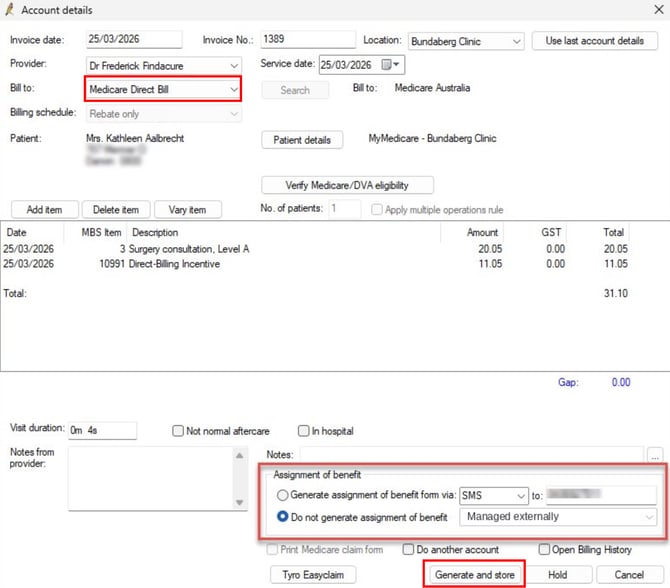
- If Healthengine will manage consent collection, select "Managed externally" in Best Practice when generating the invoice.
Step 2: What to do on the day (in clinic)
- Reception/team runs the appointment as normal.
- Set expectations with patients that they will receive both an SMS and an email to provide consent for bulk billing.
- Ensure patient details in the PMS are up to date (to reduce failed verification and delivery issues):
- Patient full name matches their Medicare details
- Date of birth is correct
- Mobile number is correct
- Add/update email address where possible (email is used alongside SMS)
- Tell patients about the new requirements:
- They will receive both an SMS and an email after their appointment to confirm Medicare bulk billing consent
- The message will include a link, and they will be asked to verify their identity before consenting
Step 3: Generate the invoice (after the appointment)
- After the consult, the practice generates the invoice in their PMS and selects Generate & store (Best Practice) / equivalent billing action.
- This billing action triggers Healthengine to create a post-service episodic AoB consent request for that specific encounter.
- The invoice does not have to be raised on the day of the appointment. In Best Practice, if the appointment is invoiced the following day or later, the consent request is still sent when the invoice is generated and stored.
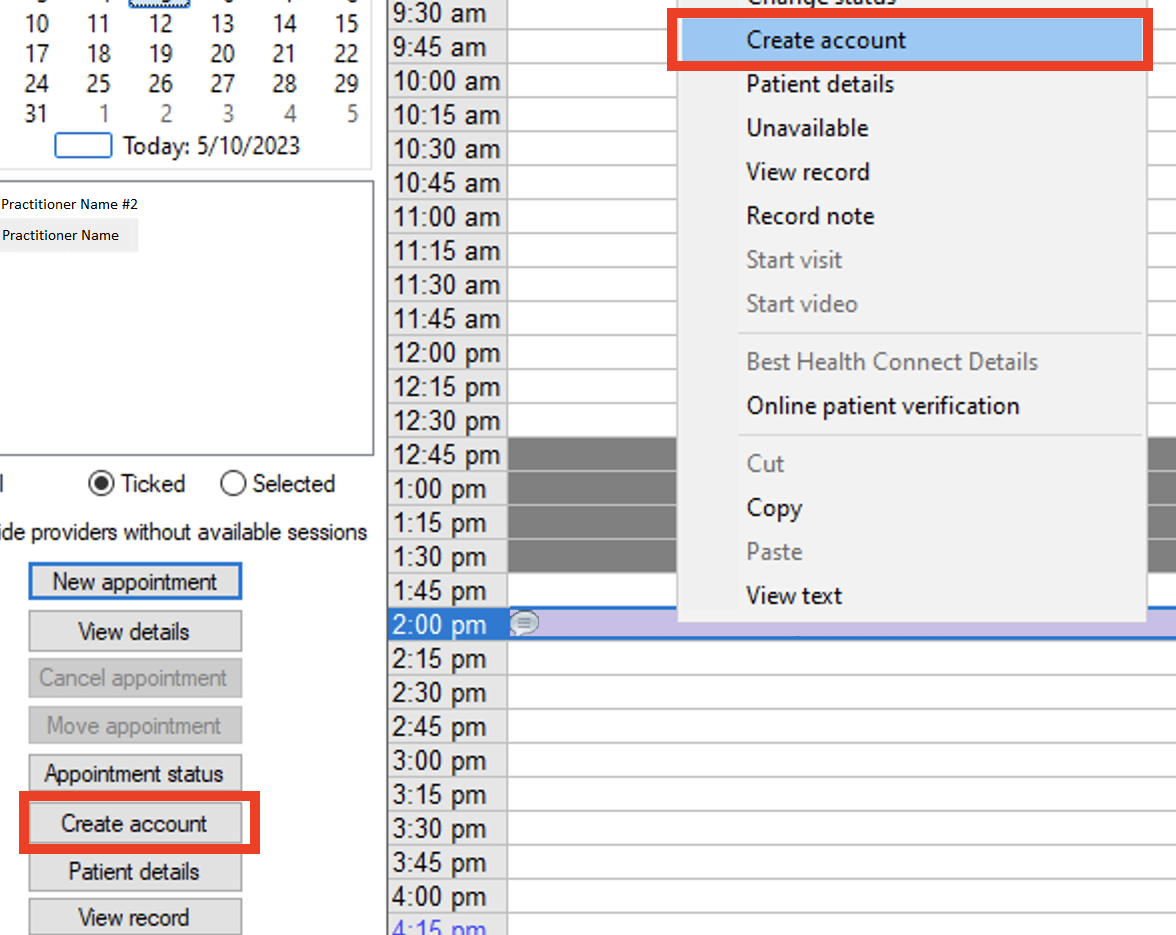
Best Practice: steps to trigger the consent request
- Ensure the relevant PMS appointment types are enabled for Bulk Bill Consent in Practice Admin.
- Mark the patient as arrived.
- Start the appointment visit.
- Complete the appointment visit.
- Invoice the appointment to Medicare and select *Generate & store*, choosing "Do not generate assignment of benefit: Managed externally" where Healthengine is managing consent collection.
If your version of Best Practice shows only *Store*, and no "Managed externally" option, you are on a Best Practice version released before the July 2026 Assignment of Benefit update. Selecting Store still triggers the Healthengine consent request, so no further action is needed. Contact Best Practice if you would like to upgrade.
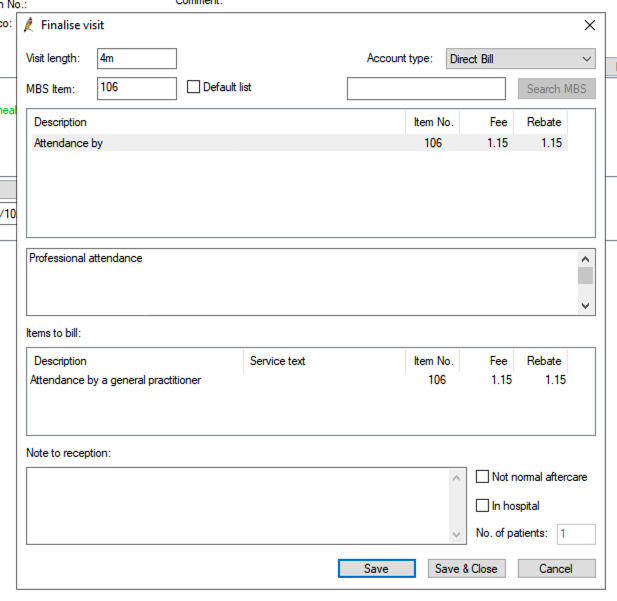
Pracsoft / Medical Director: steps to trigger the consent request
- Ensure the relevant PMS appointment types are enabled for Bulk Bill Consent in Practice Admin.
- Locate the relevant appointment in your Pracsoft appointment book.
- Start recording as a same-day visit for the patient.
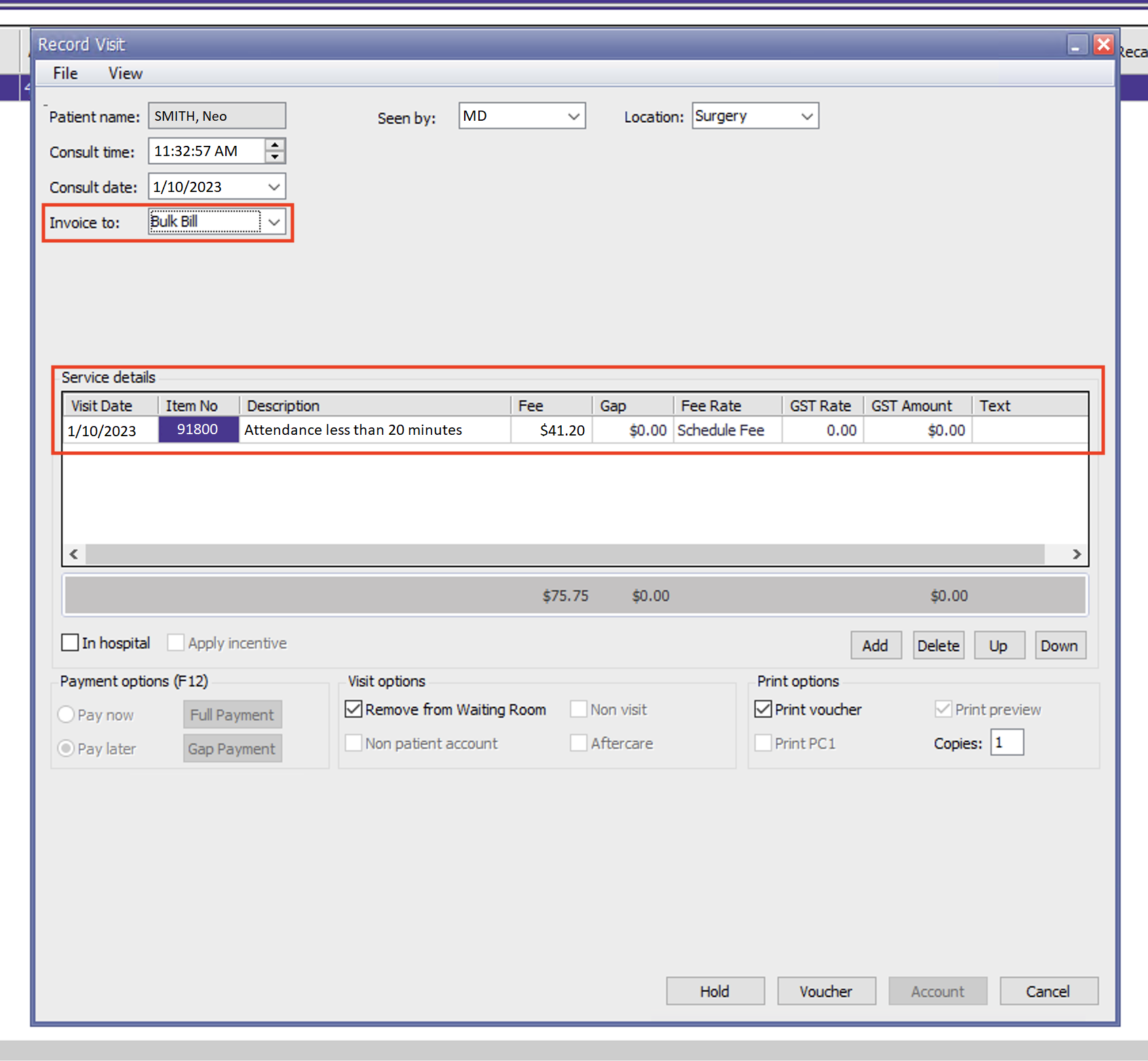
- Create an invoice for the appointment:
- Add the relevant MBS items.
- Set the Invoice to field to Bulk Bill.
- Tick "Remove from Waiting Room" in Visit options.
- Select Voucher.
- Complete the appointment visit.
Note: If there are multiple visits in a day, ensure the consult time is close to the appointment time so the correct encounter is matched.
Step 4: Patient completes consent (SMS / email)
- Healthengine sends the consent request via SMS and email at the same time.
- Patient opens the link and completes verification (last name and date of birth) before viewing the form.
- Patient completes the AoB form, including the updated dataset requirement:
- “Is the assignor the patient?” (Yes / No) (and assignor details if No)
- Patient confirms consent by selecting “I agree”.
Step 5: Track and resend requests (Practice Admin)
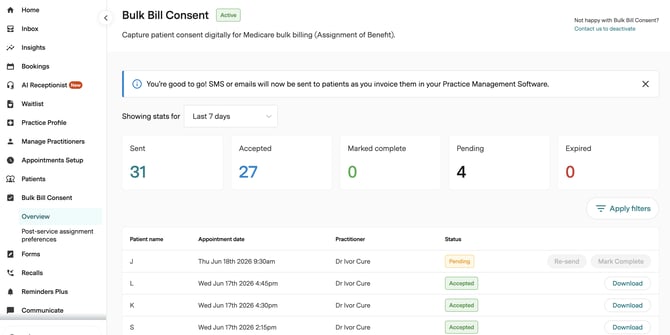
- Practice reviews consent status in Practice Admin (Bulk Billing Consent), including:
- Status (e.g., Sent / Accepted / Expired)
- Last sent date/time
- Contact attempts
- If required, the practice re-sends the consent request (or relies on the 24-hour automated reminder if enabled).
Step 6: PMS updates and record keeping
- Best Practice: Once consent is completed, the AoB status in Best Practice updates from Pending → Accepted, allowing the claim to appear in Online Claiming (from 1 July 2026 when BP production stored procedures are available).
- Pracsoft: A PDF copy of the completed consent is sent back to the PMS.
- Practice retains the consent artefact and audit trail for compliance/audit readiness.
If the patient doesn’t provide consent
- If the patient does not agree to assign their Medicare benefit, the patient should be privately billed and provided with an invoice to claim from Services Australia.
- If digital consent cannot be completed (verification or access issues), the practice follows their manual fallback (e.g., paper consent), and may use Practice Admin troubleshooting guidance once published.