
Vertical: Dental
Eligible PMS: Carestack
Healthengine's CareStack integration syncs with your online availability, allowing you to manage appointments efficiently and display availability online.
If you're not set up for online bookings through CareStack, you’ll need to use one of our non-integrated solutions, which you can read more about here. For practices using online appointments, below you'll find a complete overview of the integration and its benefits.
Benefits of the Integration for Your Practice
Seamless Connection: Our integration with CareStack is cloud-based, meaning we connect via API without the need for access to server computers or software installations. This eliminates potential issues related to hardware or server connections.
Time-saving: The integration automatically reads and publishes your availability while inserting booked appointments directly into your CareStack diary.
Online Cancellations: When a patient cancels through their Healthengine account or confirmation email, the booking will be removed from your CareStack diary and marked as cancelled in Healthengine.
Please note:
-
Cancellations made in CareStack will not appear in your Healthengine account, only those made via Healthengine.
The default that your integration will publish is 30 days.
Please reach out to our support team using the contact details at the bottom of this article to extend the publishing days up to 180 days.
How Does it Work?
Requirements and Activation
Before beginning the setup, ensure you have an active access key created on Healthengine - you may need to reach out to our support team to confirm this. Once completed, navigate to Integration Consent in your Healthengine Account menu to setup Consent.
Integration Setup
After you have done the consent, follow these steps to activate the Healthengine integration within Carestack:
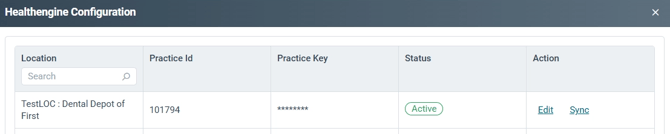
- Navigate to Practice Settings> Services> Healthengine> Configure within CareStack ( If Healthengine is not listed, please reach out to CareStack to add Healthengine to Services before continuing. )
- The CareStack locations will be listed, with the option to specify your practice id and key that was obtained during the consent process in practice admin
- Add your details and set the status to active then click Sync. PLEASE NOTE: while this integration has a recurring automatic availability sync, the ‘sync’ button must be clicked any time that the practitioners or appointment types that should be included in the integration are changed. This also includes changes in availability hours if you want it to update straight away.
Setting up practitioners
Please ensure the following has been completed in Carestack:
- Menu (top right) → Options / Practice Settings → Administration → Users
- Add a new user if none already configured.
- Set their location to the CareStack location you intend to link to a Healthengine practitioner
- Mark the user as a provider, set their provider type and specialty
Setting up appointment types
This is a two step process. First you need to create the production type (appointment type), and then you make it available for online bookings.
Creating the production type:
- Menu (top right) → Options / Practice Settings → Scheduler → Production Types
- Add the production type, set a name (not used by integration - the online booking name will be used) and link it to up to 3 provider specialties
Making the appointment type available for online bookings:
- Menu (top right) → Scheduling / Online Appointments → Appointment Reasons
- Add a new reason, link it to one or more production types
Ensure your appointment types are available to be booked online during your schedules:
- Menu (top right) → Scheduler → Cog Button (top right) → Production Calendar / Production Setup
- Set up schedules for operatories (default seems to be used a lot)
- Click and drag over time ranges to create new availability ranges and assign one or more production types (appointment types) to it, or assign all.
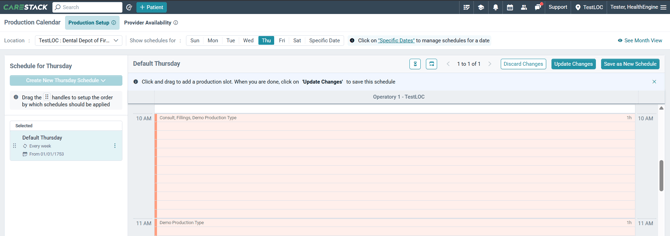
The integration should publish any available time within a practitioners CareStack schedule. If you have any issues with availability please reach out to CareStack directly for assistance with your CareStack schedules and availability.
Connecting your CareStack on Healthengine
The last step to start publishing is to connect your practitioners appointment books and appointment types on Healthengine in your practice admin portal.
Once your integration is active and healthy, follow these steps to ensure that your availability is publishing correctly:
- Add practitioners to your profile and ensure their appointment books are connected.
- Make sure your practitioners’ appointment types are created and linked to your CareStack appointment types.
- Verify that the availability published on your Healthengine profile or web plugin is accurate, and that appointment times are displayed in intervals compatible with Carestacks diary settings and appointment types.
The default time interval for published appointments will be based on your CareStack setup (e.g., 10 or 15 minutes).
Troubleshooting
Made changes that aren't reflecting?:
While this integration has a recurring automatic availability sync, the ‘sync’ button ( CareStack > Menu > Practice Settings > Services > Healthengine > Configure ) must be clicked ANY time an update is made to any of the below.
- Practitioners
- Appointment types
- Schedules

Why are bookings failing?:
- All online appointment types will be picked up through the integration, and the length of the linked production type. Ensure that the types linked to online bookings in Healthengine are included in your practitioners CareStack production schedule. Otherwise, bookings may fail if a patient selects an appointment type not included in their schedule.
Why did it create a duplicate patient file?
- The CareStack integration will match to an existing patient file only if it matches on First name, Last name, Email, Suburb, State, and Postcode.
How do I know an appointment was made through Healthengine?:
- When a booking is made through Healthengine, a note will appear on the appointment in the CareStack booking, allowing you to easily identify its origin.
Need More Help?
Contact our Support Team:
- Phone:
- Email: support@healthengine.com.au
- AI chat: Use the Help chat icon in your Practice Admin portal, located on the top-right corner of your Practice Admin page, for 24/7 AI assistance
- Live chat: Use the Help chat icon in your Practice Admin portal, located on the top-right corner of your Practice Admin page, for live agent assistance from 7 am to 4 pm AWST (6 am to 4 pm AWST on Daylight Saving)