
Vertical: Specialist
PMS Eligible: Cliniko
This article will go over the most common problems we see with Cliniko and how you can attempt to troubleshoot them.
Benefits of the Integration for Your Practice
Seamless Connection: Our integration with Cliniko is cloud-based, meaning we connect via API key. This eliminates potential issues related to hardware or server connections.
Time-saving: The integration automatically reads and publishes your availability while inserting booked appointments directly into your Cliniko diary.
Online Cancellations: When a patient cancels through their Healthengine account or confirmation email, the booking will be removed from your Cliniko diary and marked as cancelled in Healthengine.
Integration Publishing Limit
The maximum number of days the integration can publish in advance is 90 days.
Integration Setup:
Set up the API key
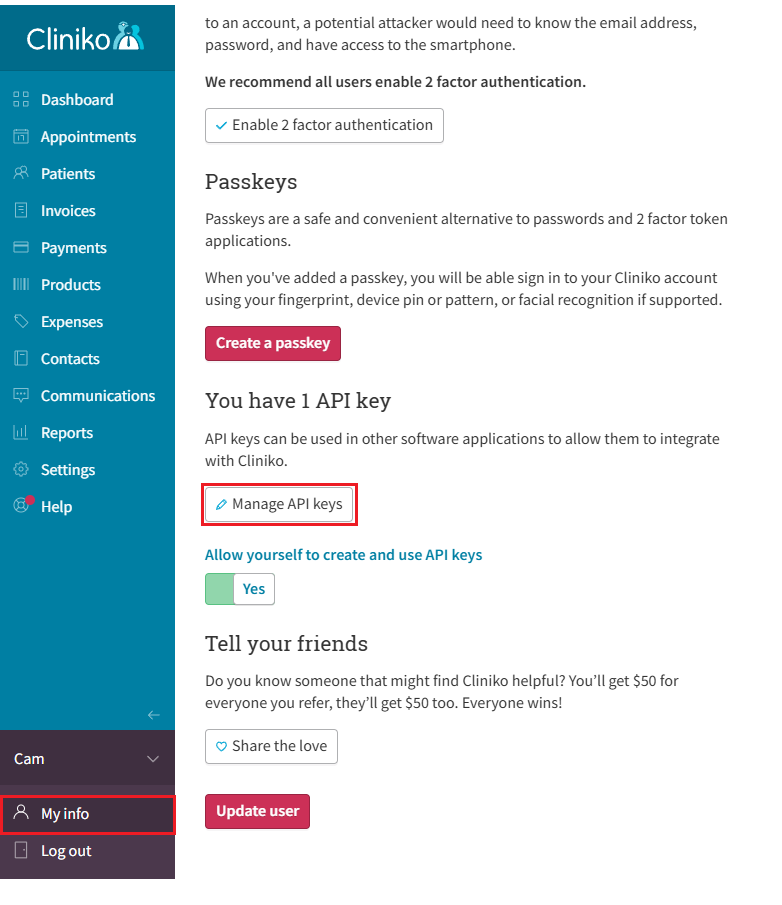
Firstly, you need to obtain an API key from Cliniko. You will need to log in to Cliniko and click on My Info in the bottom left and Manage API keys.
Ensure that " Allow yourself to create and use API keys is enabled (toggle on if required and click Update user at the bottom and return to this page).
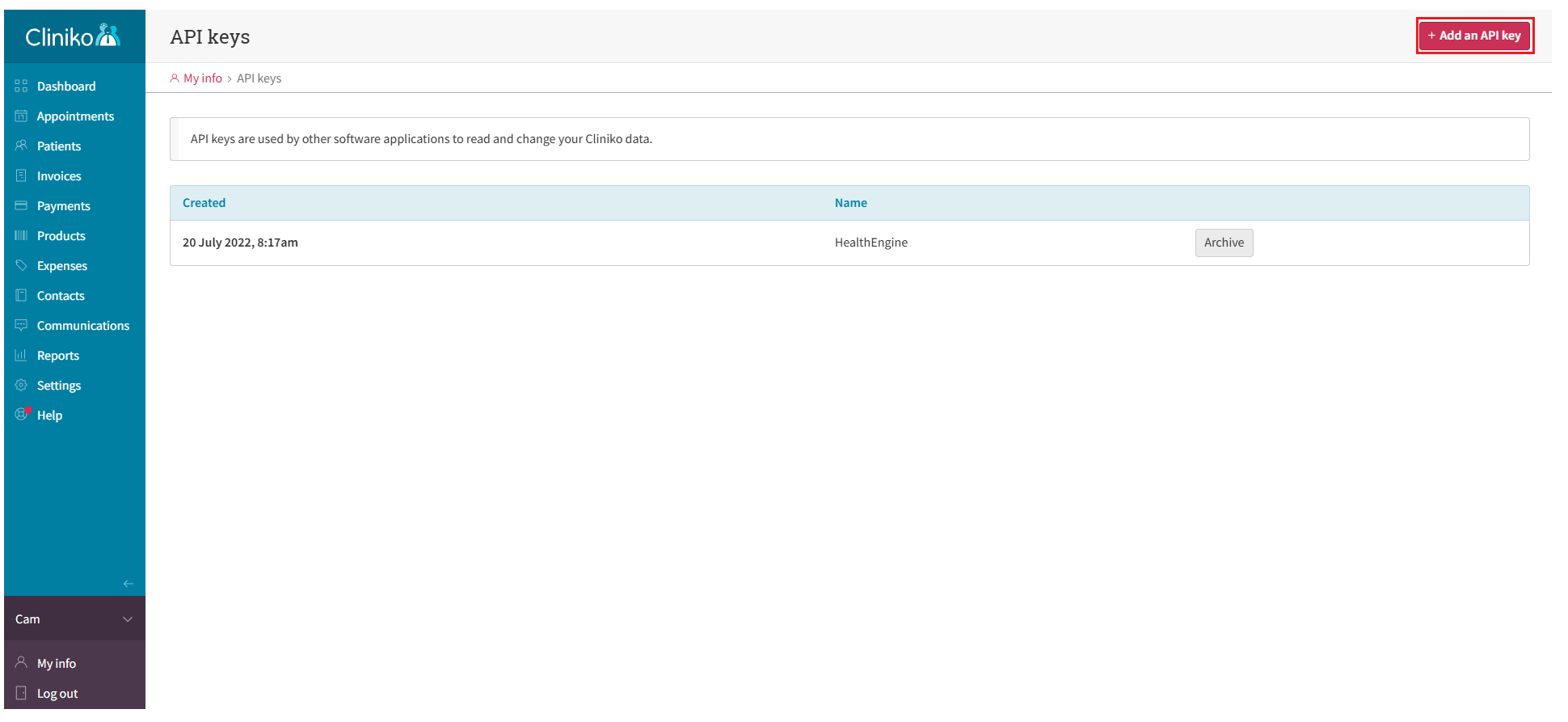
From the next page, click on + Add an API key
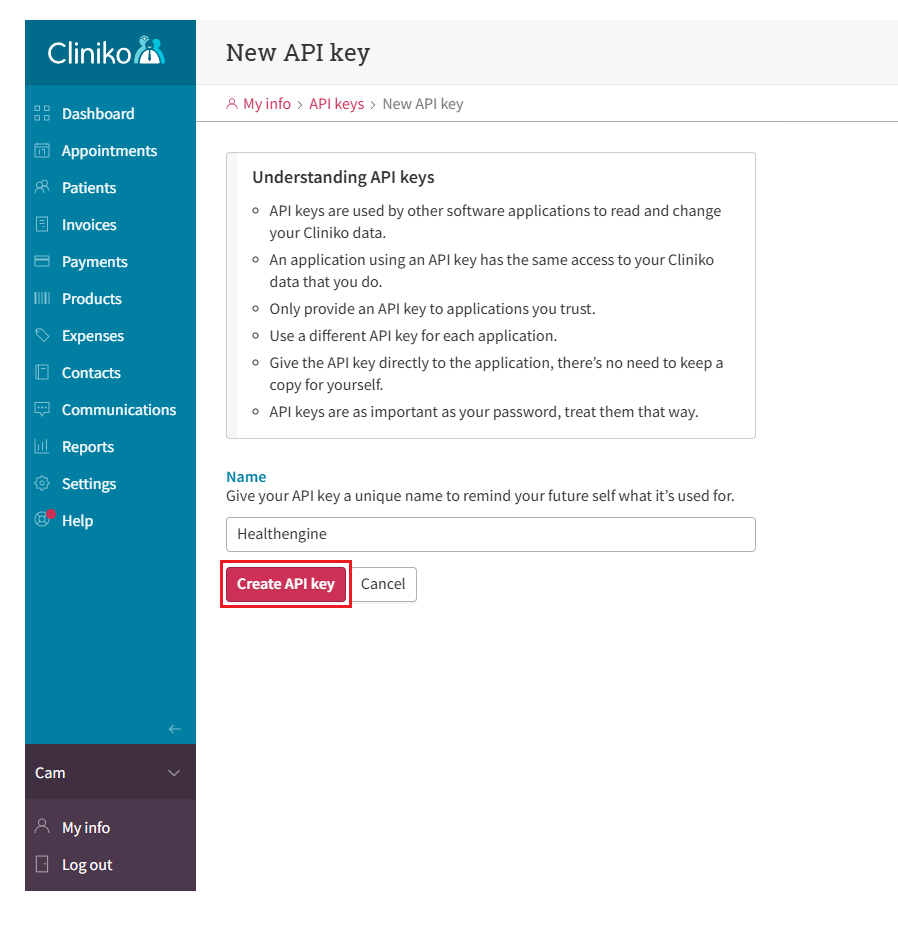
Then, enter a name such as Healthengine or something similar and click Create API key
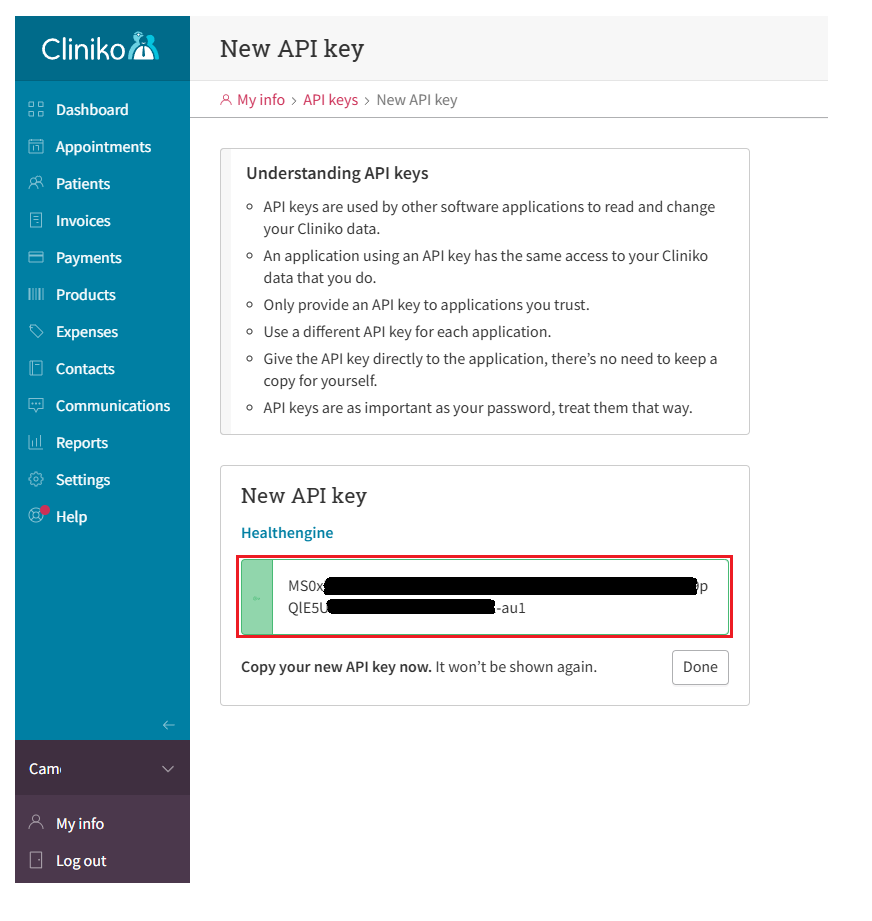
Next, copy the API key provided to the clipboard or leave the window open, as once you have clicked Done, it will no longer be available.
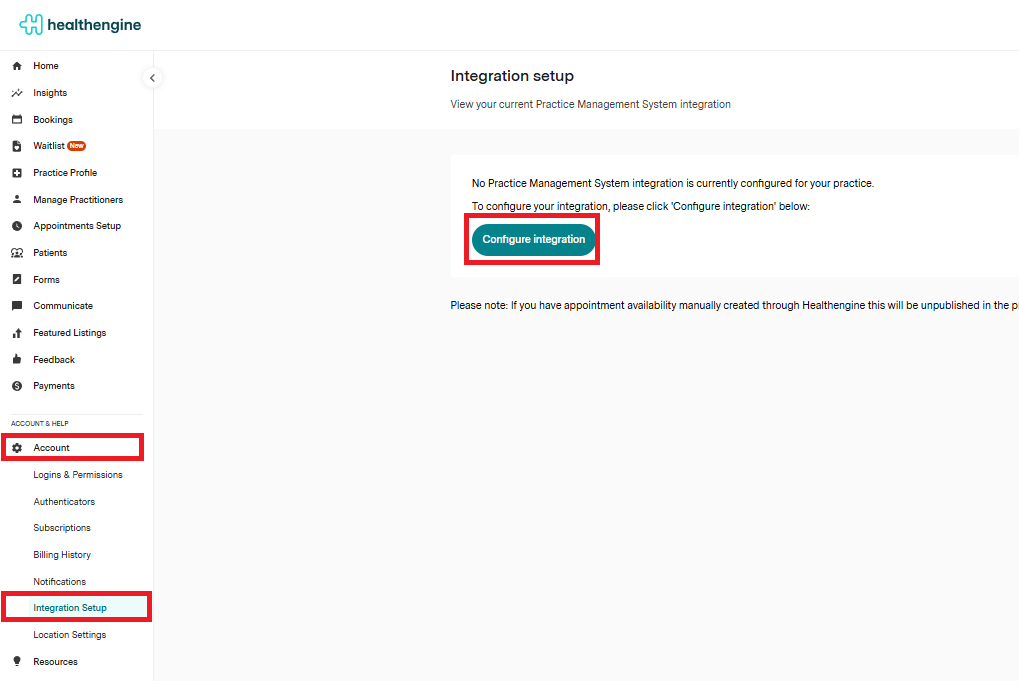
Now that you have your API key, you will need to log in to Practice Admin and browse to Account and then Integration Setup Account > Integration Setup and click on Configure Integration
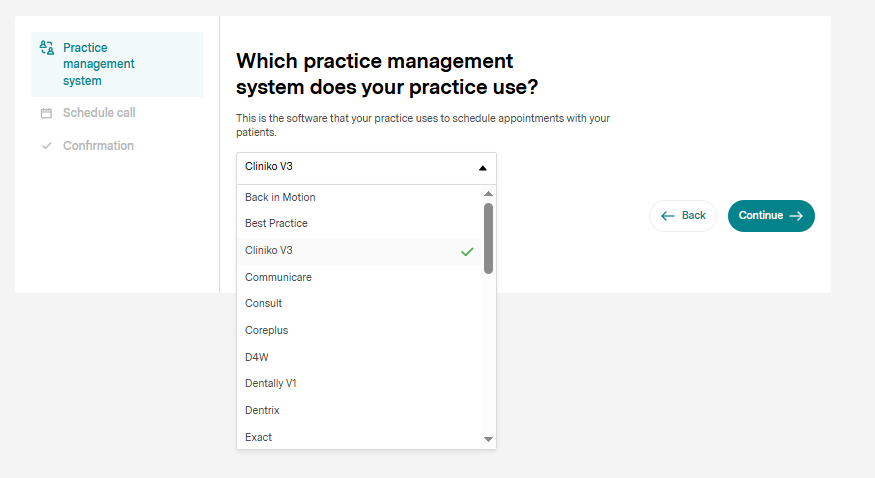
Then Click on Let's Go and select Cliniko V3 from the list and hit continue
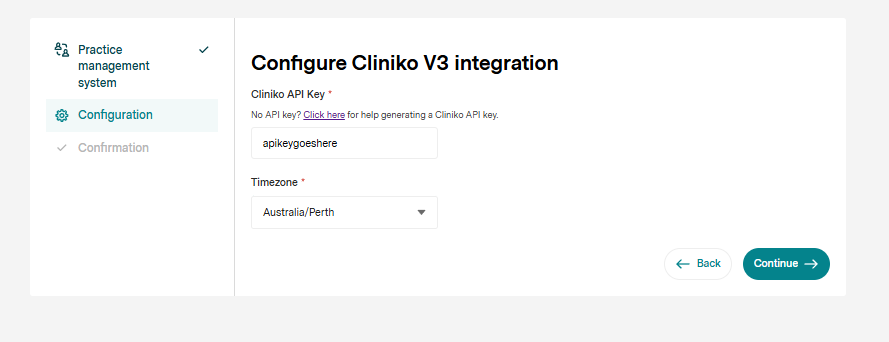
And paste the API key you obtained earlier from Cliniko into the first box, select your Timezone and click Save.
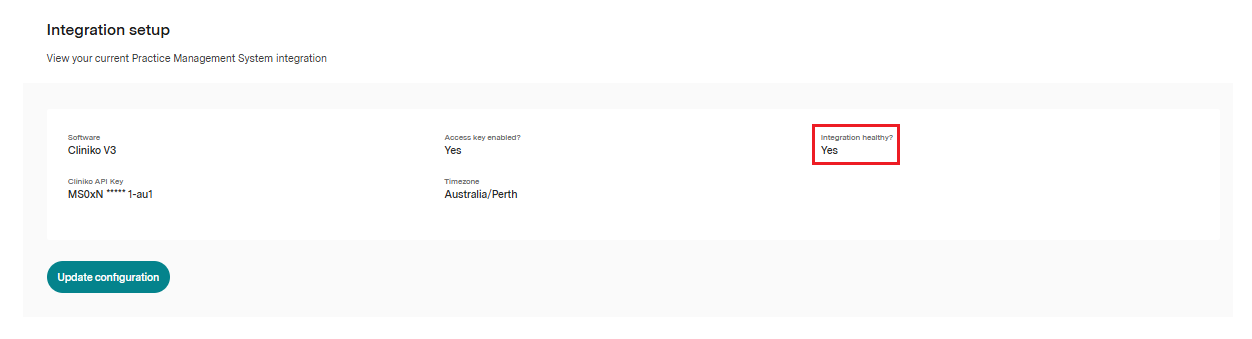
Congratulations, you have now added an API key from Cliniko to your Healthengine profile. You can confirm this is up and running by refreshing the Integration Setup page after a few moments, and you should see Integration Healthy? show as Yes.
Configuration and Troubleshooting within Cliniko
The following troubleshooting steps and settings must be configured for the integration to read your availability.
Please see below the Cliniko settings required:
Availability not Publishing
All Availability Missing?
- Go to Settings > Business Information > Edit business information > Online Bookings
- Ensure the checkbox 'Display this business in online bookings' is ticked
- Confirm you have a postcode listed in this section
- Go to Settings > Appointments > Online Bookings
- Ensure 'Turn on Online Bookings' is switched on.
Specific Practitioner Missing?
Step 1: Check Practitioner Settings
- In Cliniko, go to Settings > Our clinic > Users & practitioners
- Select the practitioner with missing availability
- Verify the following:
- Default appointment type must be set (cannot be N/A)
- The default should be their shortest appointment type
- Show this practitioner in online bookings is ticked
- The timezone is correct
Step 2: Check Appointment Type Settings
- Go to Settings > Appointment types
- Select the practitioner's default appointment type
- Ensure 'Show in online bookings' is ticked
- Confirm the practitioner is ticked to deliver this appointment type
Please note: All your practitioners' appointment types on Healthengine should be the length of your default appointment type or longer.
Only Showing Limited Availability for a Practitioner?
If only a few time slots are showing instead of your full schedule:
- Go to Settings > Appointments > Online Bookings
- Change 'Max appointments per day segment' to unlimited
Note: If this is set to a number like 3, it will only display three slots per day (one at the start, middle, and end of the day).
Appointments Inserting Incorrectly
If patient bookings are being inserted as the wrong appointment type:
Check Appointment Type Configuration:
- In Cliniko, go to Settings > Appointments > Appointment types
- For every appointment type your practitioners use, verify:
- The practitioner is ticked to deliver that appointment type
- 'Show in online bookings' is ticked
- The maximum number of patients is set to 1
- Click Update appointment type to save