Vertical: Dental
PMS Eligible: Coreplus
Healthengine's integration with CorePlus offers a seamless connection via API. This means no additional software installation is required, and there's no need to access server computers, minimising hardware or server-related issues.
Once set up, the integration will automatically publish your practice’s availability based on your system’s online booking setup and insert booked appointments directly into your practice diary, simplifying your booking process and saving time for your administrative team!
Benefits of the Integration for Your Practice
- We connect to your CorePlus software via API, meaning we do not require access to any server computers, and there is no software to install. This eliminates issues that can arise from hardware or server connections.
- The integration will automatically read and publish your availability and insert booked appointments into your Coreplus diary.
Integration Publishing Limit
The default that your integration will publish is 30 days.
The maximum number of days the integration can publish in advance is 180 days.
Please reach out to our support team using the contact details at the bottom of this article to extend the publishing days.
Integration Setup
How to create a new API key
To create a new API key, go to Setup > Add-ons> Healthengine.
There should be an Access Token there; if not, there should be a button to generate one. Check the expiry date is valid; if not, you can click the button to generate a new one.
Copy the Access Token and send this to Healthengine's Support Team so that we can link your Healthengine profile back to your Coreplus!
Is the Practitioner Enabled to Publish Online?
If you have added a new practitioner since first being set up, it may be that that practitioner hasn't been enabled to publish online. In CorePlus, go to Setup > Settings > Practice Profile > User Profile.
Use the drop-down box to select each practitioner who wants to publish appointments on Healthengine, and make sure the 'Publish' checkbox is checked. You need to click save for each one.
Please note: It's also important that the practitioner has their specialty checkbox ticked under specialties.
Is the Practitioners' Schedule Enabled to Publish on Healthengine?
The other setting you want to look at is in the practitioner's CorePlus schedule.
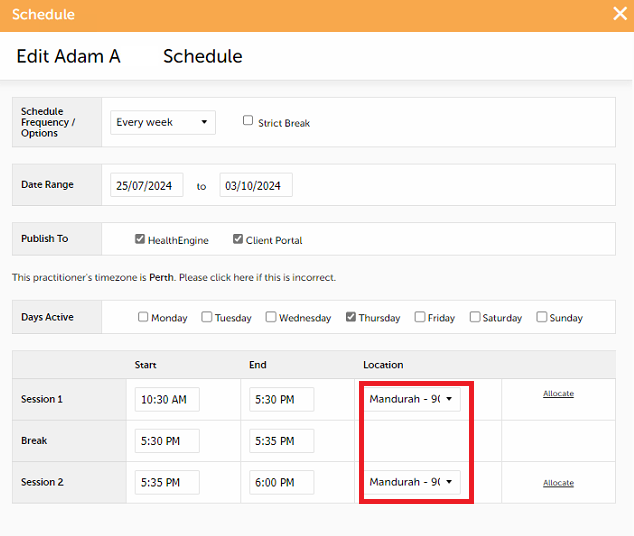
Go to Calendar > Availability Schedule (left column) > View Schedule. For every schedule that each practitioner has, make sure the Publish to > 'Healthengine' checkbox is ticked if they want it to be published.
In order to edit an existing schedule, your calendar must be in Day View, not Week View, and you must be on a date where the schedule is active.
Ensure the Practitioner is Assigned to the Location that is Enabled
In the schedule, it is also important that a location is selected for us to publish our availability. Each Coreplus location can only be linked to one Healthengine location, so ensure you are using the location currently configured for your integration.
Following the same steps as above, check what location this practitioner is set up for by looking under their schedule Calendar > Availability Schedule (left column) > View Schedule, and take note of what is listed under 'Location'.
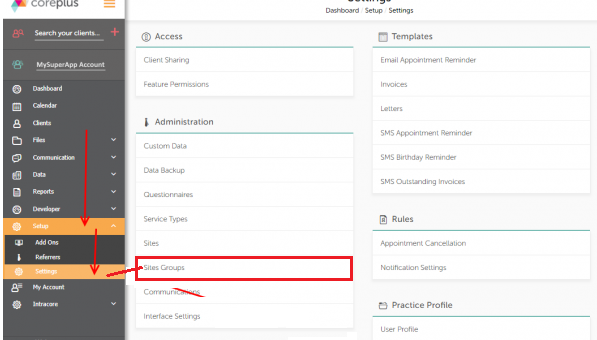
Then go into Setup > Settings > Site Groups
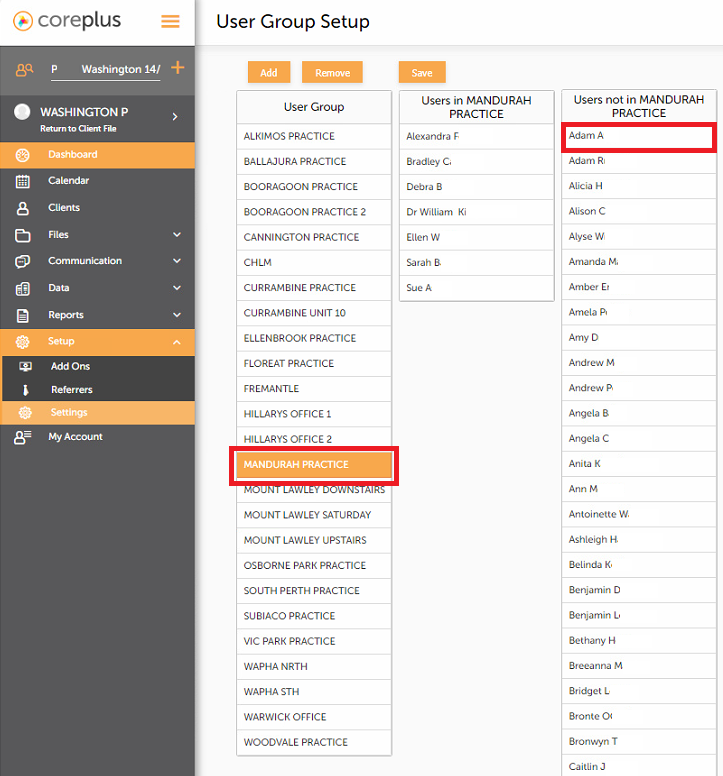
Click on the location you took note of above and check that the user you looked up is in there. The example below shows when this is not set up correctly. To amend, simply drag and drop the practitioner across and hit save.