
Vertical: Pharmacy
PMS Eligible: N/A
Following a recent update between Healthengine and MedAdvisor, we are now able to integrate your Healthengine Custom Patient Forms into your MedAdvisor system & bookings.
Previously, forms were required to be downloaded from your Practice Admin portal and then manually attached to a booking or patient file in MedAdvisor.
With the changes made, you will now see that for any bookings made through Healthengine that have a completed Custom Form attached, the form will automatically attach to the booking as a PDF.
This enhancement streamlines workflows and ensures smoother access to patient information across platforms.
Locating a Custom Form in MedAdvisor
To locate a completed Custom Form within MedAdvisor, navigate to Bookings, and then 'Booked Services'
Please Note: 'Booked Services' will be preselected when you click here.
Once you are on the 'Booked Services' page, under the column titled 'Other info', if a patient has submitted a Custom Form, you will see a link for 'Extra details'.
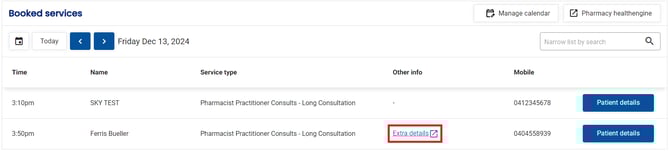
Please Note: Clicking on this will download/open the attached Custom Form PDF.
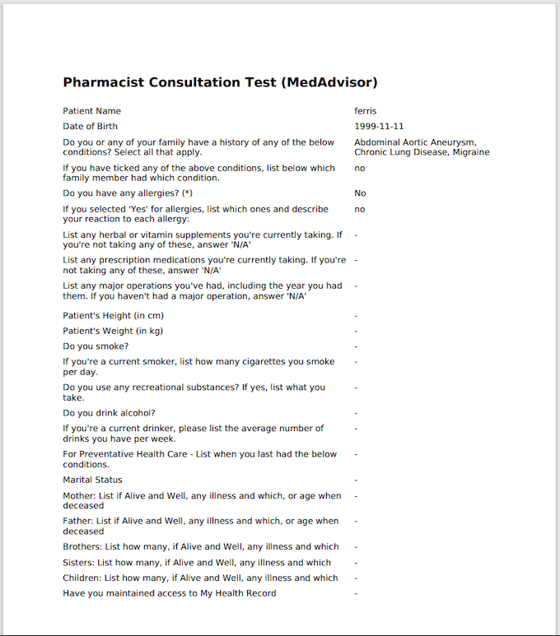
The form will appear as below, containing the corresponding details from the patient:
Locating a Custom Form in Healthengine's Practice Admin
There are two places you can find your submitted Custom Forms from your Healthengine portal:
- In your 'Bookings' tab, attached to a patient booking, and
- In the 'Submitted Forms' tab under Forms -> Custom Forms.
Please Note: All forms will be stored on Healthengine for 14 days from submission, and following this will be automatically deleted. They will remain in your MedAdvisor system, though.
Bookings Tab
If attempting to locate a form from your Bookings tab, find the patient whose form you wish to download and click into their booking details.
Please Note: All bookings with a form attached will be displayed with a yellow 'form' icon
Once the details of the booking have popped up, navigate to the 'Forms' tab, where you will be able to download the completed form. If it has not yet been submitted, you will be notified as such.

Submitted Forms
All submitted Custom Forms can be located under Forms -> Custom Forms -> Submitted Forms.
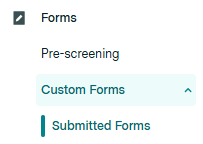
On this page, you can filter the date range and the form you are searching for (if you have multiple). It will also show you the download status of the form.
Please Note: As mentioned above, all forms will be stored on Healthengine for 14 days from submission, and following this will be automatically deleted. They will remain in your MedAdvisor system, though.
Creating a Custom Form
It is important to remember that Custom Forms cannot be created at a store level - they will be created by your Head Office. If you have any special requests or requirements, please reach out to them to accommodate these.