This article explains how to export a phone list from a recall batch in D4W as a CSV file. Use these steps to generate the export and save the patient data for follow-up or reporting.
D4W (Dental4Windows)
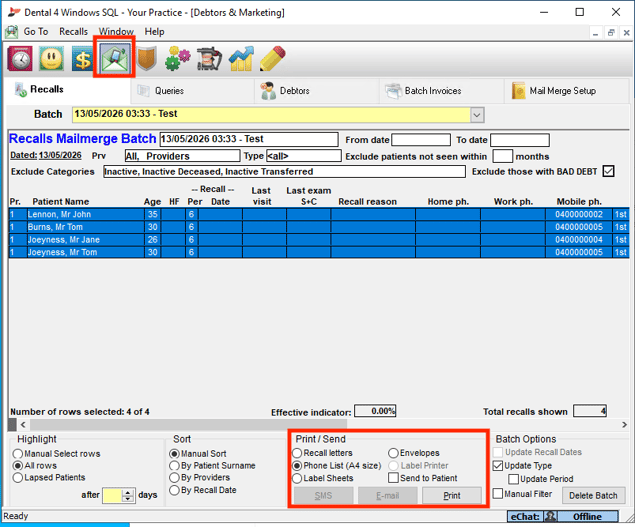
- Step 1: Create a recall batch under the Debtors and Marketing screen.
- Step 2: Under Print / Send, select Phone List (A4 size), then select Print.
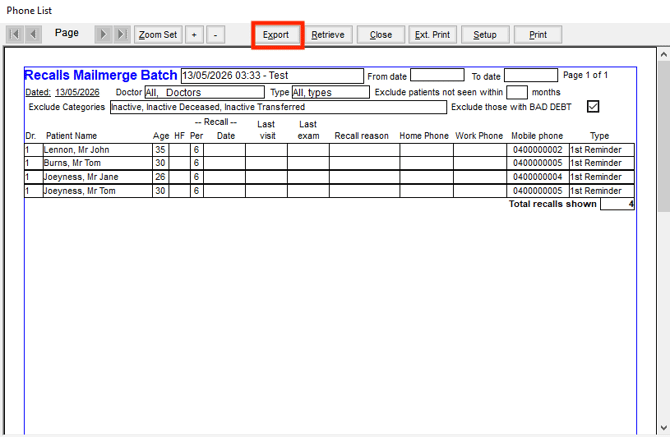
- Step 3: Select Export.
- Note: Although this screen doesn’t show all the fields available, the export will contain everything available for that patient.
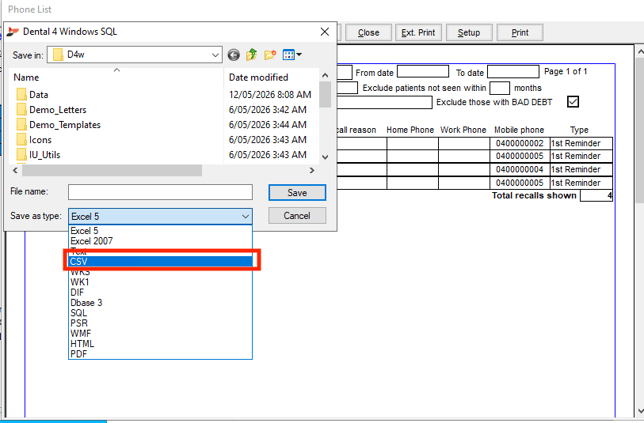
- Step 4: Set File type to CSV, then click Save.