
Vertical: Dental
PMS Eligible: Dental4Windows ( D4W)
Healthengine's Dental4Windows integration syncs with your Centaur e-Appointments, allowing you to manage appointments efficiently and display availability online.
If you're not set up for e-Appointments with Centaur, you’ll need to use one of our non-integrated solutions, which you can read more about here.
For practices using e-Appointments, below you'll find a complete overview of the integration and its benefits.
Please note: Online cancellations are not supported. Patients will need to contact your practice to cancel or reschedule appointments. You can manually remove the cancelled appointment from the D4W diary to make it available for another patient.
Benefits of the Integration for Your Practice?
We connect to Centaur e-Appointments via an API, which means no software installation is required, and it operates independently of server computers. This removes hardware issues that might affect other systems.
- Time-saving: Automatically publish available appointments across the Healthengine Network, removing the need for manual publishing and reducing front-desk workload.
- More patients: With more patients searching for dentists online, this integration ensures your practice is visible and easily accessible.
- Peace of mind: Both Centaur and Healthengine provide seamless support to resolve any issues.
- Superior security: Enhanced protection against malicious attacks and malware to keep your practice safe.
Integration Publishing Limit
The default that your integration will publish is 30 days.
The maximum number of days the integration can publish in advance is 90 days.
Please reach out to our support team using the contact details at the bottom of this article to extend the publishing days.
How to set up one of the three types of availability?
You can adjust what availability is shown online directly from Dental4Windows. There are three options:
-
- Free time only: Only blank slots in your appointment diary are available for online booking.
- Preset slots only: You manually create slots to publish online.
- Both free and preset slots: A combination of both options.

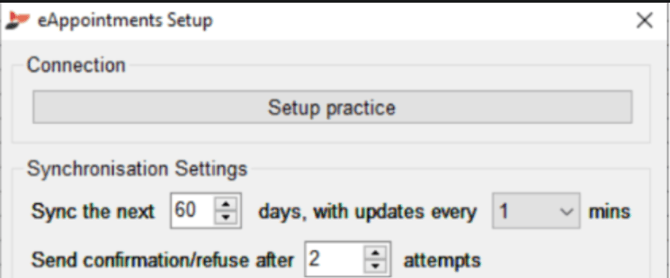
Decide how far in advance you want to publish availability (up to 90 days), and set the communication interval between the systems to 1 minute for optimal performance.
Set Up and Troubleshooting - New Practitioners and Appointment Types
STEP 1: Dental 4 Windows
Ensure the practitioners are enabled to sync for e-Appointments in D4W under Options -> Setup e-Appointments.
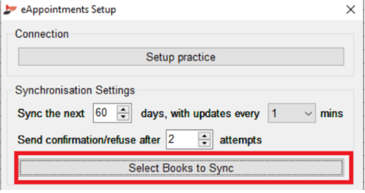
Click on "Select Books to Sync" and tick the Practitioners that should be publishing online:
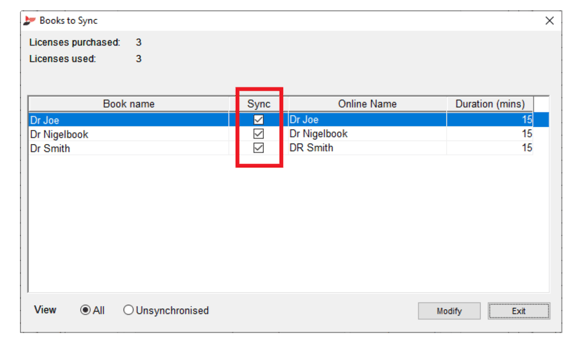
The number in duration will be the number used as a base for your appointments. The number can be modified just by clicking on it.
Example: 15 minutes will allow you to create appointment reasons in multiples of 15 minutes (15-30-45, etc)
Licenses purchased and used refer to the number of practitioners allowed by your plan with Centaur.
Please note: You may need to contact Centaur for additional licences if yours are all in use.
STEP 2: Log in to your Centaur Portal.
IMPORTANT: This step can only be done via your Centaur Portal, using your login details. If you don't know the logins or the URL of your Centaur portal, please reach out to Dental 4 Windows.
Once logged in, Select Service Management -> Eappointment Management-> Provider Reason List.
Allocate the e-Appointment types to each practitioner and set the required length for each type:
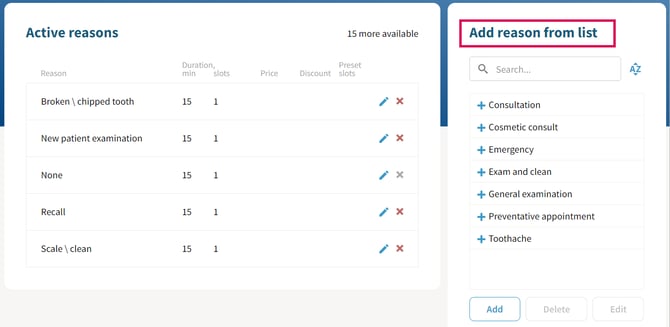
STEP 3: Log in to the Healthengine Practice Admin Portal
In your Healthengine Practice Admin Portal, click on Manage Practitioner-> Edit appointment types.
Connect the doctor to his book through the button edit appointment book.
Click on the button "Refresh appointment types":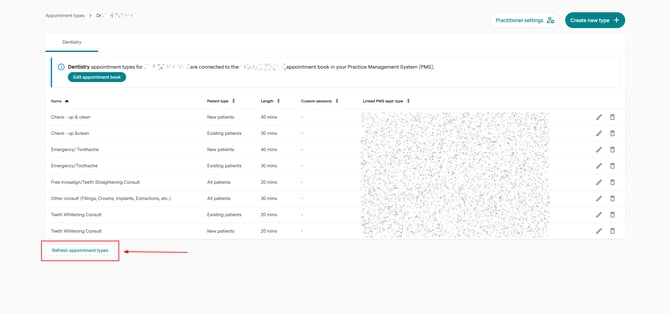
Once the page refreshes, select "Create new type"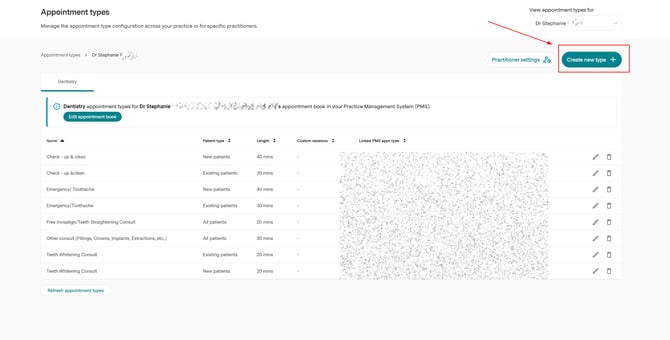
IMPORTANT: The link PMS is the reason you have created for the specific practitioner in your Centaur portal, and you must use the one under their name only. Also, the length must be set up the same as the one contained in the link PMS.
Here is an example for a checkup and clean:
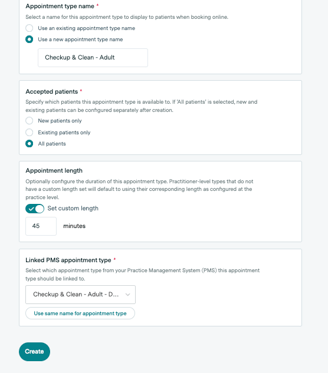
If new appointment types are missing, refresh the appointment types in Healthengine
In your Healthengine Practice Admin Portal, click on Manage Practitioner-> Edit appointment types.
Click on the button "Refresh appointment types".
Troubleshooting
Preset Slots Not Showing or Reducing Bookings
Ensure preset slots are ticked for online display, and work time is set to "yes." If you aren’t getting enough bookings, consider switching to publishing free time instead of preset slots. Free time publishing increases availability without manual intervention, reducing administrative effort and increasing booking opportunities.
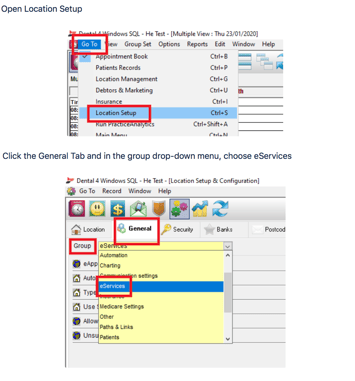
To make this change, in Dental4Windows, go to: Go To -> Location Setup -> General -> eServices:
Once you are in the eServices menu, select 'Types of slots for the sync', and you will see the option for Free time:
Availability Issues
If the availability displayed on Healthengine is incorrect, first check how it's displayed on your own Centaur portal booking website using Dental4Windows' e-Appointments system.
If you don't know the link, please reach out to Centaur so they can provide you with the link.
If the issue is consistent across both platforms, contact Dental4Windows for support. If only Healthengine shows incorrect availability, contact the Healthengine Support Team.
Missing bookings
If you receive an email from us advising that a booking failed to insert, you should be able to find the details of the booking in Eappointments and then select Appointment Conflicts in the submenu, as shown in the picture: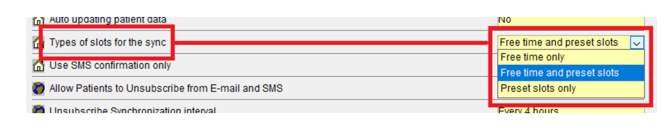
Optimisation Tips
- Limit appointment types to around 6 per practitioner to avoid overwhelming patients with too many choices.
- If you change the length of the appointments in your Centaur Portal, make sure to update that on Healthengine.
- Use free time publishing to minimise manual work and ensure maximum availability for patients.
- Add a cancellation policy to your booking form to inform patients about cancellation procedures.
- Regularly talk to your patients about their booking experience to identify any confusing language or additional appointment types that may be beneficial.
By following these steps, you’ll be able to manage your appointments efficiently and enhance your practice's visibility and patient satisfaction.