
Vertical: Dental
PMS Eligible: Dentally
Healthengine's Dentally integration syncs with your Dentally online availability, allowing you to manage appointments efficiently and display availability online.
For practices using the Dentally software, below you'll find a complete overview of the integration and its benefits.
Benefits of the Integration for Your Practice
- We connect to your Dentally software via API, meaning we do not require access to any server computers, and there is no software to install. This eliminates issues that can arise from hardware or server connections.
- The integration will automatically read and publish your availability and insert booked appointments into your Dentally diary.
- Allows online cancellations/reschedules, saving your team time taking phone calls from patients.
Integration Publishing Limit
The default that your integration will publish is 30 days.
The maximum number of days the integration can publish in advance is 90 days.
However, we can extend this limit, often up to 90 days, particularly for practices with fewer practitioners. If you’d like this extended, please contact us.
How to set up the integration?
Dentally Requirements
Our connection to your Dentally software is established via an API key. The connection is completed during your setup call, following these steps:
Log in to the Dentally dashboard and click ‘Settings’. Navigate to the ‘Developer’ tab.
Please Note: If your practice operates multiple locations or has multiple Healthengine profiles/practice IDs, each location must be set up as a separate entity in Dentally.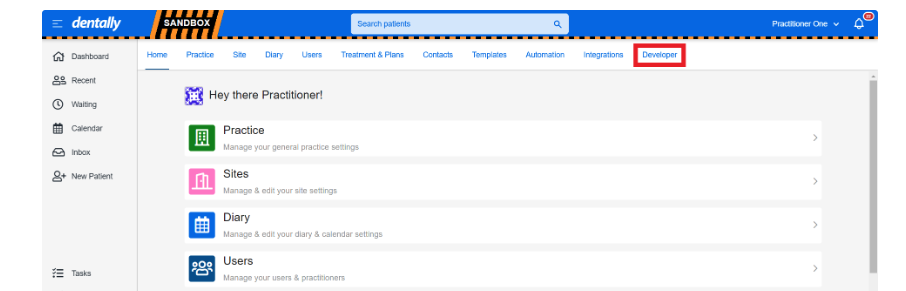
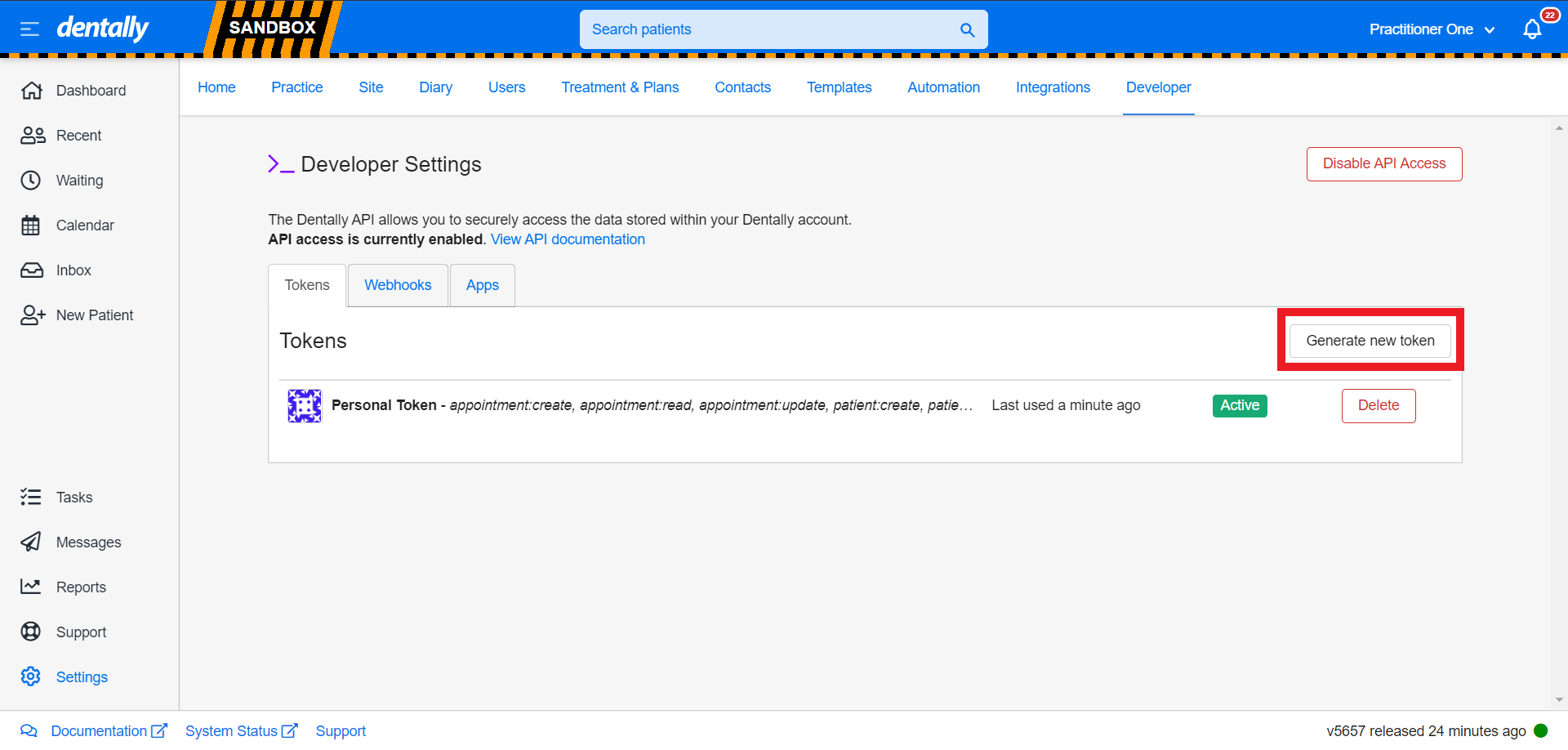
Click ‘Generate new token’ to create your API token.
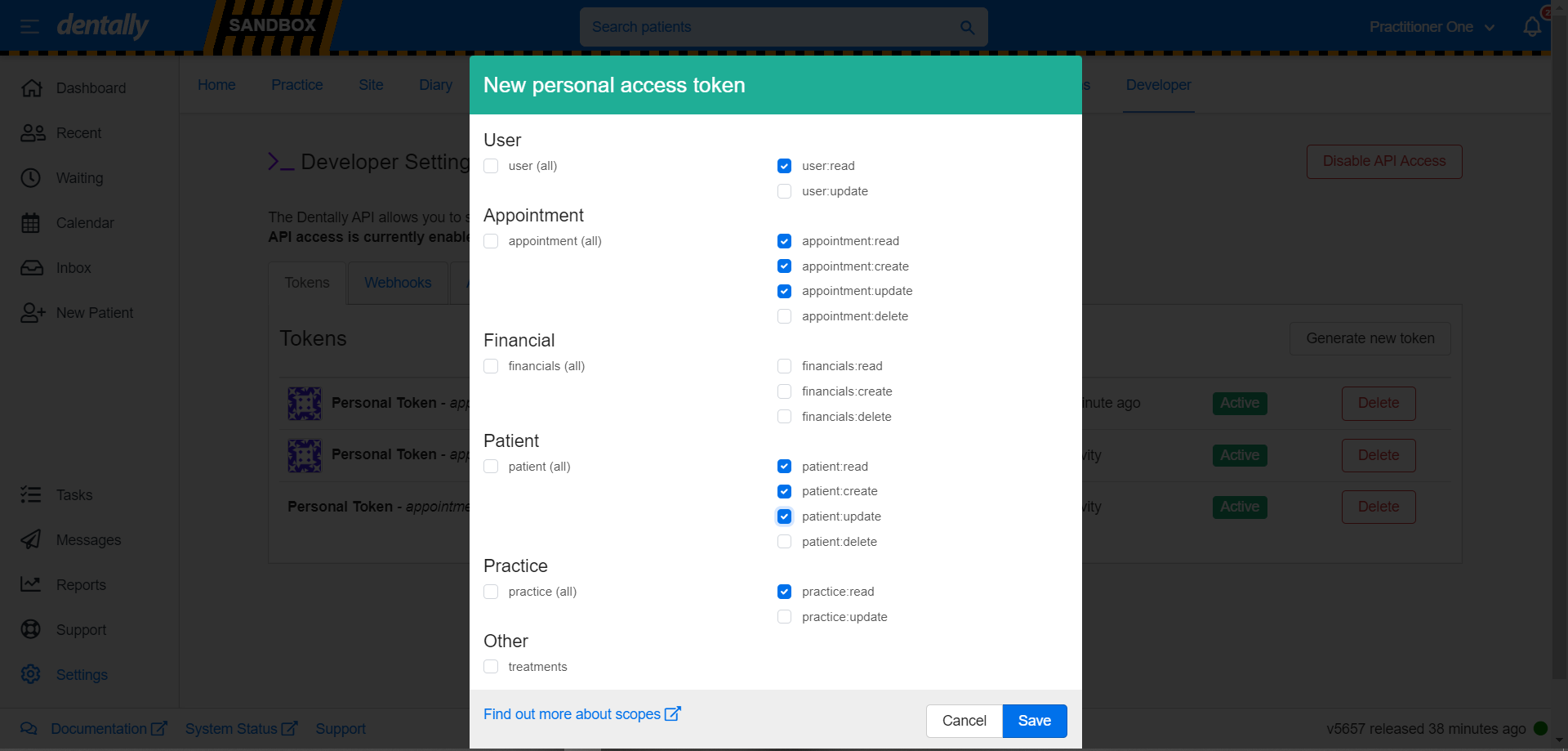
Update the permissions on the token. Although the minimum permissions are displayed, it’s easier to select ‘all’ for future-proofing functionality
Make sure to copy the token before refreshing the page, as the token will no longer be visible after that. The token will be added to your Healthengine listing in the back end during setup.
Payment Plan Setup
Next, we need to retrieve a default payment plan name to use when creating new patients.
From the Settings dashboard, click the ‘Treatment & Plans’ tab.
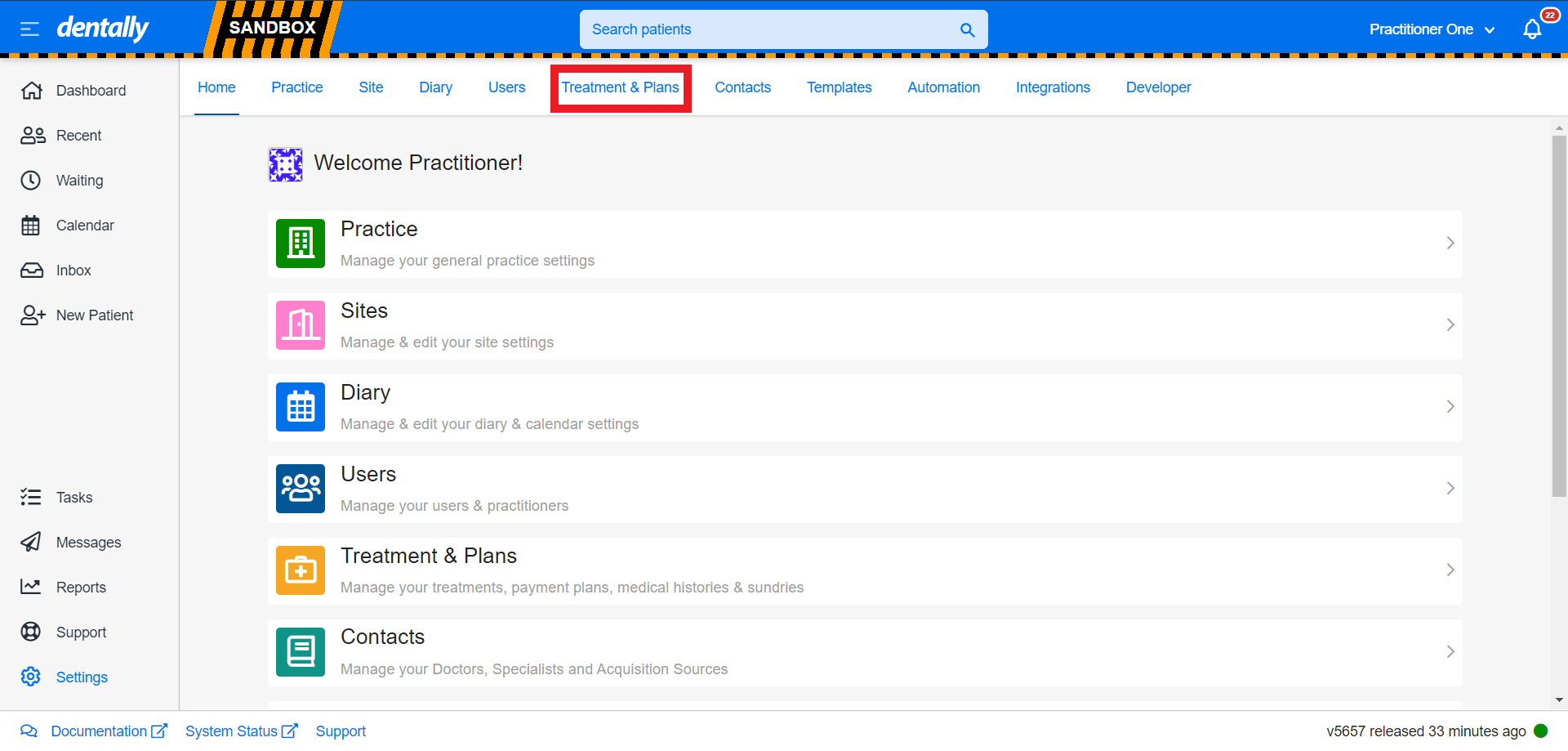
Navigate to the ‘Payment Plans’ tab.
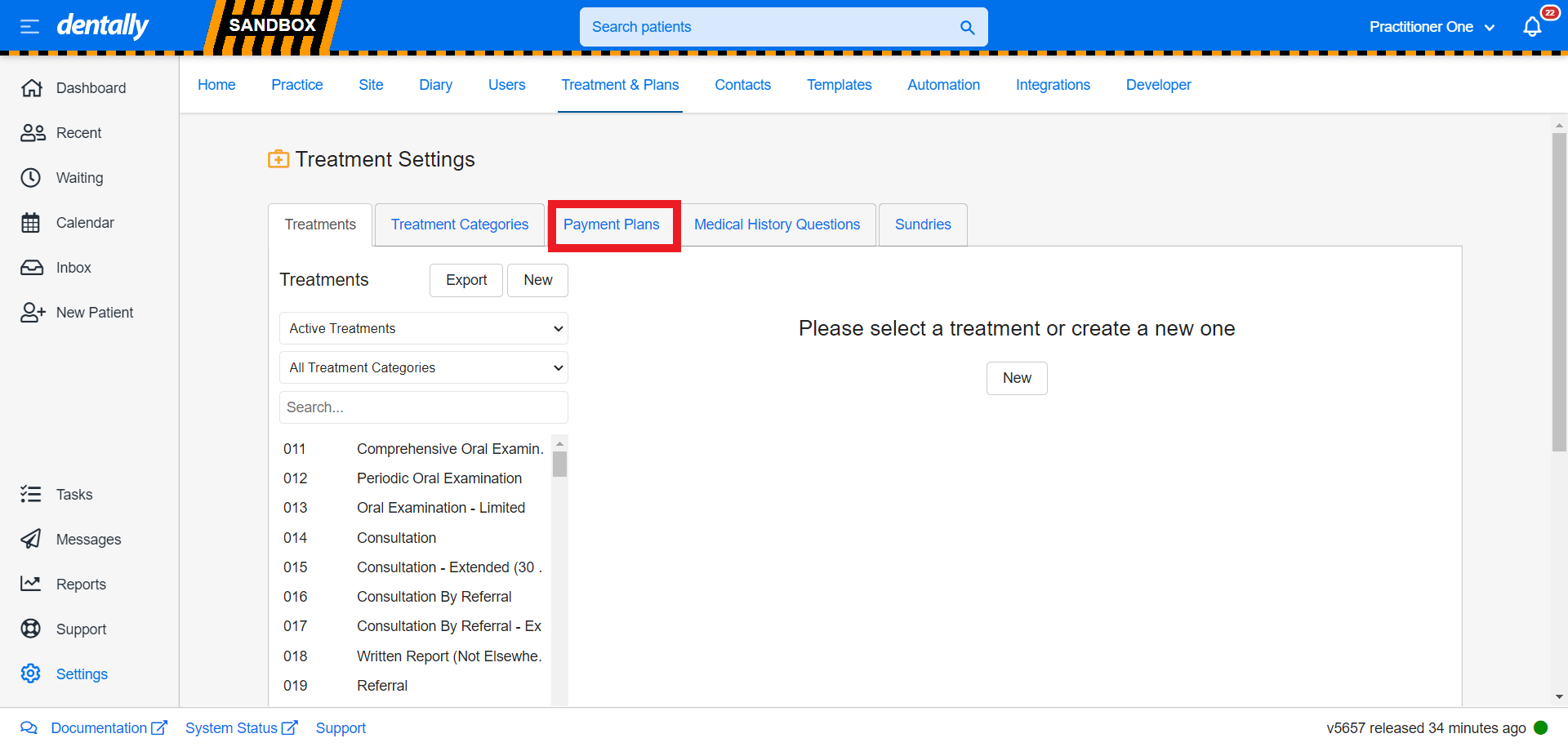
Copy the exact name of your desired payment plan - it is usually labelled as 'Private'.
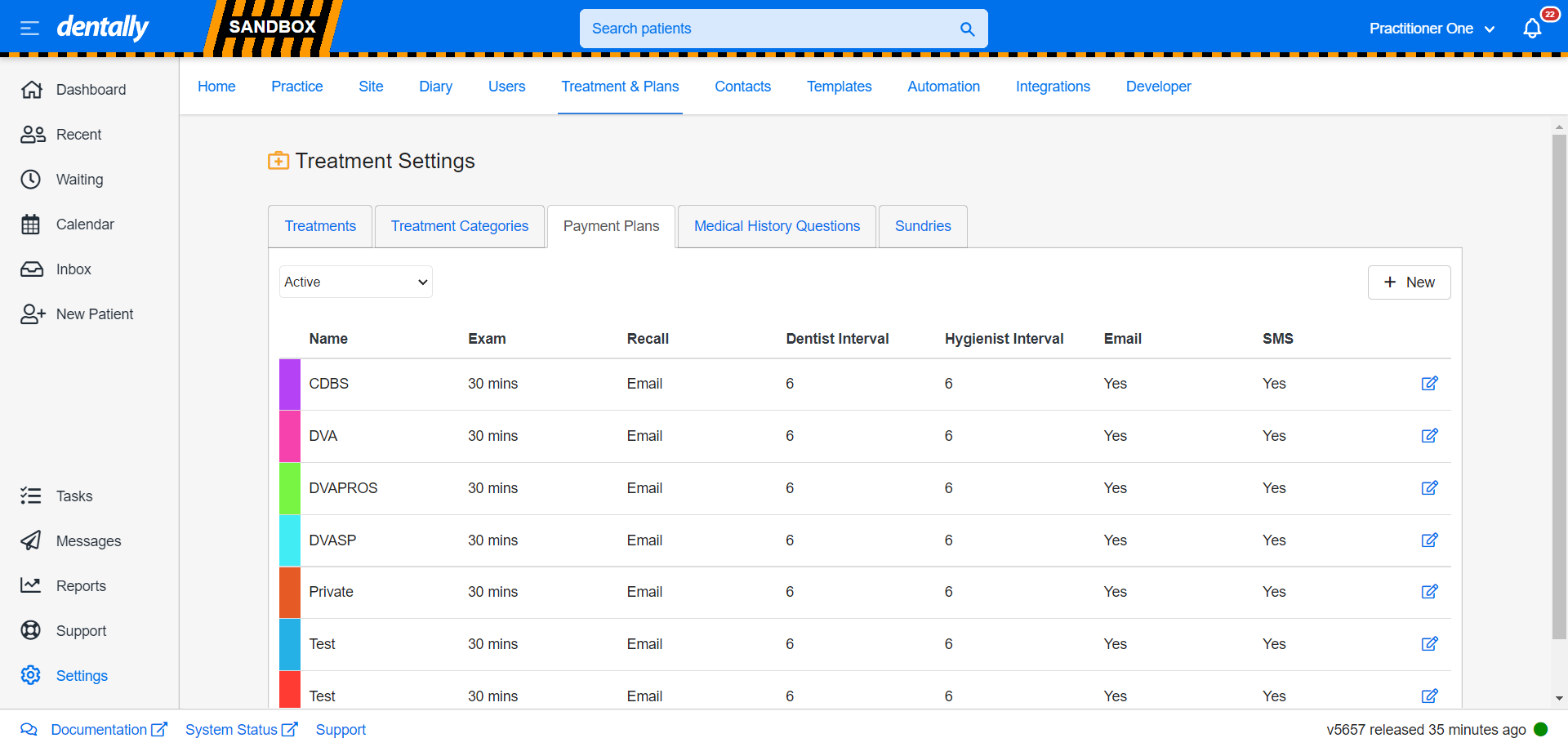
This payment plan is used when creating patients in Dentally through Healthengine. If we cannot match a patient to an existing plan, this default plan is applied.
Linking to Healthengine
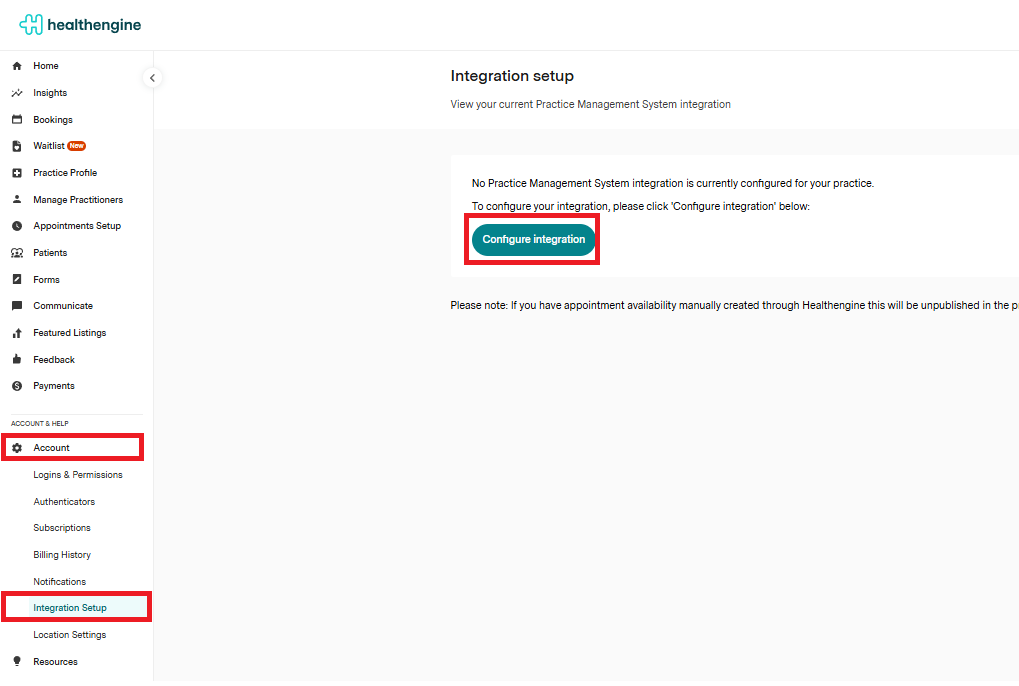
Now that you have your API key, you will need to log in to Practice Admin and browse to Account and then Integration Setup Account > Integration Setup and click on Configure Integration
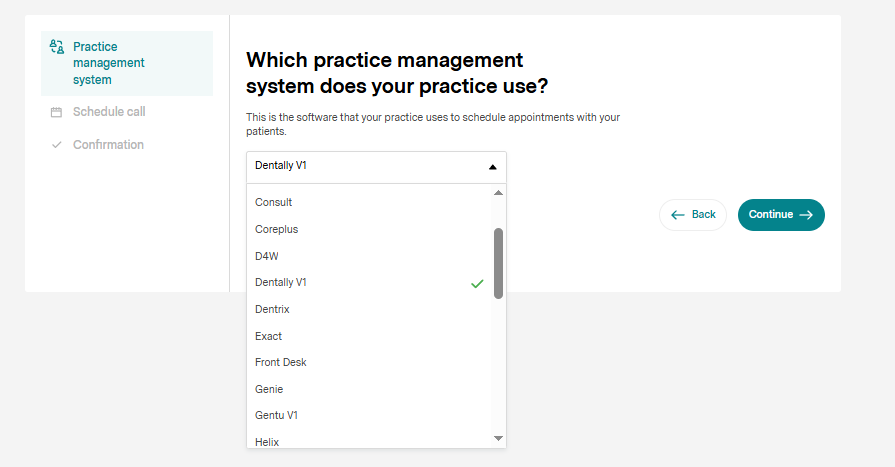
Then click on Let's Go and select Dentally V1 from the list and hit continue
And paste the API key you obtained earlier from Dentally into the first box and select your Timezone and the payment plan you wish new patients to be created with, such as Private and click Continue.
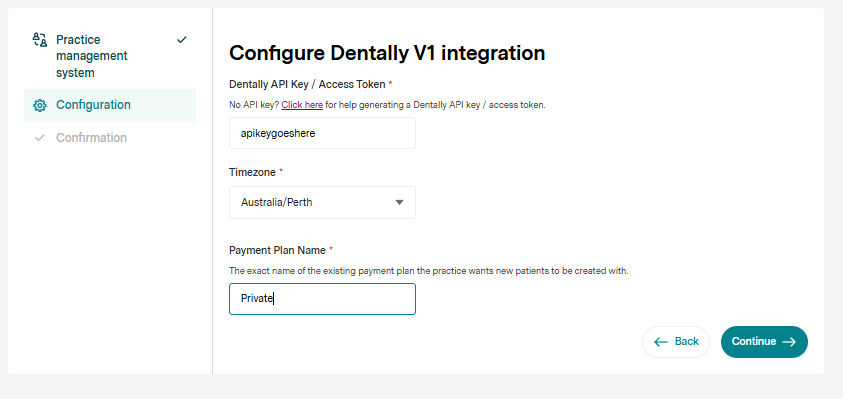
Congratulations, you have now added an API key from Dentally to your Healthengine profile. You can confirm this is up and running by refreshing the Integration Setup page after a few moments, and you should see" Integration Healthy? show as Yes".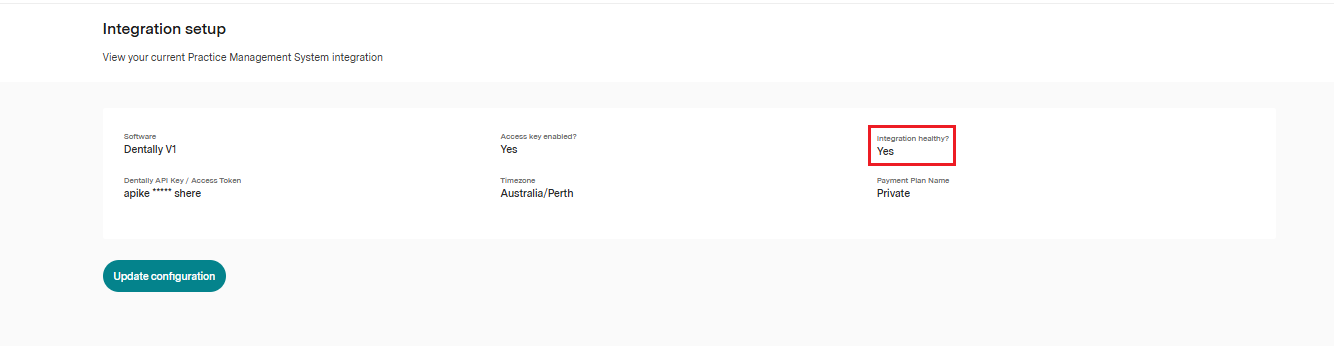
For more information on how to get the Dentally API, their help page can be found here.
After this, you’ll be able to link appointment books and begin publishing availability within the next 14 days.
-
Appointment Details: The patient’s chosen appointment type will be entered into the ‘Reason’ free text field in the Dentally appointment with the prefix ‘HE - ’ to indicate it was booked via Healthengine. You also have the option to link Healthengine types to Dentally types using our Linked PMS Type feature.
Troubleshooting
Creating a new token for your Dentally API Key
- Please follow this guide to create a new token and update your configuration: https://support.healthengine.com.au/hc/en-us/articles/45864654201881-How-to-rotate-your-Dentally-API-Key
Availability Pull:
- Availability beyond 14 days will take about an hour after initial setup to pull through and publish online.
Timezone Matching:
- The integration sets a timezone that must match the timezone configured for your practice in Dentally. Dentally’s API returns a non-standard timezone, so ensure that the timezone in Dentally is correct to avoid mismatches with Healthengine's location-based timezone.
Session Appointments:
- We can enable the ability for Dentally session appointments (known as zones) to block availability from showing online. If you would like to enable this feature, let us know. When enabled, any session appointments that overlap with regular appointment times will block that availability from being shown online. For more details, please refer to Dentally's article, How to Use Zones in Your Calendar.
Appointment Slot Length:
-
Your appointment books will pull through at a default length (e.g., 10 or 15 minutes), matching your Dentally setup.
If you need to update the time intervals shown online, click on Manage Practitioners-> edit appointment types-> Edit appointment book-> and select the right intervals.