
Vertical: Dental
PMS Eligible: Dentrix
How to link your appointment types and set the correct length
You can link your appointment types in your Practice Admin portal under Appointments Setup -> Appointment types. If you have a Healthengine appointment type created that is not linked to a Dentrix Ascend appointment reason, then the booking cannot be completed.
Below is what it looks like if appointment types are linked:
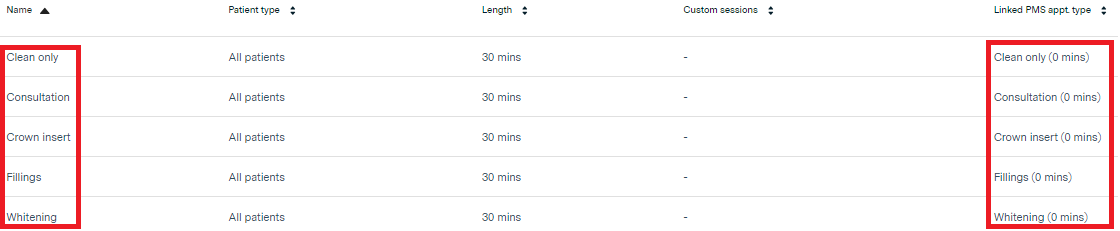
You also need to ensure that the appointment type length in Healthengine matches the length of the appointment reason in Dentrix Ascend. Please ensure each of your practitioners' appointment types is linked, and the lengths match those that are set up in your appointment reasons.
In Dentrix Ascend, the appointment reasons are found under Settings -> Scheduling Template -> Appointment Reasons. The reasons and lengths are set for all practitioners.
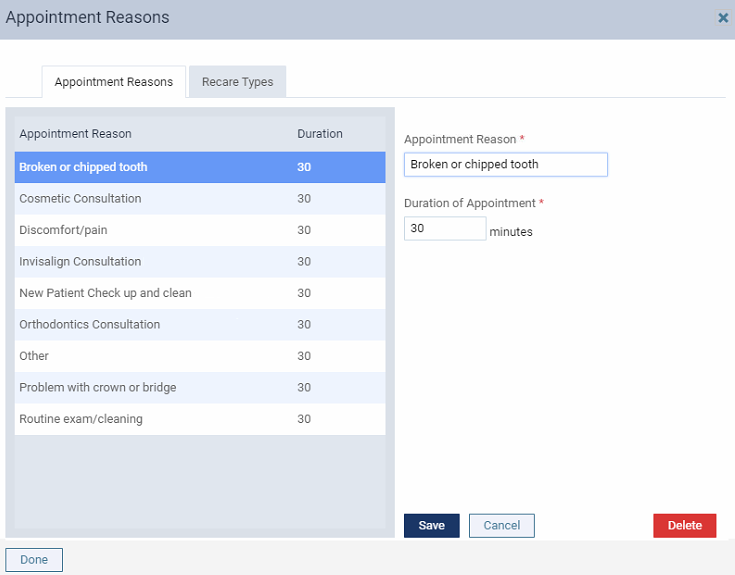
My Dentrix Ascend appointment reasons are not showing up in the Linked PMS Appointment drop-down.
If you don’t see your booking reasons in the Linked PMS Appointment dropdown list, use the ‘Refresh Appointment Types’ button in the Appointment Types page for each practitioner in your Healthengine portal. This will refresh your list of linked appointment types from Dentrix Ascend.

My Patient said they cancelled their appointment, but it is still in my appointment book?
Our integration with Dentrix Ascend does not allow online cancellations through Healthengine. If a patient tries to cancel their appointment through their booking confirmation, they will be directed to call the practice and cancel over the phone.
When they call, you must manually remove the appointment from your appointment book; this will redisplay the time online for someone else to book. In Dentrix Ascend, you can do this by marking it as Broken or Failed to Attend. That way, you can look back on these appointments if needed. To mark an appointment as Broken, you click into the status and change it from 'Unconfirmed' to 'Broken'.
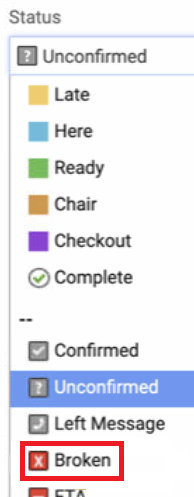
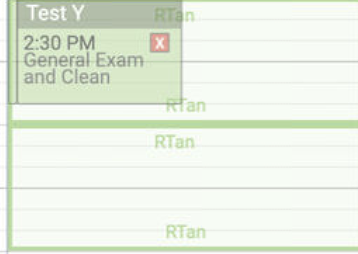
When appointments have been marked as Broken in Dentrix Ascend, they are removed from your diary, and the appointment is redisplayed on Healthengine for another patient to book. If you then change your view settings to 'Show missed appointments', you can see any Broken or FTA appointments in your diary.
Please note: These show slightly faded in the appointment diary.
How do I block availability showing on Healthengine in Dentrix Ascend?
In Dentrix Ascend, to block availability, you can add an appointment or 'Do Not Book' slot to the time slot you do not wish to publish on Healthengine. When doing so, you must ensure that you assign a practitioner to the slot, even a 'Do Not Book' slot, in order for it to block the availability on Healthengine.
Why have my appointments disappeared after I changed an appointment reason in Dentrix Ascend?
For your Dentrix Ascend integration, we may choose a default appointment type to pull through your appointment books, as you cannot rearrange the order of your appointment reasons in Dentrix Ascend. This would be the shortest length appointment you have, and one that is associated with all your practitioners, so that we can pick up their appointment books.
If you delete that particular appointment reason, it will then remove our connection to your appointment books. If this occurs, please contact our Support Team and let us know which appointment reason you removed from Dentrix so we can check if it is your default one, and if so, assign a different one as the default.
If your practitioners don't use the same appointment reasons, it may be worthwhile creating a 'Healthengine' appointment reason, setting the length to the same as your shortest appointment length, and letting us know so that we can use that for your default.
All my availability from Dentrix Ascend is not displaying online?
With Dentrix Ascend, you may find that only the appointments directly after a break are shown online. This is due to appointment stacking. There is currently no 'appointment stacking' checkbox you can click to overcome this, as there is in Exact.
It will typically mean the first available appointment of the day, and the one after your practitioner returns from their lunch break is the only one shown online. If you enter a new booking into your diary, the next appointment time after that one will then display, and so on. You can also manually enter breaks into your diary to display the appointment time after the break online.