
Vertical: Allied, Specialist
PMS Eligible: Front Desk
This article will go over the most common problems we see with Front Desk and how you can attempt to troubleshoot them.
Requirements and Benefits of the Integration of your Practice
Requirement:
Your Front Desk software integrates via our appointment connector software, which can only be installed on a Windows machine.
If your practice uses Macs, you will also need a Windows machine for us to install on in order to integrate with your Front Desk software. Please contact our support team if you need any further clarification on this.
Benefits:
Time-saving: The integration automatically reads and publishes your availability while inserting booked appointments directly into your Front Desk diary.
Online Cancellations: When a patient cancels through their Healthengine account or confirmation email, the booking will be removed from your Front Desk diary and marked as cancelled in Healthengine.
Integration Publishing Limit
The default that your integration will publish is 30 days
The maximum number of days the integration can publish in advance is 180 days.
Please reach out to our support team using the contact details at the bottom of this article to extend the publishing days.
Setting up Availability
If you notice any availability is missing, you may want to look at the rules that you have set up in your Front Desk software. For the Front Desk integration, we will only publish what is available within the scheduled rules in your Front Desk software. We'll run through this below.
First, click the system information icon:

Then, in the window that appears, click Appointment Book, and then rules on the side.
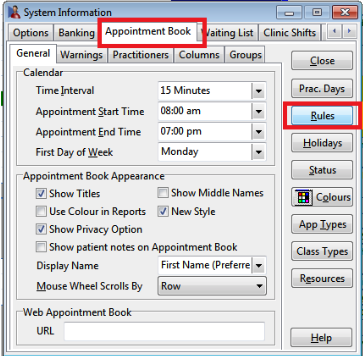
Ensure that you have a rule set up for the times you feel are missing from your availability.
Next to the rules, you will notice two checkboxes. If the app checkbox is ticked, this allows you to manually create appointments during these times directly into your Front Desk appointment book.
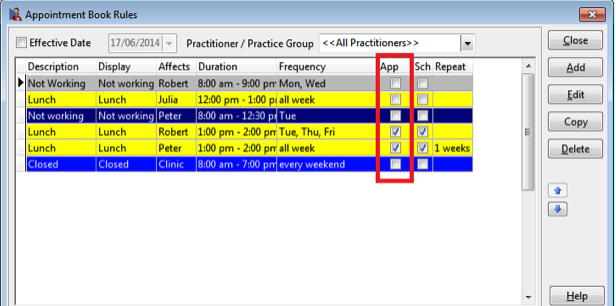
The 'Sch' checkbox is what will publish your online appointments onto Healthengine. Think of this as 'scheduled to be available online'.
Please note: For any 'Sch' checkboxes that are not ticked, it means that the practitioner is not available at that time. You can create rules with no checkboxes ticked for things like lunch breaks, meetings, out of office, or clinic closed times.
You can't check the boxes from the main rule viewing screen, so if you need to make any adjustments, click into the rule and then you can tick the boxes as shown in the image below.
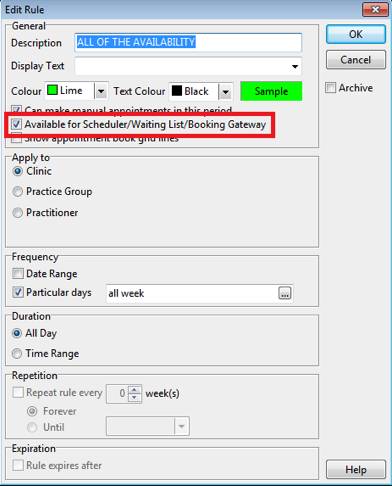
Please Note: If you have added a date range in your rule, but have also ticked 'repeat rule: Forever', this may cause issues which will result in the availability not being displayed. Ensure your rules make logical sense. It is also important to note that archived rules with this inconsistency will still affect your availability even though the rules have been archived. We advise deleting the rule rather than archiving it to ensure it does not affect your availability.
I Have Correctly Set the Rules for my Availability, but the times are not Showing Correctly
If you have rules set correctly but the availability is still not showing as you intended, the next thing to check is the order of the rules.
With Front Desk, the order of your rules will affect what availability is displayed.
For example, if you have a rule saying that you are not available from 1 pm-5 pm on weekdays, but a rule below that saying that the clinic is open from 9 am-5 pm on weekdays, your availability will show as 9 am-5 pm purely because of the order of those rules. If you reverse the order of the rules, your availability will show from 9-1.
Please Note: As this can become quite a complex puzzle of availability rule logic, we strongly advise that any rules that are no longer in use or out of date, to be deleted from your Front Desk rules to avoid confusion.
The more rules you have, the longer it will take to decipher what should be showing and what shouldn't, and it can be very difficult to keep on top of managing your availability correctly.
How Can I Use Multiple Columns With My Front Desk Integration?
If you are using multiple columns in your Front Desk appointment book, your rules should automatically apply to both columns unless you have specified a particular column in your rule.
By default, we block duplicate availability for a practitioner. We can add a piece of code to your configuration so that the time remains available until both columns are booked.
To request this be added, please contact our Support Team.