
Have you received an email saying your Genie connection has been lost? This usually means the Genie HTTP Server or the Healthengine Appointment Connector has stopped. Patients cannot book with you online until it is restored.
Please Note: Once the connection is back, check your Healthengine profile to confirm your appointments are showing.
Page Contents- Step 1: Check Your Computers
- Step 2: Check the Genie HTTP Server
- Step 3: Restart the Appointment Connector
- Step 4: Check Your Appointments Are Showing
- Contact Our Support Team
Step 1: Check Your Computers
Please check that both of these are turned on and connected to the internet:
- your Genie server
- the Windows computer where the Appointment Connector is installed
If your Genie server runs on Windows, these may be the same computer.
Please Note: If your practice has a new Genie server or Windows computer, please contact our Support team. We need to set up the Appointment Connector and approve the new computer.
Step 2: Check the Genie HTTP Server
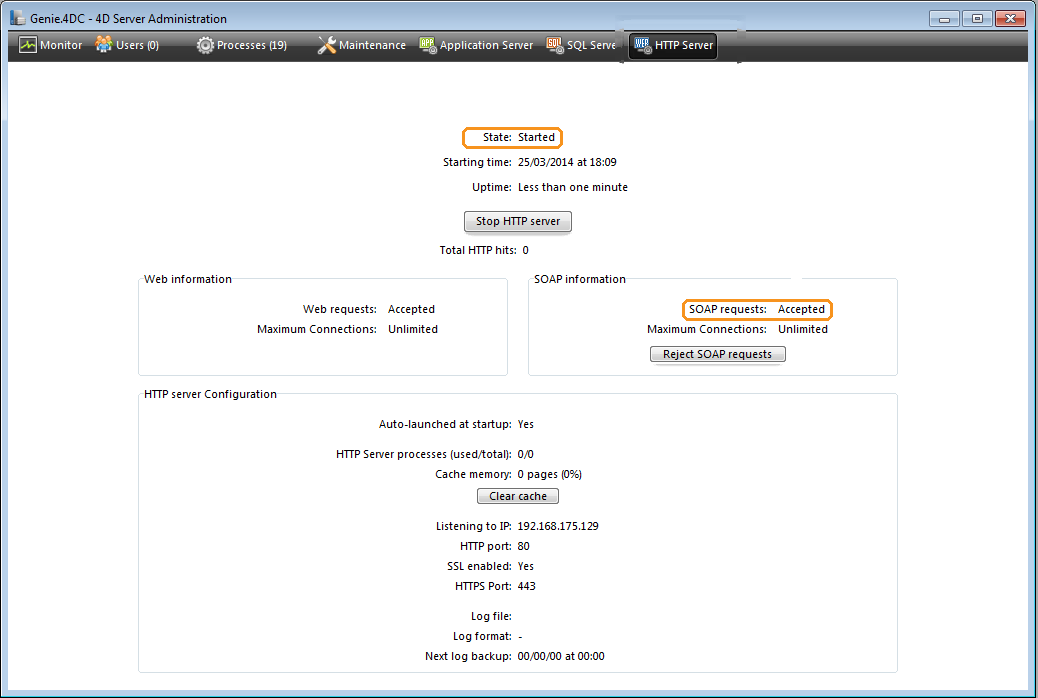
- Open Genie Server Administration and click HTTP Server.
- Check that the HTTP Server State shows Started. If it does not, click the button to start it.
- Check that SOAP Requests shows Accepted.
After a Genie Update
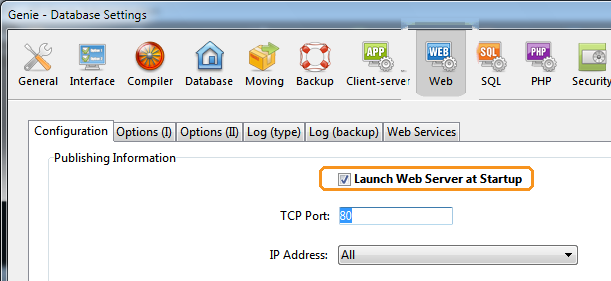
Genie updates can stop the HTTP Server starting on its own. To make it start automatically:
- In Genie Server, go to Edit > Database Settings > Structure Settings.
- Click the Web tab.
- Tick Launch Web Server at Start-up, then click OK.
If the connection does not return after an update, please ask Genie support to run this command:
SysLookup_Update("HTTP_Allow";"True")
Step 3: Restart the Appointment Connector
- On the Windows computer, select Start, type Services and open Services.
- Find HealthEngine Appointment Connector and double-click it.
- If the status shows Running, click Stop and wait for it to stop.
- Click Start.
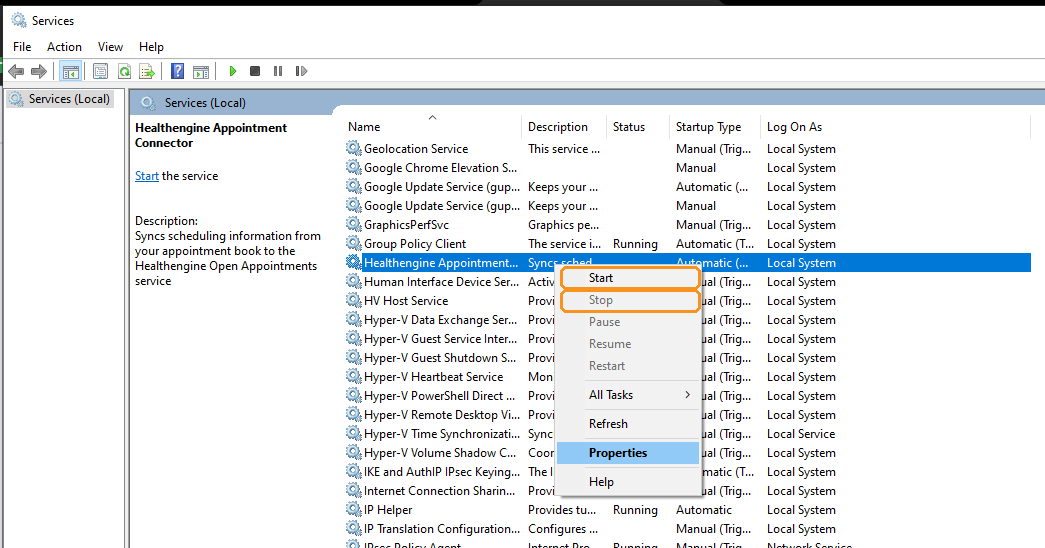
If the service will not stop, open task manager and end task on OpenAppointmentsSync.exe, this should allow you to start the service.
Step 4: Check Your Appointments Are Showing
Wait a few minutes, then check your Healthengine profile to confirm your appointments are showing.
Contact Our Support Team
If your appointments are still not showing, our Support team is happy to help. To help us resolve the issue quickly, please have the following ready:
- your practice name
- access to your Appointment Connector computer, or contact details for your IT provider
- TeamViewer installed on your Appointment Connector computer, so we can connect remotely
For ways to reach us, see Need more support? Here’s how to contact us.
You may also find this article helpful: Genie - Healthengine's Integration: Benefits & Troubleshooting