
Vertical: Specialist
PMS Eligible: Gentu
Healthengine's Gentu integration syncs with your Gentu software to publish schedules set up for online event types, allowing you to manage appointments efficiently and display availability online.
Benefits of the Integration for Your Practice
- Time-saving: Automatically publish available appointments across the Healthengine Network, removing the need for manual publishing and reducing front-desk workload.
- Peace of mind: Both Gentu and Healthengine provide seamless support to resolve any issues.
- The Gentu integration now allows online cancellations. If your practice was integrated early on and not enabled for this functionality, please reach out to us to enable it.
- The Gentu integration allows referral uploads to the patient file in Gentu, however there is a file size limit. If the file is unable to be imported to the Gentu patient file, it can be downloaded from your Healthengine bookings list.
- The Gentu integration allows online forms to be integrated into the patient file; however, there are different levels of integration depending on the form and the type of booking. Please see Forms Integration for further details.
Integration Publishing Limits
The default that your integration will publish is 30 days.
The maximum number of days the integration can publish in advance is 365 days.
Please reach out to our support team using the contact details at the bottom of this article to extend the publishing days.
How Does it Work?
We connect to your Gentu software via an API, which means no software installation is required, and it operates independently of server computers. This removes hardware issues that might affect other systems.
To obtain a pairing key, in your Gentu software, you go to Marketplace > Healthengine > and click Add to Gentu. The OTP (one-time pin) to pair your Gentu is then added to the back end of your Healthengine account - we will obtain this on an onboarding call, or you can email it to us ahead of time. This only appears when enabling Healthengine in here.
You can adjust what availability is shown online directly from Gentu.
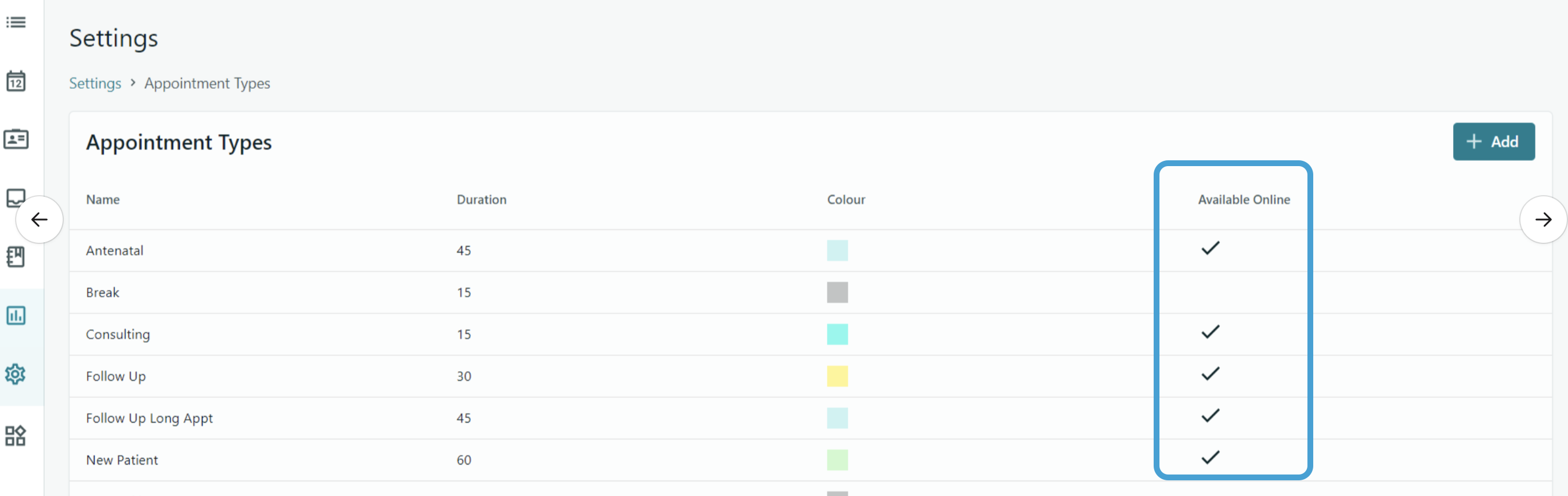
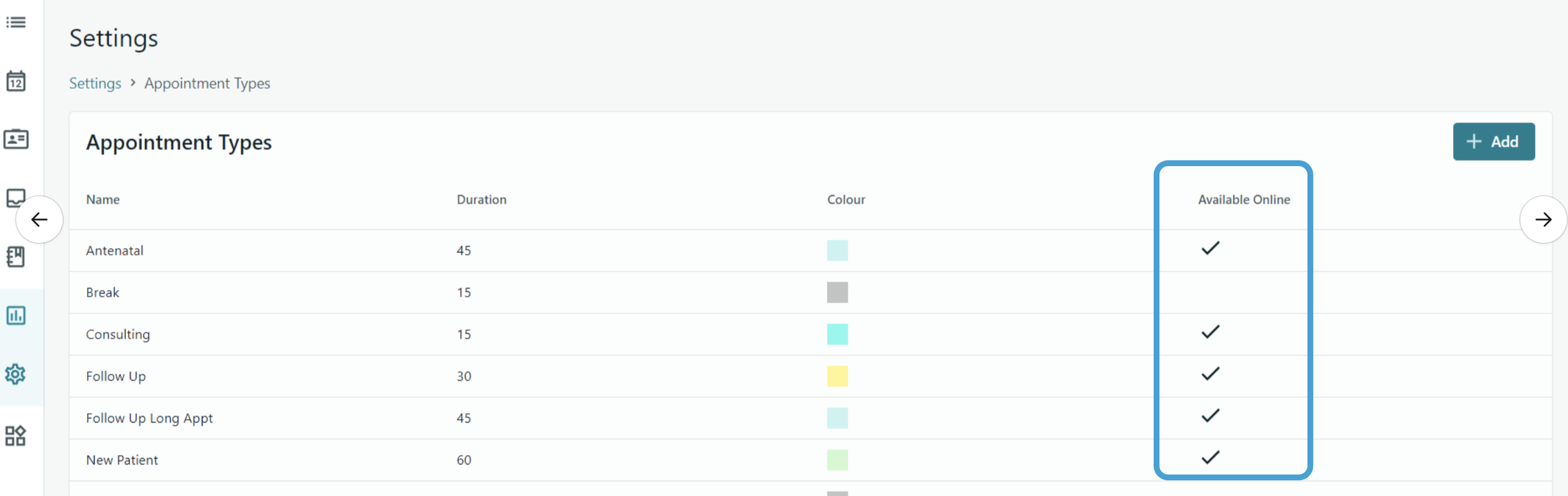
This is done by setting up schedules for the practitioner in Gentu with an event type that is an appointment type you have ticked to show online in your Gentu appointment type settings.
The practitioner should also be set as an active practitioner/doctor in Gentu.
If you need to block times from showing online, there are a few ways to do that. You can either edit the practitioner's schedule or just manually add a fake/test booking into a slot to block a time out if you don't want to adjust the schedules.
You can also decide how far in advance you want to publish availability and how close to an appointment time a patient can book.
If you are multi-location, you also set the location when creating your event schedule, and this is how we know which availability to publish for each location.
Setting Up Online Appointment Types
In your Gentu software, go to Settings> Appointment types> click into the appointment types you wish to use online and tick the 'available online' checkbox.
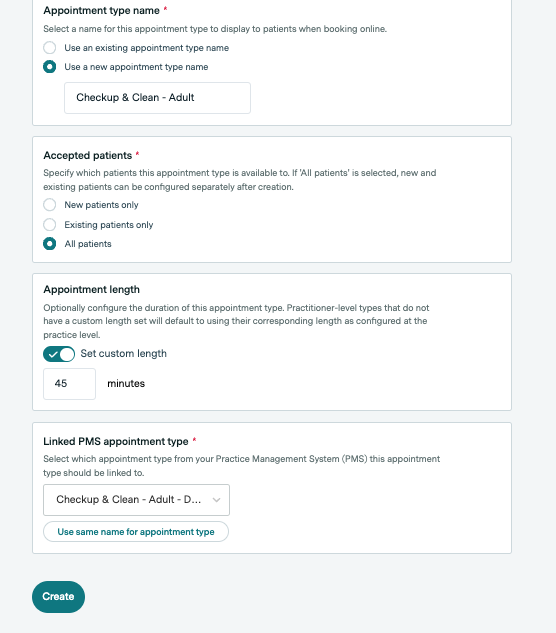
In your Healthengine portal, link your appointment types to the types you've created in your Gentu software. When a patient selects an appointment type, the integration automatically inserts the appointment into your Gentu diary as the correct linked appointment type
Creating availability on Gentu
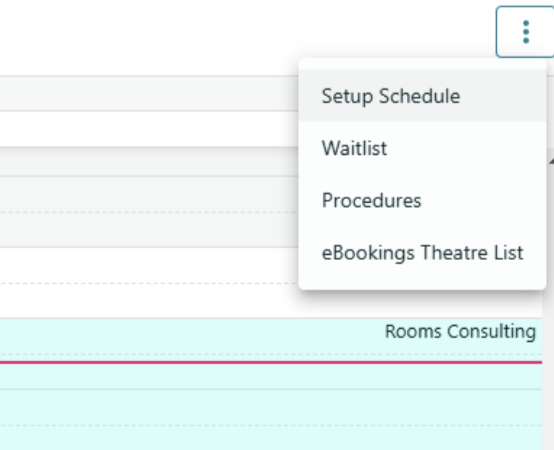
To configure Appointment Schedules, open the Appointment Book and click the menu icon in the top-right corner. Select Setup Schedule to change to the schedule view of the Appointment Book and click and drag to select the block of appointment slots you would like to apply the schedule to:
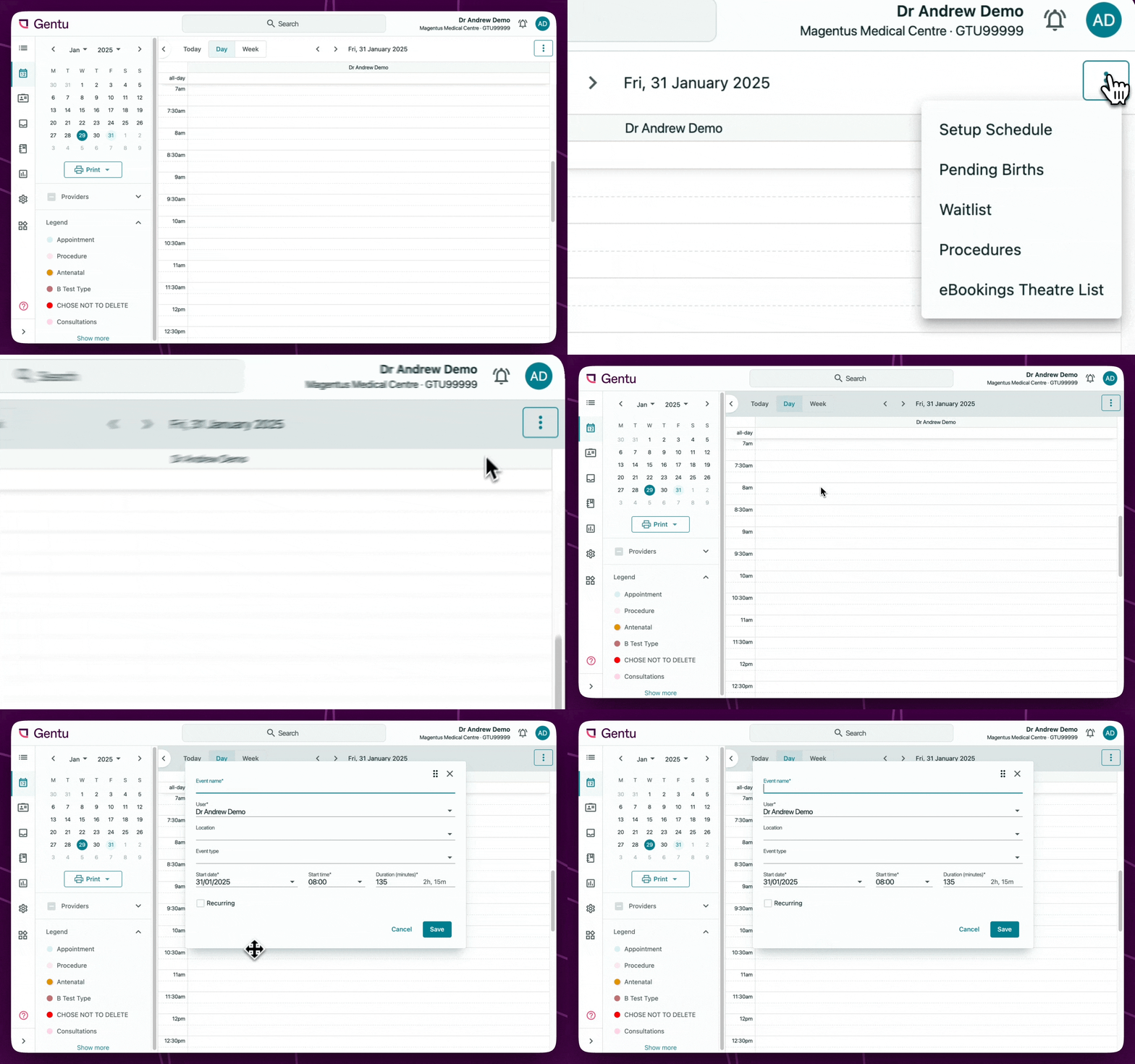
Alternatively, click the start time of the schedule and then manually edit the start time and duration. The Schedule Event window will open:
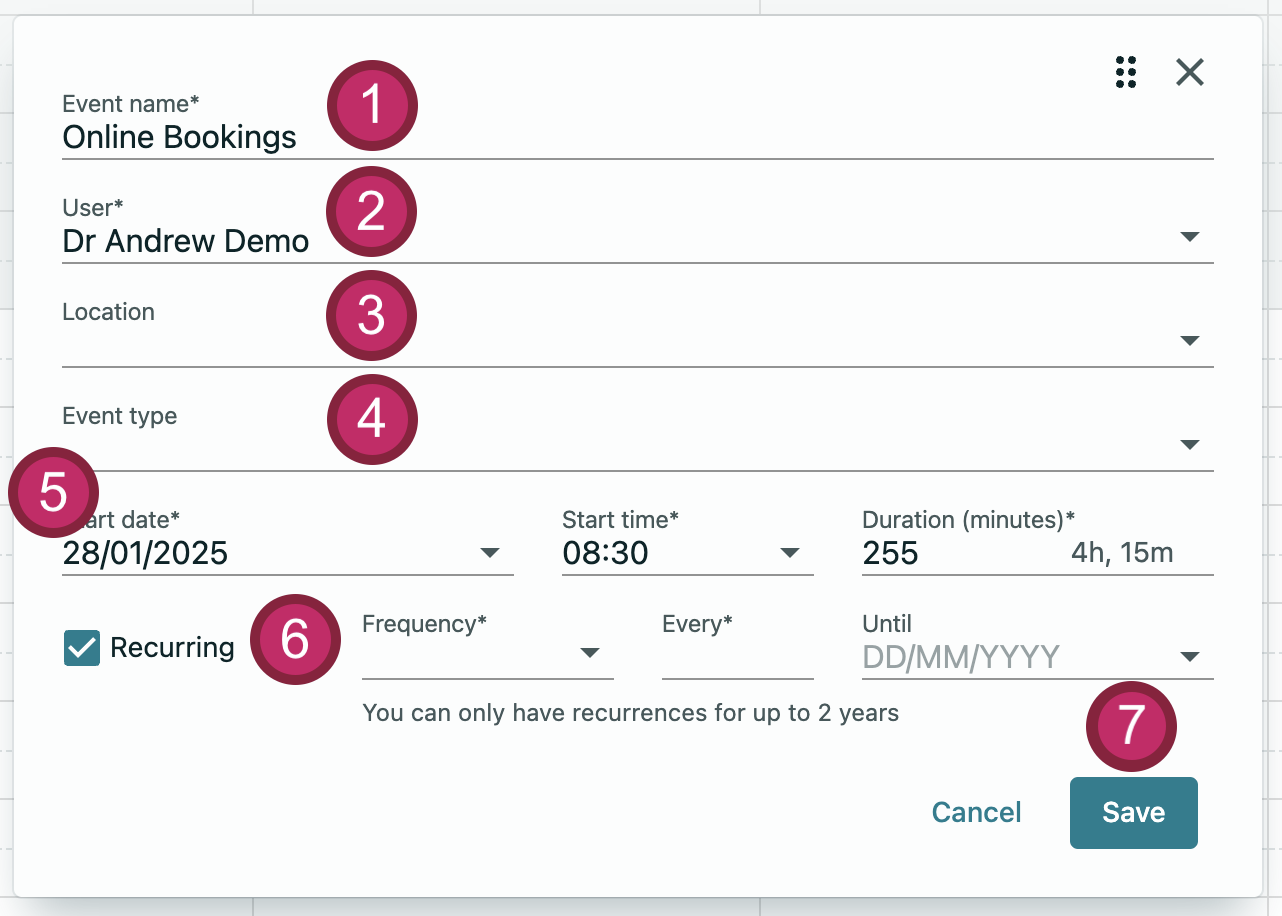
Step 1: Enter an Event name (e.g. Online, Healthengine).
Step 2: Ensure the User that you're creating an appointment schedule for is selected.
Step 3: Add the Location for the Appointment Schedule. These are based on the user's Sites of Service in  Settings > Manage Users > (select user) > Practitioner details.
Step 4: Select the Event type you enabled for online bookings from the drop-down menu.
Step 5: Amend the Start time and Duration of the schedule if needed.
Step 6: Tick the Recurring checkbox if you'd like to create a recurring schedule. The Frequency and Every options allow you to set how often the schedule recurs. For example, a schedule with a daily frequency recurring every 1 day will recur every calendar day (including weekends).
A schedule with Weekly frequency repeating every 1 week will recur on the same day each week.
Should you want to create a schedule for weekdays only, you'll need to create 5 Weekly schedules repeating every 1 week for each weekday.
Step 7: Once you're happy with your schedule, click .
.
To exit the schedule view, click the  menu at the top-right of the Appointment Book and click Exit Schedule.
Availability Troubleshooting
Adding a new practitioner
To add a new practitioner:
- Add them to your Gentu software. Ensure they are not ticked as 'inactive' in Gentu under Settings > Manage Users > Edit User.
- Add the practitioner schedule to Gentu with an event type that is an appointment type in Gentu, ticked to be available online.
Log in to the Healthengine practice admin portal and add the practitioner under Manage Practitioners, it will then prompt you to add their appointment types - see linking the appointment types between the two systems
Missing Practitioner Books or Appointment Types
If you’re not seeing a practitioner's appointment book in Healthengine, ensure that the practitioner is not ticked as 'inactive' in Gentu. You should also check that the practitioner has a schedule set up in Gentu with an event type that is an appointment type in Gentu ticked to show online. See above for further details/screenshots of this.
If new appointment types you've just added to Gentu are missing, refresh the appointment types in Healthengine by navigating to Appointments Setup, then Appointment Types and pressing the refresh button.
All-day events
If you create an all-day event in your Gentu diary, it will prevent bookings that day. An all-day event can be seen in the 'all-day' bar found at the top of your Gentu appointment diary. You can click into it and delete it if you have added that by mistake.
No books or appointment types syncing
If you are not picking up any appointment books or appointment types, it could be due to a blank 'sites of service' name. Please check your sites of service in Gentu and ensure every site has a name, as any blank ones will prevent the integration from connecting. It can also happen if you have duplicate appointment type names or an appointment type with no duration set, so you should always ensure your appointment types are unique and have a duration.
Limiting availability by appointment type
If you would like to create different schedules in Gentu with different online event types (online appointment types) and only allow patients to book that specific appointment type in those schedules, there is a setting we can enable to allow this. Please reach out to our support team to have this enabled.
Forms Integration
New Patient Forms
Gentu supports the following for New Patient Forms Integration:
On-platform (automated): Attaches a PDF to the patient file (always), updates supported fields (if the patient is matched on family name and date of birth)
Off-platform (via QR code/link share only): Attaches a PDF to the patient file, and updates supported fields (if the patient is matched on family name and date of birth)
If you are using our new patient forms product, any completed forms will be attached to the patient file under the clinical tab.
How does Healthengine match a form to the right patient in Gentu?
Healthengine looks for a patient in Gentu with the same family name and date of birth. Where the first name is similar rather than identical (for example "Robert" against "Bob", or a spelling variation), the record will still be matched. This works the same way as Healthengine's other practice management software integrations.
If no match is found, the submitted form is still attached to the patient file as a PDF; only the automatic field updates are skipped.
Please note the fields that are not supported by the integration include:
- PREFERRED_NAME - Present in Gentu but not supported by the patch patient endpoint
- DOB - Present in Gentu but not supported by the patch patient endpoint
- GENDER_IDENTITY - Not present in Gentu
- PRONOUNS - Present in Gentu but not supported by the patch patient endpoint
- MARITAL_STATUS - Not present in Gentu
- OTHER_CULTURAL_BACKGROUND - Not present in Gentu
- COUNTRY_OF_BIRTH - Not present in Gentu
- ENGLISH_AS_FIRST_LANGUAGE - Not present in Gentu
- INTERPRETER_REQUIRED - Not present in Gentu
- FIRST_LANGUAGE - Not present in Gentu
- EMERGENCY_CONTACT_HOME_PHONE - Not present in Gentu
- EMERGENCY_CONTACT_WORK_PHONE - Not present in Gentu
- NEXT_OF_KIN_HOME_PHONE - Not present in Gentu
- NEXT_OF_KIN_WORK_PHONE - Not present in Gentu
- CONSENT_PRACTICE_CONTACT - Not present in Gentu
- MEDICATIONS - Not present in Gentu
- ALLERGIES - Present in Gentu but not supported by the patch patient endpoint
Learn more about the New Patient Forms integration and what is required for the off-platform Forms integration here .
Custom Forms
On-platform (via automation rules or your Healthengine bookings list): Attaches a PDF to the patient file.
Off-platform (via QR code/link share only): You must download the form from your Healthengine portal within 14 days before it is deleted.