
Vertical: Pharmacy
PMS Eligible: N/A
Hi there, and thank you for activating your account with Healthengine - we’re so excited to have you on board!
To help set up your account, we’ve laid out some groundwork that you can begin to discover your Healthengine with.
How to Log In
To access your Practice Admin login page, follow the link here, or you can log in via our Healthengine homepage at https://healthengine.com.au/ and click the option displayed below:
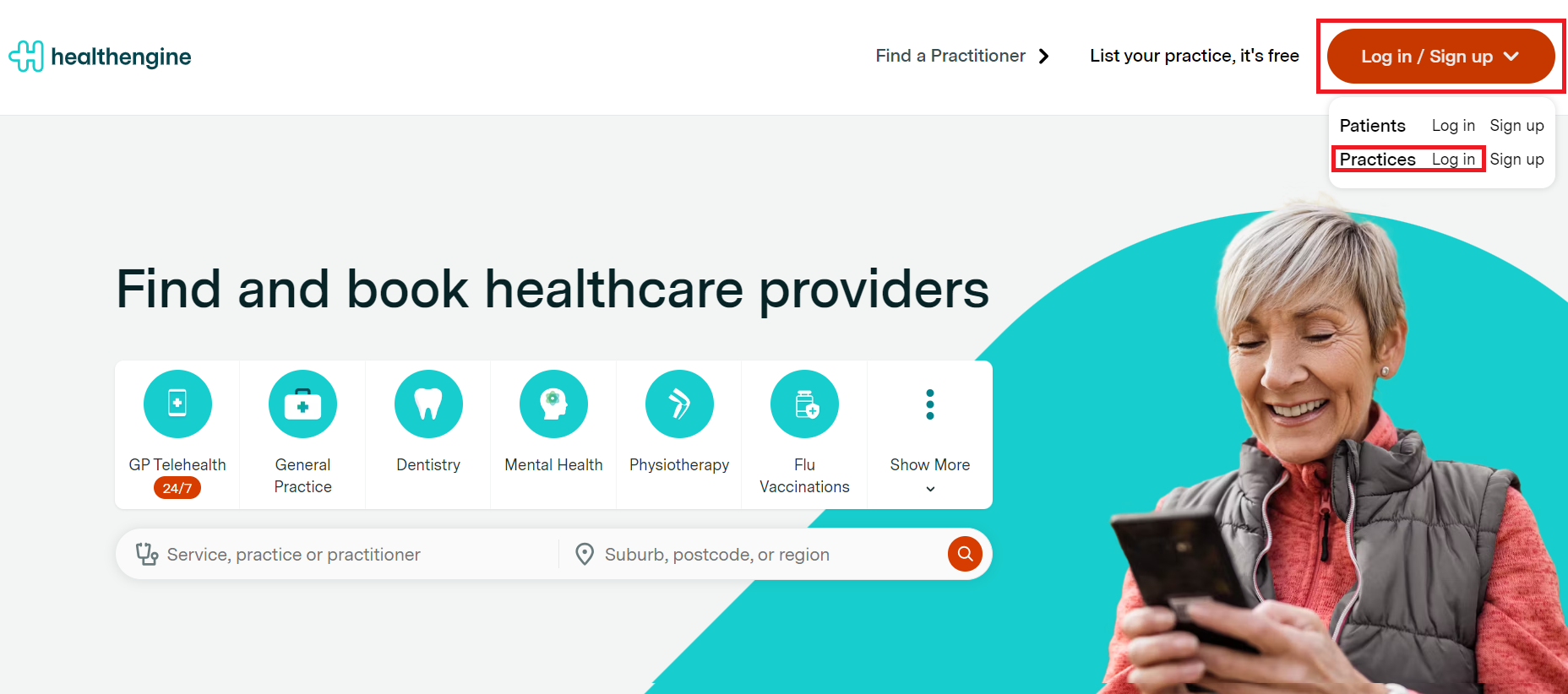
Please keep in mind that we have two separate login portals - one for patients and one for practices. If you are experiencing difficulty logging into your Practice Admin, double-check to make sure you're using the practice login portal.
If you’re struggling to log in, check out our article here - How to Log into your Practice Admin
Your Practice Admin Walkthrough
Your Healthengine Practice Admin is your account profile, so it’s important to get to know it as best you can since you’ll be using this a lot!
Healthengine works by publishing the appointments you create in a schedule on your store’s website. From your Practice Admin, you can create schedules, manage/view your online bookings, add additional logins and view pre-screening forms along with various other features.
When you first sign in to your Practice Admin, you’ll be taken to the Home Screen page as seen below:
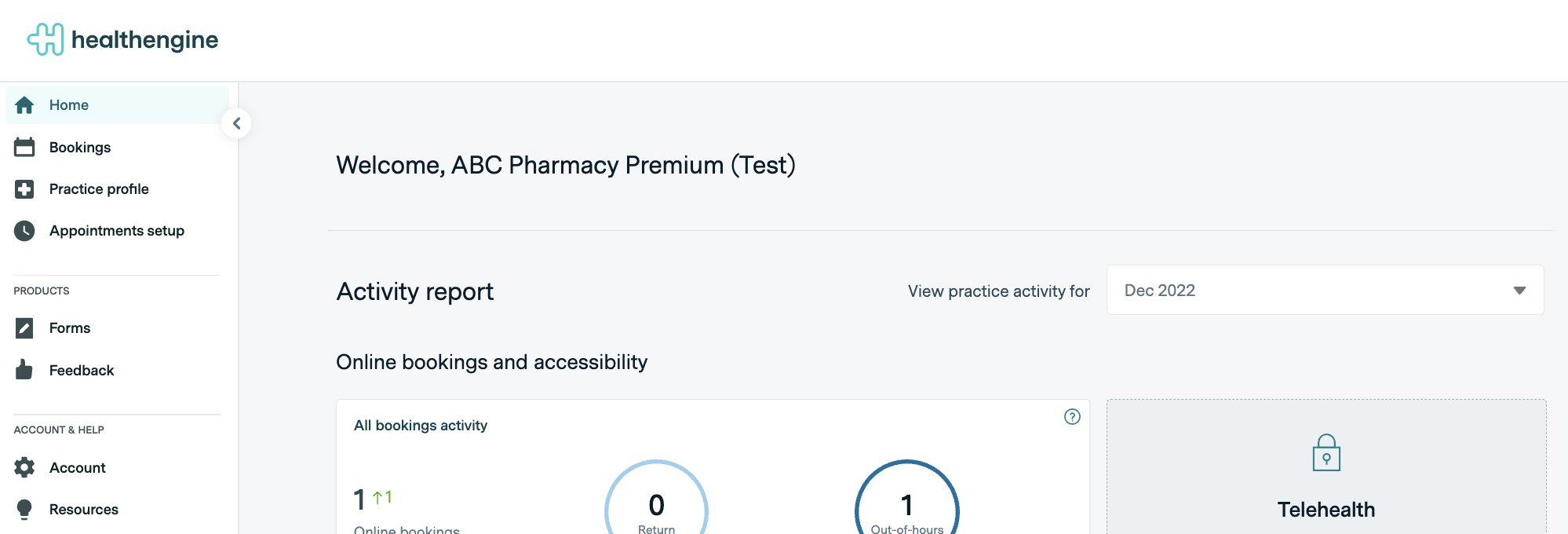
You won’t use this page a lot, but it’s a good place to check in on your activity reports.
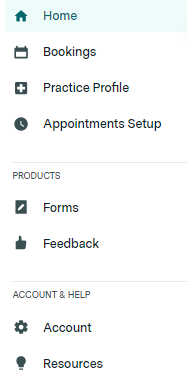
On the left-hand side of this Home Page, you’ll see a list of tabs as seen below - each tab gives you access to a new feature of Healthengine that your store can use to monitor, manage and create bookings from!
Bookings
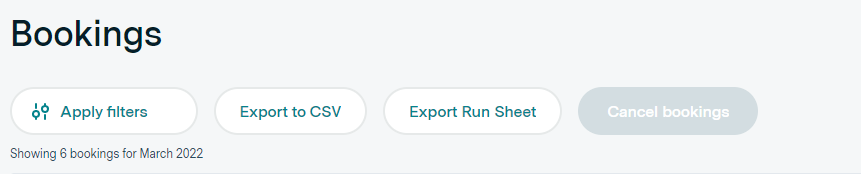
The bookings tab of your Practice Admin will allow you to review/manage your existing bookings, re-book appointments for existing patients and export run sheets. To view this page, simply navigate to Bookings and then click on 'Bookings'.
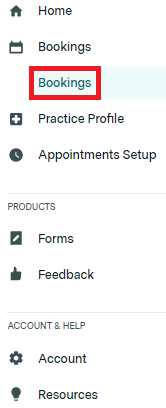
This will show you a new page where you can view your booking history that your store or customers have booked in for, as well as manage and export Run Sheets according to set filters - it's a very useful tool should you need to find appointments quickly!
To find out more about how Healthengine's Booking Feature works, check out some of our other Pharmacy Help Centre articles below!
- Managing Patient Bookings (Pharmacy)
- How to Download a Run Sheet
- Reviewing your Booking History
- How to Download a Certificate of Attendance
Pre-Screening Forms
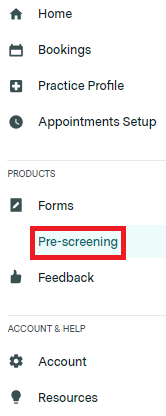
In the Forms section, you'll also see a tab titled 'Pre-Screening'. This is a great way to keep track of/see which patients have filled out their Pre-Screening Forms, which you can find out more about in our Help Centre article, Pre-Screening Forms for Pharmacy.
Appointments Setup
The Appointments setup menu will give you access to create and manage schedules as well as decide which appointment types and services you'd like to appear on your store's website.
With our 'Appointment Types' and 'Calendar' features, the control is in your hands in an easy and manageable way!
There are two important sections:
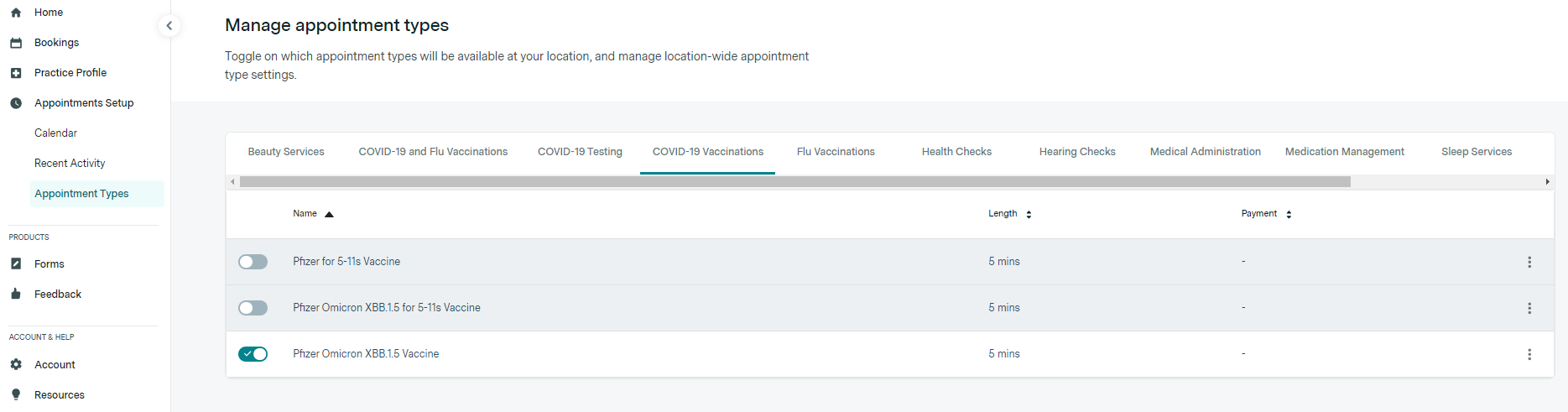
1. Appointment Types: This section contains all the specialties assigned to your pharmacy by your Head Office. When the appointment types are toggled on, you are choosing the services that you want to offer to your customers.
2. Calendar: Here, you create the availability/schedules for the specialties (and subrelated appointment types) you have toggled on.
You can begin your set-up journey now by reviewing your list of services and then navigating to 'Appointments Setup' and clicking on 'Appointment Types'.
From here, simply toggle on any appointment types that you would like to offer online bookings for at your store (you can toggle this off at any time).
You can find a detailed guide on how to do this in our Healthengine Help Centre article: Managing your Pharmacy Services and Appointment Types
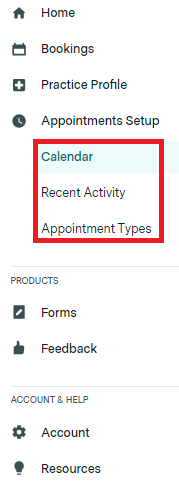
Calendar is where you'll find your Healthengine Calendar - a feature that will allow you to create and manage your day-to-day bookings in the form of a schedule!
To access the Calendar, select Appointment setup, and the Calendar will show:
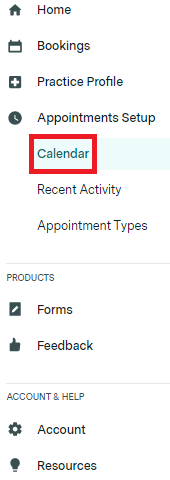
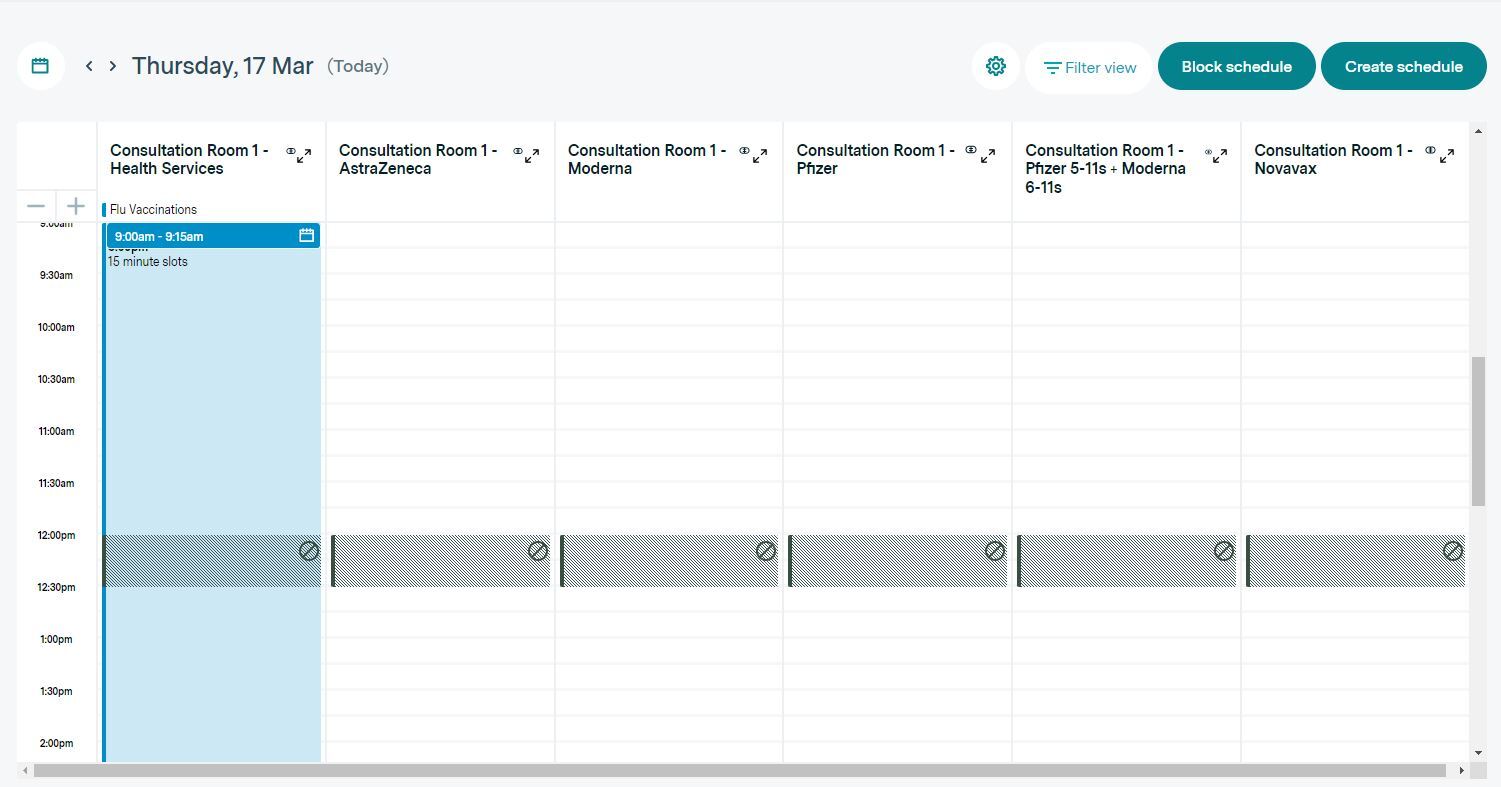
To begin creating schedules yourself, check our Healthengine Help Centre articles below that include other helpful resources such as creating Block Schedules (schedules to block out certain time frames or Public Holidays from publishing online), as well as managing existing bookings and common errors you may face when getting started!
- How to Manage Availability in Calendar
- How to Manage Bookings in Calendar
- Creating, Editing and Deleting Block Schedules
Please note: If you were part of a booking migration from your previous publishing provider, you will see these appointments already in your Bookings History and your Calendar once you have created your schedules.
Important Notes
It is important to know that New Custom Appointment Types, New Specialties and Custom Forms cannot be created at a store level without your Head Office Approval.
If you have any special requests or requirements, please reach out to your Head Office for them to review your request.
If a request is approved, we will contact you to inform you of the changes applied.