
Vertical: General Practice, Dental, Pharmacy, Allied, Specialist
PMS Eligible: N/A
What it does
Third-party tracking via Google Analytics allows you to track Healthengine Web-Plugin bookings from their originating traffic source or campaign (for example, Google Ads) within your own Google Analytics 4 account. In addition to web-plugin bookings, we also push additional events into your account for booking starts and booking form step progression. This solution ensures patient data is protected.
Requirements checklist
The following steps are required to ensure that Google Analytics Web-Plugin bookings will track correctly. This document will go through these requirements further in the sections below:
❒ Provide Healthengine’s Support team with your Google Analytics 4 Measurement ID.
❒ Modify your Google Analytics code on your website to enable cross-domain tracking.
❒ Set up cross-domain measurement via the GA4 Admin interface.
❒ Set up custom dimensions to view additional event parameters (optional).
❒ Mark the booking event as a Key Event (optional).
❒ Link Google Analytics & Google Ads (optional).
Web-Plugin Google Analytics Setup
Provide Healthengine Support with your GA4 Measurement ID
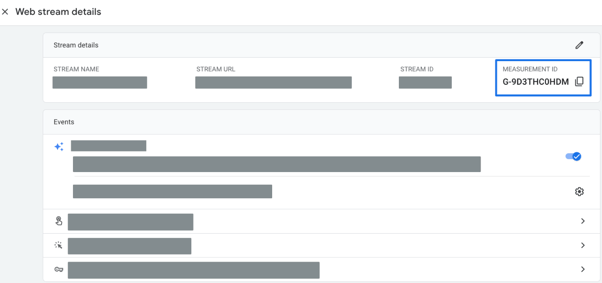
In order to send booking form data into your Google Analytics account, we need your Measurement ID for each practice location you want to track.
The Measurement ID is the unique identifier for your website's data stream in GA4 and always follows the format 'G-' followed by a combination of letters and numbers. This is also sometimes referred to as the "Google tag ID".
To find your Measurement ID:
- Sign in to your Google Analytics account.
- In Admin, under Data collection and modification, click Data streams.
- Click the name of the data stream for your website.
- Your Measurement ID is displayed in the top-right corner of the stream details.
|
Note: If you see an ID that starts with “UA-”, you are using an older Universal Analytics property. You must migrate to a Google Analytics 4 property to use this integration. If you do not see a "Data streams" option, you have a Universal Analytics property. |
|---|
Modify your Google Analytics code on your website.
To activate cross-domain tracking between your practice’s website and Healthengine, the on-page Google Analytics code (gtag.js) on your website must be modified. This allows your website to pass a unique identifier to Healthengine, ensuring a single, uninterrupted user session is recorded in your reports.
|
PLEASE NOTE THE FOLLOWING:
|
To implement:
- Add the following code snippet on your website immediately after the opening <head> tag on every page that contains the Healthengine widget.
- Replace the placeholder YOUR_ MEASUREMENT_ID with your own GA4 Measurement ID.
<!-- Google tag (gtag.js) -->
<script async src="https://www.googletagmanager.com/gtag/js?id=YOUR_MEASUREMENT_ID"></script>
<script>
  window.dataLayer = window.dataLayer || [];
  function gtag() {
    dataLayer.push(arguments);
  }
  gtag('js', new Date());
  gtag('set', 'linker', { domains: ['healthengine.com.au'] });
  gtag('config', 'YOUR_MEASUREMENT_ID', { cookie_flags: 'SameSite=None;Secure' });
</script>
|
IMPORTANT: The 'cookie_flags': 'SameSite=None;Secure' parameter is essential. Modern browsers like Chrome and Firefox require these flags to allow cookies to be shared across different domains. Without this line, cross-domain tracking will fail, and the original traffic source for bookings will be lost. |
|---|
Once implemented correctly, you can proceed to the next step.
Set up cross-domain measurement via GA4 Admin
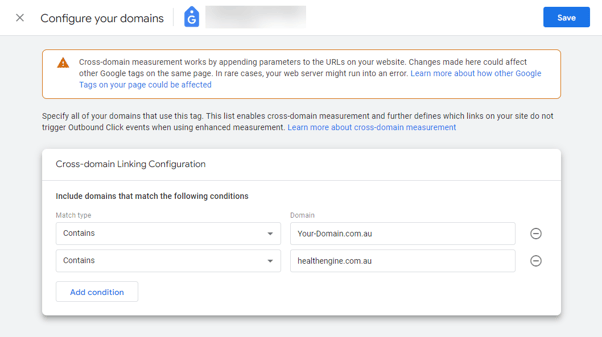
You need the Editor role in GA4 to complete these steps. This configuration works in tandem with the code you added to your website. The setting in the GA4 Admin interface gives your property permission to link sessions with healthengine.com.au, while the code on your site performs the action of passing the user information. Both steps are required.
- In Admin, under Data collection and modification, click Data streams.
- Click Web, then click your web data stream.
- In the web stream details, click Configure tag settings (at the bottom).
- In the Settings section, click Configure your domains.
- Under Include domains that match the following conditions, click Add condition.
- Set up two conditions:
- Condition 1:
- Match type: contains
- Domain: healthengine.com.au
- Condition 2:
- Match type: contains
- Domain: your website's domain (e.g., yourpractice.com.au)
- Condition 1:
- Click Save.
|
NOTE: Properly configuring your domains for cross-domain measurement automatically prevents healthengine.com.au from being incorrectly reported as a referral traffic source. An additional entry in the "unwanted referrals" list is not necessary. |
|---|
Set up custom dimensions for event parameters (optional)
In Google Analytics 4, custom dimensions are what you create to see and analyse the extra details, known as event parameters, that we send with your events. Essentially, this process turns a specific piece of raw data you've collected into a usable dimension in your reports, so you can view, sort, filter, and compare information based on it.
OBS Webplugin Booking Complete
The OBS Webplugin Booking Complete event sends additional parameters that you can capture in GA4 for more detailed reporting.
| Event parameter | Scope | Description |
| practice_name | Event | The name of the practice that was booked |
| practice_id | Event | The healthengine ID for the practice that was booked |
| specialty | Event | The specialty the booking was made for |
| appointment_type | Event | The appointment type the booking was made for |
| appointment_date | Event | The date the booking was made for |
| payment_method | Event | The payment method used for the booking (if applicable) |
| value | Event | The revenue amount (if applicable) |
OBS Webplugin Booking Start
The OBS Webplugin Booking Start event is triggered when the user views the first step in the booking form process. The event sends these additional parameters that you can capture in GA4 for more detailed reporting.
| Event parameter | Scope | Description |
| form_step_name | Event | The step name of the booking form that was viewed |
| practice_id | Event | The healthengine ID for the practice that was booked |
| practice_name | Event | The name of the practice that was booked |
OBS Webplugin Booking Step
The OBS Webplugin Booking Step event is triggered when the user changes the step they are on within the booking form process. The event sends these additional parameters that you can capture in GA4 for more detailed reporting.
| Event parameter | Scope | Description |
| form_step_name | Event | The step name of the booking form that was viewed |
| practice_id | Event | The healthengine ID for the practice that was booked |
| practice_name | Event | The name of the practice that was booked |
To capture any of the above data, you must create a corresponding event-scoped custom dimension for each parameter you wish to analyse.
To set up custom dimensions:
- In Admin, under Data display, click Custom definitions.
- In the Custom dimensions tab, click Create custom dimensions.
- Complete the fields for each dimension you want to create:
- Dimension name: Enter a user-friendly name (e.g., "Practice Name").
- Scope: Select Event.
- Description: Enter a memorable description.
- Event parameter: Choose the corresponding parameter from the table above (e.g., practice_name).
- Click Save. Repeat for each parameter you want to track.
It may take up to 48 hours for data to appear in your reports for newly created custom dimensions.
Mark Event as a Key Event (optional)
To easily track and analyse booking completions alongside your most important business metrics, you should mark the OBS Webplugin Booking Complete event as a Key Event. The term "Key Events" replaced "Conversions" in Google Analytics 4 to better distinguish core business actions from advertising-specific conversions.
To mark the booking event as a Key Event:
- In Admin, under Data display, click Events.
- In the Existing events table, find OBS Webplugin Booking Complete.
- In the "Mark as key event" column, switch the toggle on. The toggle will turn blue.
If you cannot see the event yet, you can add it proactively:
- In Admin, under Data display, click Key events.
- Click New key event and enter the exact event name: OBS Webplugin Booking Complete.
- Click Save.
It can take up to 24 hours for key event data to appear in standard reports.
Event setup for multi-location practices (Optional)
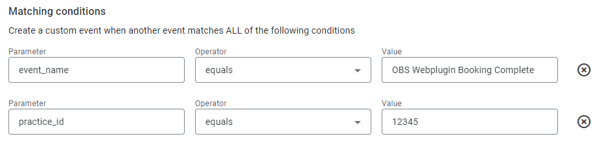
If you track multiple practice locations in one GA4 property, you can use the "Create event" feature to set up location-specific key events. This allows you to track performance for each location individually.
Example: Create a key event for a specific practice (e.g., ID 12345):
- Navigate to Admin, and under Data display, click Events.
- Click the Create event button.
- In the Custom event name field, enter a unique name (e.g., booking_complete_perth).
- Under Matching conditions, configure two conditions:
- Condition 1:
- Parameter: event_name
- Operator: equals
- Value: OBS Webplugin Booking Complete
- Condition 2:
- Parameter: practice_id
- Operator: equals
- Value: 12345 (Replace with the specific practice's ID)
- Condition 1:
- Click Create.
- You can now go back to the Events or Key events page and mark your new event (booking_complete_perth) as a key event.
Link Google Analytics & Google Ads (optional).
If you currently run your own Google Ads campaigns, linking your Google Ads account to your Analytics 4 property lets you see the full customer journey, from how they interact with your marketing (e.g., seeing ad impressions, clicking ads) to how they finally complete the goals you’ve set for them on your site (e.g., booking completion).
This is only required if you run your own Google Ads campaigns and would like this visibility within your Google Analytics 4 account.
For detailed instructions in how to link your accounts please see https://support.google.com/analytics/answer/9379420?hl=en
Finding the Web Plugin Data in GA4
Once all required steps have been set up, you can find the OBS Webplugin Booking Complete, OBS Webplugin Booking Start and OBS Webplugin Booking Step event data in your Google Analytics 4 account.
Real-time Verification
For immediate verification that your setup is working, use the Realtime report and DebugView. The event should appear in these reports within moments of a test booking being completed.
- Realtime report: Go to Reports > Realtime. Look for the event in the "Event count by Event name" card.
- DebugView: Go to Admin > Data display > DebugView. This requires enabling debug mode on your browser and provides a more granular stream of events for troubleshooting.
Standard Reports
Events Report
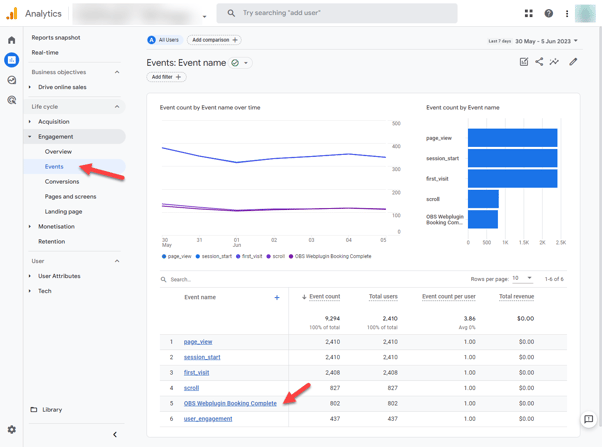
To see aggregated data for all events, including your booking event:
- Navigate to Reports > Engagement > Events.18
- Click on the OBS Webplugin Booking Complete, OBS Webplugin Booking Start or OBS Webplugin Booking Step event in the table to see a detailed report, including any custom dimensions you have configured.
Key Events Report
If you marked the event as a key event, you can find it in the dedicated report:
- Navigate to Reports > Engagement > Key events.
- This report summarizes all events you have designated as most important to your business.
Analysing Attribution and Marketing Performance
A primary goal of this tracking is to understand which marketing channels drive bookings. To do this, you need to analyse attribution.
- Navigate to the Advertising workspace in the left-hand navigation.
- Here you will find key reports like Model comparison and Conversion paths. These reports show you the touchpoints a user interacted with before completing a booking, allowing you to measure the effectiveness and ROI of your marketing campaigns.