
Vertical: General Practice, Allied, Specialist
PMS Eligible: N/A
If your practice requires a GP referral or a Mental Health Treatment Plan before seeing a patient, you can request that patients provide and/or upload this information during their booking process!
The capture of this information can either be mandatory or optional based on your practice needs and preferences.
How to configure your settings
In Practice Admin, go to Bookings -> Referral Configuration
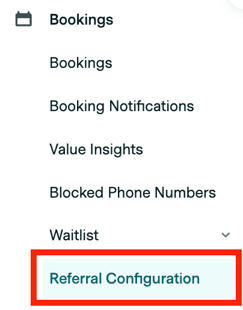
On this page, you have the option to specify which fields to show during the booking, as well as whether the referral upload section should be visible on the booking form.
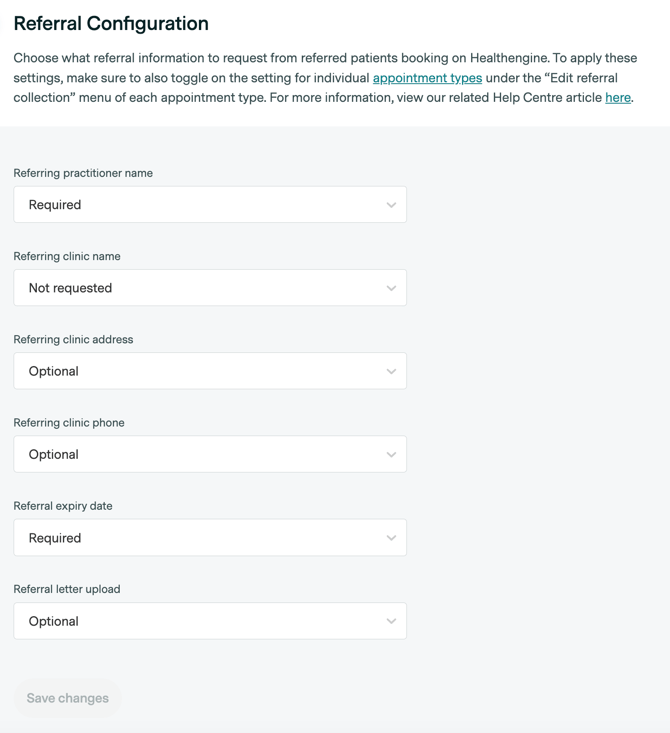
Each field, as well as the referral upload section have the following options you can specify:
Not requested - Field/referral upload won't show on the booking form
Optional - Field/referral upload will show, but is not mandatory for the patient to complete to continue the booking
Required - Field/referral upload will show and is mandatory to complete by the patient to continue the booking
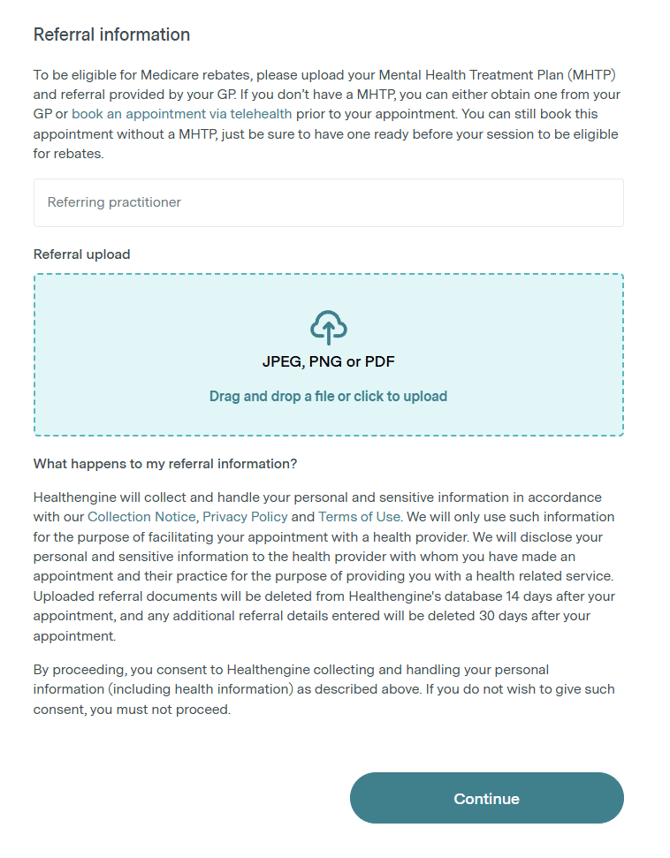
For the referral upload, there are two different versions; they both work the same way, but the text shown on the booking form is slightly different. What version is displayed will depend on the specialty set for the appointment type. If you have the psychology specialty and apply the referral upload to a Psychology appointment type, then a mental health upload version is displayed. For all other referral upload types, the 'generic' version will be shown.
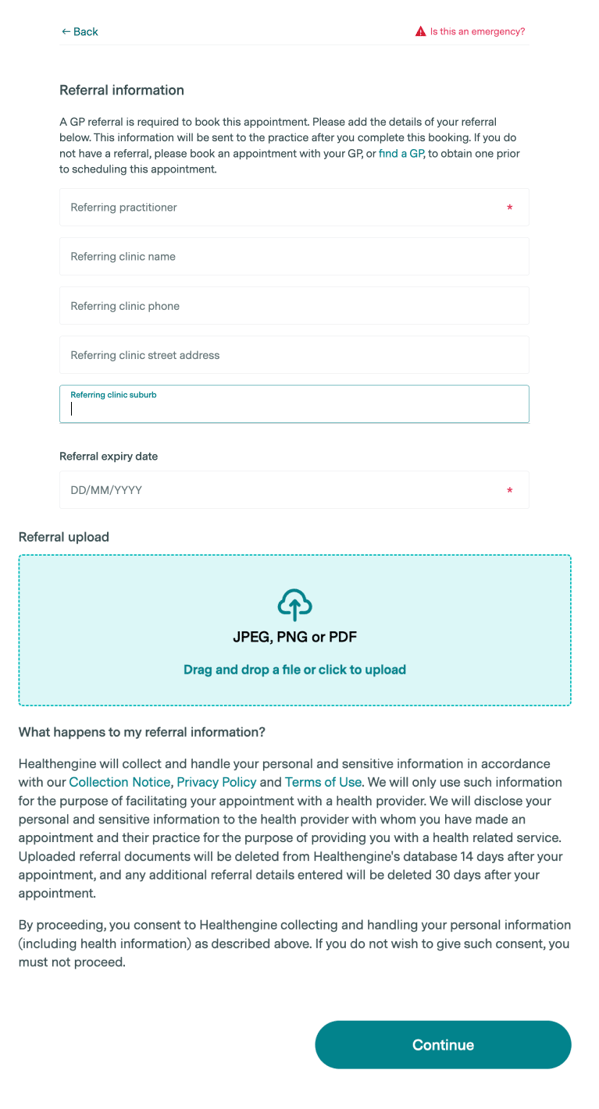
The images below show two examples of how this will be displayed in the booking flow (as a separate step), one example has all available fields shown with the mandatory fields indicated with an * symbol, whereas the other only has one field and the upload referral feature shown.
Generic Referral
Psychology referrals (treatment plans)
Enabling your referral selection
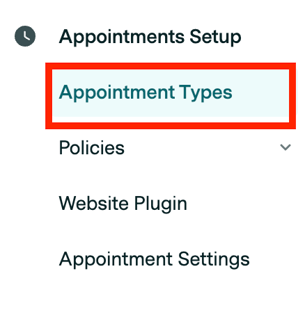
Once you have determined the referral options that suit your practice in the above step, you will have to specify which appointment types this applies to. This is done on a practice level (i.e. will apply to all practitioners that utilise that specific appointment type). To do this, go to Appointment Setup -> Appointment Types
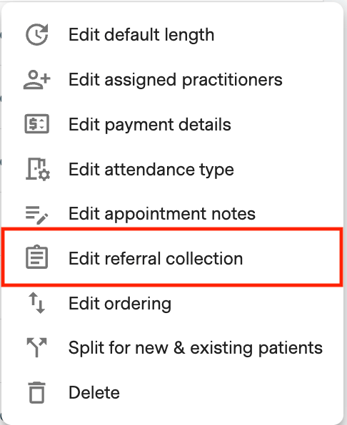
For the appointment type that you want to enable the referral step for, click the three dots at the end of the row and select Edit referral collection
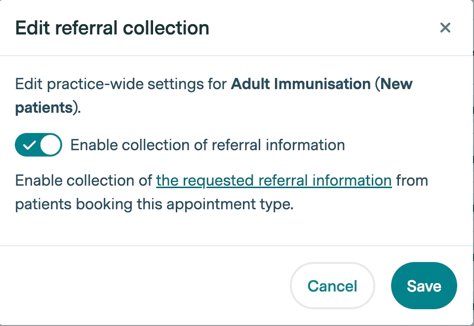
Set the referral collection to enabled and click save
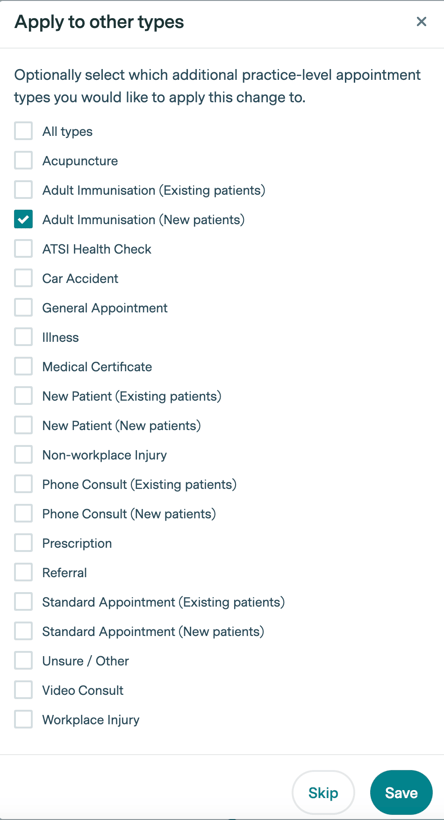
Another step is displayed to allow you to easily allow you to determine if you want this setting to apply to other appointment types too, select all applicable appointment types, click save, and you're done (if the practitioner has that appointment type enabled).
Accessing the referral details
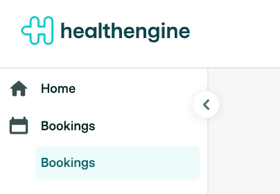
Once the patient has booked their appointment, you can access the referral details and download their referral letter by logging into your Practice Admin portal, then navigating to Bookings.
From here, if the patient has uploaded a referral, you’ll see an icon to the right-hand side of their booking name and information. Click anywhere on this patient's name to open a more detailed version of the patient's booking information.

- The clipboard icon
 indicates that the patient has filled out your specified referral fields
 - The paperclip icon
 indicates that the patient has uploaded a referral document
 - If both icons are displayed,
 then the patient has filled out both referral fields and uploaded a referral document
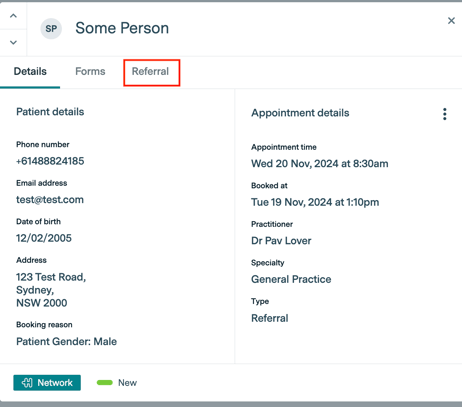
Once you’ve opened the patient's booking information, you will see a tab at the top called Referral. Click this tab to view the referral information and or access the referral upload document.
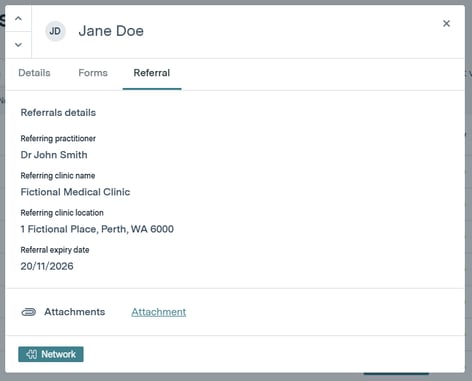
The referral details are displayed as per the example (the example used is for a patient who submitted both referral information and a referral upload attachment). To open the patient’s referral letter, click on the 'Attachment' link as seen below, and this will allow you to download the file to your computer.
Need help?
If you require further help with setting this up or have any other questions about this feature, simply reach out to your Customer Success Manager.