
Vertical: Pharmacy
PMS Eligible: N/A
Corporate vouchers work seamlessly within Healthengine's booking flow to allow customers to pay for a service using a unique voucher code.
Corporate voucher codes are entered on the last page in the booking flow.
Please note: Not all appointment types are set up to accept voucher payments.
Those vouchers are usually set up for specific named appointment types; appointment types with non default naming convention will not work. Please review the promotional campaign of your Head Office.
If you notice the Voucher option isn't available for a specific appointment type, and it should be turned on, please contact us at corporate@healthengine.com.au
How to book an appointment with a voucher code
When creating a new booking on Healthengine, the last page of the booking flow will show the payment section.
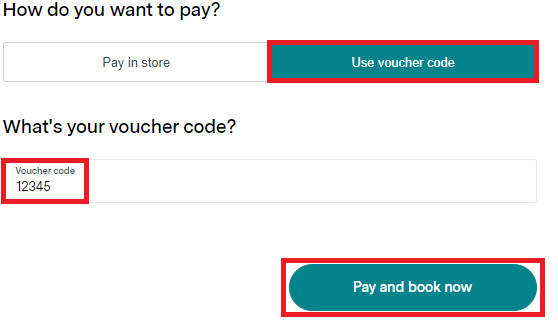
The question will ask you "how do you want to pay", and you will have to select "Use voucher"
Select 'Use voucher code' and enter the voucher code. Finalise the booking by selecting "Pay and book now":
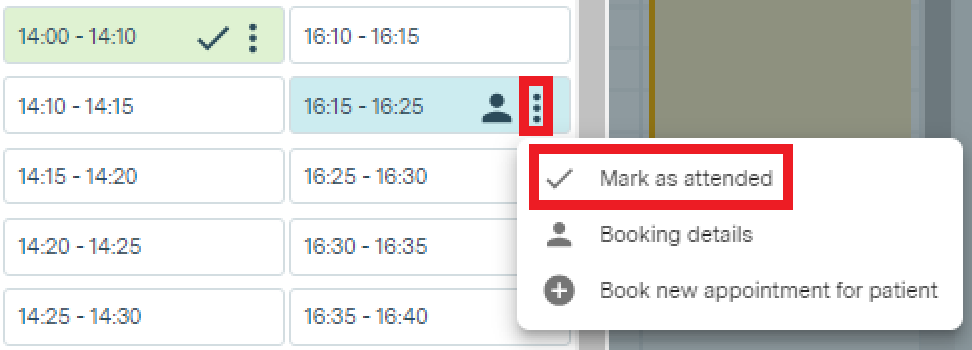
Please ensure you update the appointment status to "Attended" to ensure you are paid for the voucher:
How to add a voucher code to an existing booking
If a patient has not entered their voucher code at the time of booking, you can easily do this by opening up their booking details.
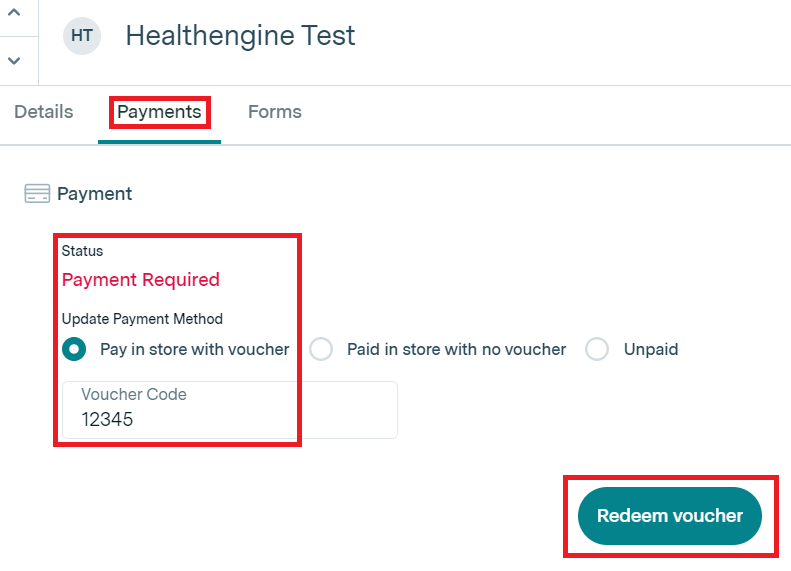
Within your Practice Admin Portal, select Bookings, select the relevant booking and click on it.
In the Payment section at the top of the specific booking, select "Pay in-store with voucher", enter the voucher code and select "Redeem voucher":
Where do I find voucher codes in MedAdvisor?
When a booking is made with a voucher through Healthengine, the voucher will automatically flow through to your MedAdvisor system and populate in the field:
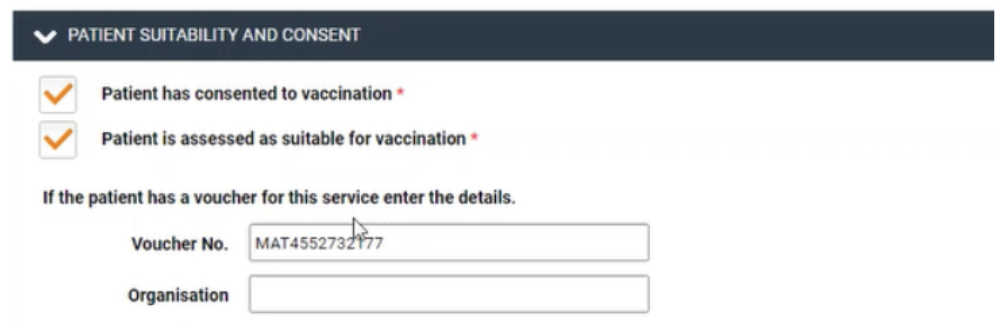
If a patient doesn't redeem their voucher at the time of booking, and your store redeems it manually using the existing booking method above, you can manually add the voucher code to the 'Voucher No.' field in MedAdvisor.
What if I encounter a voucher error?
Voucher errors can occur for many reasons when a customer or a store tries to redeem a voucher. Below is a comprehensive list of the error messages and what they mean.
Errors during the booking form
Tables can't be imported directly. Please insert an image of your table which can be found here.
"This voucher is not currently enabled"
"Voucher has already been used the maximum number of times"
The voucher has already been redeemed.
* Check that the customer has cancelled any prior bookings made with the voucher code before redemption.
"This voucher has expired"
"This voucher cannot be used for this appointment type"
"This voucher is invalid"
"This voucher is not valid at this practice"
"This voucher cannot be used for this specialty"
"Unable to validate this voucher at this time"
Errors in Practice Admin
Tables can't be imported directly. Please insert an image of your table which can be found here.
"This voucher cannot be used for this specialty"
"This voucher cannot be used for this appointment type"
"This voucher cannot be used at this practice"
"This voucher has expired"
“This voucher is not yet valid”
“The voucher campaign is not currently enabled”
"Voucher has already been used the maximum number of times"
The voucher has already been redeemed.
* Check that the customer has cancelled any prior bookings made with the voucher code before redemption.
“An error occurred when attempting to validate this voucher”
“Voucher does not exist”
How do I print a voucher report for reconciliation?
You can do this in Bookings. Apply any relevant filters and select 'Export to CSV':

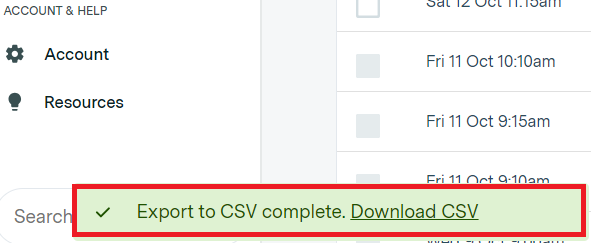
Once the download has been completed, click on 'Download CSV' to download the file to your computer. This can generally be found in your 'Downloads' folder.
Please note: This can take 5-10 mins to load, depending on the number of bookings you are trying to download.
You can find the voucher code listed in the second-to-last column as shown below. From here, you can filter and reconcile as you normally would:

FAQ:
What happens if I cancel or reschedule an appointment that has a voucher redeemed?
The voucher will be carried to the new booking time.
The appointment time has already passed. How can I cancel the appointment to book a new one?
Unfortunately, you can't cancel or reschedule an appointment if the time has already passed. A new appointment will have to be created. Usually, this means the customer will have to go back to their corporate group and request a new voucher code.
Alternatively, it is the store's discretion whether you wish to honour the redeemed voucher and continue with the new booking, as stores will generally be paid for the redeemed voucher code regardless of whether the patient attended their appointment.
How do I get paid for my vouchers?
Your head office will have its own reconciliation process and payment deadlines. Please contact your BDM or head office directly for more information.