
Vertical: GP
PMS Eligible: Pracsoft
If you are using our Communicate feature and are unaware of how to export a list of patient mobile numbers from Pracsoft/Medical Director, we've created a helpful article that will show you how!
Step 1:
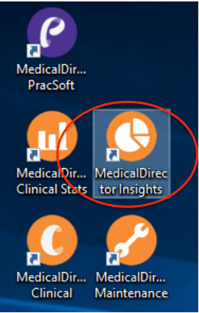
Open your Medical Director Insights as seen below:
Step 2:
Begin a collection if you haven't already done this before - please note, this will possibly take some time.

Step 3:
Navigate to demographics in your Medical Director:

You may click 'edit' on the filter to change the demographics being searched for:

Make sure you apply any changes.

Step 4:
Select the regions in the visualization you require and select "View":

Step 5:
Now, simply export that data as CSV:

Once you’ve saved the CSV file to your computer, please check before uploading the CSV file to Communicate that only the mobile number column remains.
Communicate will not be able to translate any other information such as patient name. This can be done in Excel or similar programs by deleting all other columns containing information other than mobile numbers.