
Vertical: General Practice, Dental, Allied, Specialist
PMS Eligible: Best Practice, Pracsoft, Zedmed
If you're an existing Coviu customer, you can easily set up Coviu’s paid telehealth integration for your practice by following these simple steps to self-activate.
Not a Coviu customer yet?
Coviu is a leading telehealth software provider with advanced features tailored to the needs of healthcare professionals including integrated clinical assessments, secure e-prescribing capabilities and an online whiteboard, among others. If you don't yet have a Coviu account, you can click here to find out more about Coviu and also to access our Healthengine partner discount.
How to activate Healthengine's Coviu telehealth integration
- Log in to your Healthengine Practice Admin account
- Go to the Appointments setup tab and select Telehealth
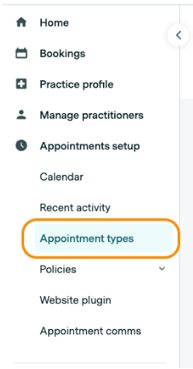
- Select the
 icon on the 'Appointment type' and select Edit attendance type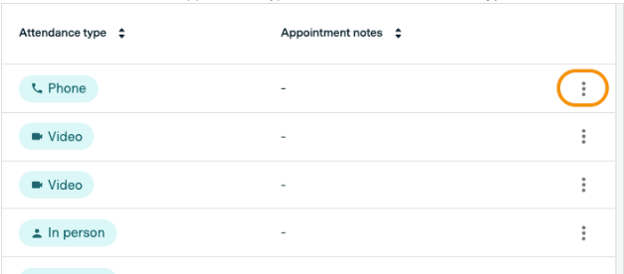
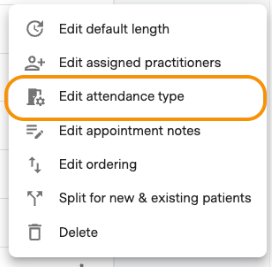
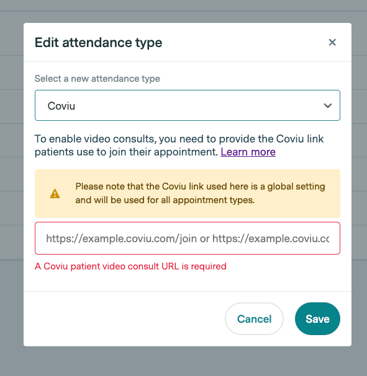
- Select Coviu from the dropdown
- Copy your Coviu room link that you normally use for your Coviu appointments, paste it into the link section and hit save.
Accessing your Coviu link
Depending on your practice workflow and Coviu plan, you will either prefer patients to enter your own personal room, your reception room or your waiting area.
Whatever link you usually send patients via Coviu is the link you want to copy. This will be the link the patient is sent upon booking their appointment, so make sure you choose the one that sends them to the right place.
Coviu Starter + Professional plans
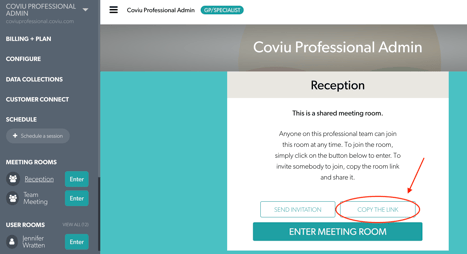
You will find your room link on your Coviu dashboard. Select the room you want to the patient to arrive at, then click Copy the Link.
Coviu Clinic Plans
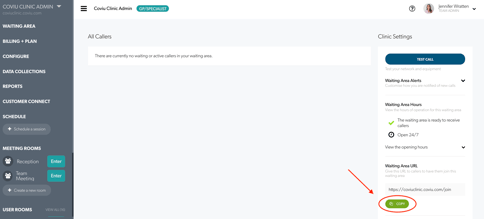
You will find your waiting area link on the right-hand side of your Coviu dashboard.
What patients see
Once booked by a patient, the Telehealth appointment will be marked accordingly, depending on your practice management software (PMS), and your Coviu link will be displayed in your PMS ready to be used at the time of the appointment. You can read more about how Telehealth works with different PMS providers in our Help Centre, simply search for 'Telehealth' or for your PMS.
Pricing
During the Telehealth onboarding process you will also be shown Healthengine's pricing for this paid integration.
More Information
If you have any further queries regarding Telehealth, please don't hesitate to reach out to your Customer Success Manager (CSM), or contact Support team.
Find out more about Telehealth pricing and other Telehealth FAQs in our Help Centre here.