
Vertical: GP, Dental, Allied, Specialist
PMS Eligible: BP, Communicare, Consult, Genie, Medtech, Pracnet, Pracsoft, Practice 2000, Zedmed, Helix, CorePractice, Dentally, Oasis/Exact, Oasis (SOE), Exact (HS1), Praktika, CareStack, Back In Motion, Optomate, PPMP, Sunix, CorePlus, NOOKAL, Cliniko, PracSuite, Xestro, Front Desk 2014 v2014+, Gentu, Genie
If you have added a new practitioner or an existing practitioner whose appointments are no longer showing online, you will need to link their appointment book so patients can begin booking these appointments.
To begin, log in to your Healthengine Practice Admin and navigate to 'Manage practitioners'.
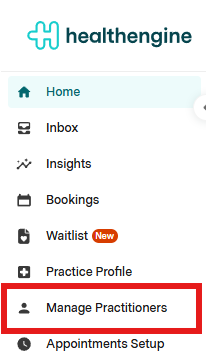
From here, you can add a new practitioner or select 'Edit appointment types' in line with an existing practitioner's name to bring up their appointment type setup page.

Select the button: "Edit Appointment Book"
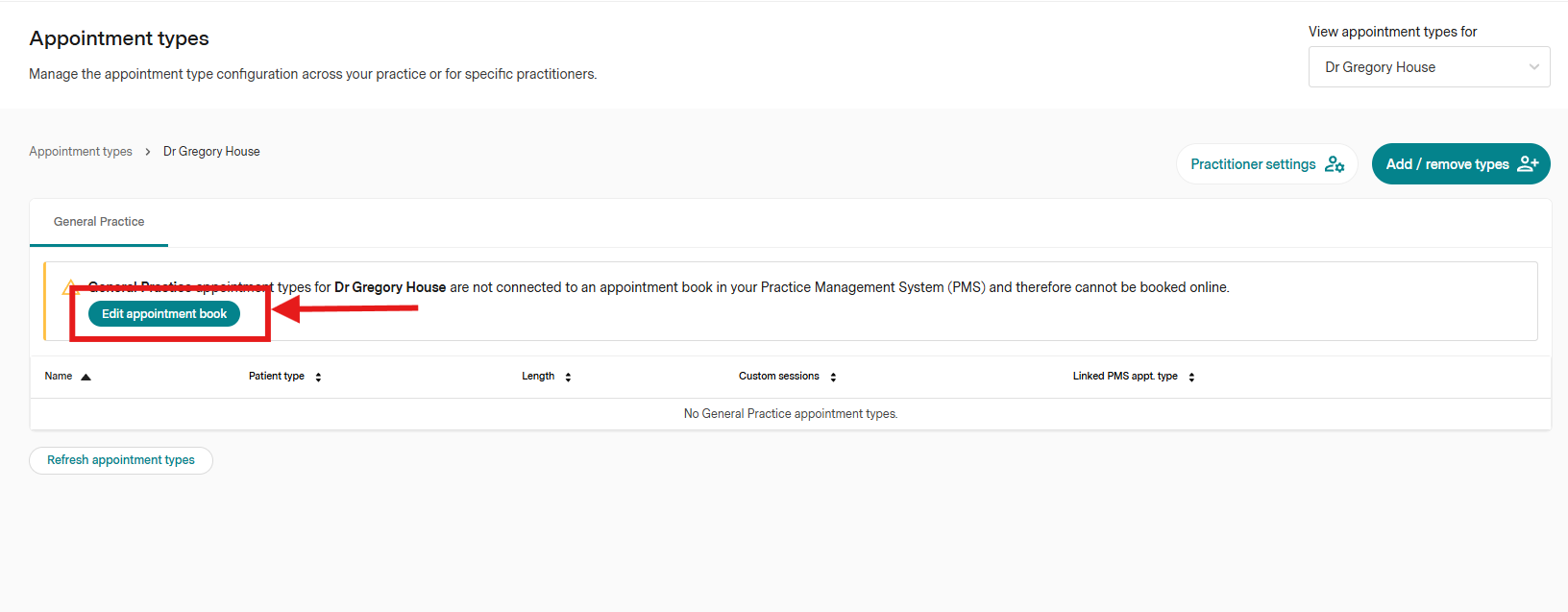
Once you click this green button, select the corresponding appointment book for that practitioner from the drop-down.
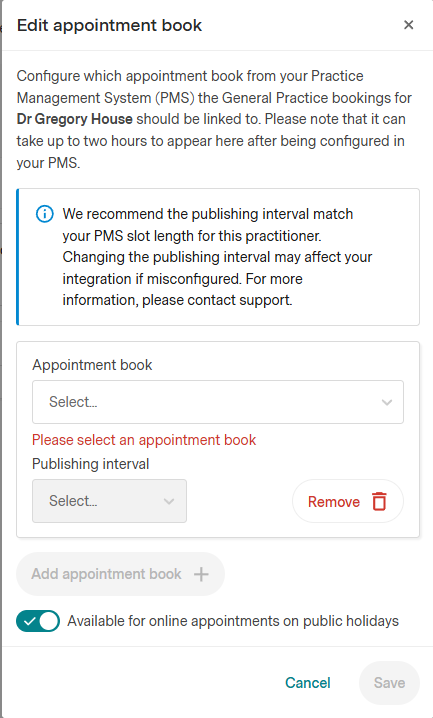
IMPORTANT: Publishing Intervals should be a number compatible with the appointment types of your practitioner.
You will also be able to enable and disable the availability for online appointment on public holidays for your practitioner, toggling on or off the option "Available for online appointments on public Holidays":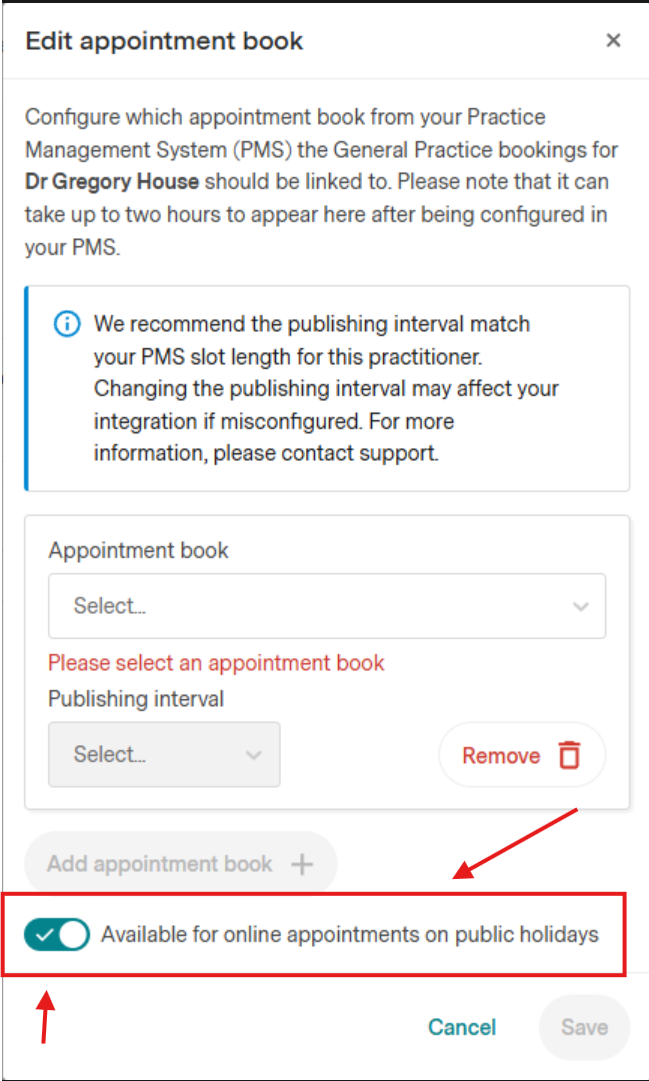
Once connected, click the save button, and their appointments will appear online within the next 5-10 minutes.
Please Note: If you don't see the appointment book you are looking for in this list, it may be that it hasn't been set up correctly for online appointments in your PMS or that this practitioner doesn't have any availability in the near future.
For more information on setting up practitioners for online appointments in your PMS, refer to your software's user troubleshooting guides.