
Dental Smart Recalls messages the patients on a recall list you import. This article shows how to export that list from your practice management system (PMS).
Vertical: Dental
PMS Eligible: D4W, EXACT, Praktika, Core Practice
In this guide
- What your export needs to include
- D4W (Dental4Windows)
- EXACT
- Praktika
- Core Practice
- Contact Our Support Team
What your export needs to include
Whichever PMS you use, the export needs each patient's:
- First name
- Last name
- Date of birth
- Mobile number
- Practitioner (optional)
Patients with a future appointment already booked don't need a recall, so the EXACT, Praktika and Core Practice steps exclude them. For how sends work after you import your list, see the Dental Smart Recalls FAQ.
D4W (Dental4Windows)
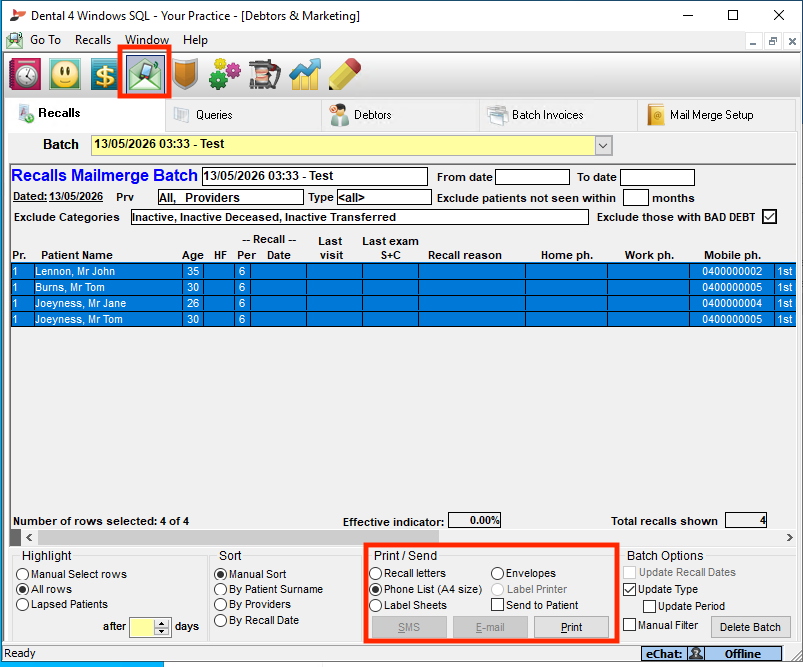
- Create a recall batch under the Debtors and Marketing screen.
- Under Print / Send, select Phone List (A4 size), then select Print.
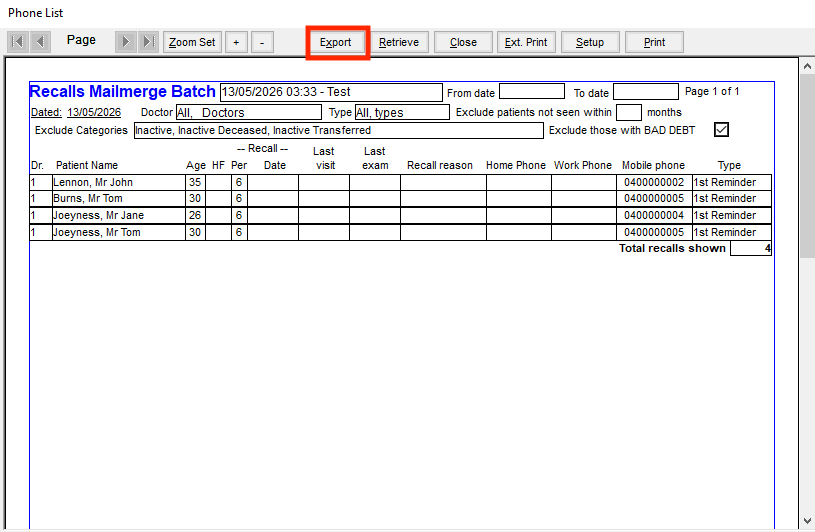
- Select Export.
- Set Save as type to CSV, then click Save.
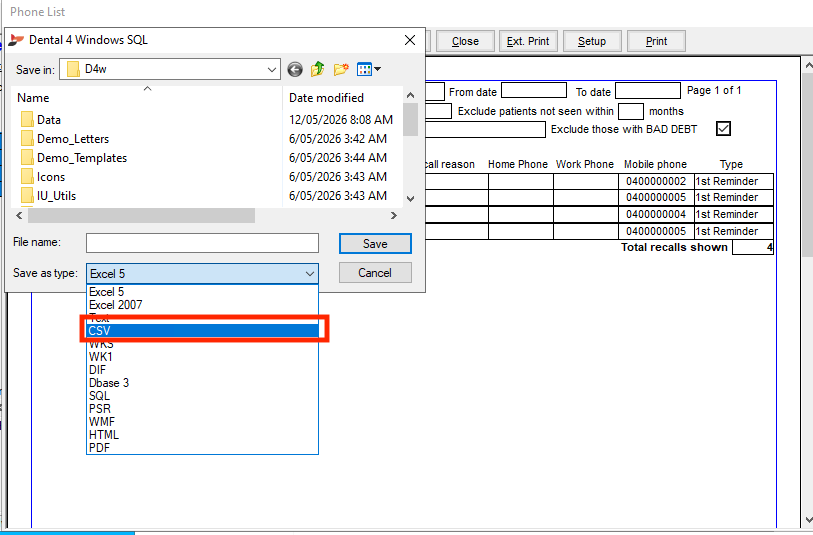
The export includes every field available for each patient, even though the Phone List screen doesn't show them all.
EXACT
-
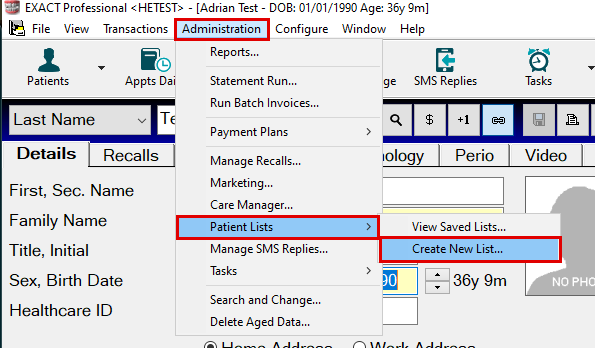
In the top menu, go to Administration → Patient Lists → Create New List...
-
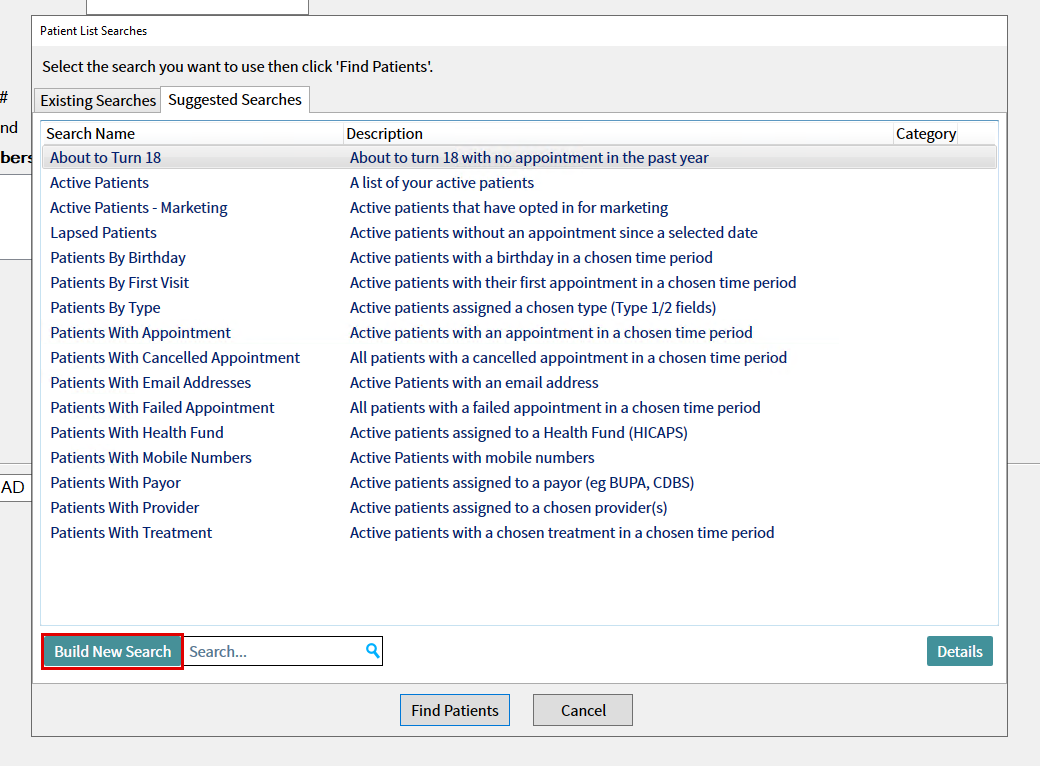
In the Patient List Searches window, click Build New Search (bottom left).
-
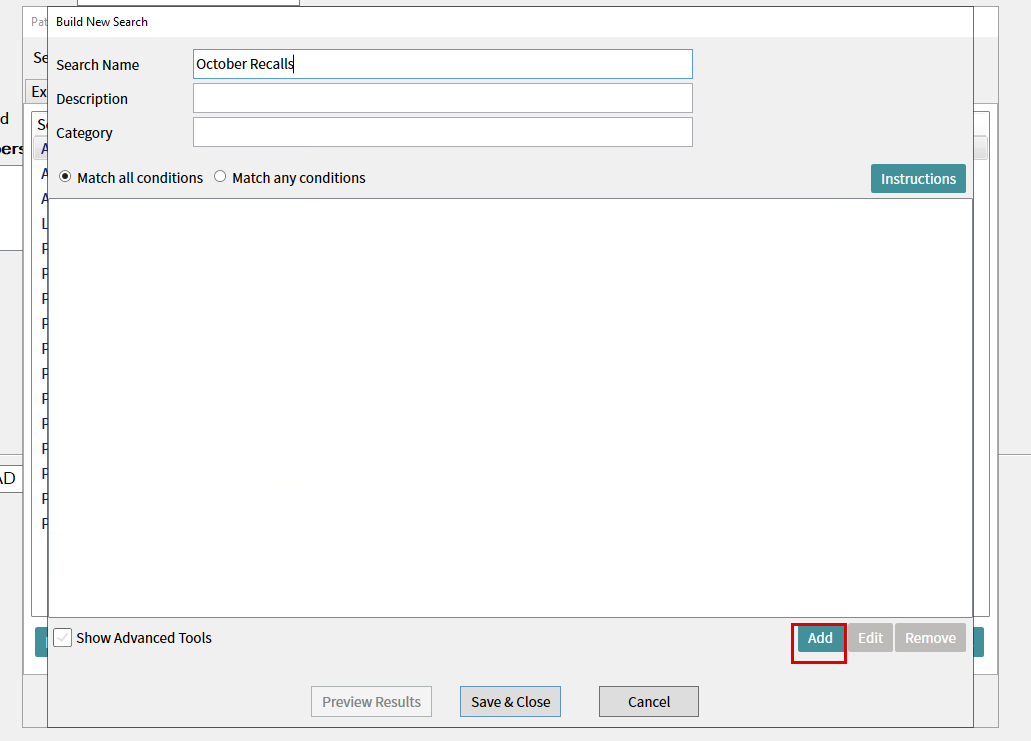
Enter a Search Name (e.g. "October Recalls"). Description and Category are optional. Leave Match all conditions selected, then click Add (bottom right).
-
In Select Condition, choose Dentist recall and click OK.
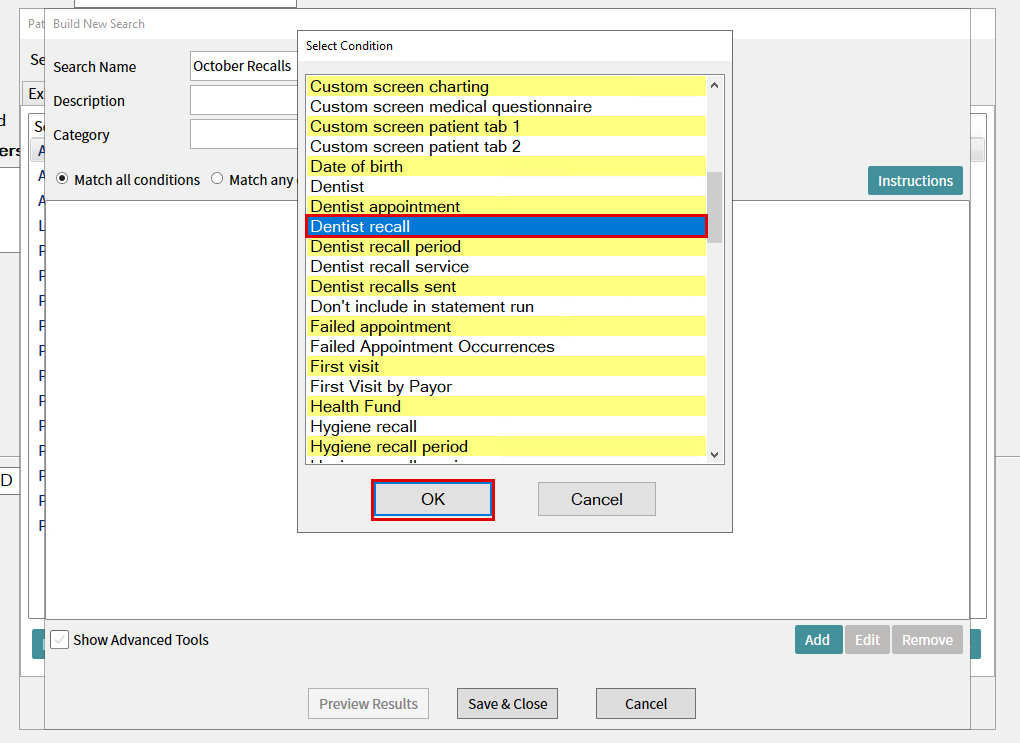
- Use Hygiene recall instead if exporting hygienist recalls.
-
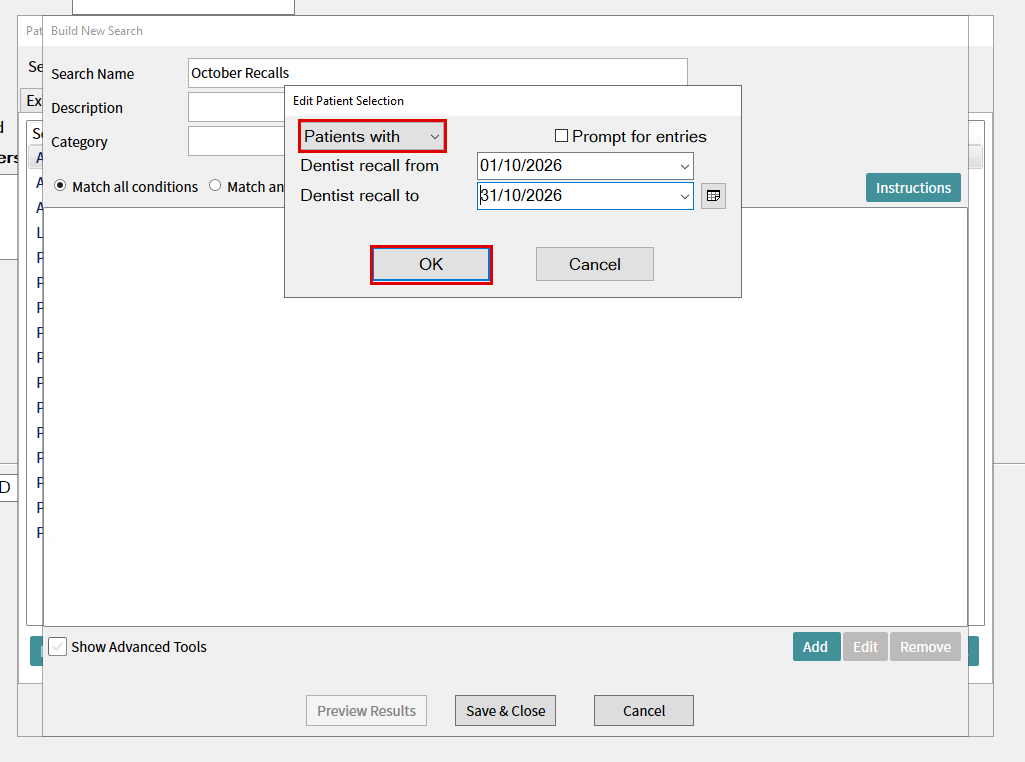
In Edit Patient Selection, leave the dropdown on Patients with, set Dentist recall from and Dentist recall to (e.g. 01/10/2026 to 31/10/2026), then click OK.
-
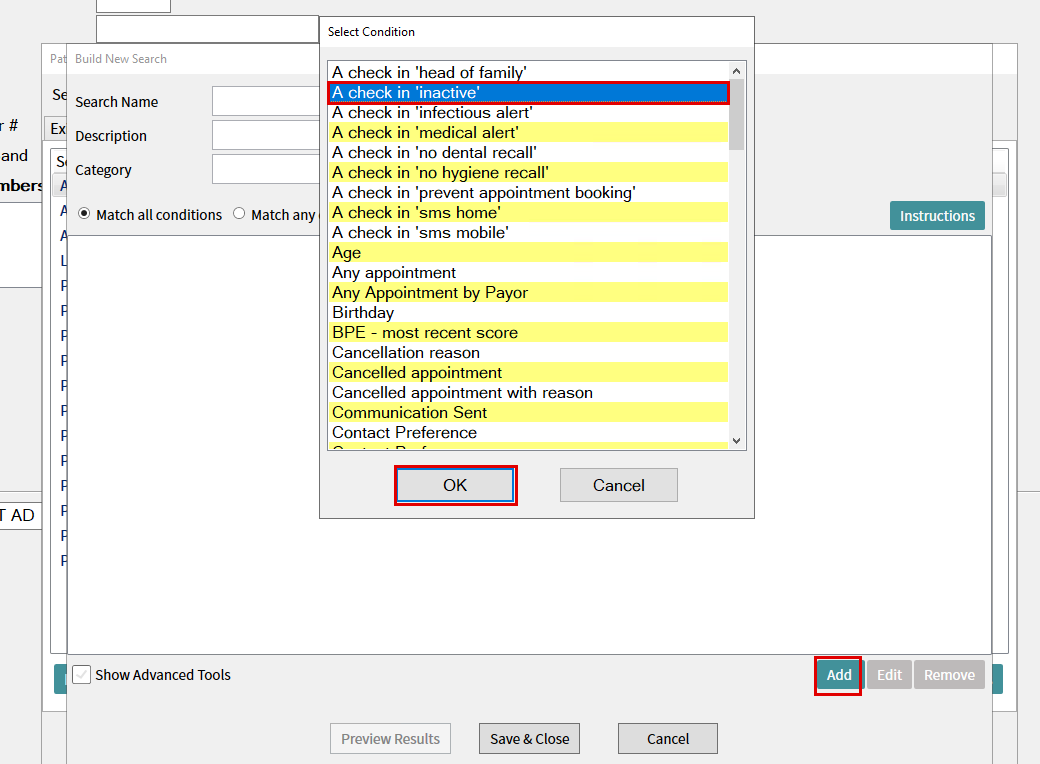
Click Add again. In Select Condition, select A check in 'inactive' and click OK.
-
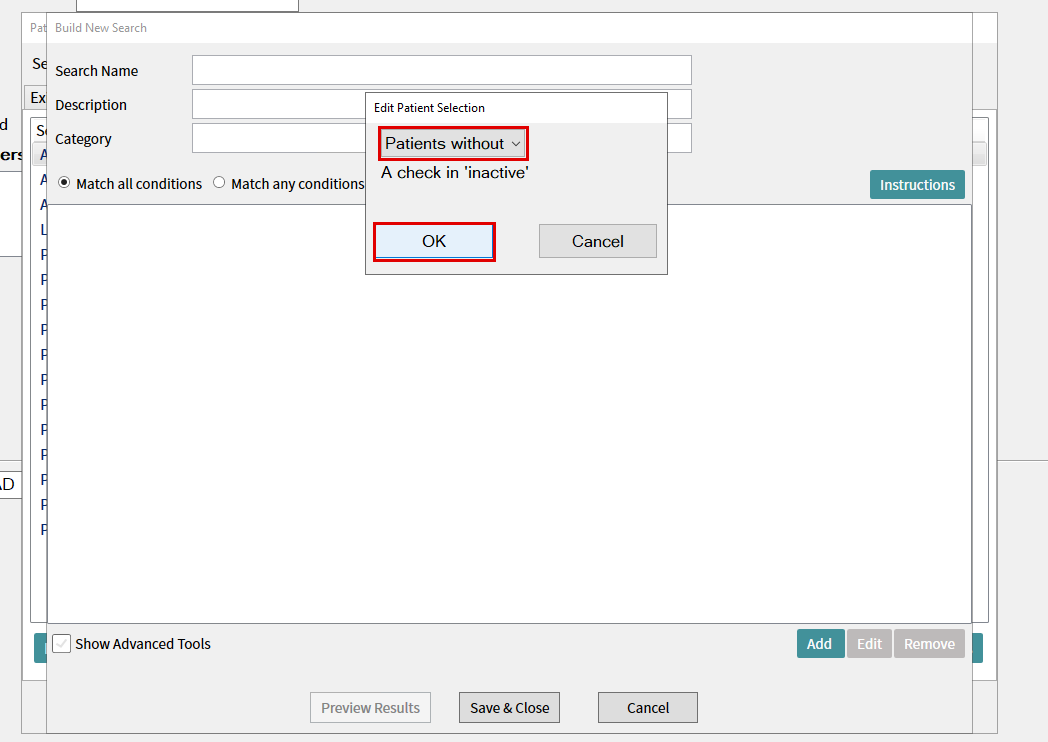
In Edit Patient Selection, select Patients without, then click OK to exclude inactive patients.
-
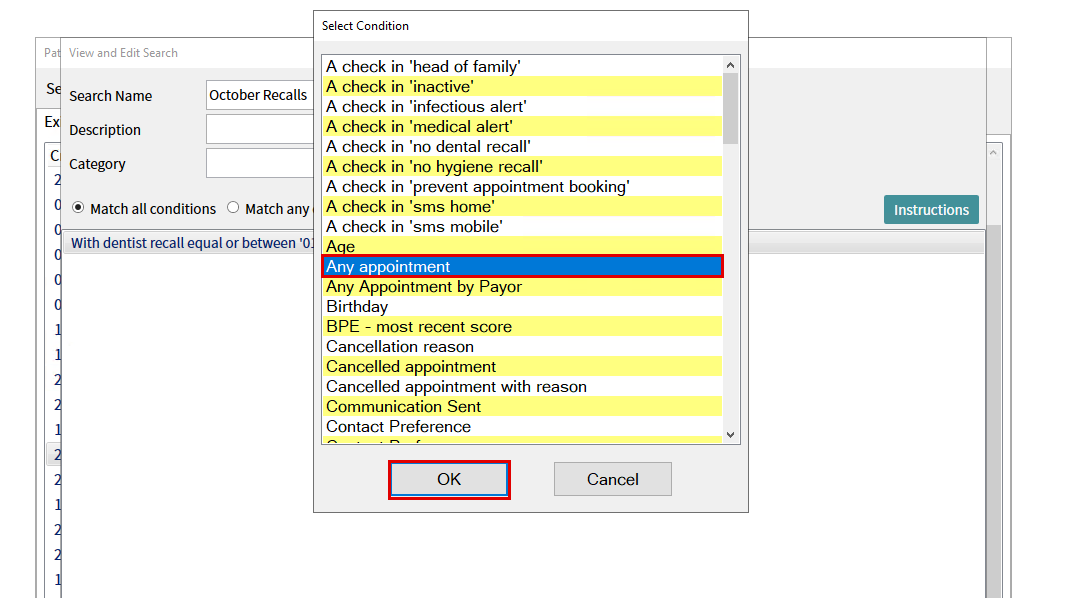
Click Add again. In Select Condition, select Any appointment and click OK.
-
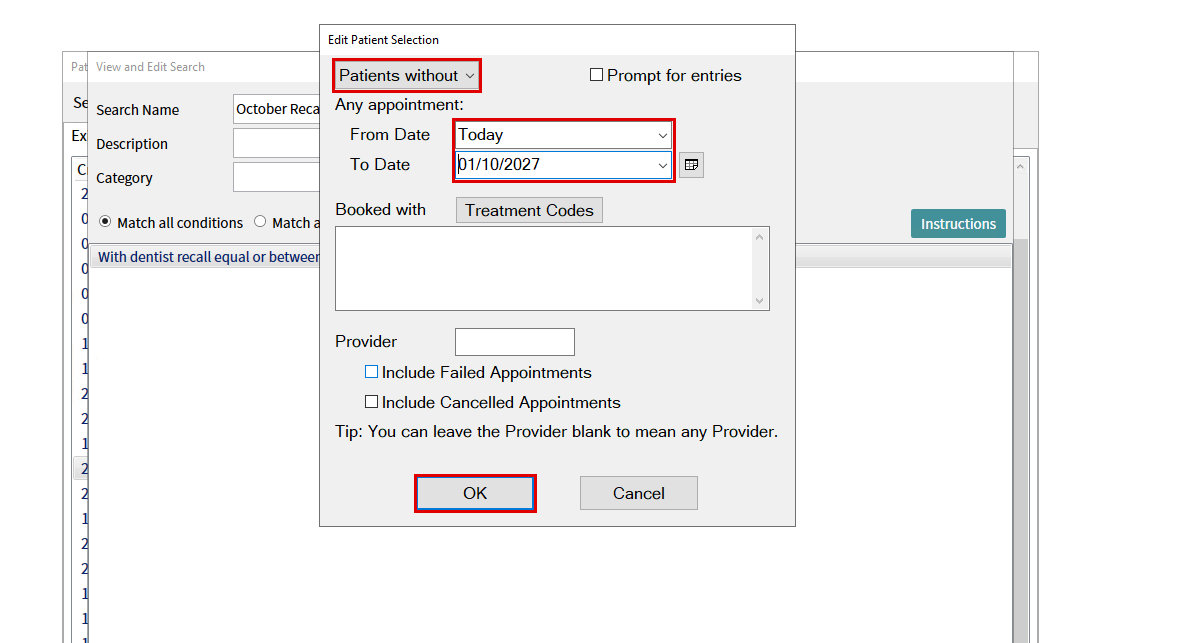
In Edit Patient Selection, select Patients without. Set From Date to Today and To Date far enough ahead to cover the practice's future bookings (01/10/2027 in the example). Leave Booked with and Provider blank, and leave Include Failed Appointments and Include Cancelled Appointments unticked. Click OK to exclude patients with appointments within that date range.
-
-
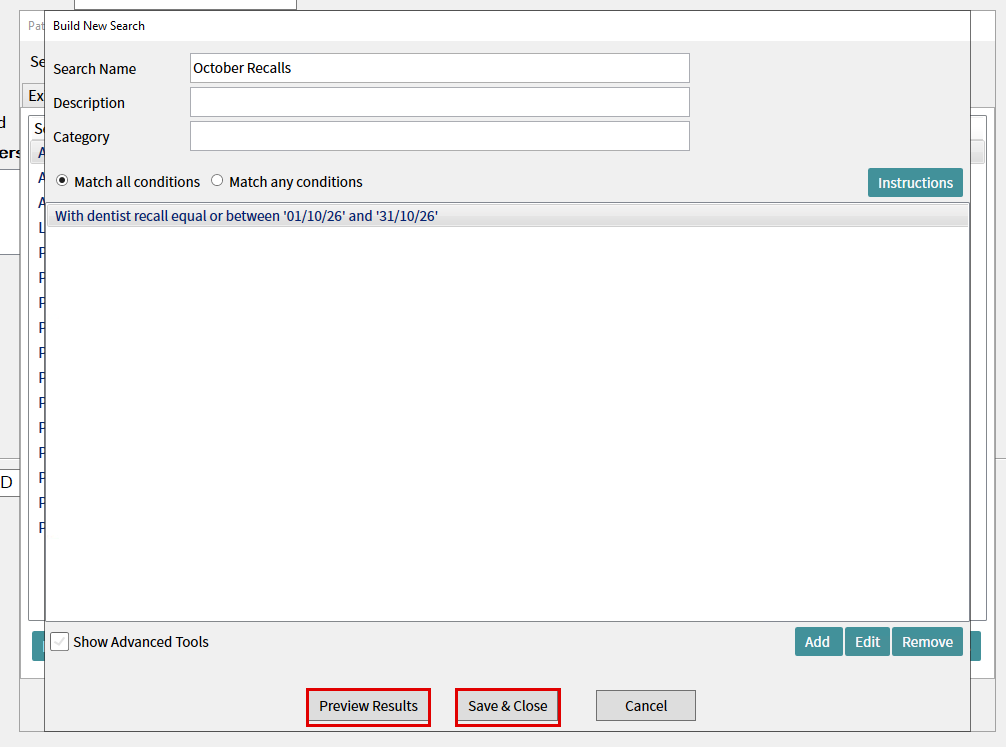
Check that the dentist recall date range, inactive-patient exclusion and future-appointment exclusion all show in the list. Click Preview Results to sanity-check, including checking that a patient with a known future booking is excluded, then click Save & Close.
-
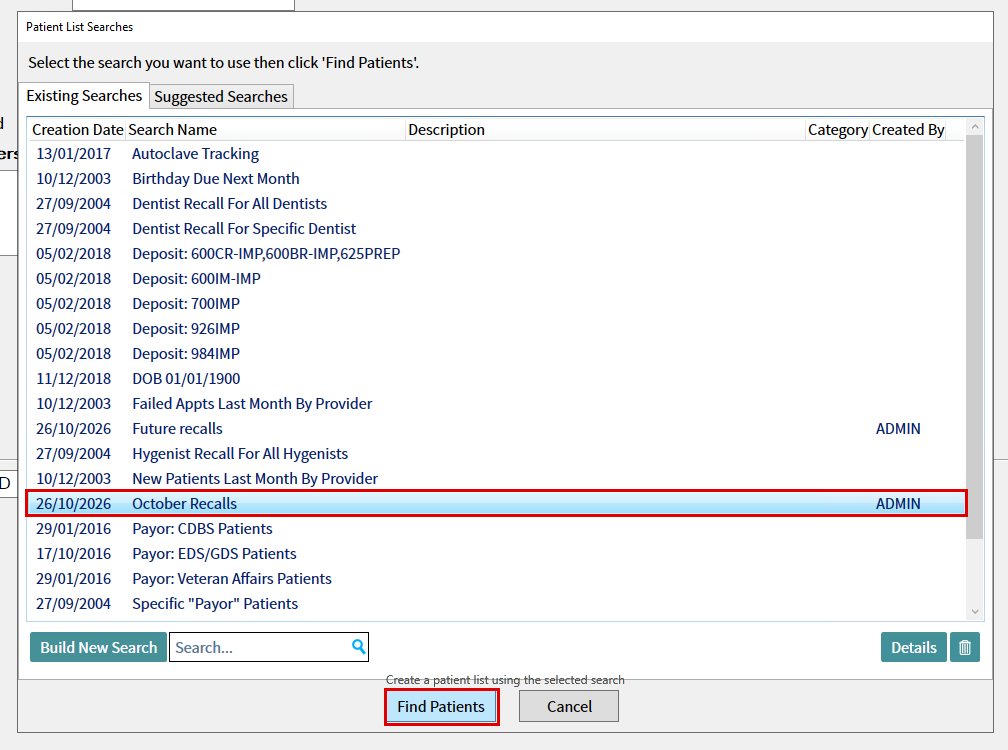
Back in Patient List Searches → Existing Searches tab, select your new search and click Find Patients.
-
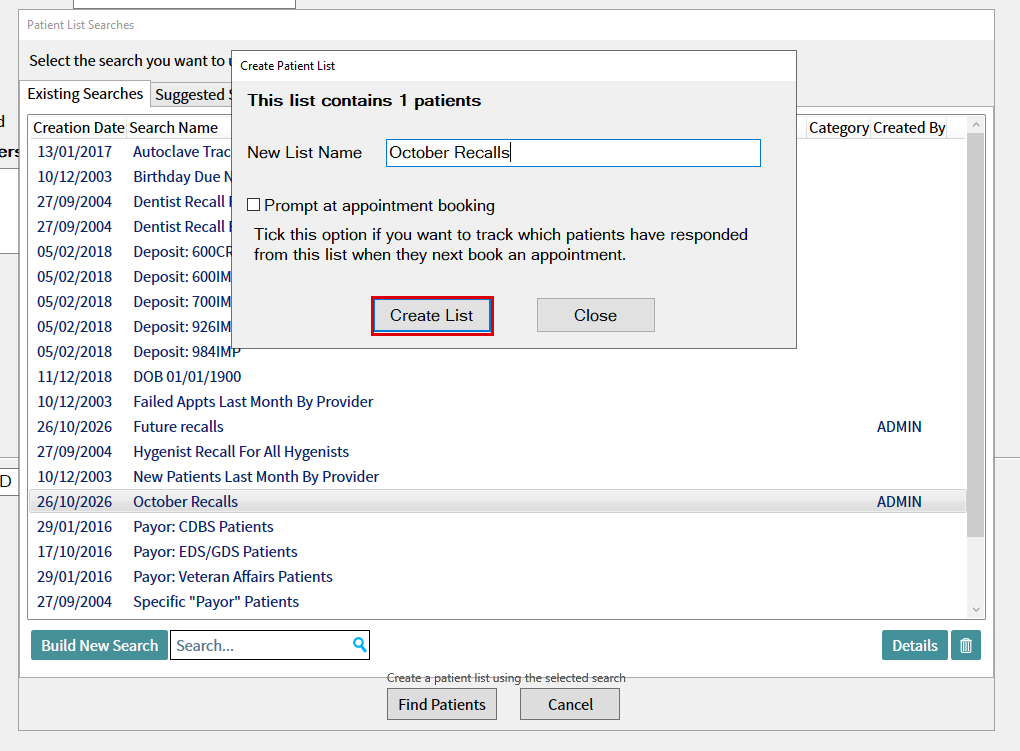
The Create Patient List popup shows how many patients matched. Confirm the New List Name, leave Prompt at appointment booking unticked, and click Create List.
-
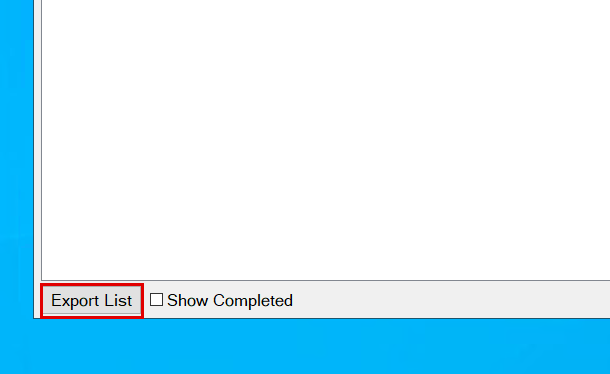
In the list that opens, click Export List (bottom left) and save as a CSV in the chosen folder.
Praktika
Follow these steps to export a recall list from Praktika, excluding patients with an appointment booked today or later.
-
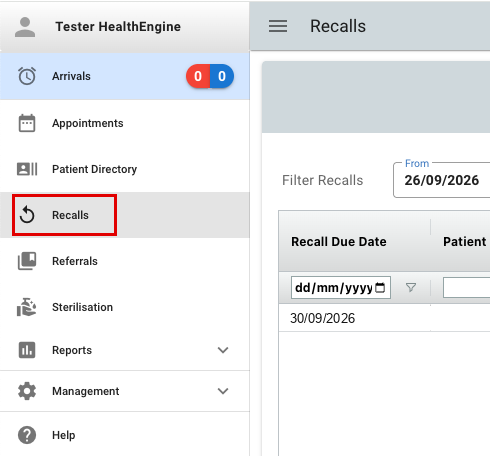
Log in to Praktika and confirm you are in the correct practice. Click Recalls in the left-hand navigation.
-
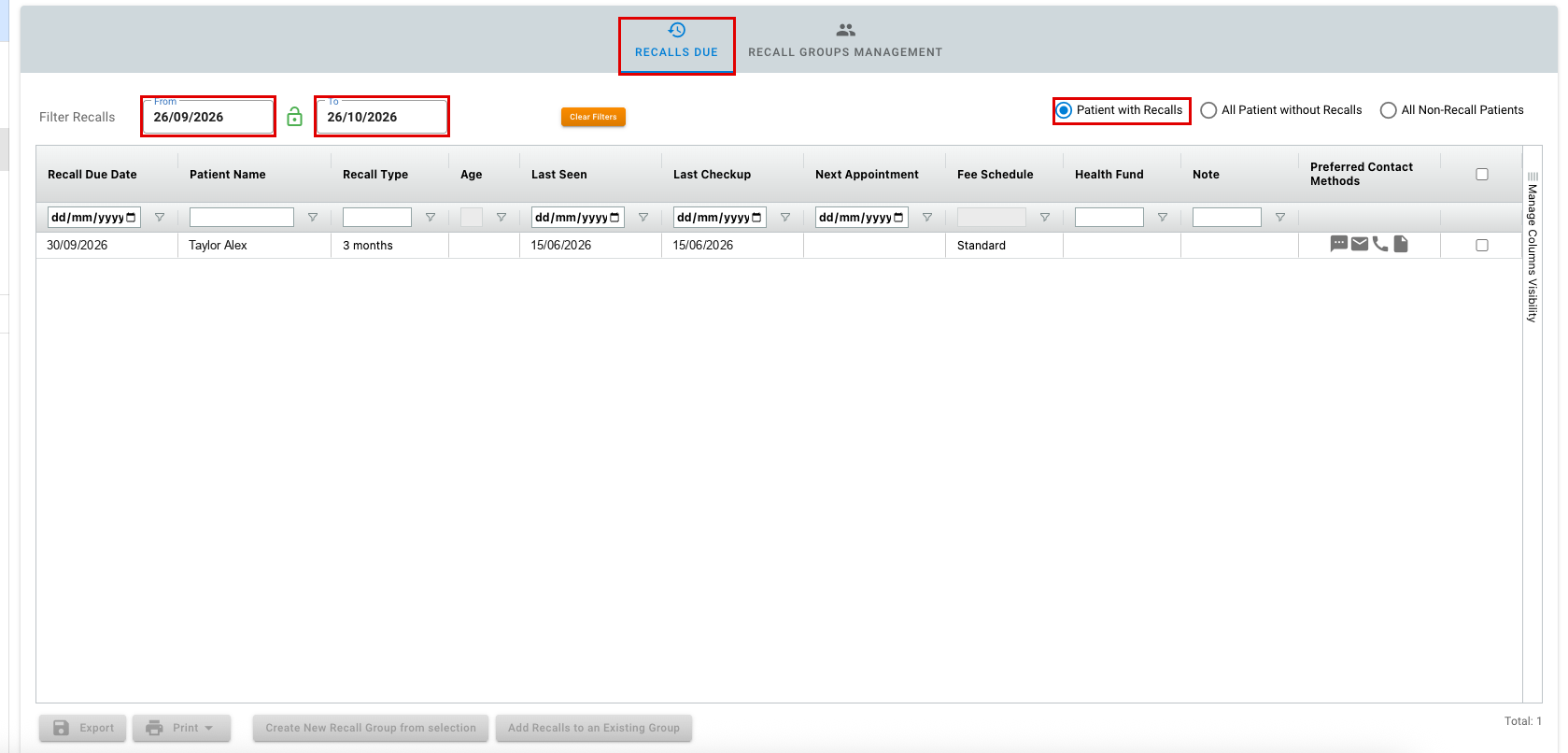
Select the Recalls Due tab. Keep Patient with Recalls selected, rather than All Patient without Recalls or All Non-Recall Patients.
-
Under Filter Recalls, set From and To to the required recall due-date range. The example below shows 26/09/2026 to 26/10/2026; use the period required for your export.
-
Exclude patients with appointments booked today or later using the Next Appointment column filter.
-
Click the filter icon beside Next Appointment, choose Less than, and set the date to today's date using Today in the calendar. Leave the second condition unused. The screenshot shows 26/10/2026; use the current date each time you prepare the list.
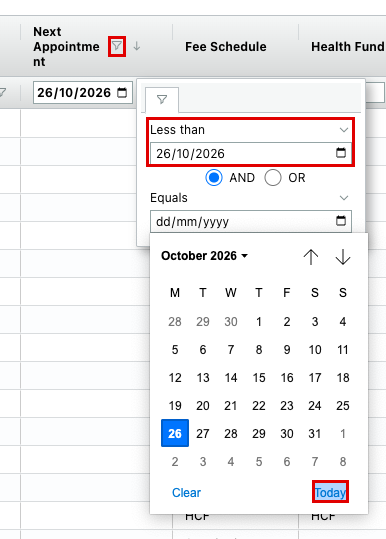
- Patients with no booking (a blank Next Appointment) remain included in the list.
-
-
Tick the select-all checkbox at the top right of the patient list to select everyone in the filtered results, then click Export in the bottom-left corner.
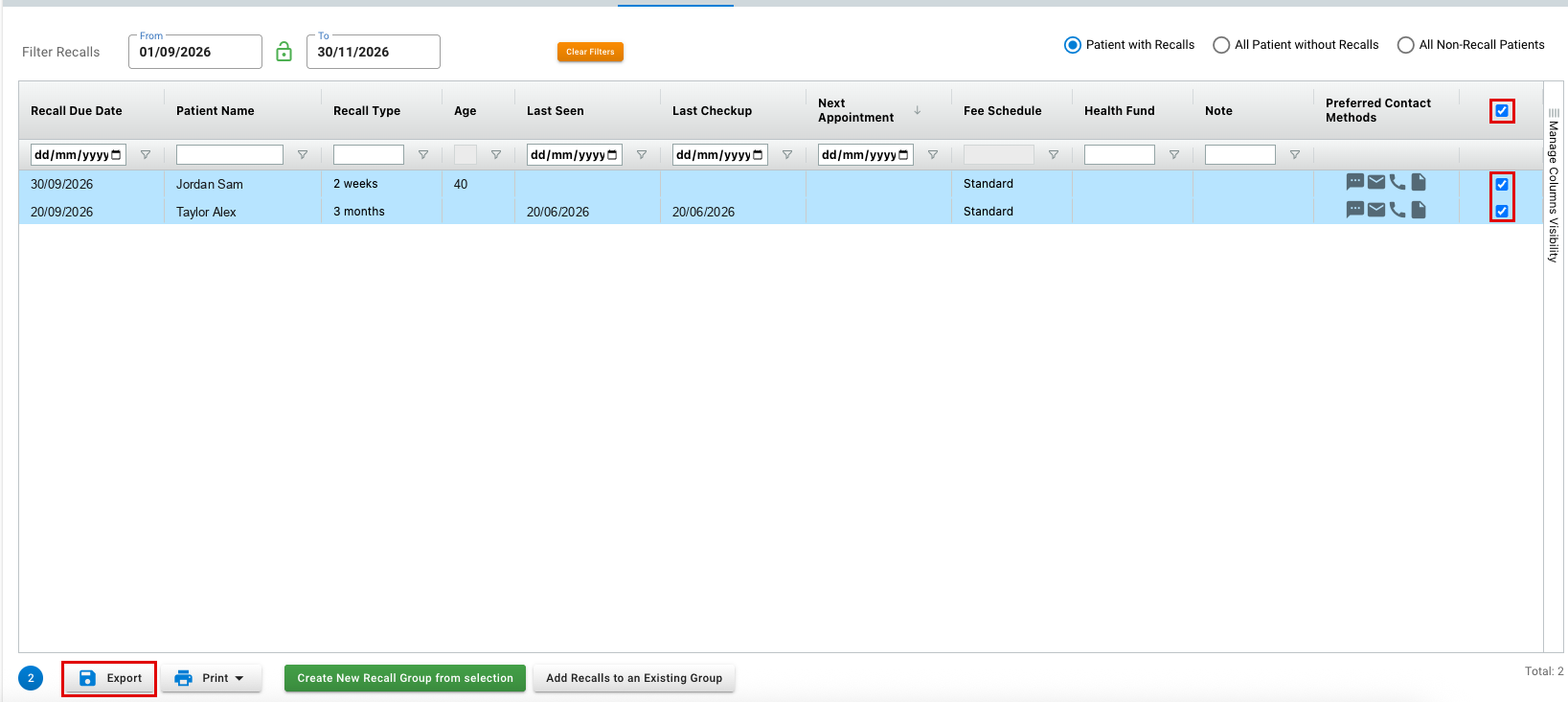
- Check the selected count matches the number of patients you want to export. If the list spans multiple pages, make sure all intended patients are selected.
Core Practice
Already have a manual recall campaign? Confirm the outstanding-appointment exclusion in step 4 is configured and saved, then continue from step 6. Don't change an existing automated campaign for this export.
-
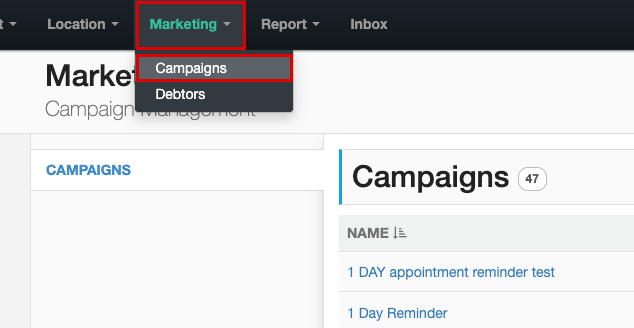
Log in to Core Practice and confirm you are in the correct practice. In the top menu, click Marketing > Campaigns.
-
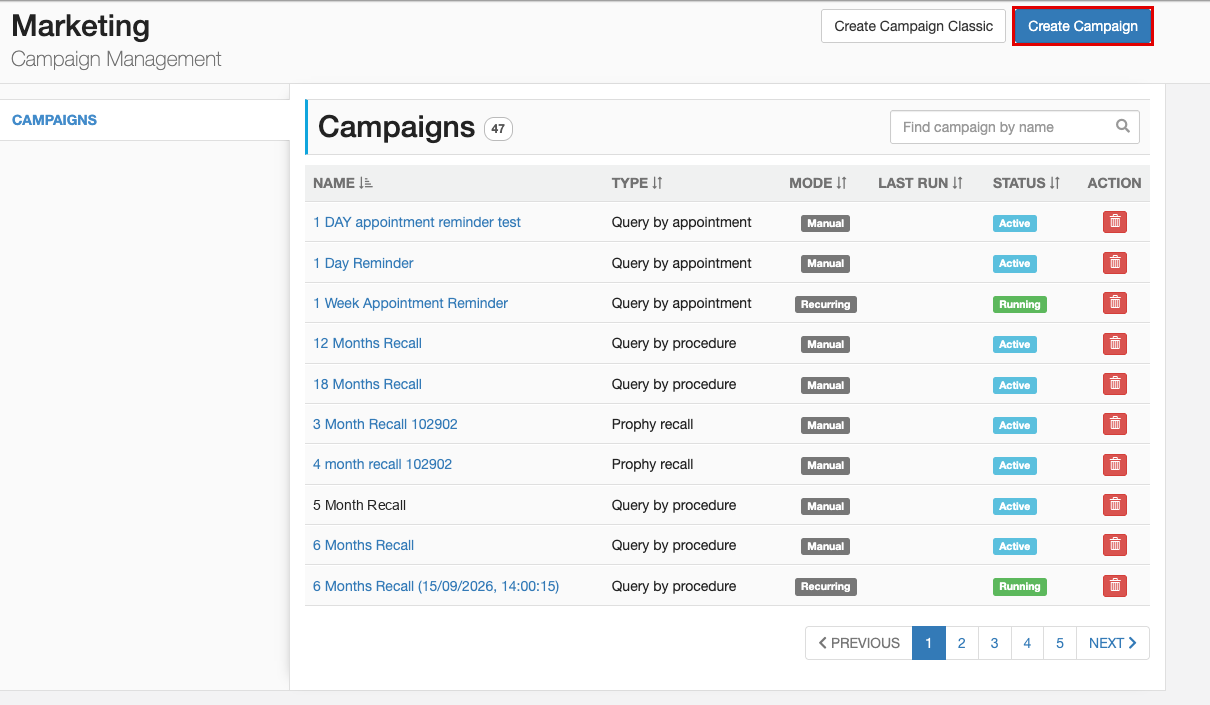
Click Create Campaign at the top right.
-
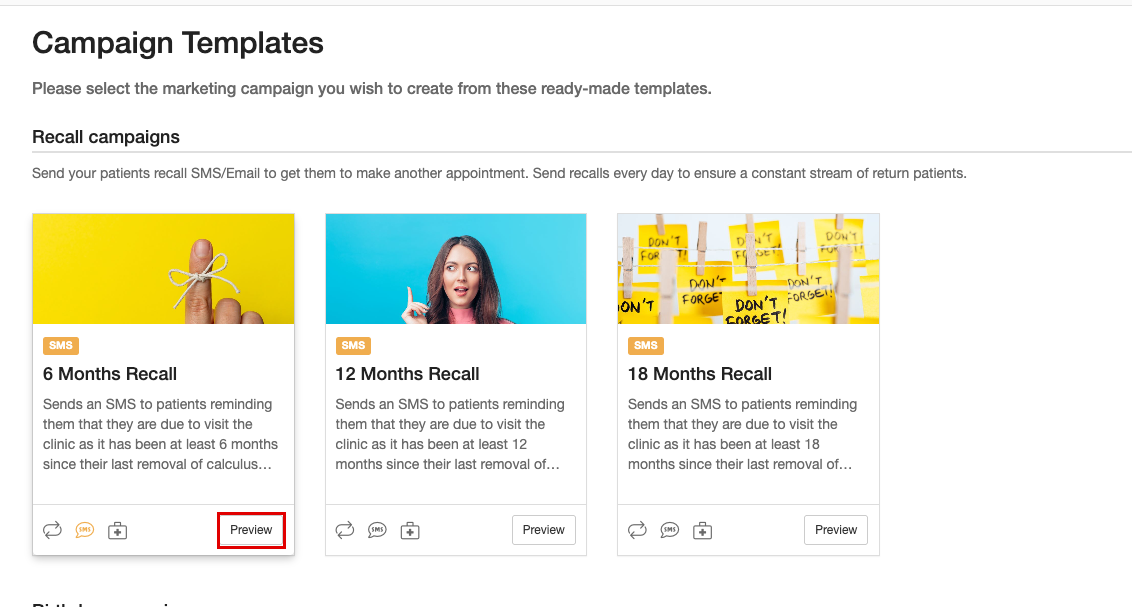
Under Recall campaigns, click Preview on the 6 Months Recall template, or the recall interval required by your practice.
-
Review the template's interval and procedure criteria, then click Customise This Campaign to configure the appointment exclusion.
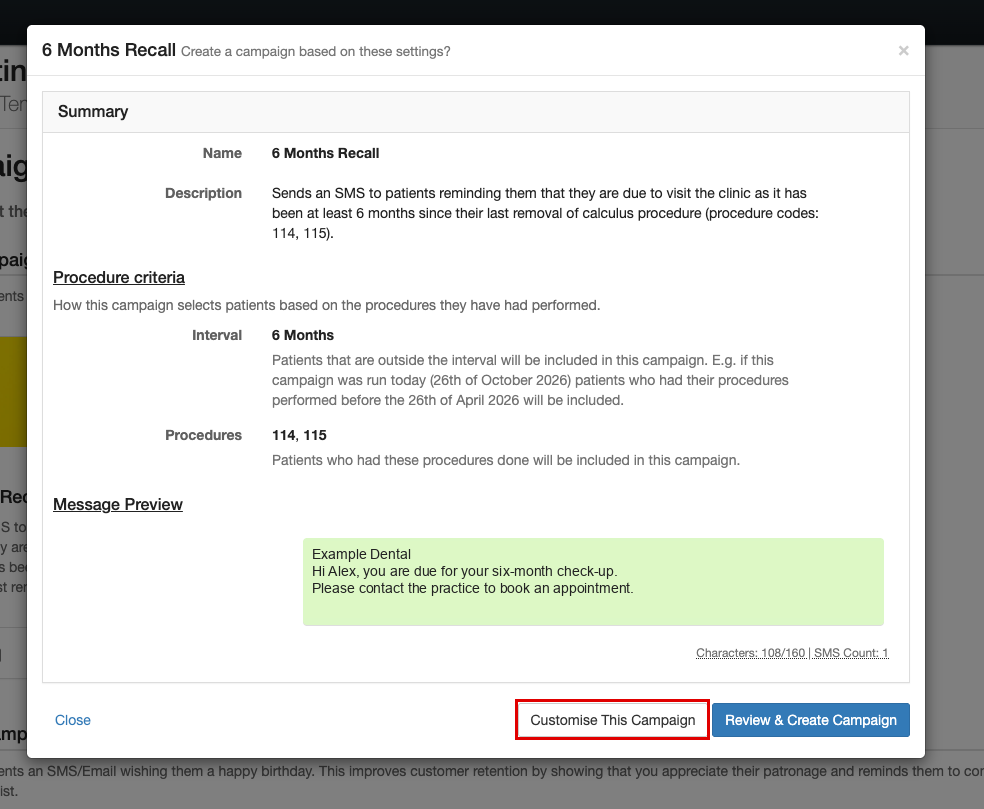
- The example uses a six-month interval and procedure codes 114, 115. Make sure these criteria match the patients you intend to recall.
-
Set Exclude patients with certain outstanding appointments from this campaign? to Yes. Leave the optional Exclude appointments field empty so the exclusion is not restricted to a particular appointment class.
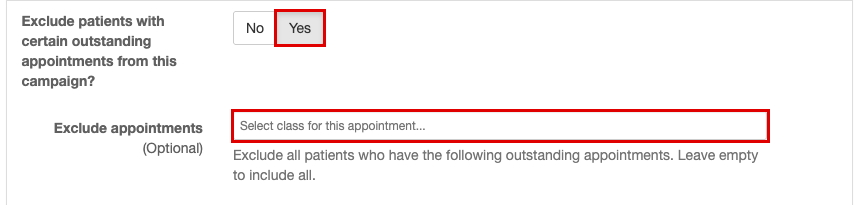
- Continue through the remaining criteria using Continue to Recipients, then Review Campaign.
-
On the review screen, under Message Schedule, leave Set this campaign to run every day? on No. Click Create Campaign.
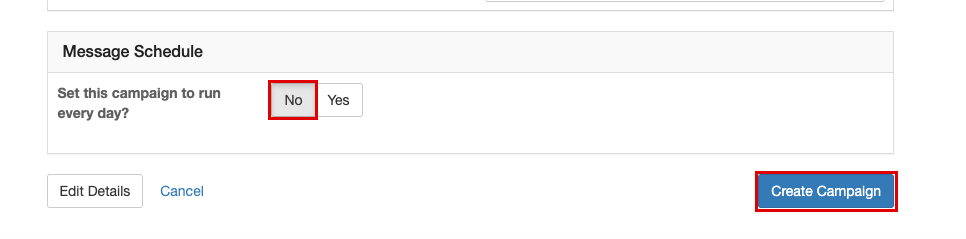
-
On the campaign details screen, click New Run at the top right.
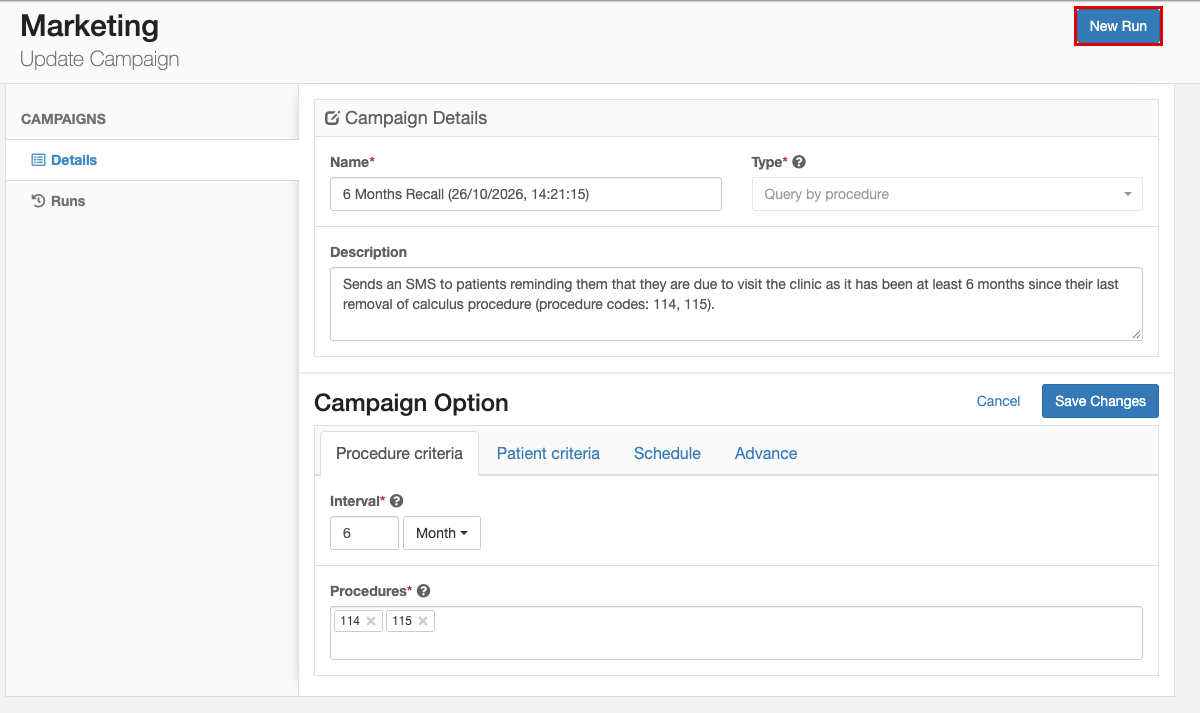
-
Leave Campaign date as today's date. Set Campaign period to the required recall due-date range, then click Next.
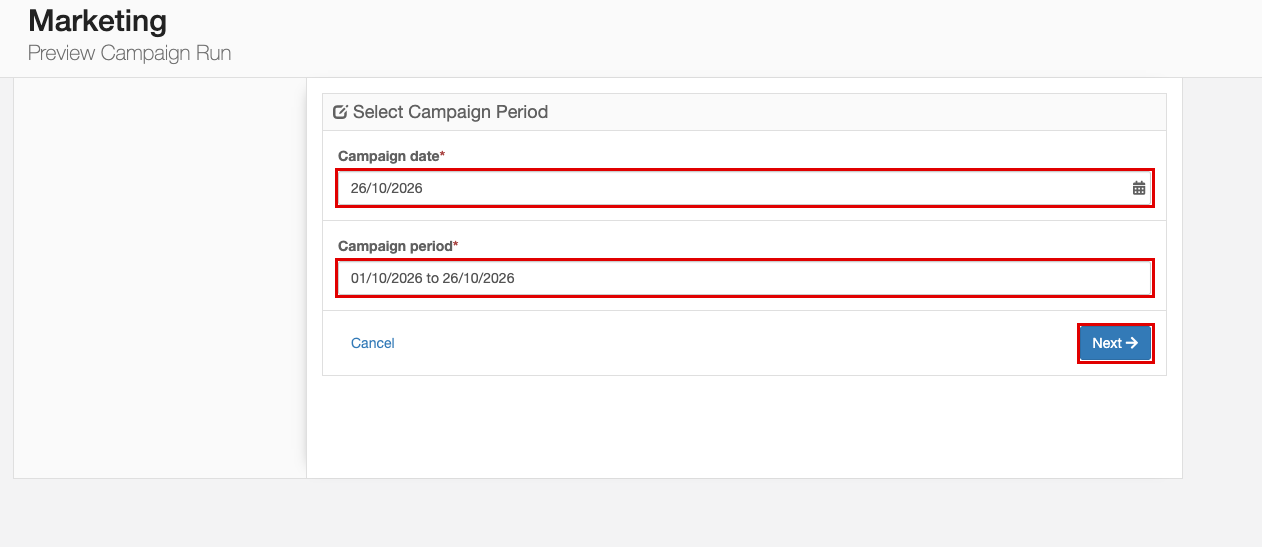
- The example period is 01/10/2026 to 26/10/2026. Use the period required for your export, not the patients' previous treatment dates.
-
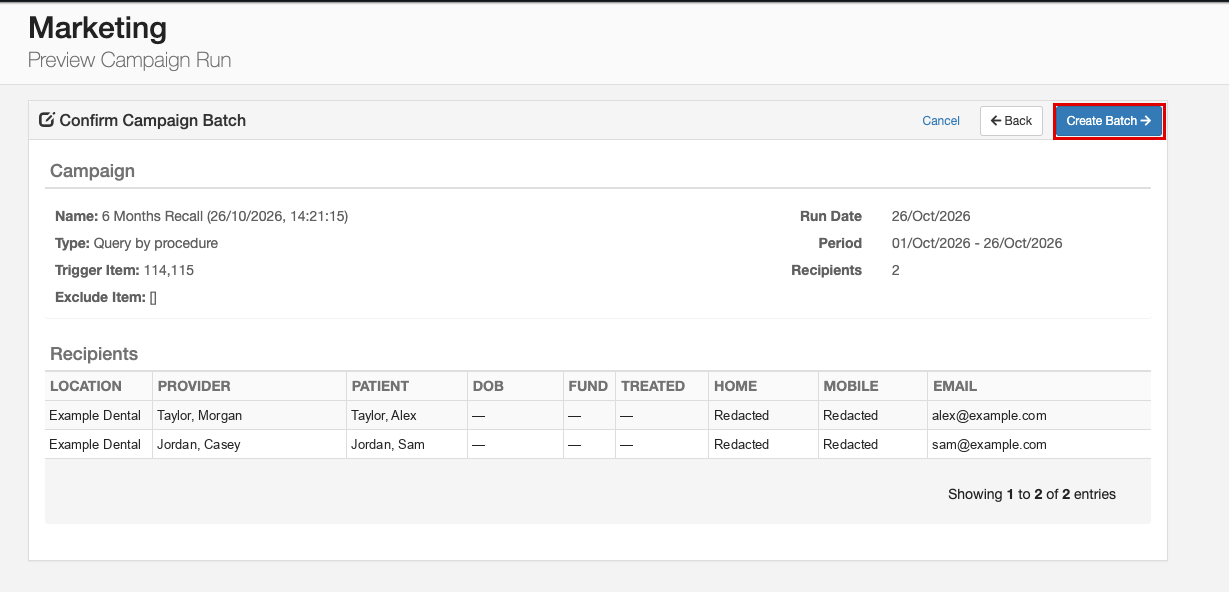
On Confirm Campaign Batch, check the campaign, period and recipient list. Confirm a patient with a known future booking is excluded and an otherwise eligible patient with no booking remains included, then click Create Batch.
-
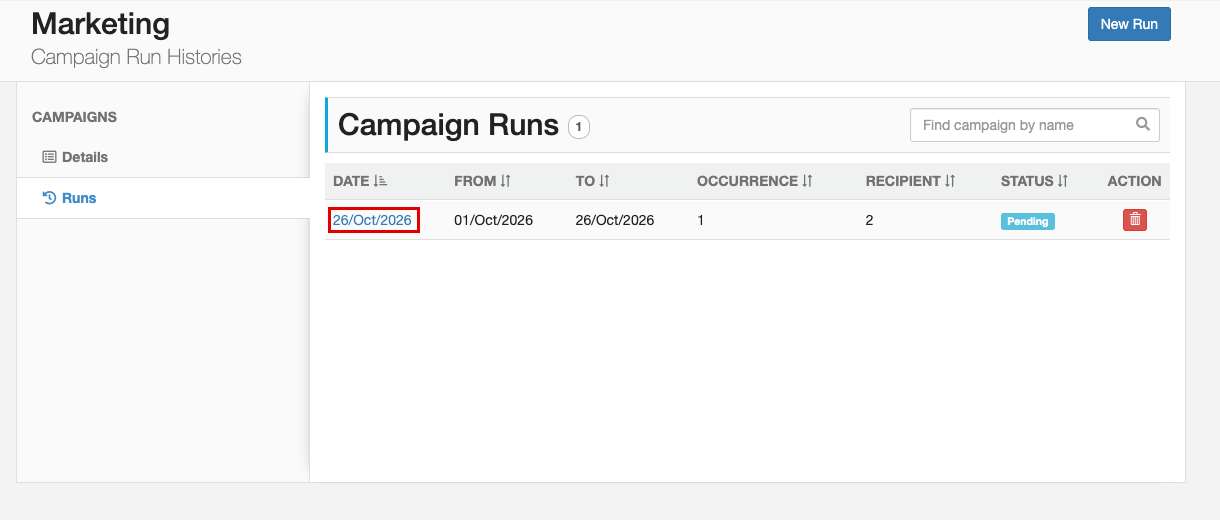
On Campaign Runs, click the date of the run you just created to open its patient list.
-
On Campaign Run, click Download in the top-right corner and save the exported file.
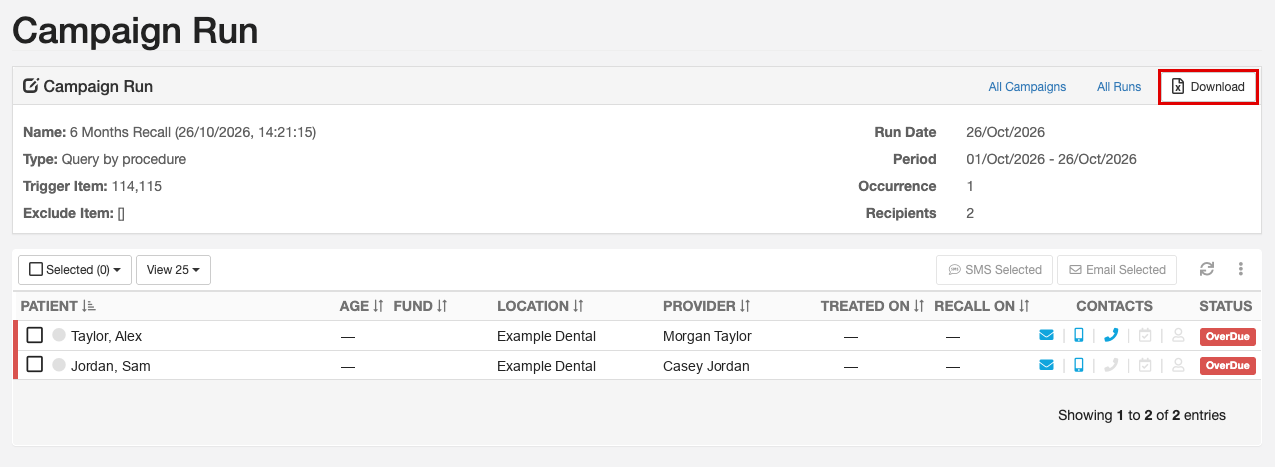
Use Download, not the SMS or email controls. Don't change the file extension to make it a CSV.
Contact Our Support Team
If you need help exporting your recall list, our Support team is happy to help. To help us resolve it quickly, please have the following ready:
- your practice name
- your Healthengine practice ID
- which PMS you use
For ways to reach us, see Need more support? Here's how to contact us.