
Vertical: General Practice, Dental, Allied, Specialist
PMS Eligible: N/A
The Custom Sessions feature allows you to restrict parts of a practitioner's session from being available for certain appointment types. The custom session time will be available exclusively for the appointment type you created the custom session for, and any appointment types with overlapping custom sessions.
You can use this to quickly take availability offline (e.g. if a doctor calls in sick but is still working remotely) or to better manage practitioners working from certain locations (e.g telehealth-only appointments if a practitioner is working from home).
This guide will show you how to set up a custom session for an appointment type that will restrict other appointment types from being booked online during that session time via Practice Admin.
This feature works with integrated and non-integrated practices, and isn’t restricted to any PMS.
When setting up a custom session, patients will still see all appointment types in the booking form, but when they click on a type that isn't included within that custom session, it will redirect the patient to select a time outside of the custom session that can accommodate it.
How to create a new practitioner session
Custom sessions can be created and edited from within Practice Admin.
- Log on to Practice Admin and select 'Manage practitioners' and select the practitioner you want to set up the session for by click ‘Edit Appointment Types’.
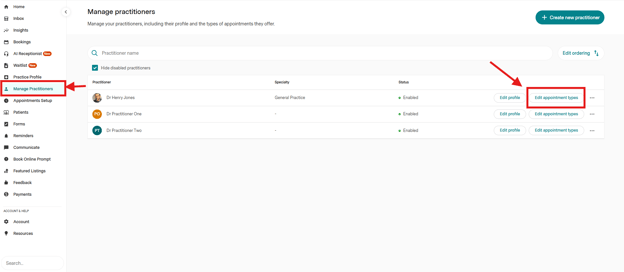
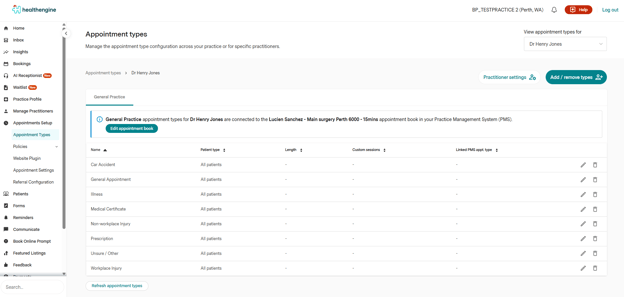
- Scroll down to the ‘Appointment Types’ section on the page. All the currently set-up appointment types allocated to that specific practitioner should be visible.
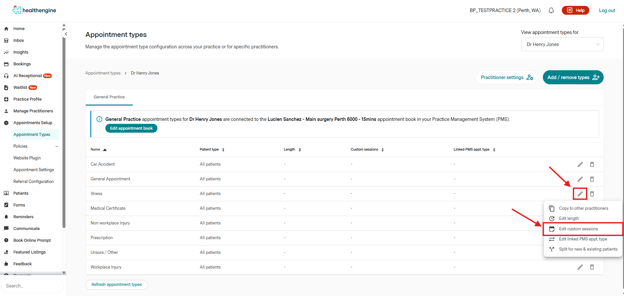
- Find the appointment type you want to add a session for and have it be the only available appointment type, and click on the pencil icon and select "Edit Custom Session". (Example with an appointment type)
- In this menu, the first option lets you decide if the appointment type should be offered only during the custom session you are going to create (OPTION TOGGLED OFF), or if the appointment is available within the custom session but also outside the custom session you are setting up(OPTION TOGGLED ON)
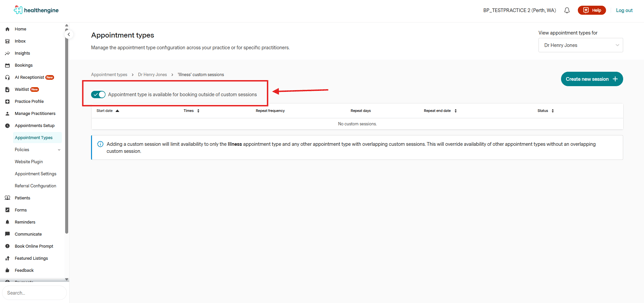
- Click "Create New Session" and set up your custom session for the specific appointment type.
PLEASE NOTE: "Repeat Frequency" allows you to repeat this custom session every particular day/week/fortnight.
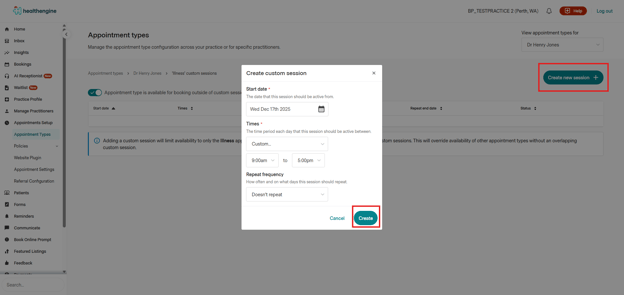
Once you have finished, click 'Create'.
If you wish to apply the exact same custom session to another appointment type for this practitioner, you can use the copy functionality, selecting the tree vertical dot icon and selecting the copy function. 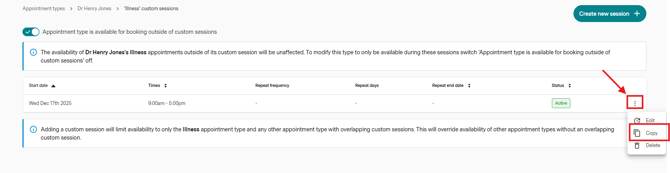
You can also edit the custom session you created or delete it.