Vertical: General Practice
PMS Eligible: Best Practice, Pracsoft, Zedmed
Dual Staff Bookings is a feature of the booking system that enables clinics to take online bookings where two staff members are required for an appointment, e.g. a doctor and a nurse for a vaccination appointment.
This feature is available as part of our Practice Efficiency Suite or GP Complete subscription for practices integrated with Best Practice, MedicalDirector/Pracsoft, or Zedmed.
If you have one of these integrations and you would like to upgrade to the Practice Efficiency Suite, please speak to your Customer Success Manager, who will be able to assist.
If you already have the subscription described above, read on below to find out how to set up Dual Staff Bookings for your clinic.
The first step of setting up Dual Staff Bookings is to enable your nurses in Healthengine.
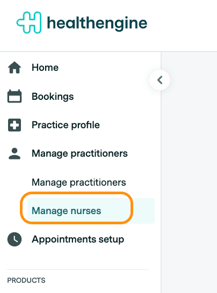
To do this, open your Practice Admin account and navigate to Manage practitioners and then "Manage nurses".
On the "Manage nurses" page, you will find a list of appointment books synced from your Practice Management Software (PMS) that have not yet been linked to a Healthengine appointment practitioner (these are found under the "Manage practitioners" tab - those with the "Edit appointment types" button active).
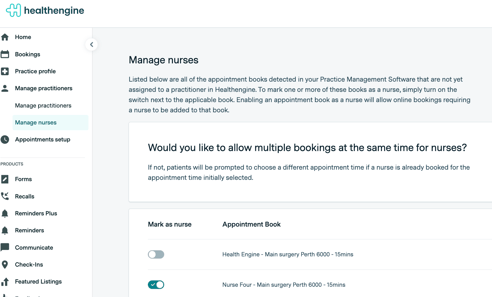
PLEASE NOTE: In the section above, you are basically confirming with the system which books we are picking up availability from for your nurses.
If no availability is present in the selected books, the appointment types set up for dual staff booking will not be available.
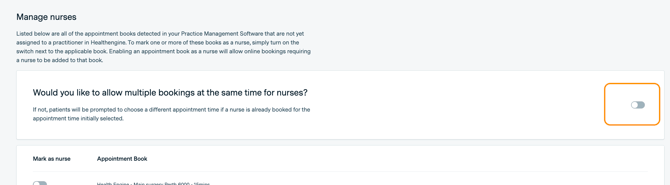
The next step is to decide whether you would like nurses to take multiple bookings for the same appointment times or to only accept one booking per appointment time. If you would like to only take one booking per appointment time, then there is no action required - you're all set.
If you would like to take multiple bookings per appointment time for nurses, then you can enable the toggle pictured below.
Now that you have enabled one or more nurses for your practice, you need to configure the appointment types for which you would like to enable Dual Staff Bookings.
To do this, navigate to 'Manage Practitioner" and select the "Edit appointment type" button for the relevant Practitioner.
Within this page, find the appointment types for which you would like to enable Dual Staff Bookings and click on the pencil and select "Edit Dual Staff booking"
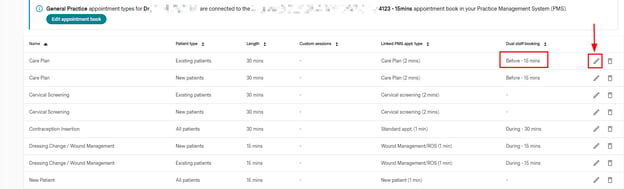
Toggle on "Set dual staff booking" and specify how many minutes, and if the dual staff booking occurs:
- Immediately before the appointment
- During the appointment
- Immediately after the appointment
Once you hit the save button, you will be able to apply the same settings for other appointment types of the same practitioner.
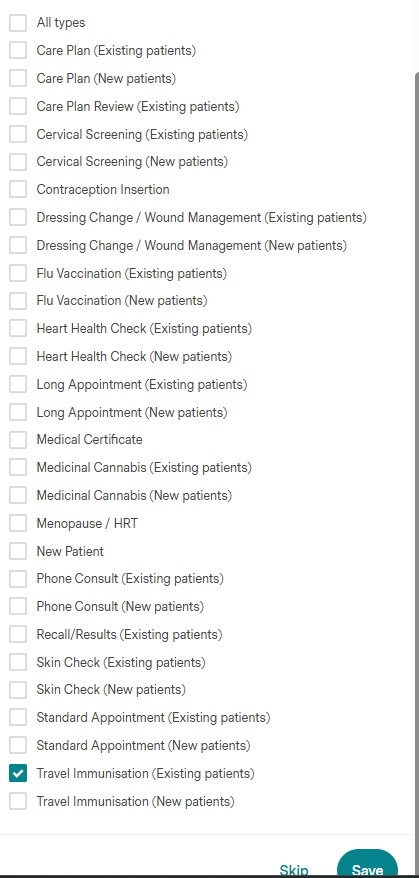
If you do not want to apply to other appointment types, simply click the button Skip.