
Vertical: Dental
PMS Eligible: (HS1) Exact
The new Healthengine's integration with Henry Schein 1 Exact offers a seamless connection via slug/API key. This means no additional software installation is required, and there's no need to access server computers, minimising hardware or server-related issues.
Once set up, the integration will automatically publish your practice’s availability based on your system’s online booking setup and insert booked appointments directly into your practice diary, simplifying your booking process and saving time for your administrative team!
Benefits of the Integration for Your Practice
- We connect to your new HS1-Exact software via API, meaning we do not require access to any server computers, and there is no software to install. This eliminates issues that can arise from hardware or server connections.
- The integration will automatically read and publish your availability and insert booked appointments into your Exact diary.
- No need to set up intervals, as the integration automatically detects the intervals you set up in your software.
Integration Publishing Limit
The default that your integration will publish is 30 days.
The maximum number of days the integration can publish in advance is 90 days.
Please note: Online cancellations are not supported. Patients will need to contact your practice to cancel or reschedule appointments. You can manually remove the cancelled appointment from the Exact diary to make it available for another patient.
The Integration - How Does it Work?
Step 1 - Hs1 Exact Configuration
IMPORTANT: First, make sure you provide us with the slug/api key required to set up the integration.
Within your Exact, you will need to configure the providers you want to integrate with us and the appointment types:
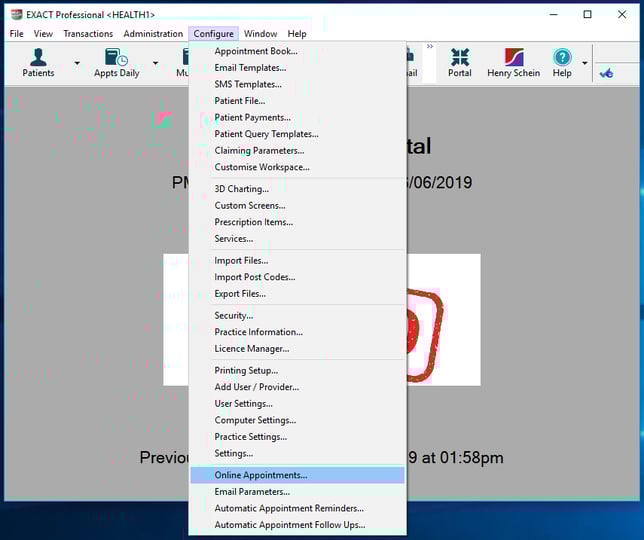
Use "Online Booking Configuration" to set up online availability for practice
-
Open "Online Booking Configuration"
-
Please make sure all practitioners publishing online appointments are in this list. If not, you will have to create them using the "+1" button.
When this is done, open "Web Setup"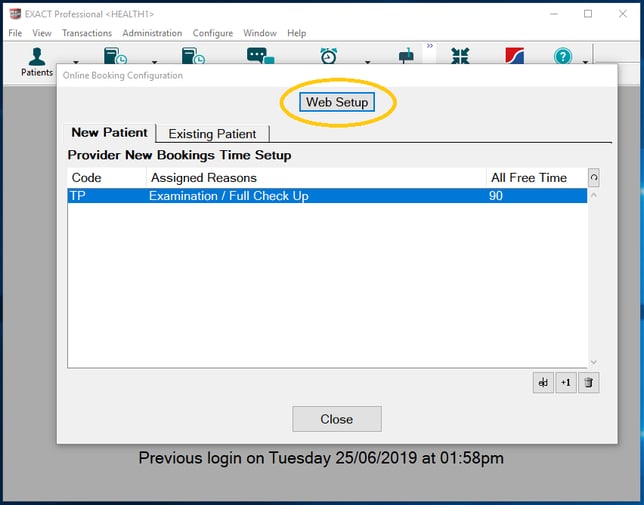
-
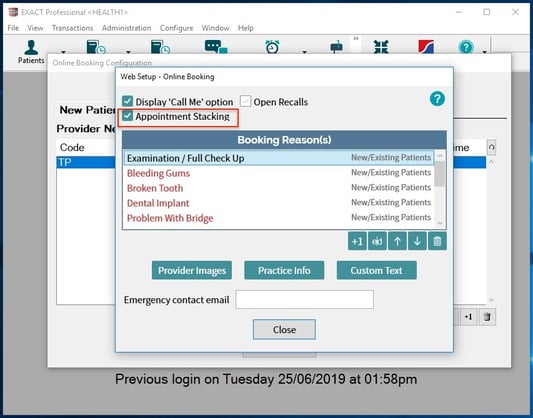
First, make sure the "Appointment Stacking" option is ticked; otherwise, only the first available slot for each day (1 morning and 1 afternoon) will be published.
Then make sure some booking reasons are created (used as appointment types on HE). If not, you will have to create them using the "+1" button (see below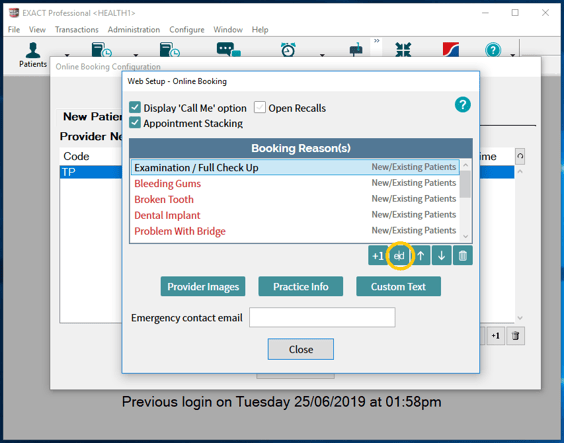
-
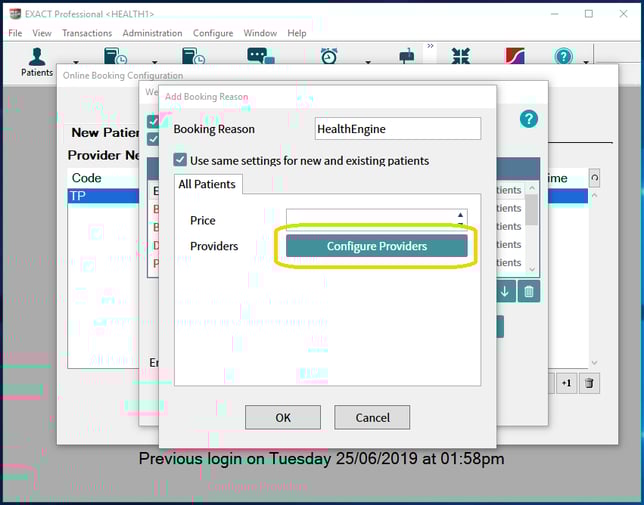
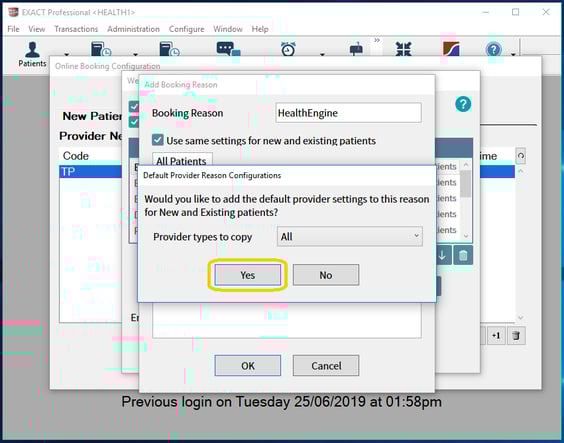
For each reason created, click on "Configure Providers" (in this example, we created a new HealthEngine booking reason, but the workflow is the same for an existing booking reason)
-
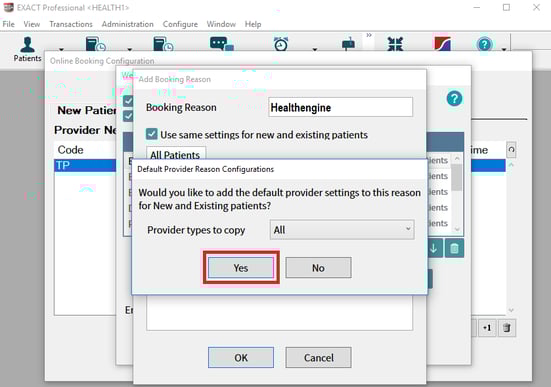
Press the "Yes" button if this pop-up appears
-
Use the "ed" button to edit practitioner publishing rules.
If some practitioners are missing here, use the "+1" button to add a practitioner and edit publishing rules.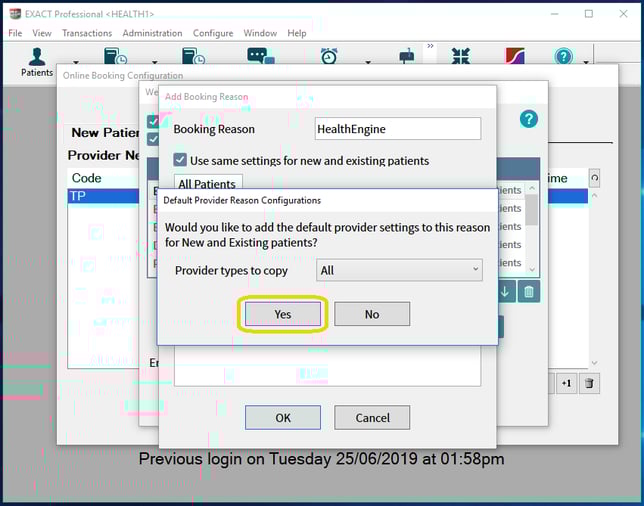
-
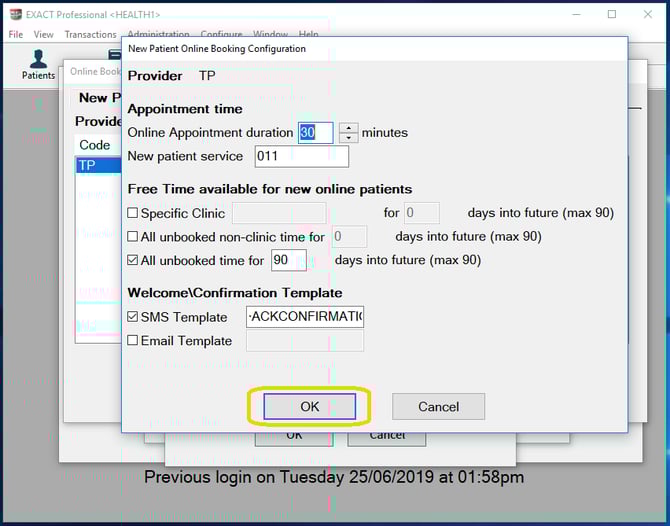
Here, you can set up practitioner publishing rules.
Please make sure the online appointment duration matches the duration in the first window, "Online Booking Configuration", and keep this duration in mind for HE Setup.
When done, press the "OK" button, do the same for other practitioners, and you can close the menu.
Step 2 - Healthengine Linking
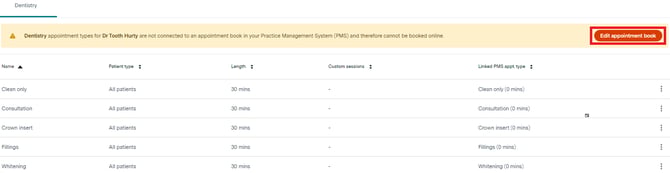
In your Healthengine Practice Admin Portal, click on Manage Practitioner-> Edit appointment types.
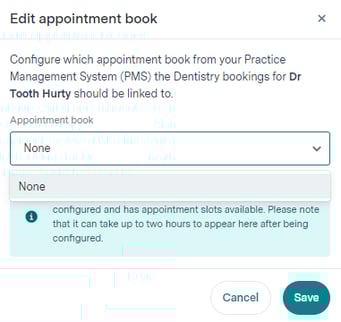
Connect the doctor to their book by clicking on the edit appointment book button and selecting the relevant availability book.
Once done, click on the button "Refresh appointment types":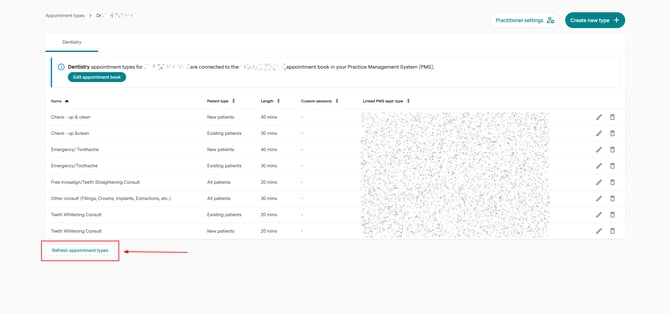
Once the page refreshes, select "Create new type"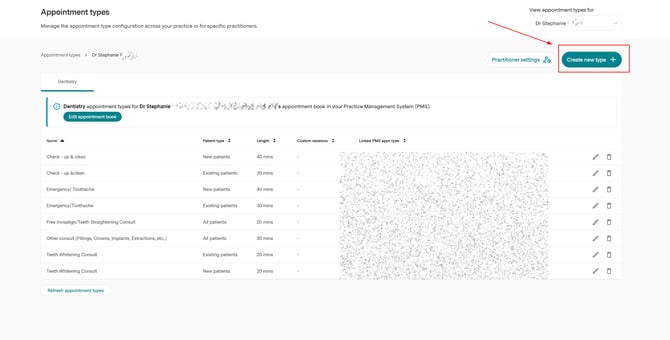
IMPORTANT: No need to set up a length, as we will use the length you set up for the doctor within your HS1.
Here is an example:
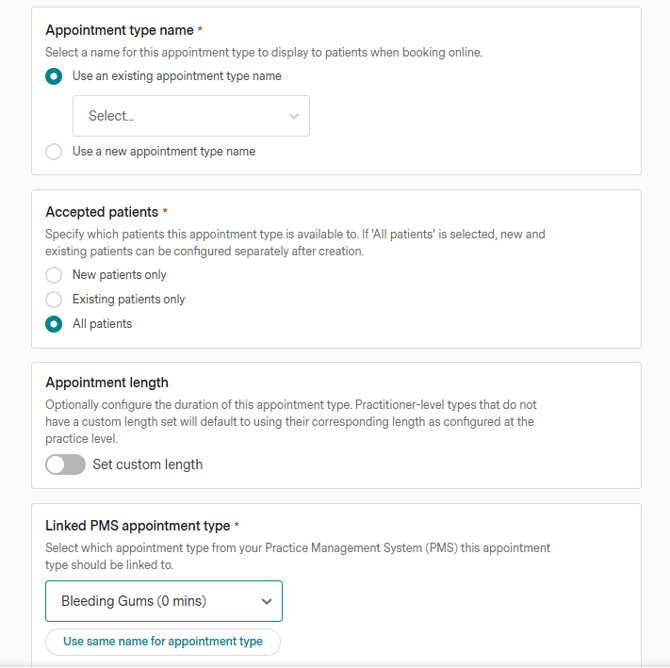
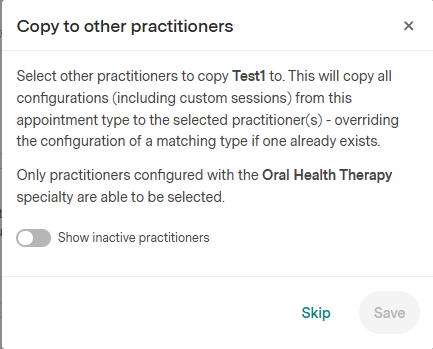
Once you click the "Create" Button, you will be offered the ability to give the same appointment type to other practitioners within the same specialty:
Once set up, the availability will show within 5-10 minutes from the first setup.
Once a patient selects an appointment type online, the integration will automatically insert the booking into your Exact diary, allocating the appropriate length based on your setup.
Troubleshooting
Linking Appointment Types
To link appointment types and ensure their link PMS are correct:
- In the Healthengine Practice Admin portal, navigate to Manage Practitioners -> Edit Appointment Types.
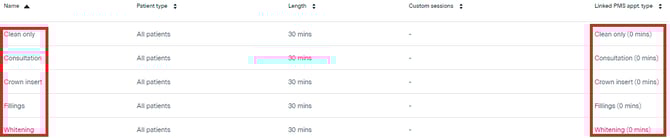
Here you can see a list of your practitioner's appointment types and the associated lengths. - For successful integration, each Healthengine appointment type must be linked to a corresponding appointment type (or Booking Reason) in Exact.
- With the new integration of the latest Hs1 V1 version of the Exact integration, setting lengths on Healthengine is not required
Please note: You'll need to ensure this is done for every practitioner
Missing Booking Reasons or Practitioners
- If you don’t see your booking reasons in the Linked PMS Appointment dropdown list, use the ‘Refresh Linked PMS Appointment Types’ button in the Appointment Types page for each practitioner in your Healthengine portal. This will refresh your list of linked appointment types from Exact or Oasis.

- If a practitioner is missing from the Appointment Book list, ensure they are included in the appropriate Booking Reason in Exact or Oasis.
Please Note: If you have marketing reasons set up, the integration will use your marketing booking reason as the default if no Healthengine reason is found.
You will need to add your practitioners to that appointment type, so practices will typically use an 'other' type that can be applicable to all practitioners, or you can create a Healthengine booking reason and add all practitioners to that one so that it can accommodate both your dentists and hygienists. Make sure the Healthengine booking reason is written as shown:
Stacking Availability Issues
- If only some of your appointments are displaying online, it could be due to appointment stacking being disabled. If this feature is not ticked in your Exact or Oasis system, only the first available slot after a break will be published each day. This typically means only two slots will be available for booking—one in the morning and one after lunch. By enabling stacking, all available slots will be displayed.
- Also, ensure your default Booking Reason is longer than 30 minutes, as shorter reasons may not fit into available slots and will fail to display.
Ensure that all changes to practitioner availability or Booking Reasons are correctly reflected in the Healthengine system to avoid issues with bookings.