
Vertical: Specialist
PMS Eligible: Back In Motion, Optomate, PPMP, Sunix, CorePlus, NOOKAL, Cliniko, MMex, PracSuite, Xestro, Front Desk 2014 v2014+, Gentu
To get patients engaged and booking online with your practice, Healthengine provides you with the ability to install our Online Booking System on your website.
This empowers patients to book their healthcare appointments with your practice via your practice website, and in the process, it reduces the workload on your admin team, allowing them more time for patient and practice care.
Below is an overview of how to get started and add the web plugin for your Healthengine Online Booking System (OBS) to your practice website.
Getting Your Web-Plugin HTML script from Practice Admin
Log in to your Practice Admin portal and navigate to Appointments Setup -> Website Plugin
From here, you will be able to select how you would like the OBS to appear on your practice website. The first step is to decide whether you'd like patients to select their appointment time first, or their appointment type (reason) first: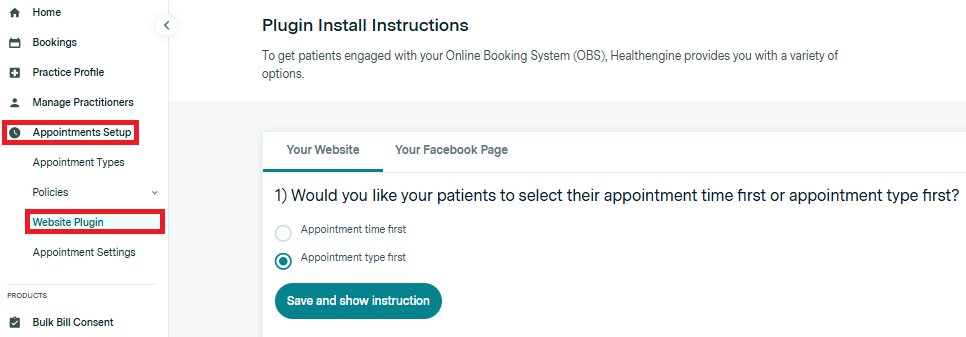
Please note: Whichever option you choose here affects your live plugin once it's installed on your website. For more information about these options and how to change between them, please click here .
Select which web-plugin button option you would like to use for your website: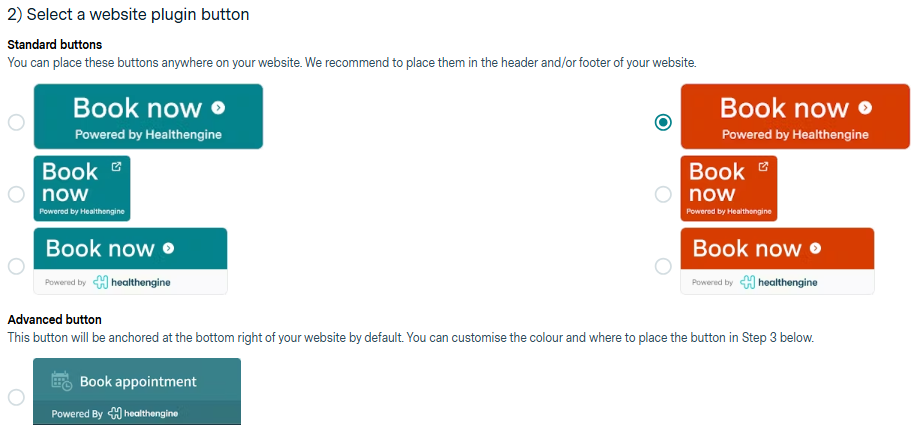
Please Note: The advanced button is anchored to the page, so if your website has multiple tabs and pages, the button will remain visible as the user navigates the website.
If you chose the anchored plugin, you will also see a link for advanced customisation options under the script in Step 3. You can navigate there to change the colour of the web plugin and which side of the web page it is anchored to.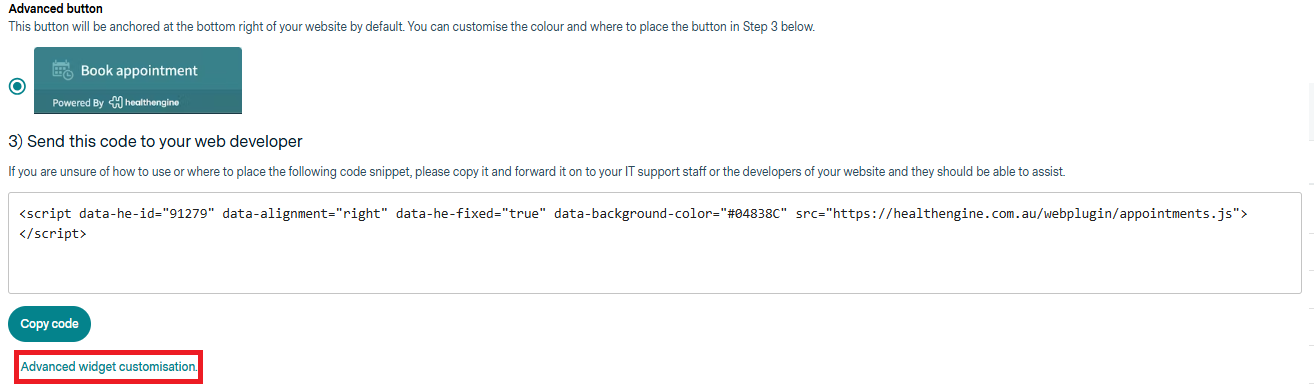
You can add your website to the website preview box and then enter or select a colour from the colour wheel and choose your preferred widget alignment. When you hit update preview, it will adjust the web plugin you see on the page to your preferences. You can then click Get Embed Code to get your web plugin script you will need to send to your web developer.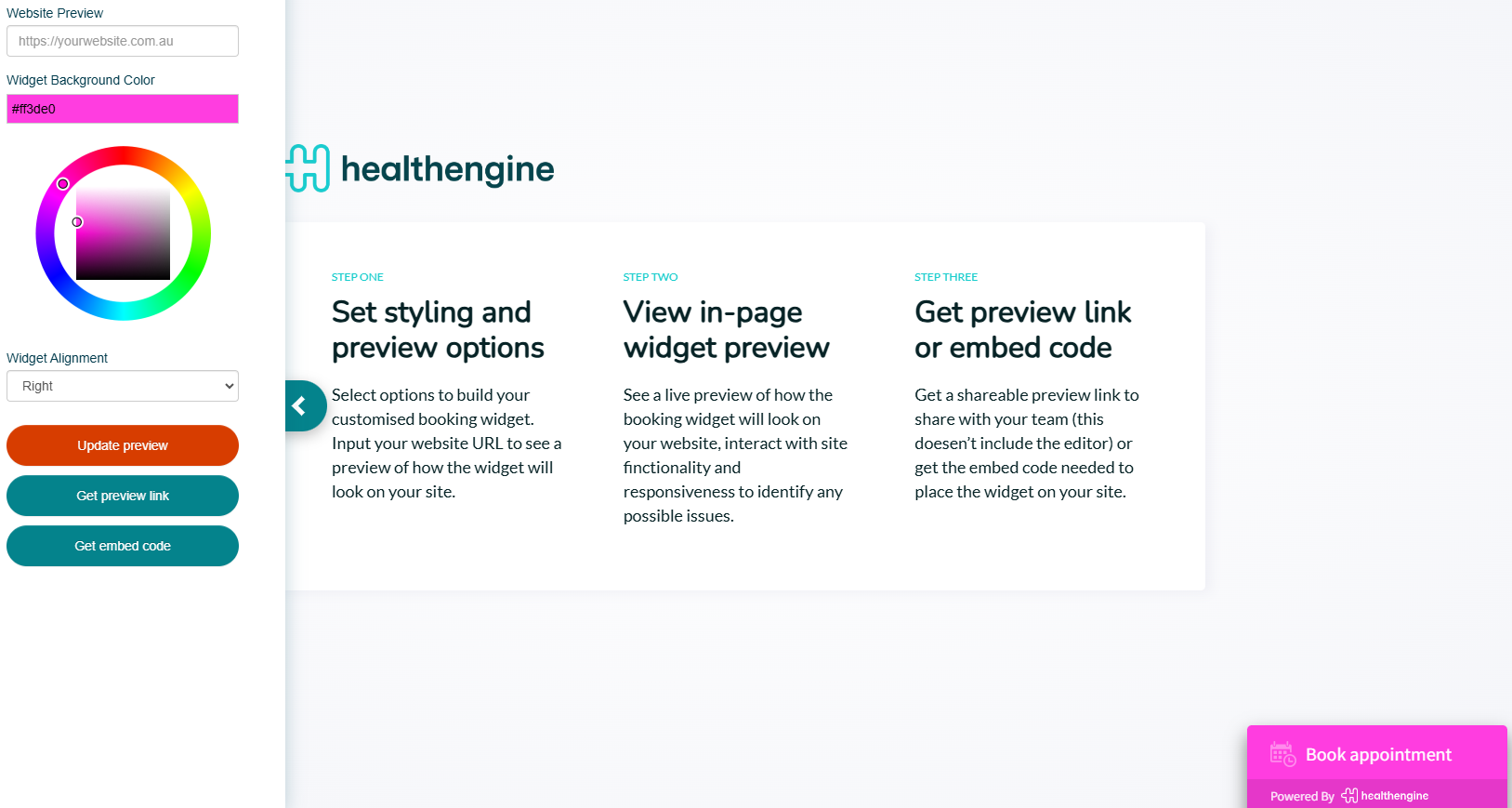
If you do not wish to customise your script, selecting your preferred button generates an HTML code under Step 3.
If you are confident in working with HTML code, you can then paste this code into the relevant area of your website - either into the header of each web page, or into the sidebar on your website editor.
Please note: As there are thousands of different website editors available, we are unable to advise you on exactly where to place the code on your website. However, you can consult with your website developer/s or IT contact/s for assistance with this.
Further Options
If preferred, you can also have individualised buttons for each practitioner. Use the instructions below or send this through to your web developer, and they should know what to do.
Those links are the bookable links specifically for your practitioners. The link for these buttons will look like this:
The first 'xxxxx' is where you add in your Practice ID. This can be found in the URL of your Practice Admin portal. It is a 5-digit number.
- E.g. https://healthengine.com.au/appointment/admin/12345/
The second 'xxxxx' is the individual Practitioner ID. This can be found in the URL of your practitioner's appointment types page in your Practice Admin portal. First, select your practitioner from the drop-down menu as shown.
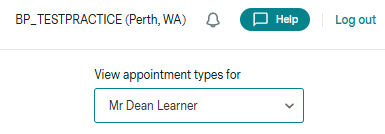
Once selected, you will see their doctor ID at the end of the URL displayed:
- E.g. https://healthengine.com.au/appointment/admin/12345/appointment-types/practitioner/123456
The other option here is if you are using HTML to generate the button, you can simply add it in the line
Please note: These codes can only be used if you are a single specialty practice; if you are a multi-specialty practice, they will only work for your primary specialty.
Troubleshooting
I’ve added the HTML for the Web Plugin to my website, but it’s showing as ‘web plugin disabled’
- The web plugin script functionality only works on a live website.
- It will show as ‘web plugin disabled’ if you’re viewing it in a test environment or through the website settings/backend
- You’ll need to make the changes live to view the web plugin functionality
- Once you make the change live, you should be able to view the Book Now button and, pending your availability, be able to start booking appointments online
I use WordPress for my website, and it doesn't allow for HTML code
- A step-by-step guide on how to install the OBS Web Plugin using your WordPress website can be found here.
- We also have a booking URL that is compatible with WordPress websites:
- https://healthengine.com.au/book/xxxxx
- You just need to replace the 'xxxxx' with your Healthengine Practice ID
- This can be found in the URL of your Practice Admin portal. It is a 5-digit number.
- E.g. https://healthengine.com.au/appointment/admin/12345/
- This can be found in the URL of your Practice Admin portal. It is a 5-digit number.
Additional Notes
If you are not confident in working with HTML code, please seek advice from your website developer/s or IT contact/s. We recommend not attempting to place the code into your website yourself if you are not trained in using HTML, as putting the code in the wrong place can break your website.
If you do decide to make the changes yourself, please ensure that you keep track of any changes made so that you can reverse them if anything should go wrong.
You can also add your bookings to your Facebook page if you have one. For more information on how to set up the Online Booking System on your Facebook page, please click here .