
Smart Recalls uses AI-powered SMS conversations to contact patients about non-urgent test results and clinical reminders.
Patients receive a personalised message and have a natural back-and-forth conversation tCan Io make their booking, with no links or booking forms required.
Smart Recalls can be:
- included as a step in your automated recall process
- sent manually to one, or multiple patients
All messages are sent from a dedicated mobile number for your practice. Your team can view the conversation, and even send their own message into the thread.
Not currently using Smart Recalls?
If your practice is not using Healthengine Recalls, or you are using Recalls without AI-powered SMS, contact Healthengine to discuss getting started.
Types of Smart Recalls
Smart Recalls can be used for non-urgent test results and clinical reminders.
Non-urgent test results
- a patient has completed a test
- the result has been reviewed by a practitioner
- the practitioner would like the patient to book a non-urgent follow-up appointment
The patient will be offered online appointments with the practitioner linked to the result.
Important: Smart Recalls must not be used for urgent or time-sensitive test results. Follow your practice’s established urgent follow-up process instead.
Clinical reminders
- a routine health reminder for preventive healthcare
The patient can ask for a preferred practitioner, or be allocated to one based on availability. If only one practitioner is available for the reminder, Helen will book the patient in with that practitioner directly rather than asking for a preference.
How to set up Smart Recalls
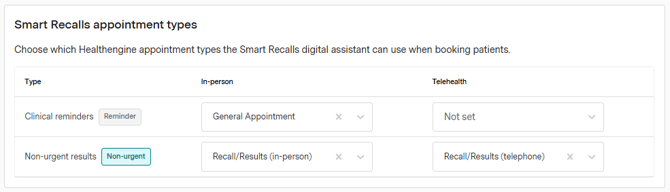
Before using Smart Recalls, you’ll need to assign appointment types for the recall options you want to offer. You can do this directly from Recall Preferences in Practice Admin.
You can configure appointment types for:
- in-person, non-urgent results
- telehealth, non-urgent results
- in-person, clinical reminders
- telehealth, clinical reminders
You only need to assign appointment types for the recall and consultation types you want patients to be able to book.
Practitioners will only be available for Smart Recalls bookings if they have online availability for the appointment type you’ve selected.
How to add Smart Recalls to your Recalls Automation
If you have automated your recalls, you can add AI SMS to your existing workflow
- Go to Recalls.
- Select Categories.
- Find the relevant recall category.
- Select the pencil icon to edit the category.
- Under Automation rule, click 'Add channel' and select 'AI SMS'
- Save your changes.
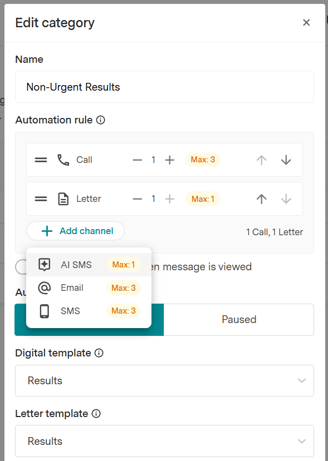
We recommend removing the existing 'SMS' option, and replacing it with the 'AI SMS'.
For example, you could change an existing automation from:
1 SMS → 1 Call → 1 Letter to: 1 AI SMS → 1 Call → 1 Letter
Eligible patients will then receive a Smart Recall SMS before progressing to the remaining steps in the automation.
When will the recall move to the next step?
An AI SMS is treated as a Digital contact when calculating the timing of the next automation step.
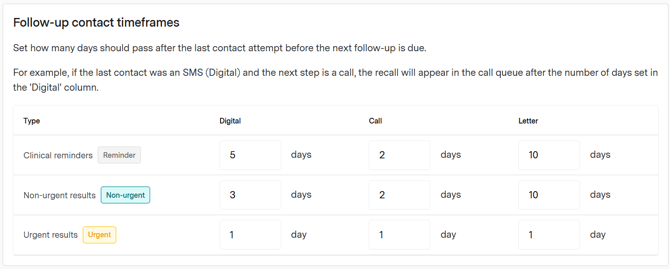
To check your set up, go to Recalls > Preferences > Scroll down to Follow-up contact timeframes, and check how many days you have set in the Digital column.
In this example, for a non-urgent result, the system would move the recall to the next stage 3 days after the AI SMS has been sent
How to manually trigger an AI SMS
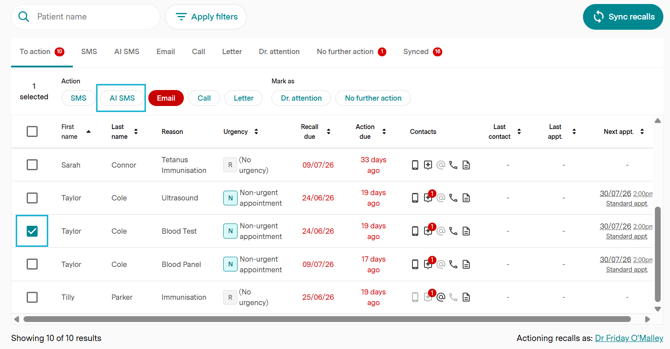
- Go to Recalls.
- Select Actions.
- Open either the To Action or Synced tab.
- Select the patient by ticking the checkbox next to their name.
- Select AI SMS.
How to view and interact with a Smart Recall conversation
If an AI SMS has been sent to a patient, you can view the conversation by clicking a recall and selecting the AI conversation tab.
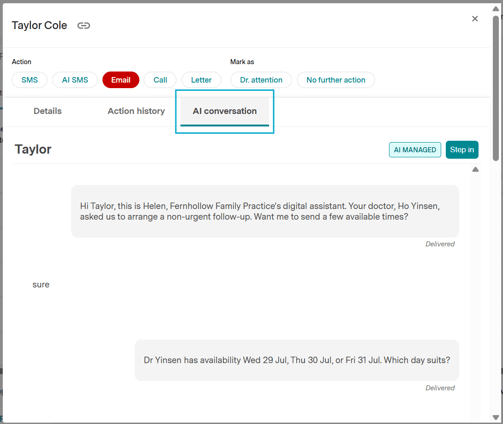
If you would like send the patient your own SMS, scroll down and enter your message into the text box and hit send. This will set the conversation to 'Person Managed'
While the conversation is Person Managed:
- your practice is responsible for responding to the patient
- Helen will not send any further replies
- the conversation can be returned to AI Managed when staff have finished assisting the patient
Important: If a conversation is left as Person Managed, the Helen will not reply to the patient for future recalls. If a new recall is triggered, the conversation will automatically switch back to AI Managed.
You can also click 'View full conversation' to see further SMS history for the patient. This will take you to the Patient Chat tab. Click here for more info.
Suggested workflow:
Smart Recalls work seamlessly with your existing automation. The most common automation rule is AI SMS → Call → Letter. If a patient does not book via the AI SMS, they will move into your Calls tab. When you are reviewing your calls, you can view the AI conversation history to determine if the patient needs a follow-up call.
Audit notes
Just like the standard SMS, the Smart Recall SMS will log an audit note within your Practice Management software. We will only log a note for the initial SMS.