
Kiosk allows patients to complete Medicare Assignment of Benefit (AoB), also known as Bulk Billing Consent, on a tablet while they are at the practice.
Vertical: GP
PMS Eligible: Best Practice, MedicalDirector Pracsoft
Subscription: GP Complete, Engage
This gives practices an in-clinic option for collecting digital consent and can reduce reliance on patients completing an SMS or email request after they leave.
This guide explains how to configure Bulk Bill Consent for Kiosk, set up and pair your tablet, and complete an AoB with a patient.
Important: An AoB can only be generated after the appointment has been billed and the invoice has been generated in the practice management system. Kiosk does not create an AoB before billing.
In this guide
- Before you start
- Configure Bulk Bill Consent in Practice Admin
- Enable Bulk Bill Consent on Kiosk
- Configure Kiosk options under Bulk Bill Consent
- Pair your tablet
- Prevent patients from leaving Kiosk
- Tablet and connectivity requirements
- Patient journey
- Related articles
- Contact Our Support Team
Before you start
You need these permissions in Practice Admin:
- Manage products: allows staff to activate products in Practice Admin.
- Manage Kiosk: allows staff to set up and manage your practice's Kiosk.
Configure Bulk Bill Consent in Practice Admin
Before setting up Kiosk, activate and configure Bulk Bill Consent in Practice Admin.
- Open Bulk Bill Consent in Practice Admin.
- Open Post-service assignment preferences.
- Choose which appointment types can generate a digital Medicare Assignment of Benefit:
- All appointment types
- Specific appointment types
- Select Save.
For Best Practice, decide whether Healthengine or Best Practice will manage consent collection. When Healthengine is collecting consent, select Managed externally when generating the invoice in Best Practice.
Enable Bulk Bill Consent on Kiosk
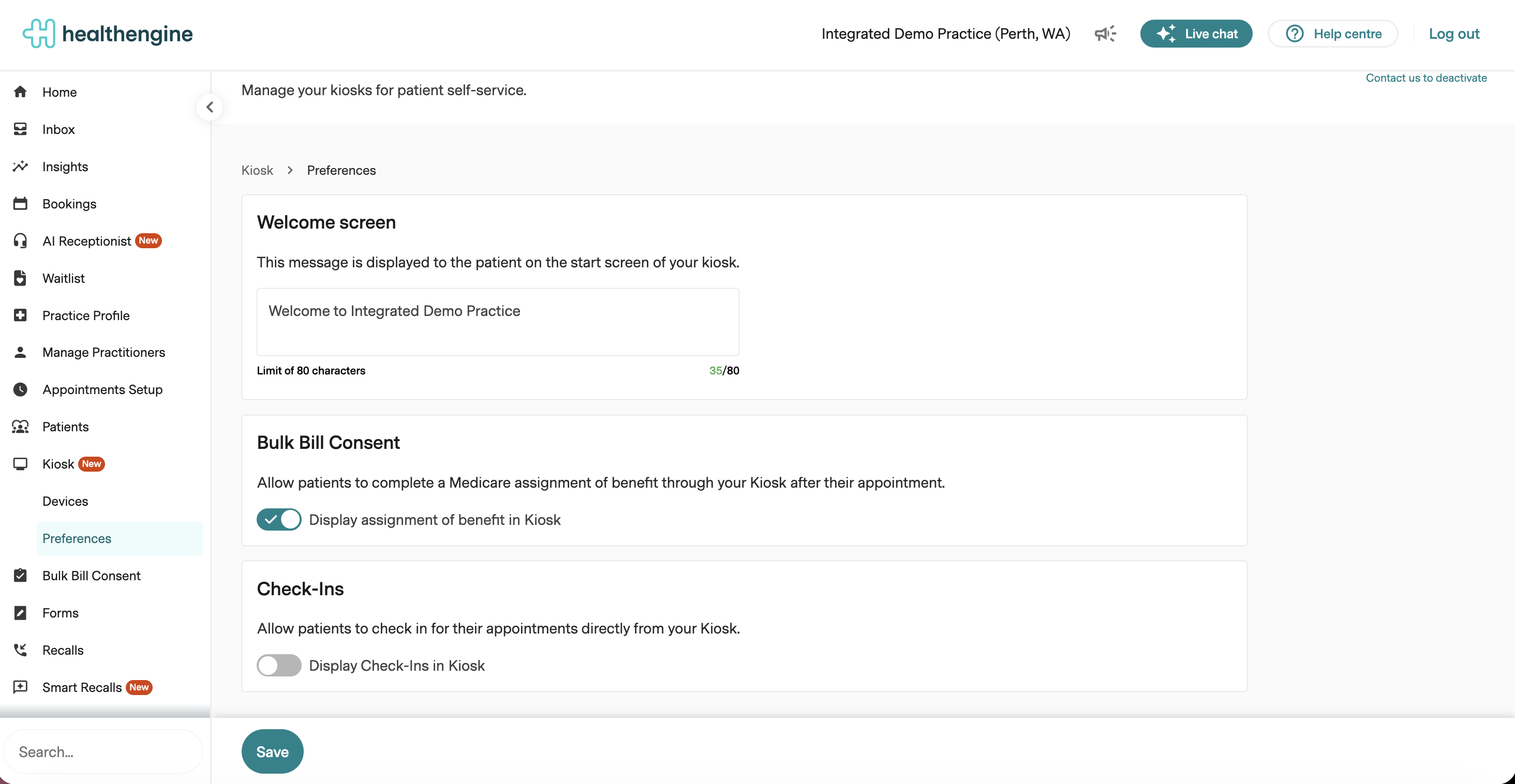
Open Kiosk in Practice Admin, then open Preferences.
- Enter the welcome message you want to display on the Kiosk home screen.
- The welcome message and Bulk Bill Consent option will be displayed like this on the Kiosk:
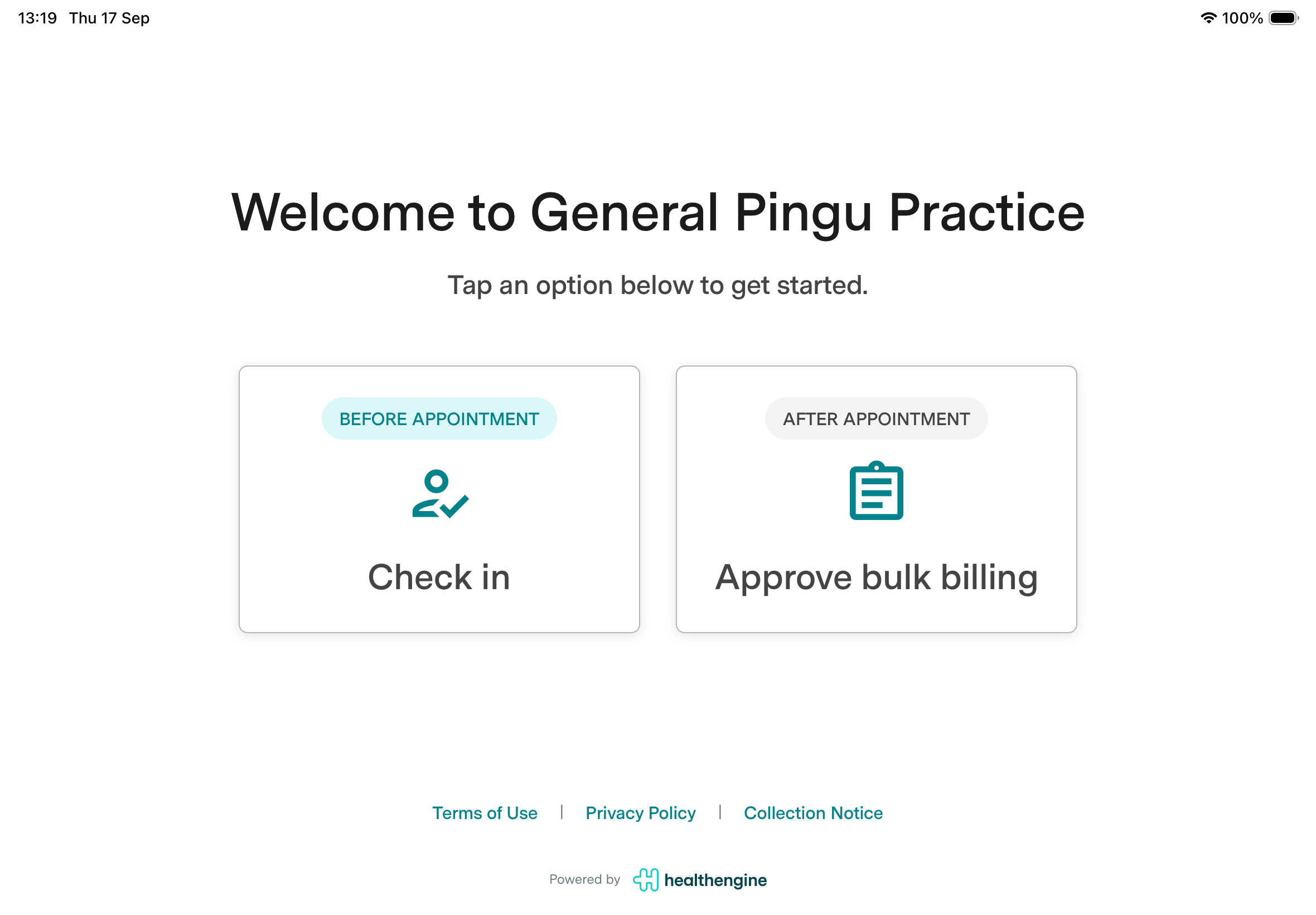
- Check in is only displayed if enabled. Otherwise, only Approve bulk billing is displayed.
- Under Bulk Bill Consent, turn on Display assignment of benefit in Kiosk.
Configure Kiosk options under Bulk Bill Consent
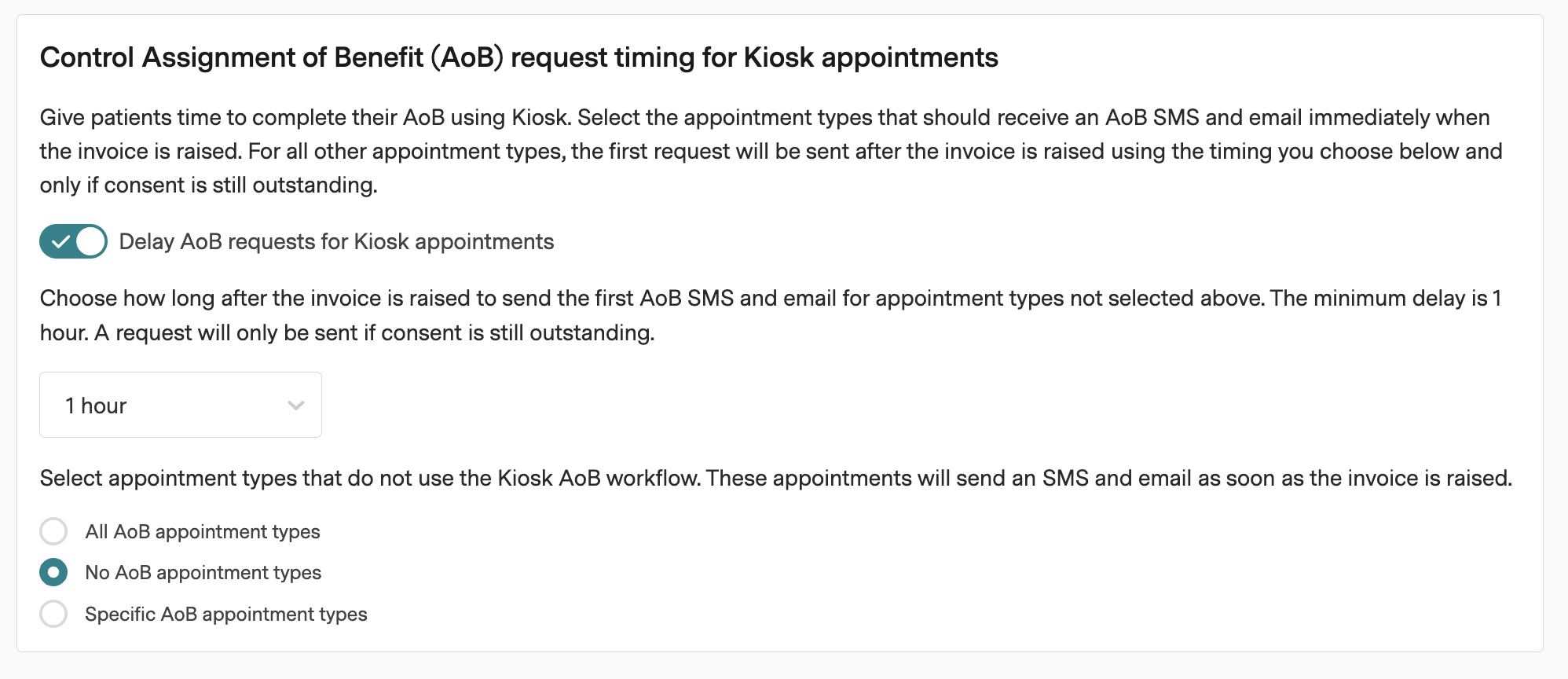
In Practice Admin, open Bulk Bill Consent and locate Control Assignment of Benefit (AoB) request timing for Kiosk appointments. These settings give patients time to complete their consent on Kiosk before receiving an SMS and email request.
Delay AoB requests for Kiosk appointments
Turn on Delay AoB requests for Kiosk appointments to delay the first AoB SMS and email for appointment types using the Kiosk workflow.
Choose how long after the invoice is raised the first request should be sent. The minimum delay is 1 hour. A delayed request will only be sent if consent is still outstanding. If the patient completes consent on Kiosk before the delay ends, the delayed first request will not be sent.
Choose appointment types that should receive requests immediately
Select the appointment types that do not use the Kiosk AoB workflow. These appointment types will receive an AoB SMS and email as soon as the invoice is raised, rather than waiting for the selected delay.
- All AoB appointment types: Send the first SMS and email immediately for all AoB appointment types.
- No AoB appointment types: Apply the selected delay to all AoB appointment types. No appointment types are excluded from the delay.
- Specific AoB appointment types: Choose the appointment types that should receive the first SMS and email immediately. All other AoB appointment types use the selected delay.
Important: These settings control the timing of the first SMS and email request, not when the AoB becomes available on Kiosk. The appointment must still be billed and the invoice generated before an AoB can be created.
Pair your tablet
Before you continue: Have the tablet you'll use as your Kiosk with you. You'll complete the following steps using both Practice Admin and the tablet.
- In Practice Admin, open the Devices page.
- Select Add kiosk.
- On the tablet, scan the QR code using the camera or manually enter the displayed URL in a web browser.
- Follow the instructions displayed in the tablet's web browser to add the Kiosk to your Home screen. On the tablet, select Add to Home Screen when prompted.
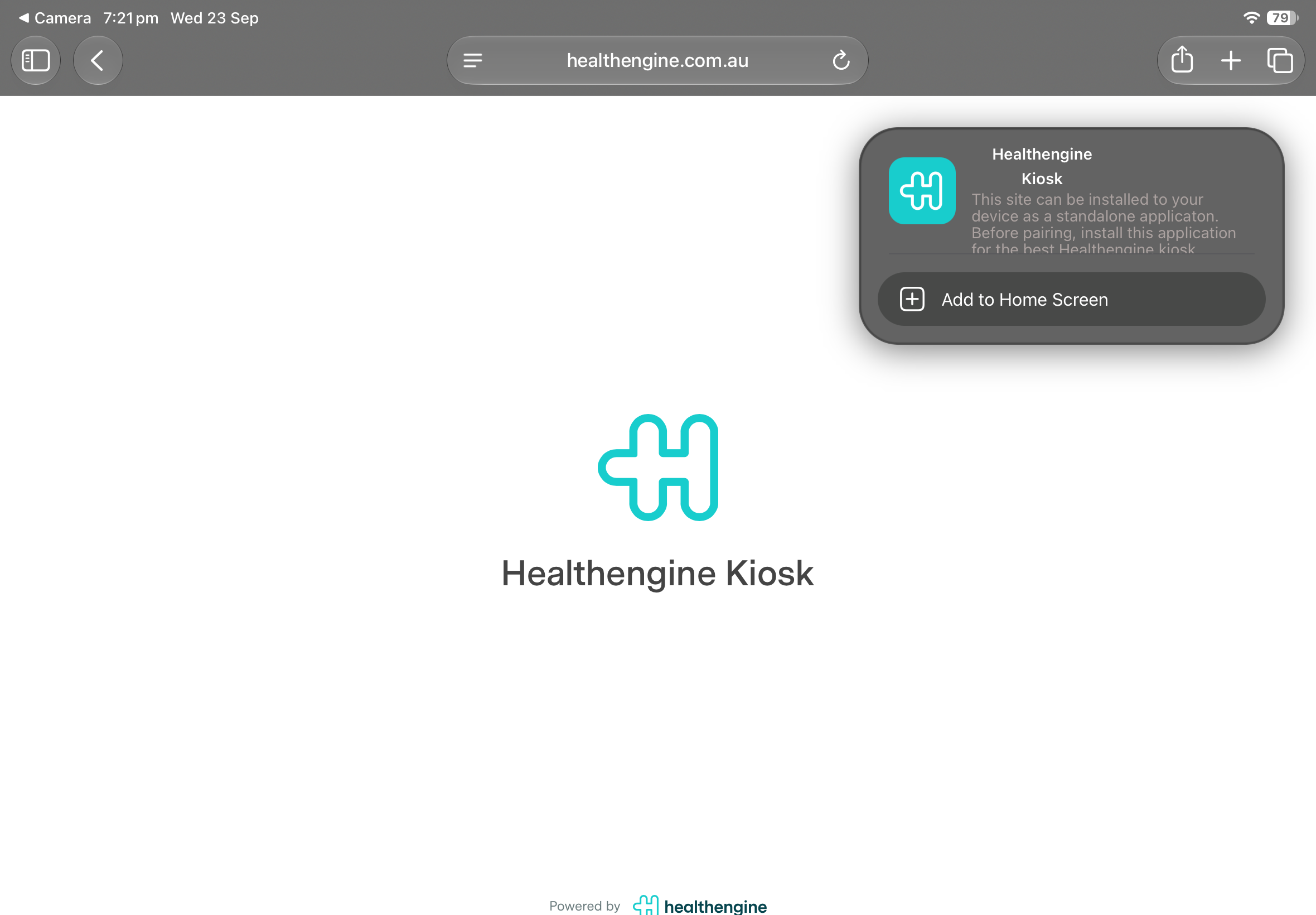
- If the Kiosk cannot be added automatically, follow the on-screen instructions to install it manually.
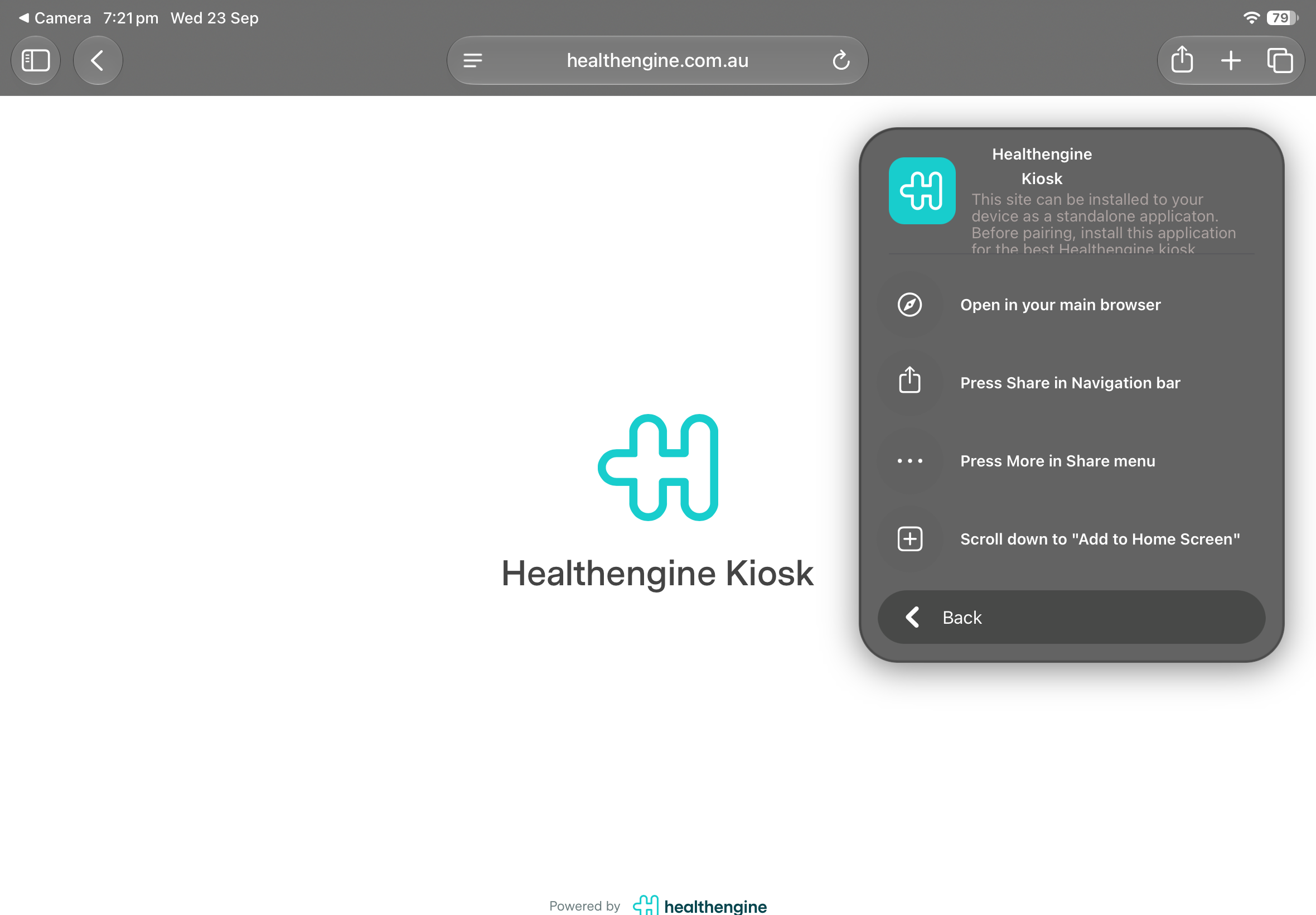
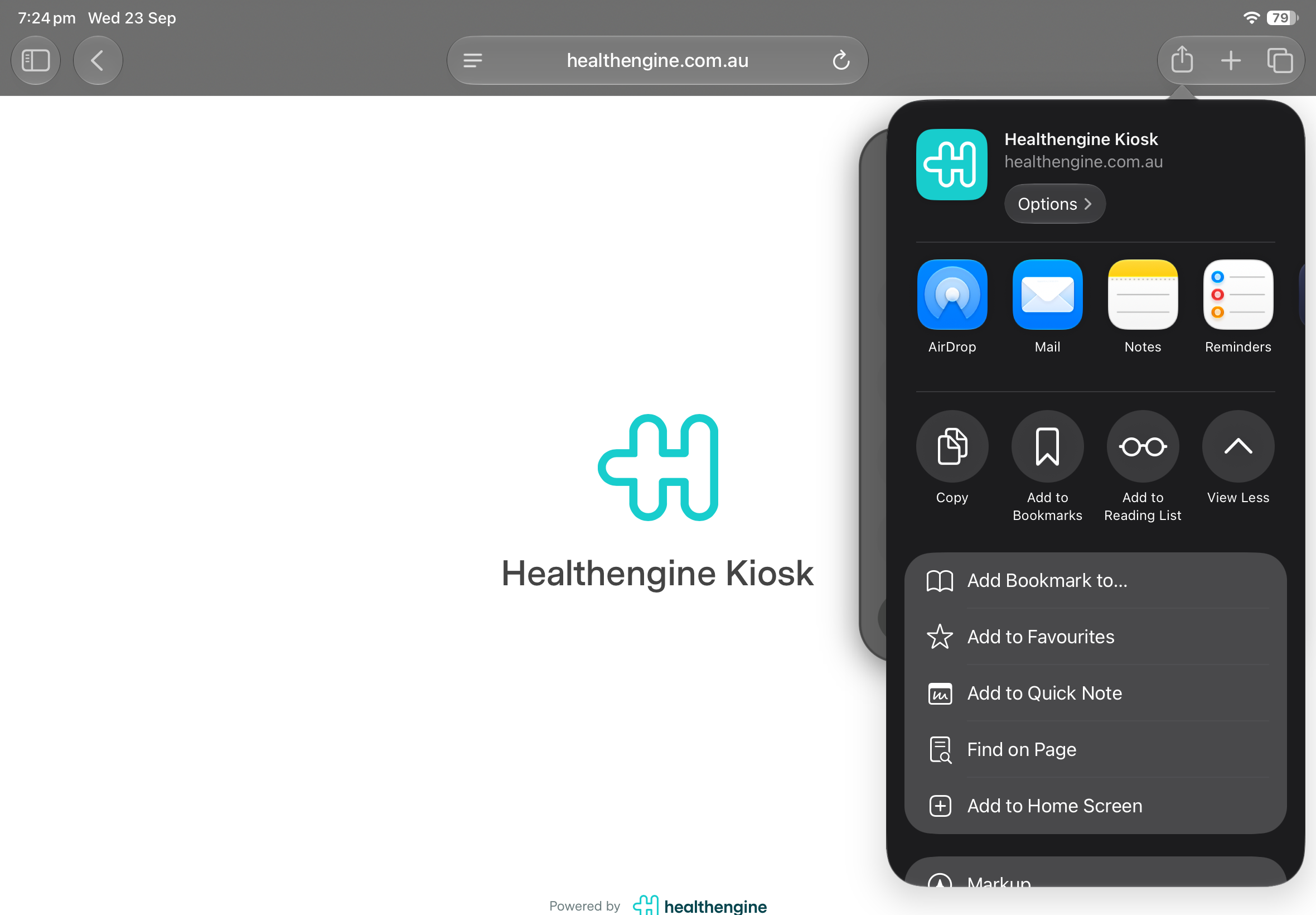
- In Safari, select the Share icon, scroll down and select Add to Home Screen.
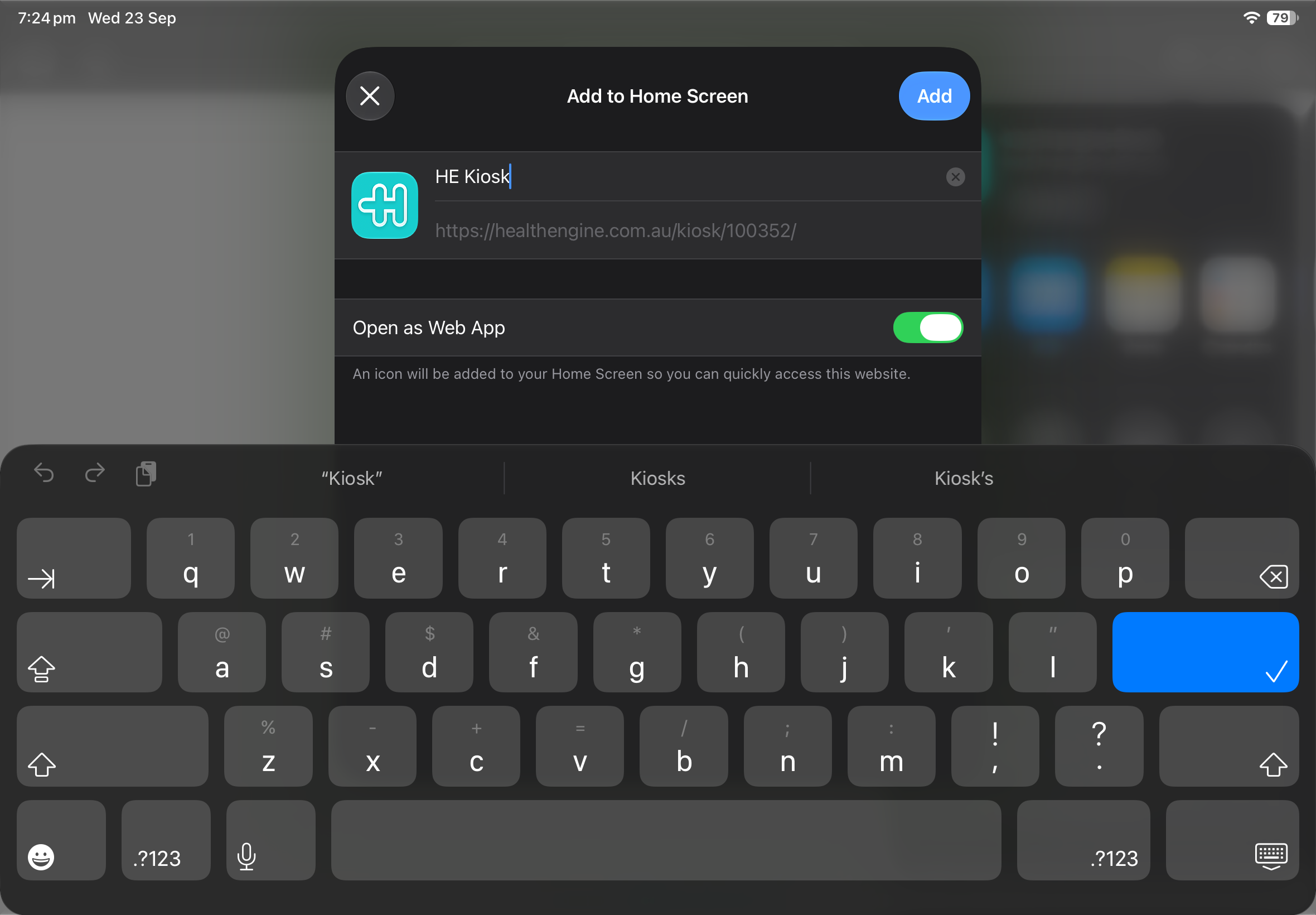
- Keep Open as Web App turned on, confirm the app name, then select Add.
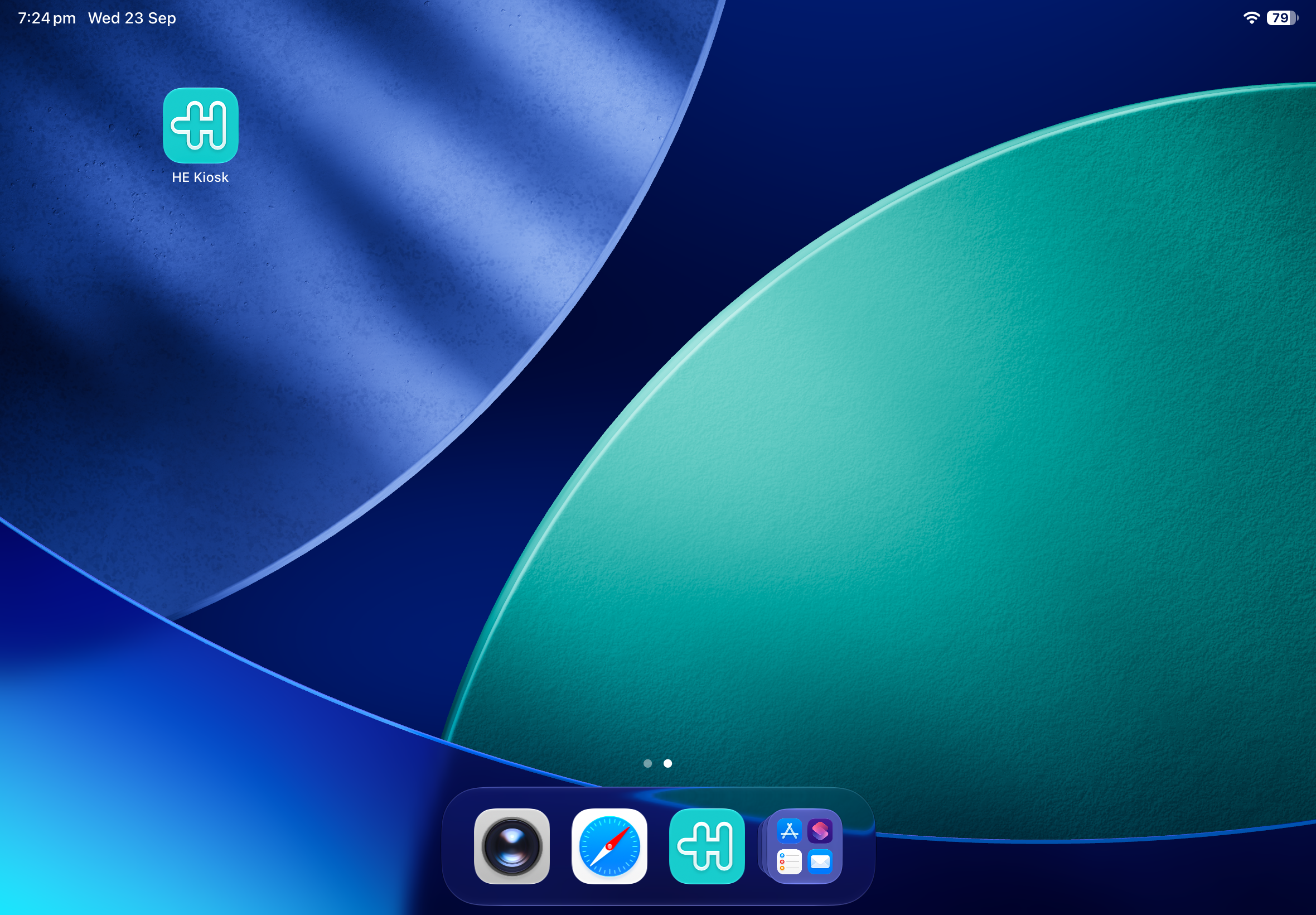
- The HE Kiosk icon will appear on the tablet's Home screen. Select the icon to open Kiosk.
- Enter the four-digit pairing PIN displayed on the Kiosk - Devices page in Practice Admin.
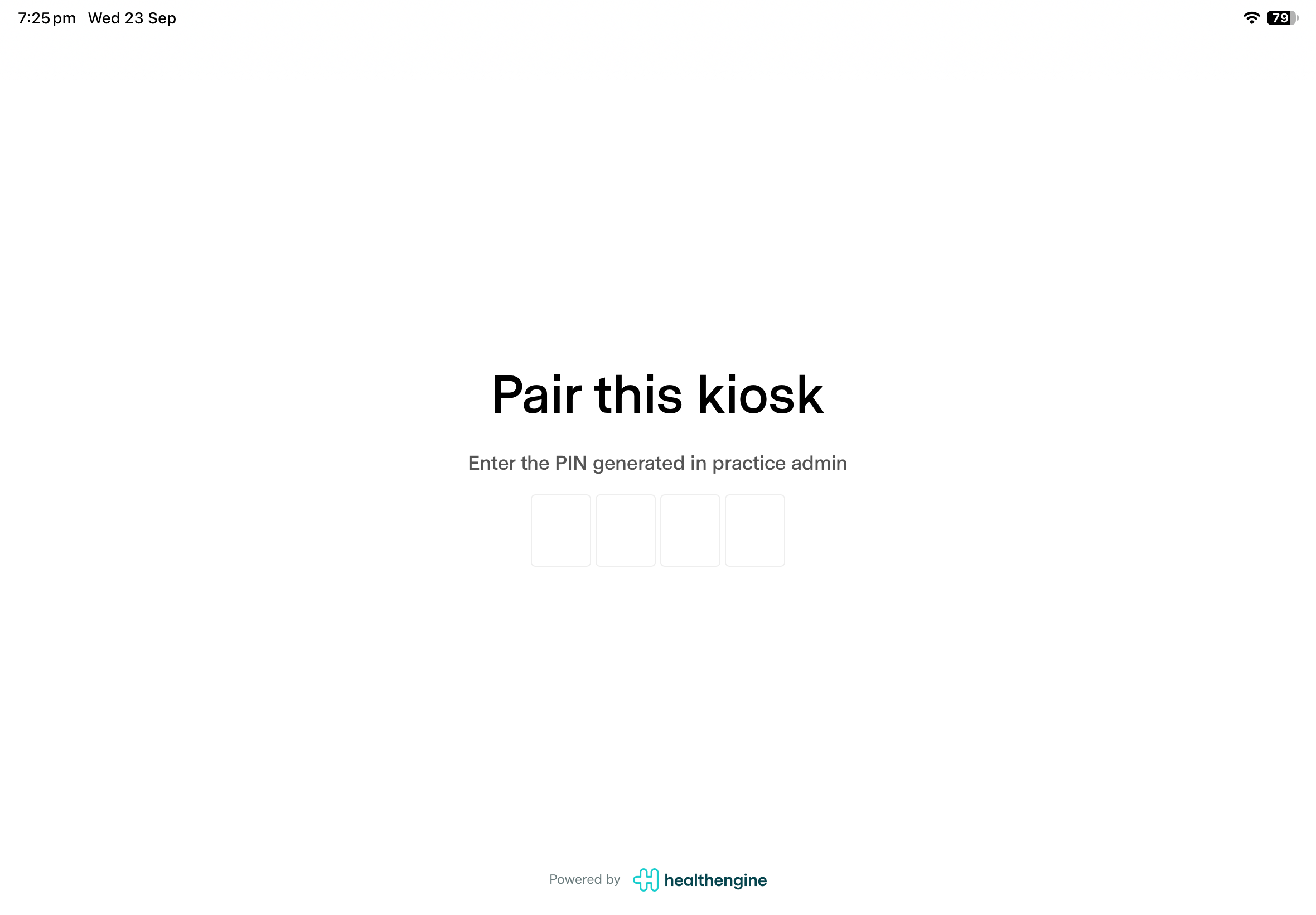
- Once paired, the Kiosk Home page will load on the tablet.
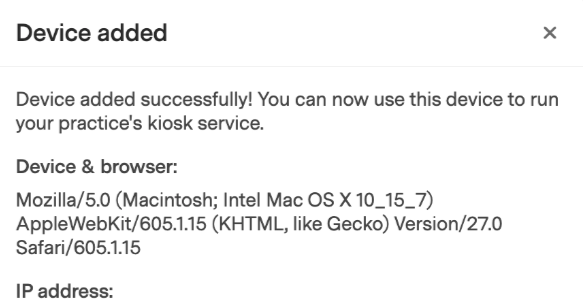
- Practice Admin will display a confirmation message when the device has been paired successfully.
Prevent patients from leaving Kiosk
Very important: Use your tablet's built-in screen-locking feature to keep Kiosk open and prevent patients from navigating to other apps or websites.
iPad
Enable Guided Access: Use Guided Access on iPhone or iPad (Apple Support)
Android
Enable app pinning: Pin and unpin screens (Android Help)
Tablet and connectivity requirements
Before setting up Kiosk, make sure you have:
Required
- A supported device: A BYO iPad, Chrome or ChromeOS tablet, or Chromebase device.
- A reliable internet connection: Connect the device to your practice's Wi-Fi or ethernet network. Kiosk must remain connected to load and submit AoB forms.
- A supported browser: Use the latest available version of Safari on iPad or Google Chrome on Chrome or ChromeOS devices.
- A suitable screen: Use a tablet with a screen large enough for patients to comfortably review Medicare service details and complete consent.
Recommended
- Keep the device's operating system and browser up to date.
- Keep the tablet connected to power during practice hours.
- Use a secure tablet stand and position it near reception so staff can assist when needed.
- Use Guided Access on iPad or app pinning on Android or Chrome devices.
- Check that the Wi-Fi signal is strong and reliable where the Kiosk will be placed.
- Keep patient details in the practice management system up to date.
Patient journey
- The patient's consultation is completed.
- The practice generates and stores the bulk-billed invoice in the practice management system.
- Healthengine creates an AoB request for the encounter.
- The patient selects Approve bulk billing on Kiosk.
- The patient or assignor verifies their identity by entering their first name, last name and date of birth, and selecting their gender.
- The patient is verified against their patient record in your PMS.
- They review the appointment and Medicare service details.
- They confirm whether the assignor is the patient and provide any required assignor details.
- They select I agree to assign the Medicare benefit to the health professional.
- Kiosk confirms completion, updates the consent status and clears the session.
Related articles
- Bulk Bill Consent / Medicare AoB - Practice Journey
- Bulk Bill Consent / Medicare AoB - Patient Journey
- Bulk Bill Consent / Medicare AoB - FAQs
- Bulk Bill Consent / Medicare AoB - Troubleshooting
- Healthengine Kiosk: Check-Ins User Guide
- Manage Your Subscription Products
Contact Our Support Team
If you need help, have your practice name, Healthengine practice ID and the tablet type and browser you're using ready, then contact our Support Team.