
Verticals: GP, Dental, Pharmacy, Allied, & Specialist
PMS: Zavy 360
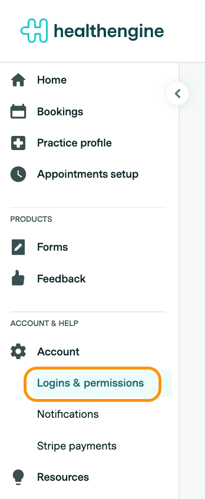
The Logins and permissions page in Practice Admin (under Account) controls what each user can see and do in your practice. There are four key permissions: Edit users, Edit profile, Edit patient details, and Edit calendar schedules. The sections below explain what each permission does, its default state, and who can change it.
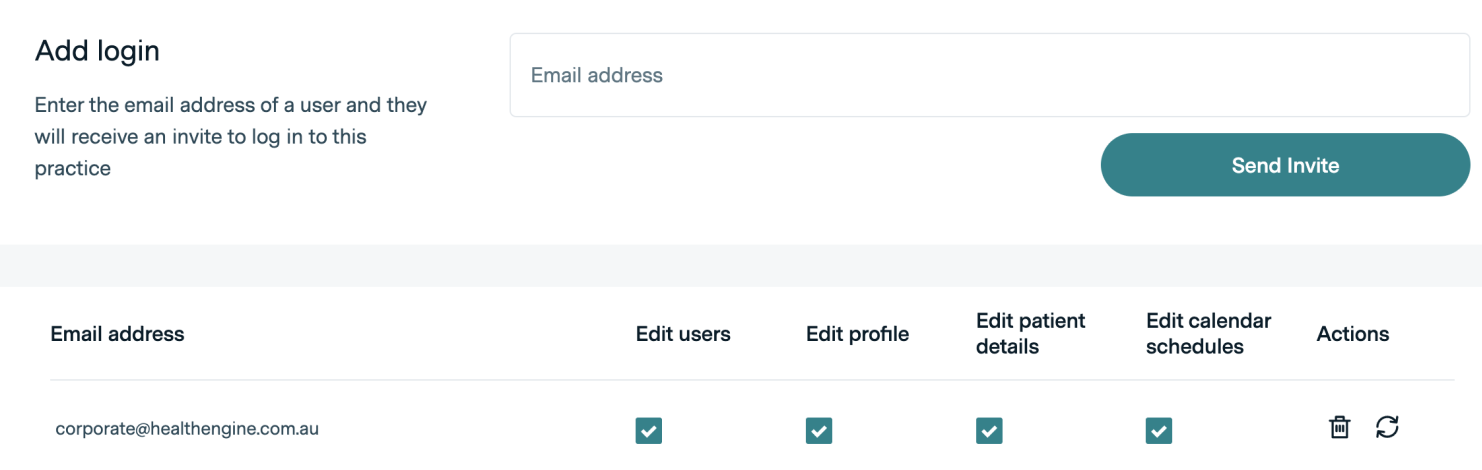
Summary Table:
| Permission | Default for new users | Who can change it | What it allows |
|---|---|---|---|
| Edit users | Enabled for the initial Practice Admin user only | Healthengine team (initial setup) | Add, remove, and reset passwords for user logins; enable or disable permissions for other users. |
| Edit profile | Unticked | Users with Edit users permission | Access and edit the Practice profile tab on the public profile (requires Healthengine Professional Profile feature). |
| Edit patient details | Unticked | Users with Edit users permission | Edit patient details and resend patient communications for upcoming appointments. |
| Edit calendar schedules | Ticked | Users with Edit users permission | Create, edit, and delete schedules and block schedules; republish and unpublish all appointments. |
Edit users
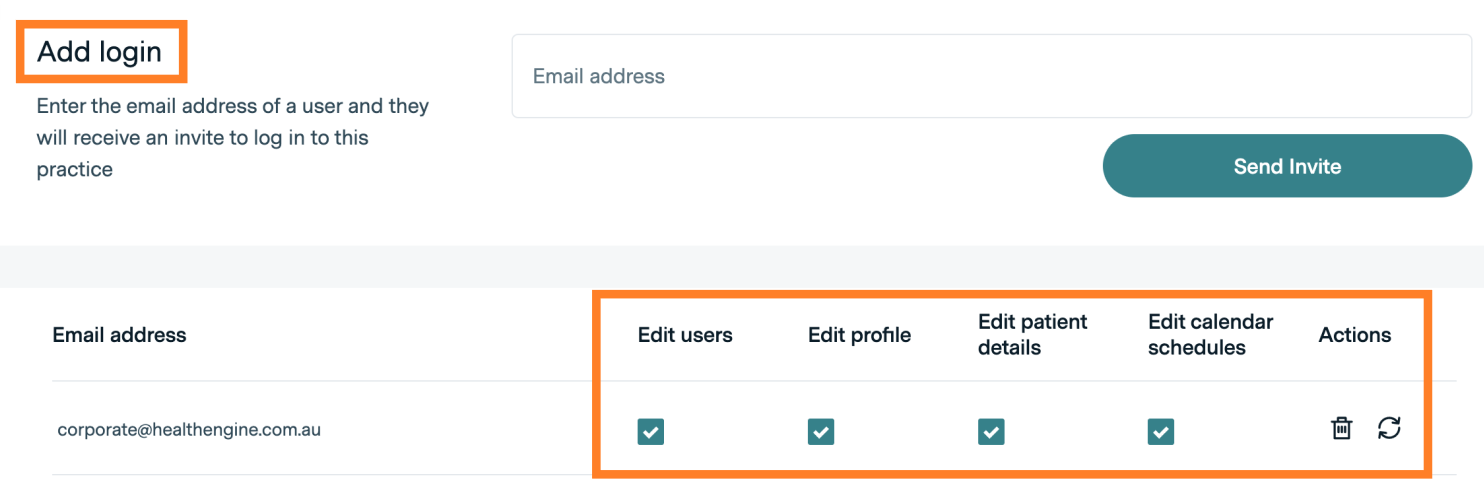
The initial Practice Admin user for a brand new account will be set up by the Healthengine team and will have all permissions enabled by default (unless specified before onboarding).
This user will have the ability to add new user logins, remove users and reset their passwords.
Edit profile
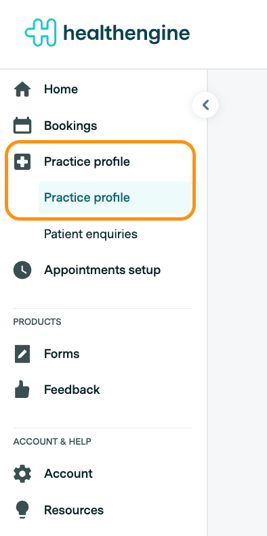
The Edit profile permission lets users access the Practice profile tab and edit information on the practice's public profile. This permission is available to practices that have the Practice Profile feature enabled. This permission is unticked by default for all new users; only users with Edit users permissions can enable it for others. 'Practice profile' tab and edit information on their public profile as shown below:
When new users are added as a login, this permission will be unticked by default.
Only users with 'Edit users' permissions can tick this checkbox for other users.
Edit patient details
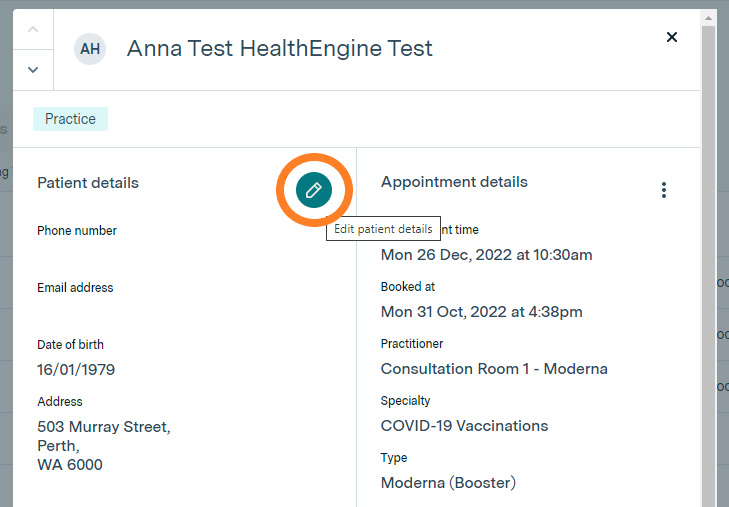
The Edit patient details permission lets users edit patient details and resend patient communications. When enabled, a pencil icon appears in the patient booking details view. This permission is unticked by default for all new and existing users; only users with Edit users permissions can enable it for others.
Now, when you click on the patient booking details, you will see the pencil icon allowing for changes to be made.
For any new logins or existing users, this permission is unticked by default.
Only users with 'Edit users' permissions can tick this checkbox for other users.
*** Please note, you can’t edit patient booking details if the appointment time has already passed.
Once you have made the changes to the patient's details, there is an additional option to resend any relevant communication to that patient.
*** Please note, the patient will only be sent communications they should have received.
E.g if you update the patient's details more than 24 hours before their appointment time, they won't receive pre-screening or an appointment reminder email, as both of these comms get sent within 24 hours before their appointment time. The patient will just receive a new confirmation email.
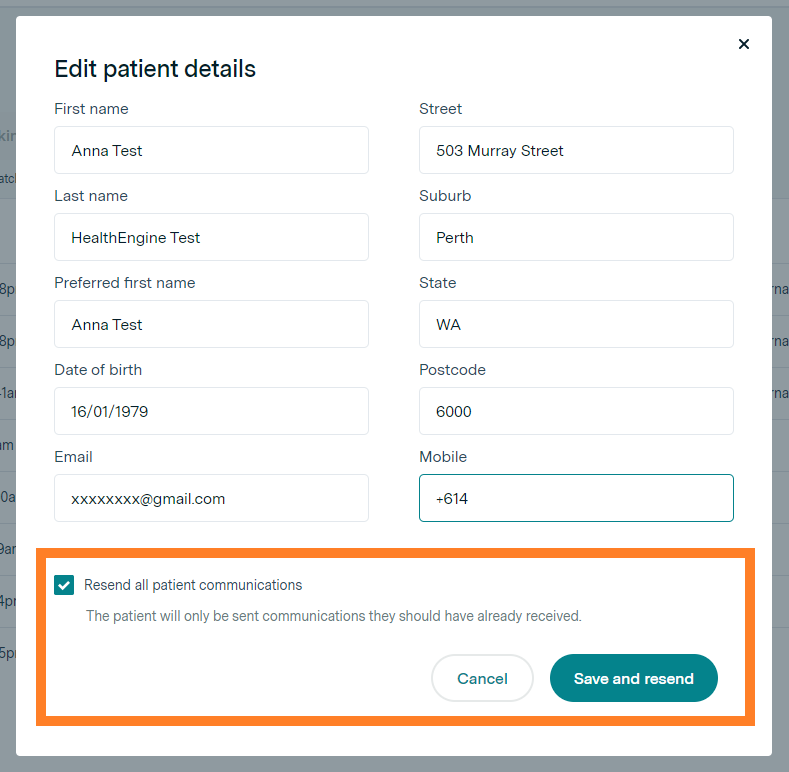
If you don't update any information and select 'save and resend', this will still trigger a resend of all patient communications.
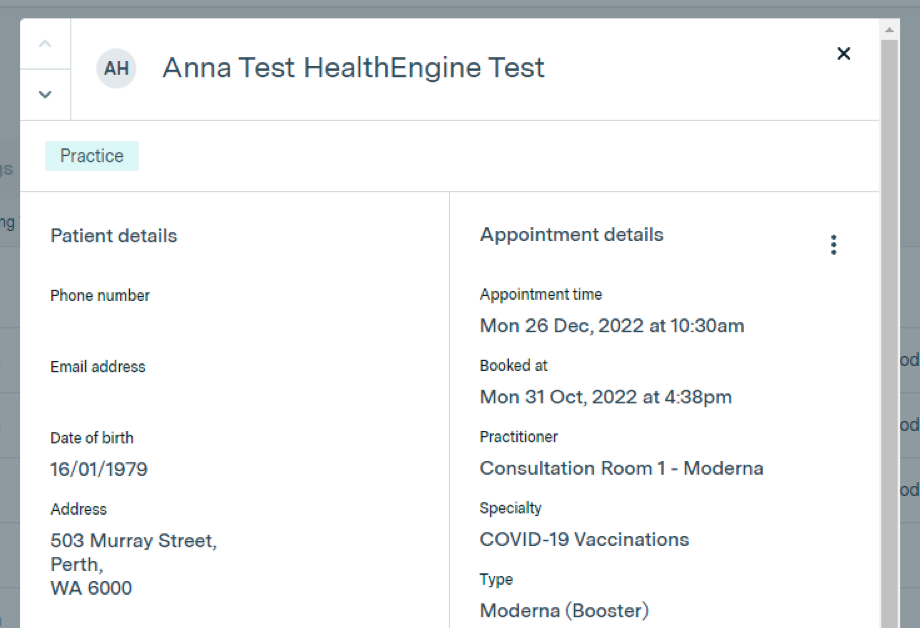
If you do not have permission to edit patient details, you will not be able to see the pencil icon and edit any patient information, as shown below.
Edit calendar schedules
The Edit calendar schedules permission controls whether a user can manage availability in Calendar. This permission is ticked by default for all new and existing users. To restrict a user, untick this checkbox after adding them as a login — only users with Edit users permissions can change this setting.
If this permission is ticked, the user will be able to have full permission to make changes, including creating and editing schedules and block schedules, and republishing and unpublishing all appointments.
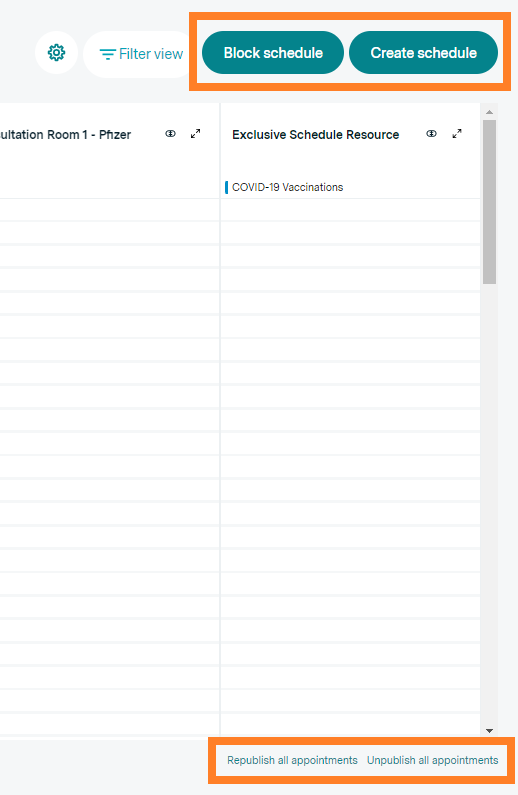
If this permission is unticked, the user won’t be able to see the option to create a schedule or block a schedule, or delete and make any changes to existing schedules. They also won't be able to see the option to republish and unpublish all appointments. The user will only be able to book, cancel and reschedule appointments.
For any new logins or existing users, this permission is ticked by default.
If you want to restrict any users from making changes to manage availability, you will have to untick the checkbox after you have added them as a login. Only users with 'Edit users' permissions can tick this checkbox for other users.
