
Vertical: GP, Dental, Pharmacy, Allied, Specialist
PMS Eligible: Non-integrated practices using the Healthengine Calendar
This article explains how to give staff access to edit patient details and manage calendar schedules in Practice Admin, using Roles & Users.
Edit patient details and Edit calendar schedules only apply to non-integrated practices. If your practice is integrated with a practice management system (PMS) such as Best Practice or MedicalDirector, patient details and availability come from your PMS. Update them directly in your PMS.
What's in this article:
- How roles work
- Give a user access
- Edit patient details
- Edit calendar schedules
- Users without a role
- Contact Our Support Team
How roles work
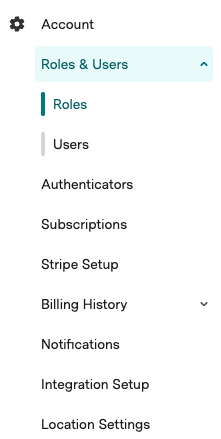
A role is a set of permissions you create once and assign to staff. Every user on a role gets the same access, and changing a role updates everyone on it. You manage roles and users under Account > Roles & Users.
- Your practice has a System Administrator role with full access, including any new permissions Healthengine adds. Keep at least one person on it, because it is the role that can create and change other roles.
- Only users with the Edit users permission can add users or assign roles. Only users with the Manage roles permission can create or change roles.
- When creating a role, you only see permissions for the products your practice has enabled.
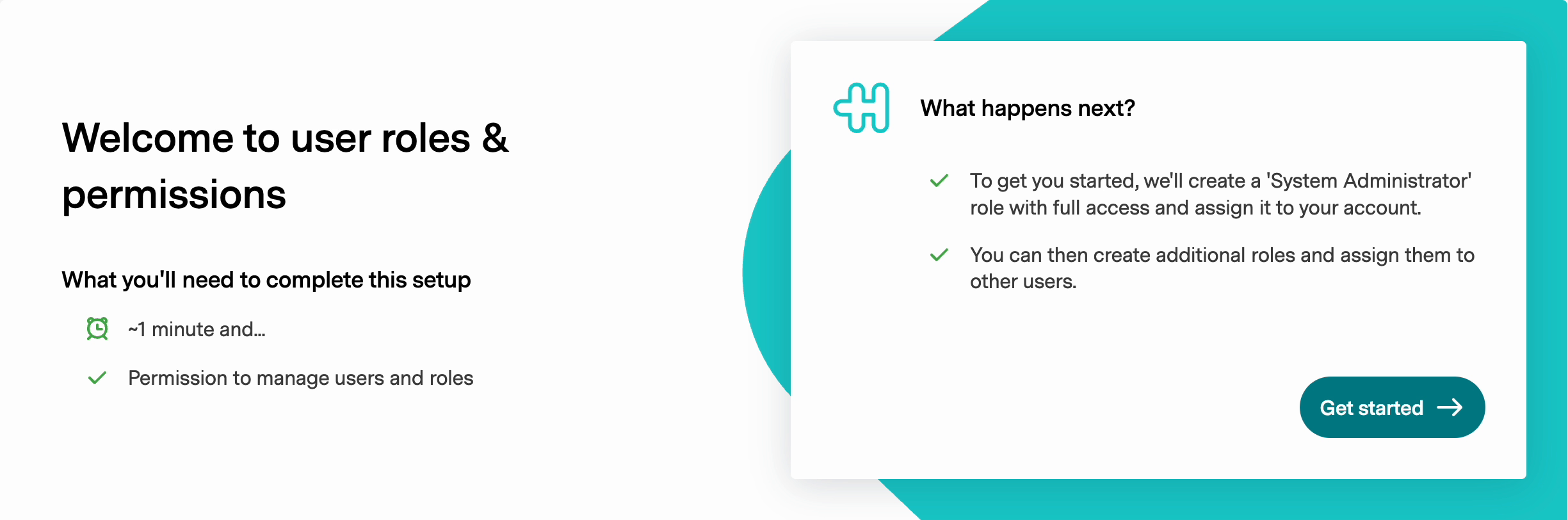
The first time someone with the Edit users permission opens Roles & Users, a short setup creates the System Administrator role and assigns it to them.
If your Account menu still shows Logins & Permissions instead of Roles & Users, ask the person at your practice with Edit users access to review your team's permissions.
Give a user access
- In Practice Admin, go to Account > Roles & Users > Roles.
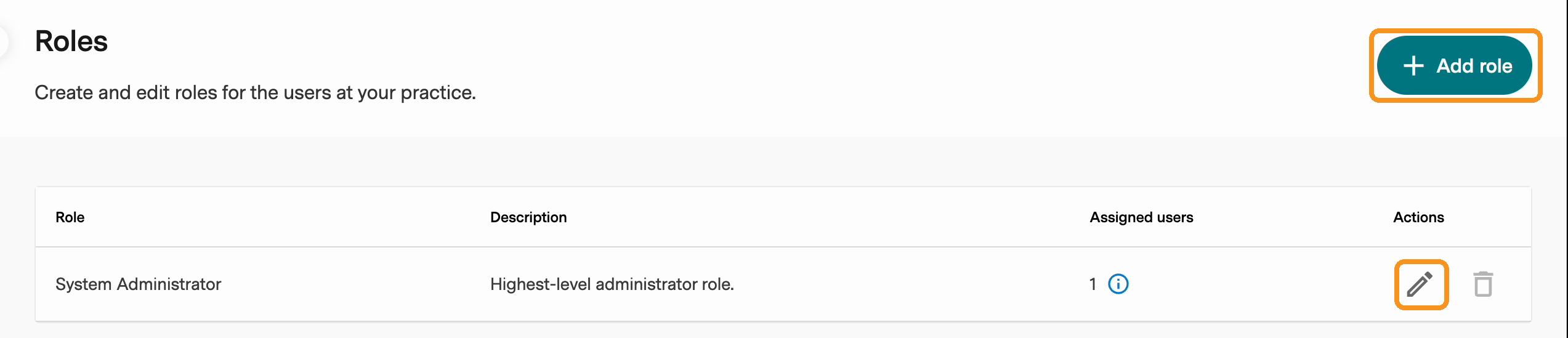
- Select the pencil icon next to the role you want to change, or select Add role to create a new one (for example, Reception).
- Tick Edit patient details and/or Edit calendar schedules, then save the role.
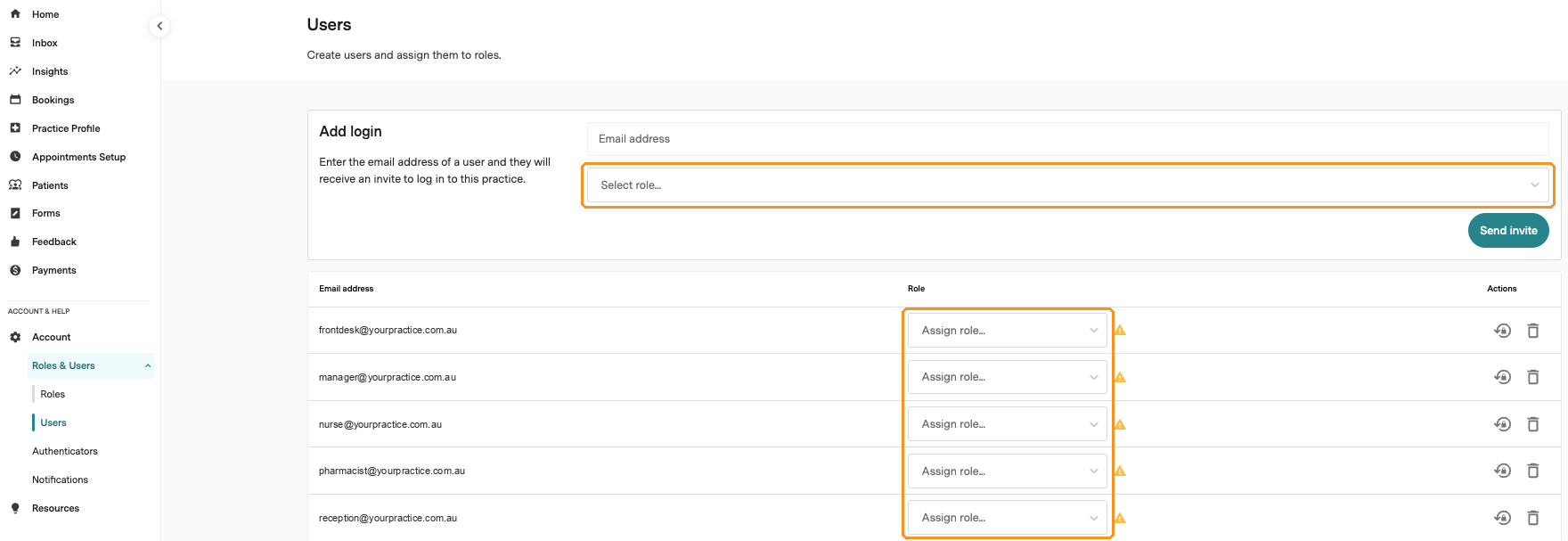
- Go to Account > Roles & Users > Users and make sure each person who needs this access is assigned that role. For a new staff member, enter their email, choose the role under Select role and select Send invite.
Changing a role changes access for every user on it. To give one person extra access, create a separate role for them.
Edit patient details
The Edit patient details permission lets users edit a patient's details and resend patient communications for upcoming appointments. With this permission, a pencil icon appears in the patient's booking details.
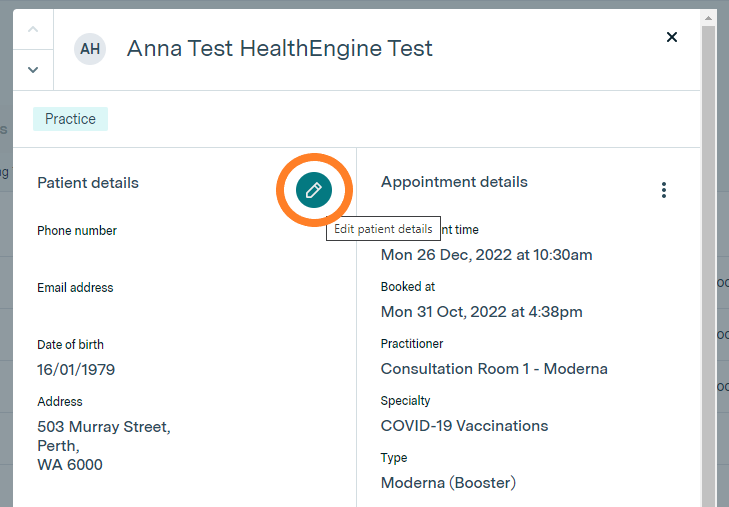
After saving changes, you can resend the relevant communications to the patient. If you select Save and resend without changing anything, all patient communications are still resent.
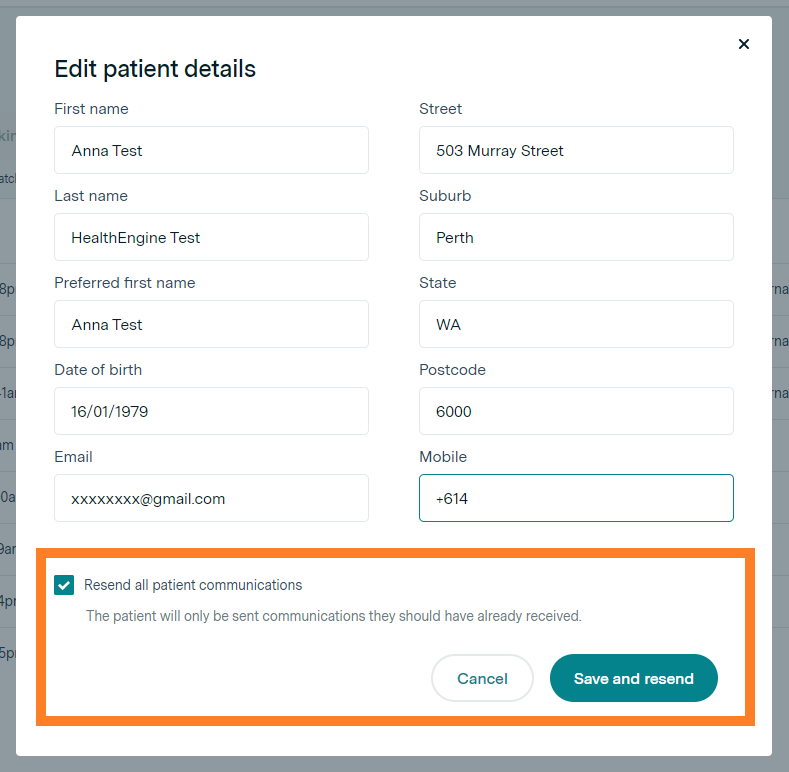
The patient is only sent communications they should already have received. For example, if you update their details more than 24 hours before the appointment, they won't get pre-screening or the reminder email (both are sent within 24 hours of the appointment). They will only get a new confirmation email.
Without this permission, there is no pencil icon and patient details can't be edited.
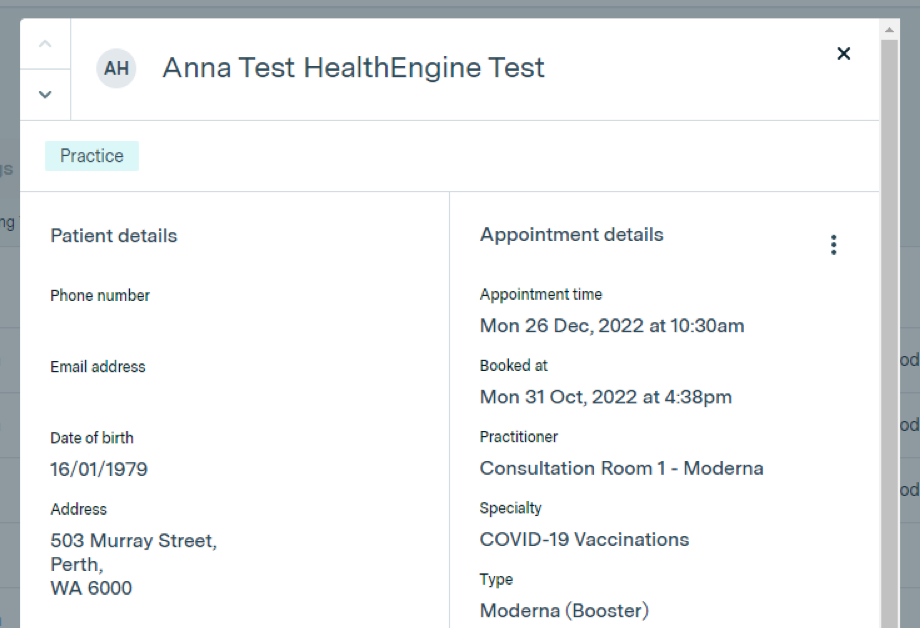
You can't edit patient details once the appointment time has passed.
Edit calendar schedules
The Edit calendar schedules permission controls who can manage availability in the Calendar. With this permission, users can create, edit and delete schedules and block schedules, and republish or unpublish all appointments.
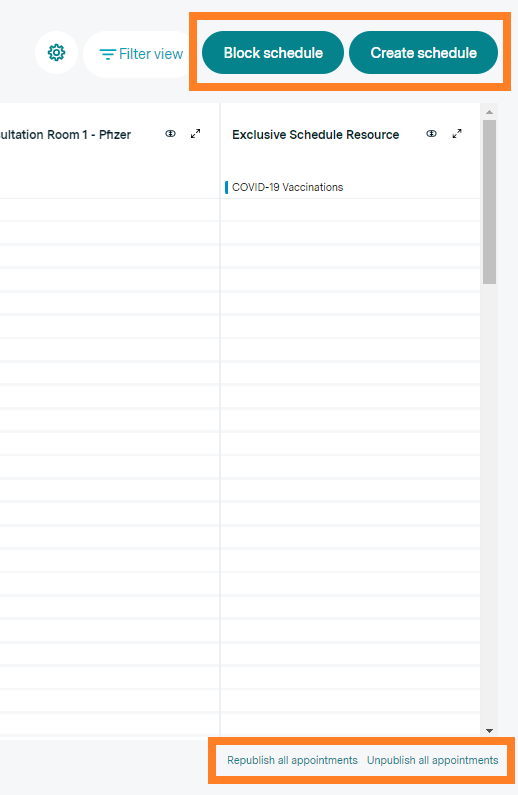
Without it, these options are hidden. Users can still book, cancel and reschedule appointments.
Users without a role
Staff who had a login before Roles & Users was introduced keep their existing permissions until they are given a role. On the Users page, these users have a warning icon next to their email address. Hover over the icon to see which permissions they currently have.
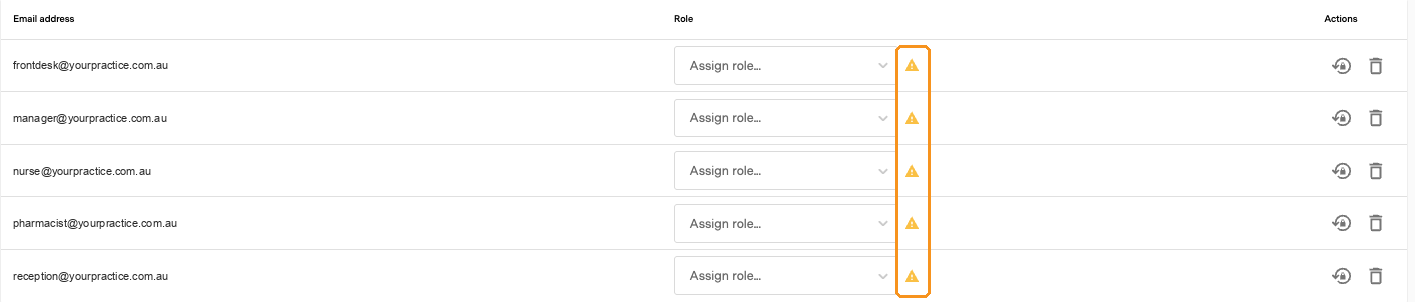
To change what one of these users can do, assign them a role.
Contact Our Support Team
If you still can't give a user access, contact our Support Team with your practice name, the user's email address and the role they are assigned. See Need more support? Here's how to contact us.