
Vertical: Pharmacy
PMS Eligible: N/A
In your Calendar feature, you can book appointments for walk-in patients or patients who call over the phone. In this article, we'll show you how to make bookings for these patients in multiple scenarios!
Although Healthengine gives customers the ability to manage their own appointments, stores can also manage this in the event that a customer doesn't show up or needs to reschedule.
How to schedule a booking for a new patient
If you wish to book an appointment on behalf of a patient, simply navigate to the "Appointments Setup" tab on your left hand side of your screen in your Practice Admin and select "Calendar" to bring up your Calendar view.
%20-%201.png?width=624&height=271&name=Managing%20Patient%20Bookings%20(Pharmacy)%20-%201.png)
Navigate to the day you wish to book the patient in and click in the corresponding schedule for the service they'd like to book to bring up its available slots.
Select the schedule you have created in your calendar, clicking simply on the coloured column, select the three vertical dots of the specific timeframe the patient would like to book. In the example below, we select the 12 pm one:
Important: If you don't have a schedule available, please visit our guide: How to Manage Standard Availability in Calendar
%20-%202.png?width=624&height=616&name=Managing%20Patient%20Bookings%20(Pharmacy)%20-%202.png)
From here, click on the 3 vertical dots beside an appointment slot and then select 'Book Appointment'%20-%203.png?width=670&height=673&name=Managing%20Patient%20Bookings%20(Pharmacy)%20-%203.png)
You will be asked a series of questions in which you will need to answer as the customer themselves. The first question is whether this appointment is for the customer themselves or someone else - in this scenario, you will need to select "Myself".
%20-%204.jpg?width=574&height=391&name=Managing%20Patient%20Bookings%20(Pharmacy)%20-%204.jpg)
This will then prompt the question whether they are a new or existing customer at your store; select the required answer.
%20-%205.jpg?width=536&height=416&name=Managing%20Patient%20Bookings%20(Pharmacy)%20-%205.jpg)
Then, select the appointment type the customer needs and finally click 'Continue'.
%20-%206.jpg?width=553&height=422&name=Managing%20Patient%20Bookings%20(Pharmacy)%20-%206.jpg)
Following this, you will need to fill out the customer's details in the form as shown below and click 'Continue'.
Please note: Mandatory fields are marked with a red asterisk.
%20-%207.jpg?width=502&height=657&name=Managing%20Patient%20Bookings%20(Pharmacy)%20-%207.jpg)
Finally, select how this customer would like to pay and then click the 'Book now' button to complete the booking!
%20-%208.jpg?width=468&height=322&name=Managing%20Patient%20Bookings%20(Pharmacy)%20-%208.jpg)
A patient wants to make a booking for someone else
There are a few scenarios you may come across when a customer wants to book an appointment on someone else's behalf. These can include:
- A parent making a booking for their child
- A caregiver who needs to make a booking for their dependant
- A person making a booking for a friend or family member who may have difficulties booking online
- A person who doesn't have either a mobile phone or an email address to complete the booking
When making this type of booking for a customer, you'll be going through the same process as described above; however, a few of the answers will change.
When asked whether this appointment is for the customer themselves or someone else, you will need to select "Someone else".
Select if they are a new or existing customer to the store, and finally, the appointment type this customer needs.
In this section, the final question you'll need to answer is who will receive the booking confirmation and reminder emails.
%20-%209.jpg?width=614&height=647&name=Managing%20Patient%20Bookings%20(Pharmacy)%20-%209.jpg)
Please note: This will immediately default to patient, so double-check this with the customer before selecting 'Continue'.
If you select "Me" or "Both", you will need to enter the details of the third-party person that wants to receive the booking confirmation, and subsequently, you will need to fill in the details of the person who is making a booking on behalf of the patient and select their form of payment.
Where to View Customer Bookings
To view a customer's booking details, you can access this in either of two sections of your Practice Admin: the Calendar feature under 'Appointments setup' or the 'Bookings' tab.
Customer Bookings in Calendar
To view a customer's booking in 'Calendar', navigate to the date of the booked appointment in your Calendar and click on the schedule with the appointment in it.
%20-%2010.png?width=420&height=147&name=Managing%20Patient%20Bookings%20(Pharmacy)%20-%2010.png)
Top Tip: You can hover over a booking in the Calendar view to see the patient's name.
From here, a pop-up box will appear with a more detailed view of your appointment slots.
%20-%2011.png?width=515&height=383&name=Managing%20Patient%20Bookings%20(Pharmacy)%20-%2011.png)
To view a customer's booking details, click on the person icon in line with that booking, as seen belo,w and a new pop-up will appear.
%20-%2012.png?width=514&height=382&name=Managing%20Patient%20Bookings%20(Pharmacy)%20-%2012.png)
%20-%2013.png?width=461&height=485&name=Managing%20Patient%20Bookings%20(Pharmacy)%20-%2013.png)
Adding multiple bookings to the same appointment slot
Sometimes you may need to add more than one booking to the same time slot if, for example, there is a family or group booking.
You will be able to access this feature once the first booking has been made, or if there is already an existing booking in the time slot you want to use.
To do this, navigate to your Calendar and click on the necessary schedule. In this pop-up, click on the 3 vertical dots of the appointment time you require and then select '+ Book new patient' as seen below:
%20-%2014.png?width=528&height=365&name=Managing%20Patient%20Bookings%20(Pharmacy)%20-%2014.png)
Once this has been selected, it will open up a new booking form where you will enter the new customer's details.
When you go back to the schedule and click on the refresh icon, you can see the duplicate slot that has been created at that time in preparation for the additional booking.
%20-%2015.png?width=525&height=329&name=Managing%20Patient%20Bookings%20(Pharmacy)%20-%2015.png)
Please note: Ensure you are making the additional booking in a timely manner, as any delays could potentially cause a double booking to occur.
Customer Bookings in Bookings Page
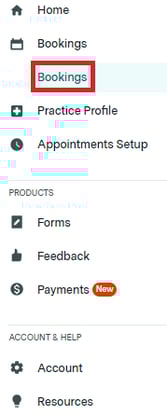
To view a customer's booking in 'Bookings', navigate to this section in your Practice Admin, then select 'Bookings'. Select the customer's name to see the same pop-up of customer information
%20-%2017.png?width=670&height=228&name=Managing%20Patient%20Bookings%20(Pharmacy)%20-%2017.png)
Marking a Customer who has attended their appointment
To mark a customer as having attended their appointment, open the customer's details and simply tick the 'Attended' box underneath Appointment Status, as seen below:
%20-%2018.png?width=415&height=485&name=Managing%20Patient%20Bookings%20(Pharmacy)%20-%2018.png)
This will then give you the option to supply customers with a Certificate of Attendance, which you can read more about in our Help Centre article, How to Download a Certificate of Attendance.
The appointment slot in your Calendar will also change to green with a tick once done.
%20-%2019.png?width=535&height=238&name=Managing%20Patient%20Bookings%20(Pharmacy)%20-%2019.png)
Top Tip: If you need to, you can reverse this at any time by going back to the booking details and unchecking the attended box, as seen above.
How to Reschedule a Booking
To reschedule a customer's booking in either the "Calendar" or the "Bookings" section, navigate to your preferred section and locate the customer's appointment slot.
In "Calendar", there are 3 vertical dots beside a customer's appointment slot, as seen below - click this to open a list of options on how to manage this customer's bookings.
%20-%2020.png?width=514&height=386&name=Managing%20Patient%20Bookings%20(Pharmacy)%20-%2020.png)
When you select 'Reschedule Booking', a pop-up will appear with new options to reschedule. This defaults to the original booking date and details, and you'll only be able to reschedule to a new date or consultation room with a schedule for that service. If you'd like to reschedule someone for a different service, read how to do this below.
%20-%2021.png?width=513&height=305&name=Managing%20Patient%20Bookings%20(Pharmacy)%20-%2021.png)
Once you have selected the new details of this customer's appointment, click the "Reschedule current appointment" button to complete the reschedule.
%20-%2022.png?width=509&height=412&name=Managing%20Patient%20Bookings%20(Pharmacy)%20-%2022.png)
You will then see a confirmation message advising of the new booking details and that an email has been sent to the patient.
%20-%2023.png?width=428&height=148&name=Managing%20Patient%20Bookings%20(Pharmacy)%20-%2023.png)
In the 'Bookings' feature, open the customer's details and select the 3 vertical dots under 'Appointment details' - from here, select the 'Re-schedule' button as seen below:
%20-%2024.png?width=513&height=403&name=Managing%20Patient%20Bookings%20(Pharmacy)%20-%2024.png)
This will display the same rescheduling pop-up as seen in 'Calendar' for you to fill out. After, when you navigate back to the 'Bookings' feature, the customer's appointment will be rescheduled to the new time in the list.
Please note: The original appointment has been marked with a red cancelled flag and cancellation reason as rescheduled if you go into the expanded booking details.
%20-%2025.png?width=481&height=504&name=Managing%20Patient%20Bookings%20(Pharmacy)%20-%2025.png)
How to Book a New Appointment for an Existing Customer
Booking a new appointment for an existing customer is made easy with our rebook functionality; this allows stores to quickly book appointments without having to input patient details.
Rebooking via the Bookings Feature
This is the quickest way to rebook an appointment for an existing customer.
In the 'Bookings' feature, select 'Apply filters' and then select 'All time' before you do a patient name search. Click 'Apply filters' to complete the search.
%20-%2026.png?width=458&height=497&name=Managing%20Patient%20Bookings%20(Pharmacy)%20-%2026.png)
From there, find the correct customer file, then click the 3 vertical dots and select 'Book new appointment for patient'.
Top Tip: If the customer has more than one file, we recommend confirming which file has the correct contact details before using those details to book.
%20-%2027.png?width=582&height=457&name=Managing%20Patient%20Bookings%20(Pharmacy)%20-%2027.png)
This will display the same re-scheduling pop-up as seen in 'Calendar' for you to fill out. Here, however, you have the option of selecting a different service to book into. Once you have selected the details of the new appointment, click the 'Create new appointment' button to complete the booking.
%20-%2028.png?width=514&height=426&name=Managing%20Patient%20Bookings%20(Pharmacy)%20-%2028.png)
A confirmation message will appear advising of the new booking details and that an email has been sent to the customer.
Rebooking via Calendar
This is the recommended way to rebook where the customer has just attended their appointment and wishes to book a follow-up or an appointment for a new service.
In 'Calendar', select the schedule with the patient appointment in it, then click the 3 vertical dots in the booked appointment slot. From here, select 'Book new appointment for patient'.
%20-%2029.png?width=514&height=398&name=Managing%20Patient%20Bookings%20(Pharmacy)%20-%2029.png)
This will display the same re-scheduling pop-up as seen in 'Calendar' for you to fill out. Here, however, you have the option of selecting a different service to book into. Once you have selected the details of the new appointment, click the 'Create new appointment' button to complete the booking.
%20-%2030.png?width=514&height=426&name=Managing%20Patient%20Bookings%20(Pharmacy)%20-%2030.png)
A confirmation message will appear advising of the new booking details and that an email has been sent to the customer.
How to Cancel a Booking
To cancel a customer's booking, select the 3 vertical dots in either 'Calendar' or 'Bookings' to open the list of options on how to manage this customer's bookings. From here, select 'Cancel Booking'.
%20-%2031.png?width=514&height=406&name=Managing%20Patient%20Bookings%20(Pharmacy)%20-%2031.png)
You'll be asked to confirm this cancellation, at which point, you simply need to select 'Cancel appointment' to confirm.
%20-%2032.png?width=262&height=259&name=Managing%20Patient%20Bookings%20(Pharmacy)%20-%2032.png)
In the 'Bookings' feature, the red cancelled flag will appear beside the customer's booking and in 'Calendar', you'll see that the appointment has been republished for another patient to book.
%20-%2033.png?width=514&height=381&name=Managing%20Patient%20Bookings%20(Pharmacy)%20-%2033.png)
Please note: All customers are alerted to appointment cancellations via email at the time of the cancellation.