
Vertical: Pharmacy
PMS Eligible: N/A
Appointment Types is a useful tool where you can manage which services and appointment types are available for your patients to book online!
Viewing your Services and Appointment Types
To manage your appointment types and specialties, simply navigate to "Appointments Setup" and then click on "Appointment Types" in your Practice Admin.
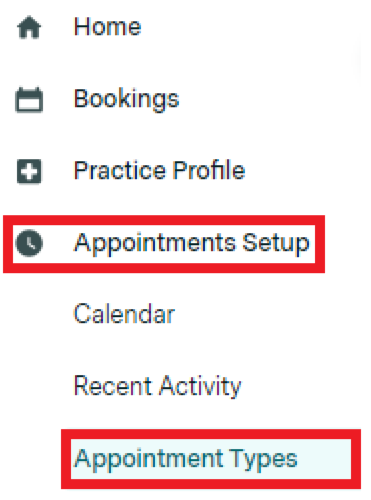
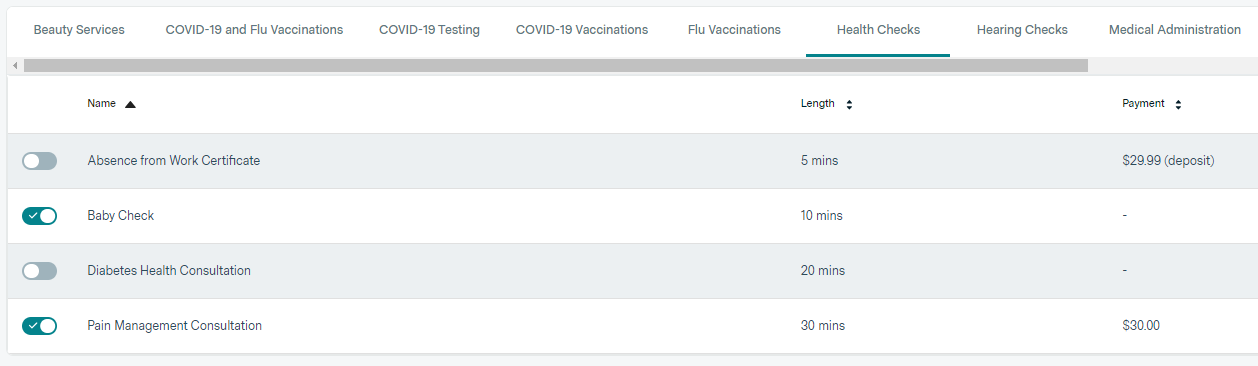
In this section, you'll see the list of specialties your practice provides to patients and their corresponding appointment types as seen below:
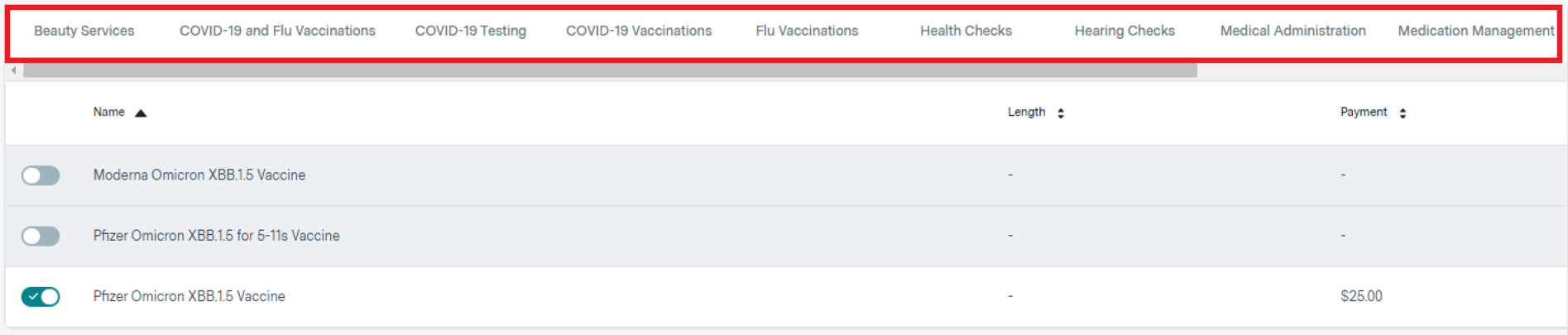
Disabling a Service or Appointment Type
If there are certain specialties or appointment types you don't want patients to book online, you can hide these with a click of your mouse!
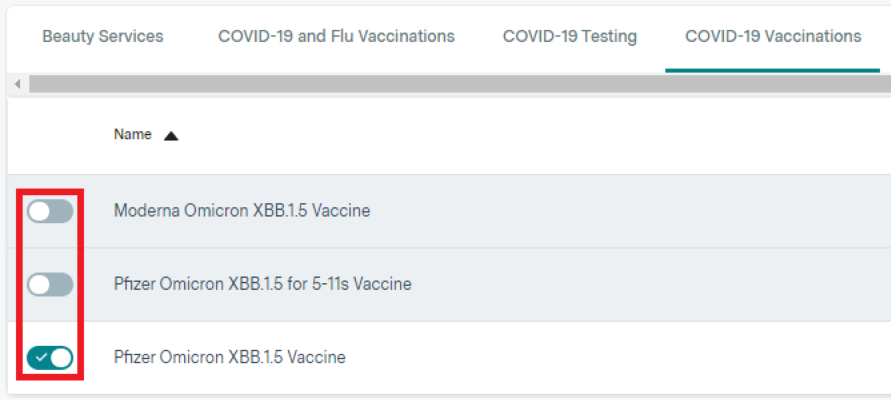
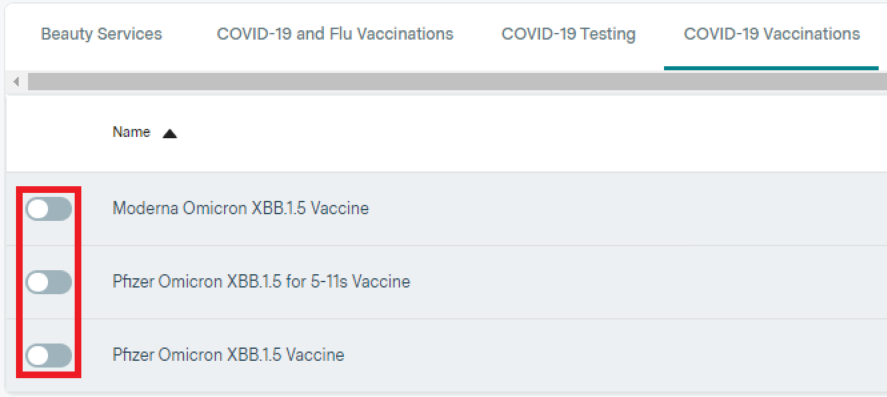
The simple toggle button, as seen in the images below, allows you to disable specific appointment types or entire specialties for online bookings.
To hide a specific appointment type, toggle the button off beside the required name:
To make an entire service unavailable for online bookings, toggle off all appointment types linked to its service, as seen below:
Fortunately, while these appointment types and services are disabled for patients to book online, your practice is still able to book these appointments for them through the Calendar section in Practice Admin!
You can learn more about this in our Help Centre article: Managing Patient Bookings (Pharmacy)
Enabling Services and Appointment Types
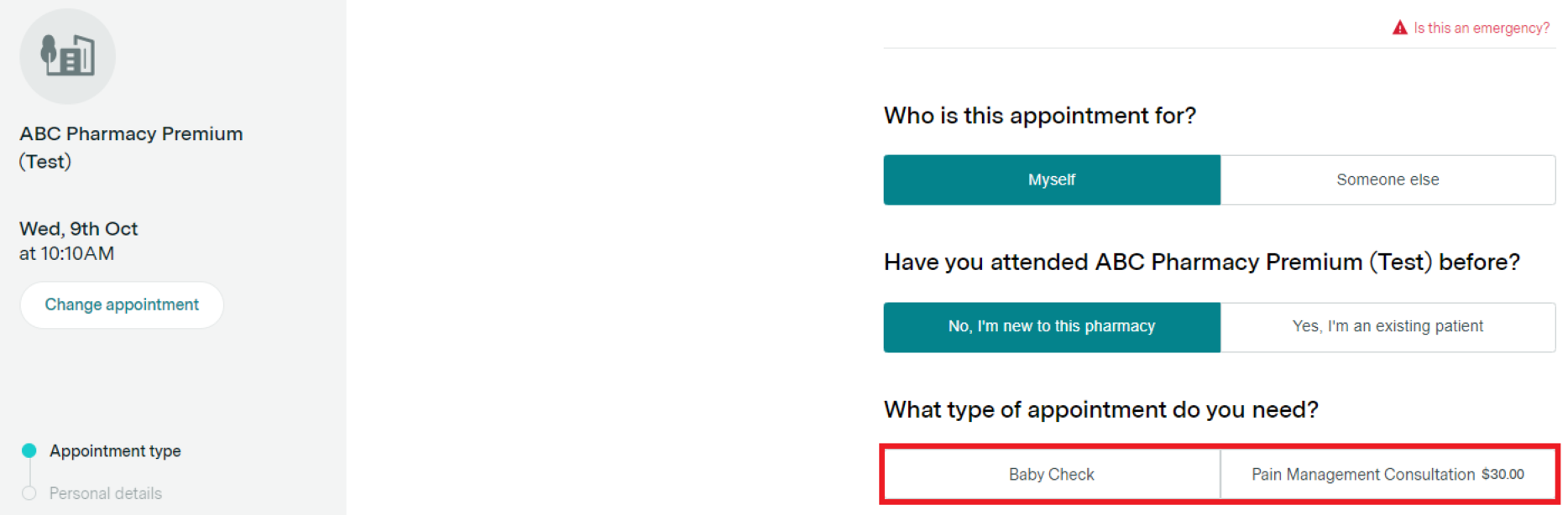
Appointment types that are enabled are what patients will see online - it's important to toggle these on when your practice is ready to have these services booked online.
Check out an example of this below:
Want to Edit your Appointment Type Lengths?
If you'd like to edit the default length that is assigned to your appointment types at the time of your store's onboarding, you can now do so via the Appointment Types page under Appointments Setup.
To edit the default length of an appointment type, locate it under the relevant specialty heading and select the pencil icon.
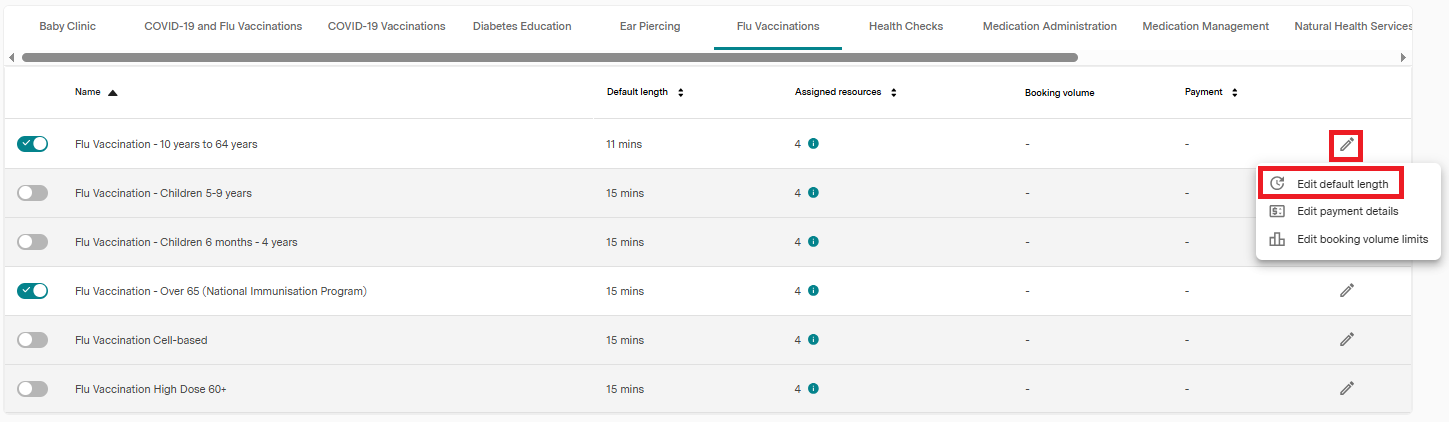
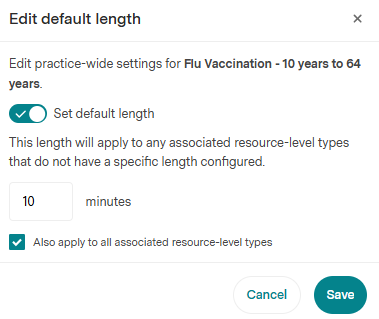
Once in here, you can nominate a new appointment type length and apply this to all relevant Consultation Rooms (otherwise known as associated resources).
Want to Publish your Prices?
If you'd like to display a price for a particular appointment type during the booking flow, you can now do so via the Appointment Types page under Appointments Setup.
Please Note: If you see a lock icon, it may indicate that your pricing has been locked down by your Head Office. Please reach out to them with any questions.
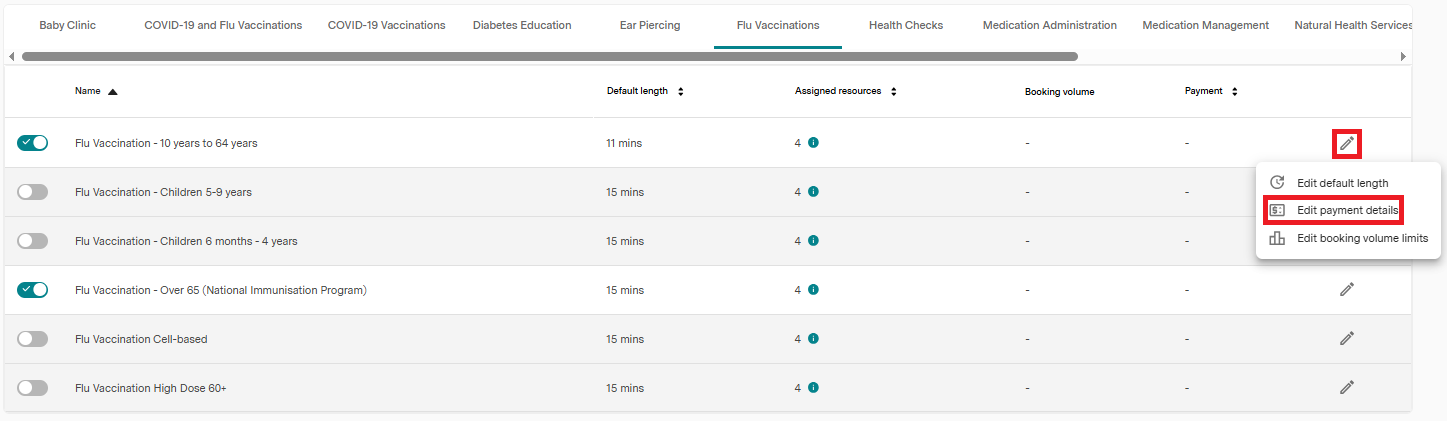
To set up pricing to display, simply locate the appointment type you wish to add pricing to and select the pencil icon. You'll then see the option for 'Edit payment details'.
Once you have clicked into here, you'll be given the option to enable payment details and add a price.
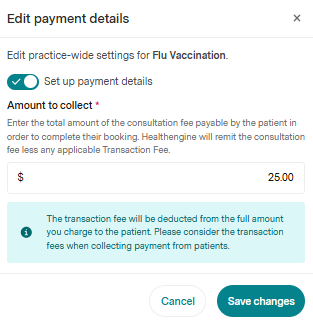
It is important to note that this will not facilitate a payment on behalf of your store at the time of booking. It will only display the price of the appointment type in the booking flow; you will still need to manually process a payment upon completion of the service.
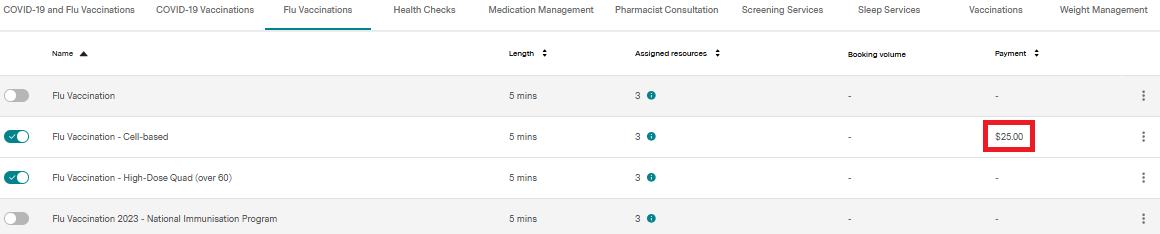
Once added, your pricing will display in the 'Payment' column for easy visibility.
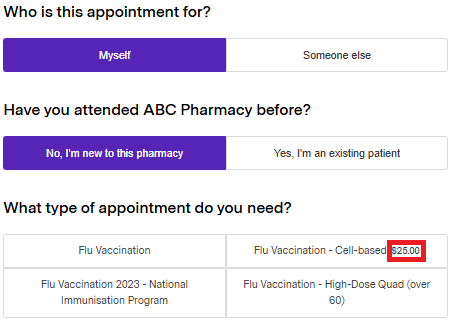
It will display in the booking flow as below:
Want to Manage your Appointment Volumes?
We allow stores to set stock limits on your appointment types to better manage booking volumes and inventory.
If you wish to manage your appointment volumes, similar to above, navigate to Appointments Setup, then Appointment Types.
Locate the service and appointment type you wish to manage the volumes for, and select the pencil icon. Here you will see the option to 'Edit booking volume limits'.
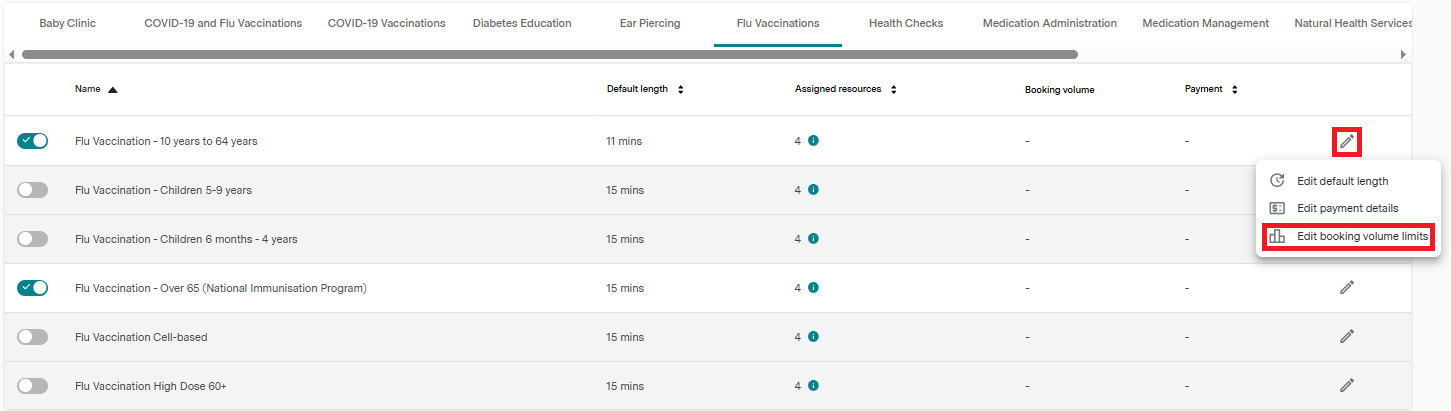
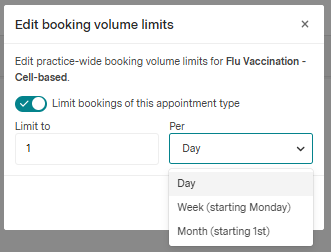
Once in here, enable the toggle to limit the bookings for the appointment type you have chosen, and you can then set a limit for how many bookings can be made for the chosen appointment type in a day, week or month.
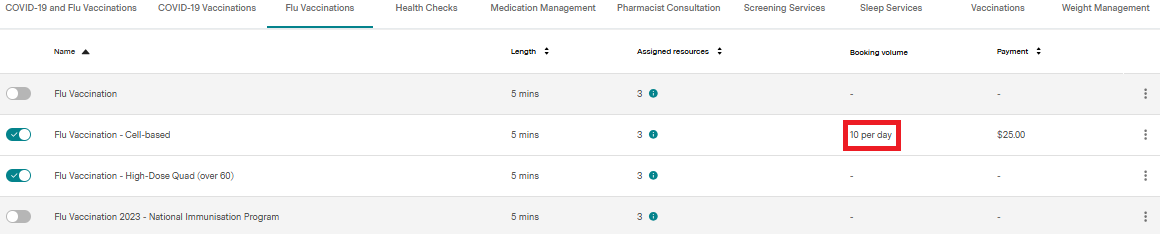
Once this has been added, you'll be able to see the stock limit you have set in the 'Booking Volume' column for easy visibility.
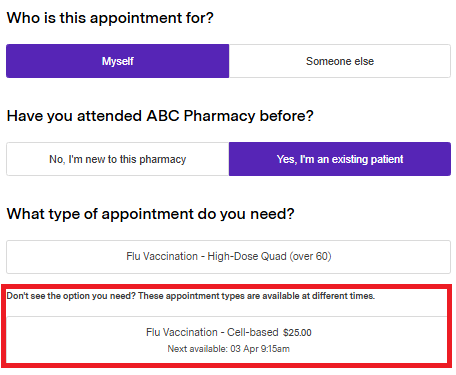
Once the stock limit has been reached, the option to book the appointment type will be automatically removed from the patient-facing system. The patient will be shown the next available date and time for the service.
If a patient cancels their appointment, the limited slot will be automatically reopened for booking, allowing another patient to fill the spot.
It is important to note that store-made bookings via the calendar will bypass any limits, but will still count toward the total. If a patient cancels, the slot won’t reopen if an extra booking was made by the pharmacy.
Please ensure that all staff are aware of this stock management process so that it can be adhered to.
Important note
Turning appointment types will also require a schedule created for the specialty under which the appointment type falls.
Please make sure that a schedule is active for the specialty.