
Vertical: General Practice
PMS Eligible: BP, Pracsoft, Zedmed
What's New in Recalls
We've rebuilt the Recalls interface from the ground up to make managing patient follow-ups faster, clearer, and more efficient for your practice team.
What's Changed
- Action tabs organise recalls by type (To Action, Call, SMS, Letter, Dr Attention, Synced)
- Bulk actions let you process multiple recalls at once
- Action History logs all contact attempts and outcomes to prevent duplicate work
- 11 filter options and saved presets to quickly find the recalls you need
- Patient detail panel shows complete recall info with quick action buttons
1. Interface Overview
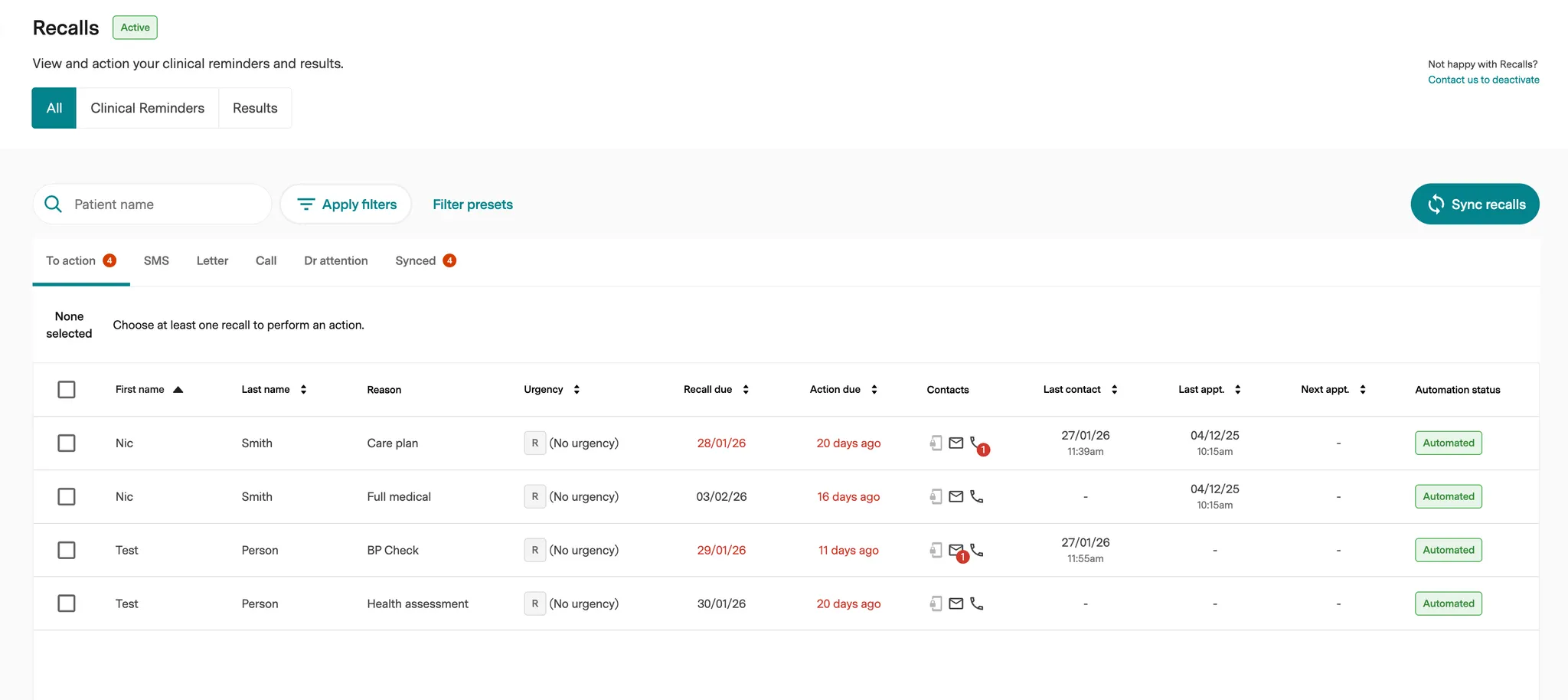
Main Recalls Dashboard
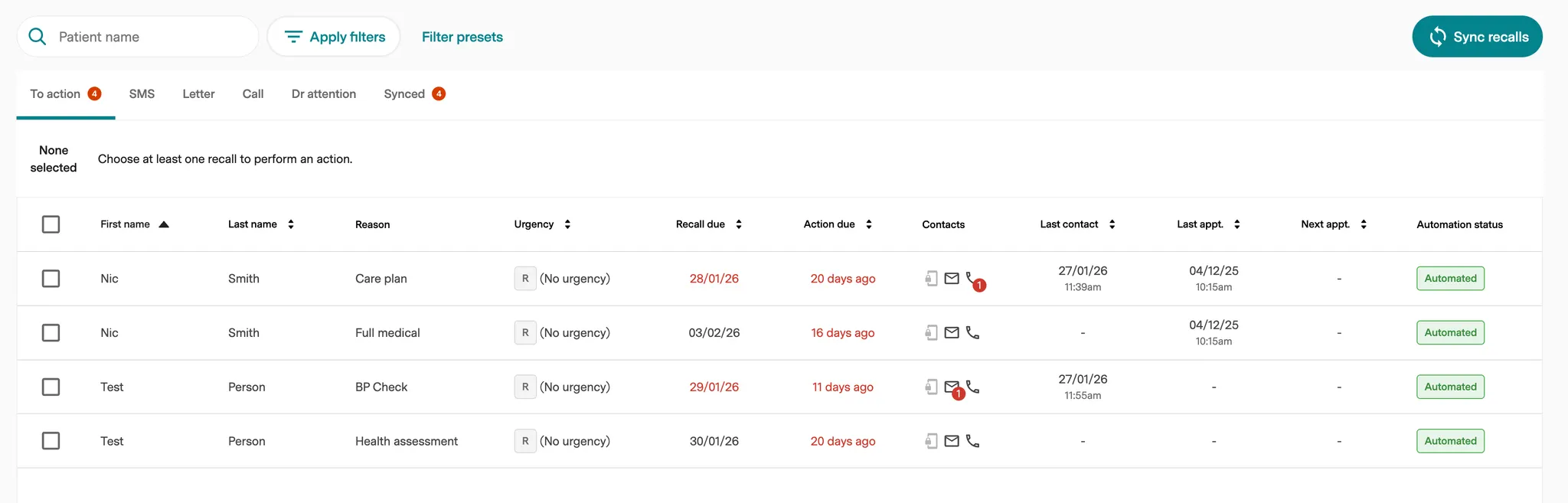
Header: Category tabs (All, Clinical Reminders, Results), search bar, Apply filters, Filter presets, and Sync recalls button.
Action Tabs: To action, SMS, Letter, Call, Dr attention, Synced
Table Columns:
- Checkbox, First name, Last name, Reason
- Urgency (R=reminder, N=non-urgent, U=urgent)
- Recall due (red = overdue)
- Action due (red = overdue)
- Contacts (icons)
- Last contact
- Last appt
- Next appt
- Automation status
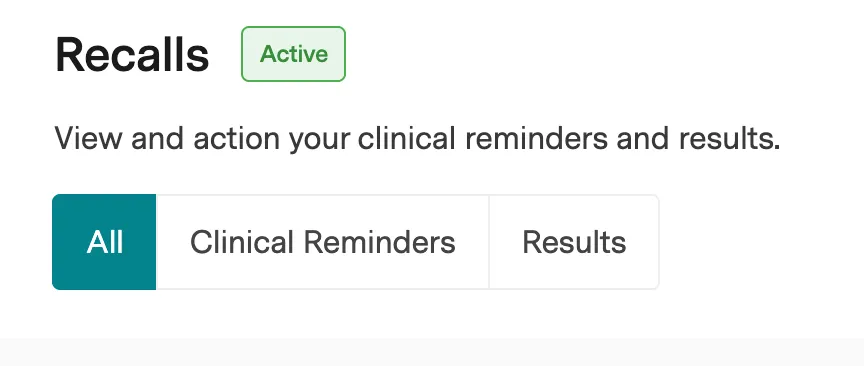
Recalls Category Tabs
- All - All recalls in one list
- Clinical Reminders - Only displays clinical reminders
- Results - Test results requiring follow-up
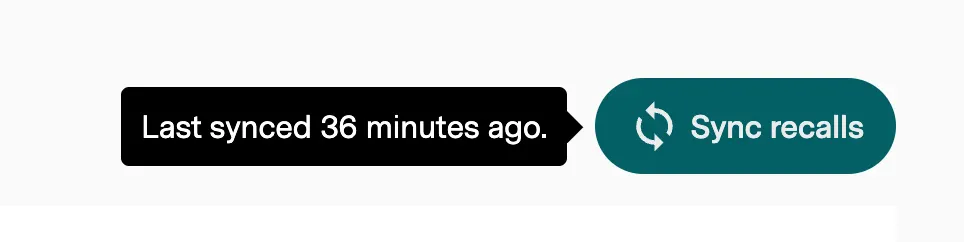
Sync Recalls Button
Manually syncs recall data between Healthengine and your practice management system. The timestamp shows when the last sync occurred.
When to use: Before starting your workflow, after making PMS changes, or when the timestamp indicates stale data.
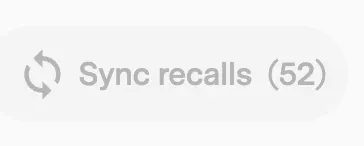
Sync Recalls Button - Syncing in Progress
When syncing, the button shows a counter of recalls being processed and becomes disabled. Wait for the sync to complete (typically a few seconds to a minute) before taking action on recalls.
2. Table Views & Filtering
Recalls Table
Check the checkbox next to patient rows to enable action buttons. Green "Automated" badges can also show "Paused" if automation is paused.
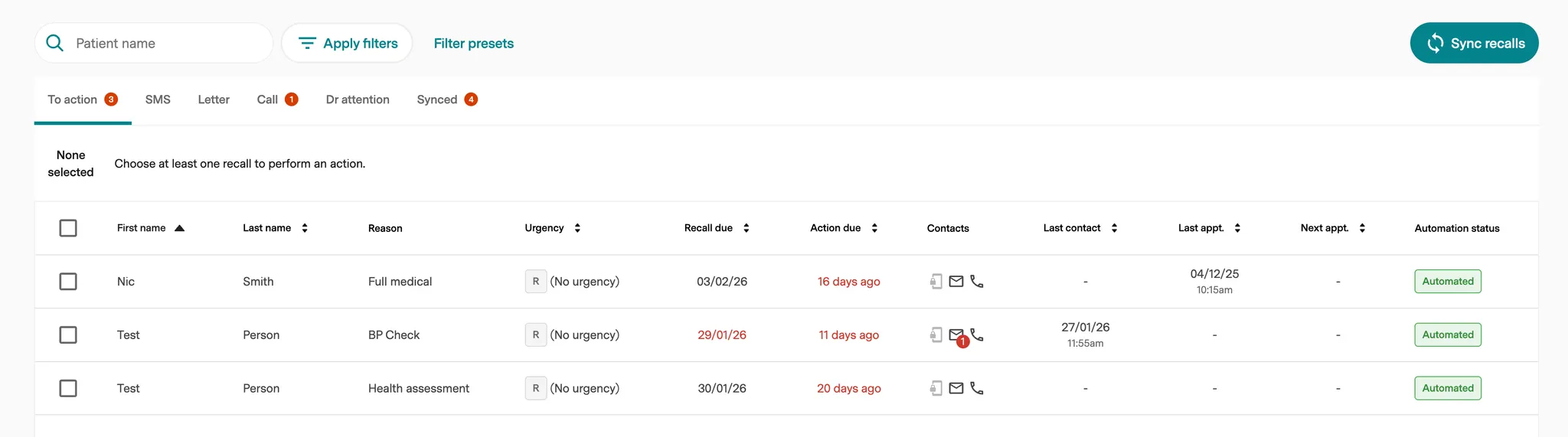
Column Reference
First name, Last name, Reason, Urgency (R/N/U), Recall due, Action due, Contacts (icons), Last contact, Last appt, Next appt, Automation status
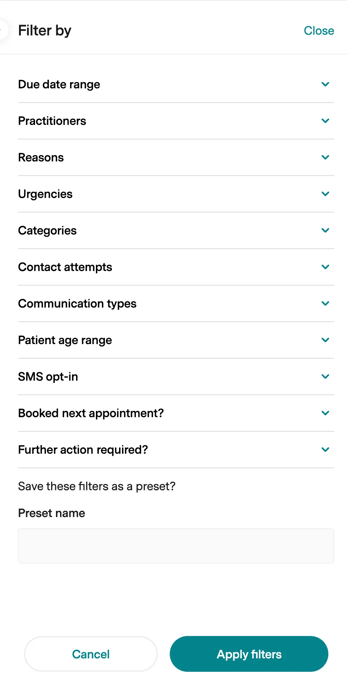
Advanced Filter Panel
11 Filter Options: Due date range, Practitioners, Reasons, Urgencies, Categories, Contact attempts, Communication types, Patient age range, SMS opt-in, Booked next appointment?, Further action required?
Save as Preset: Save filter combinations for quick reuse.
3. To Action Tab (Primary Workflow)
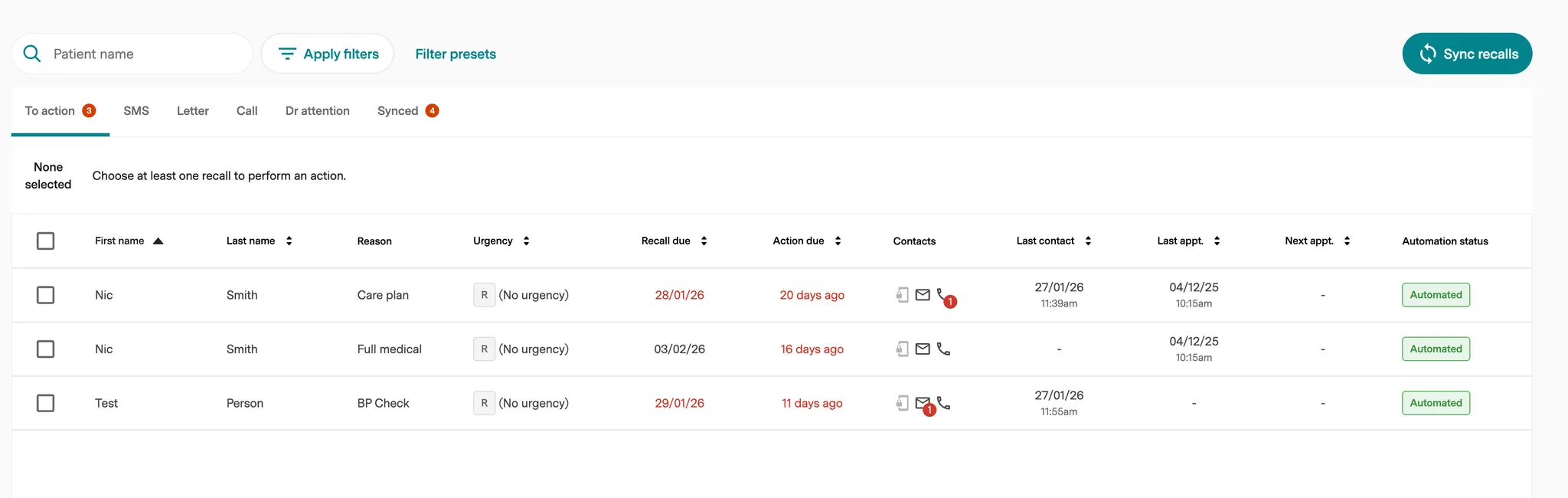
To Action Tab
Shows recalls ready for immediate action that haven't been assigned to a communication channel yet. Also includes patients with appointments booked in the next 30 days.
What you'll see:
- With automation: Patients with appointments in next 30 days (automation paused) + patients not in automated categories
- Without automation: Patients with appointments in next 30 days + patients due to be contacted
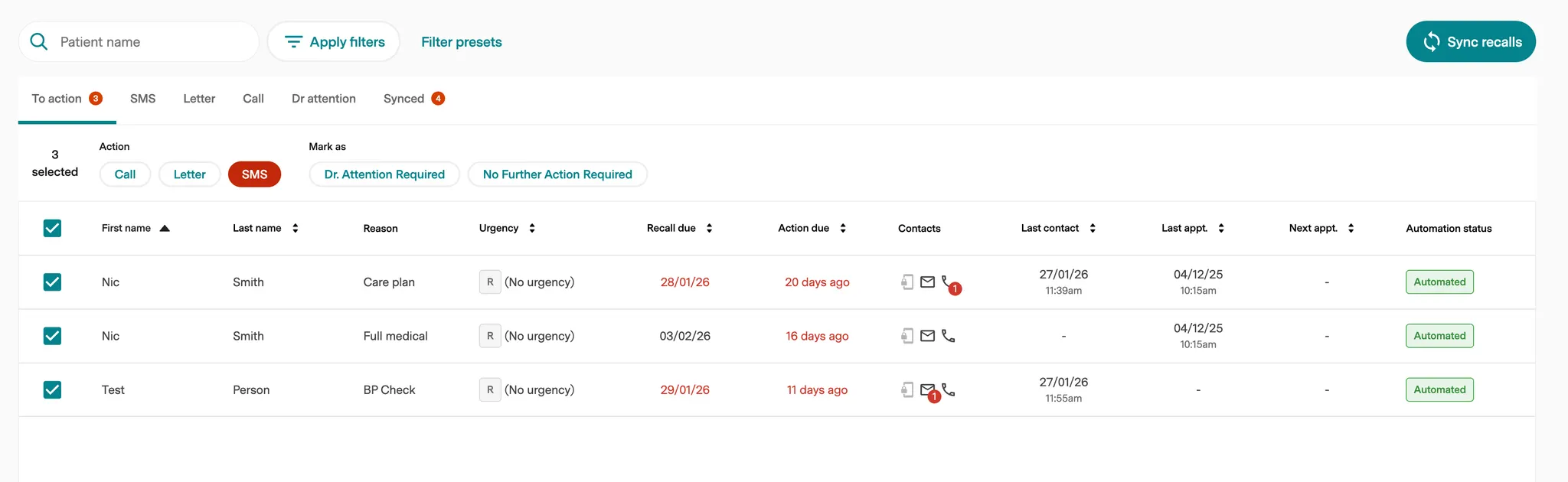
Actions: Select recalls and assign to Call, SMS, Letter, or flag for Dr. Attention.
To Action - Bulk Actions
When you select recalls, action buttons appear:
- Call / SMS / Letter - Queue recalls for that communication method (moves to respective tab)
- Mark as: Dr. Attention Required | No Further Action Required
4. Action Tab Workflows (Call, SMS, Letter, Dr Attention)
All action tabs work the same way: they filter the table to show only recalls queued for that action type. Select recalls to enable action buttons.
Call Tab

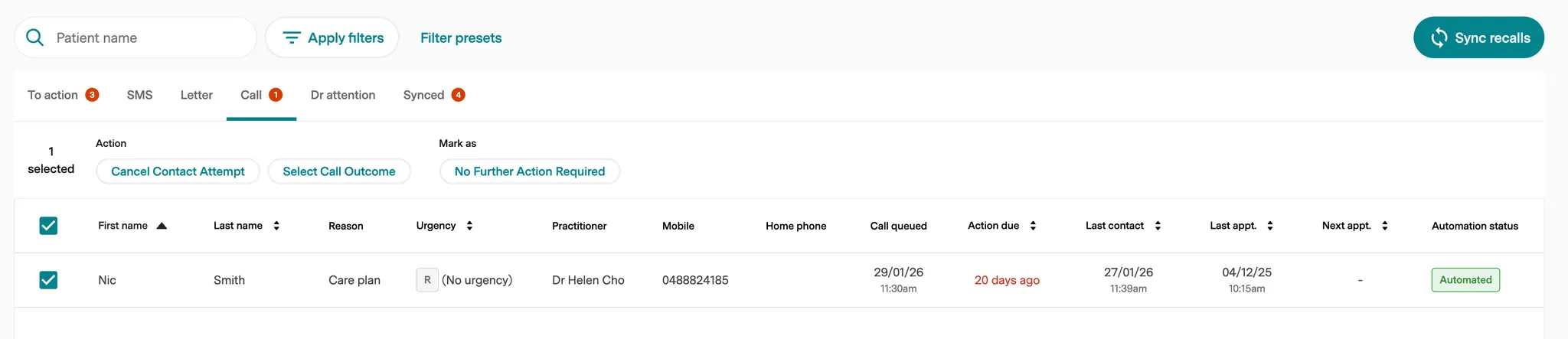
Available actions:
- Select Call Outcome - Record call result (opens modal)
- Cancel Contact Attempt - Mark attempt as unsuccessful
- No Further Action Required - Close the recall
Call Outcome Modal:
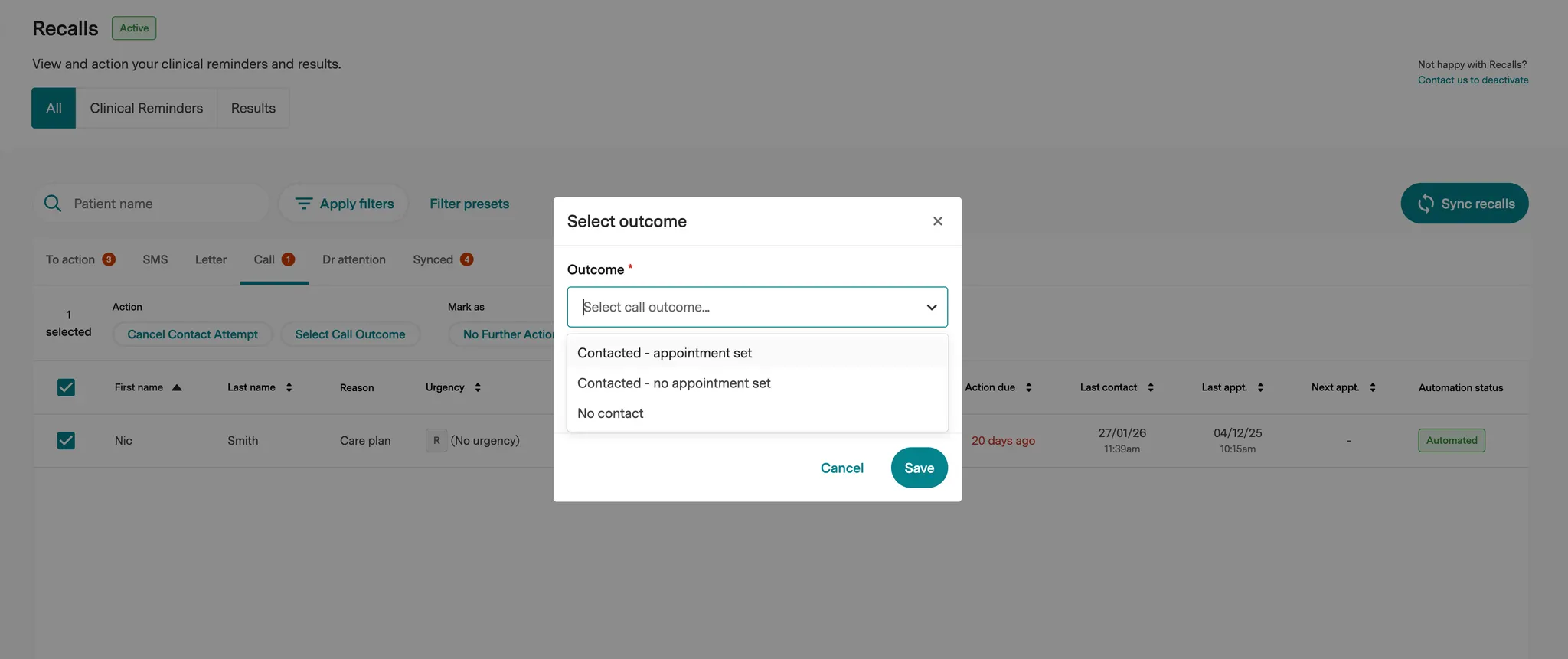
Select outcome (required):
- Contacted - appointment set
- Contacted - no appointment set
- No contact
Add optional notes, then click Save. Logged in Action History.
SMS Tab
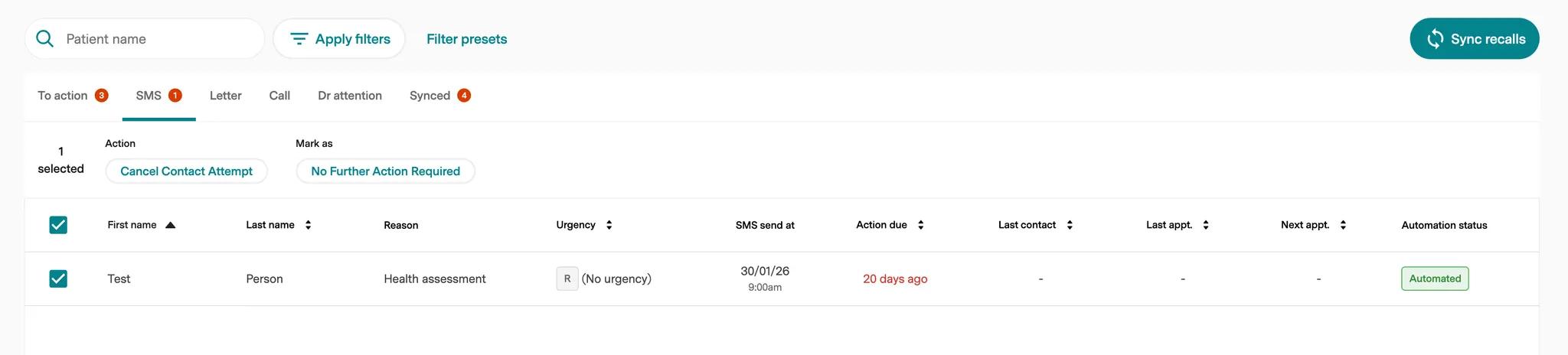
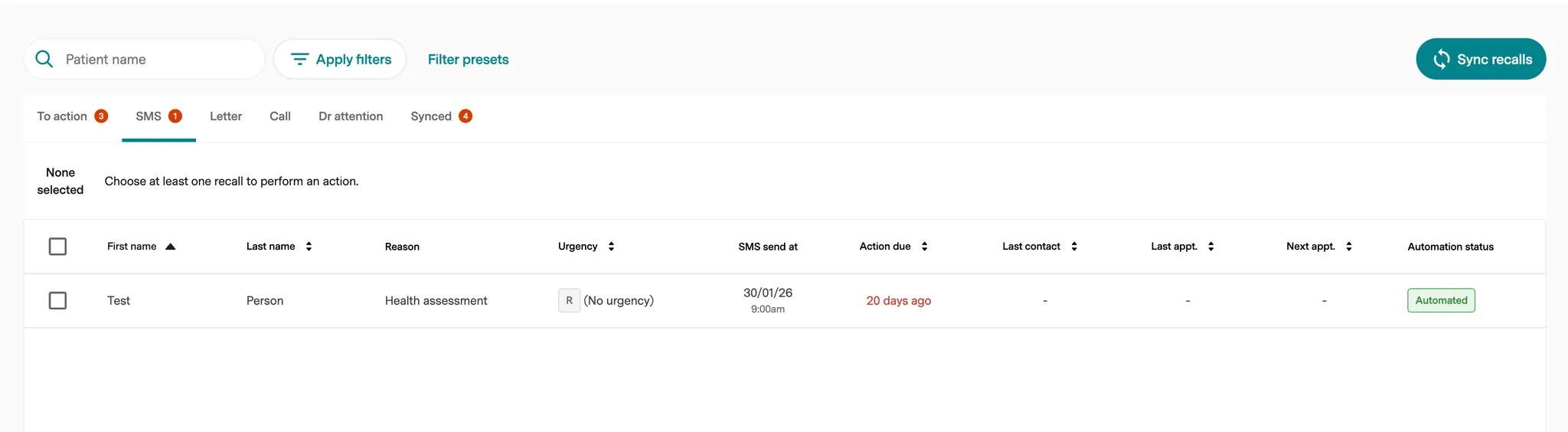
Available actions:
- Cancel Contact Attempt - Mark SMS as unsuccessful
- No Further Action Required - Close the recall
- Mark as dropdown - Reassign to Call, Letter, or Dr. Attention
- Mark as dropdown - Reassign to Call, Letter, or Dr. Attention
Letter Tab
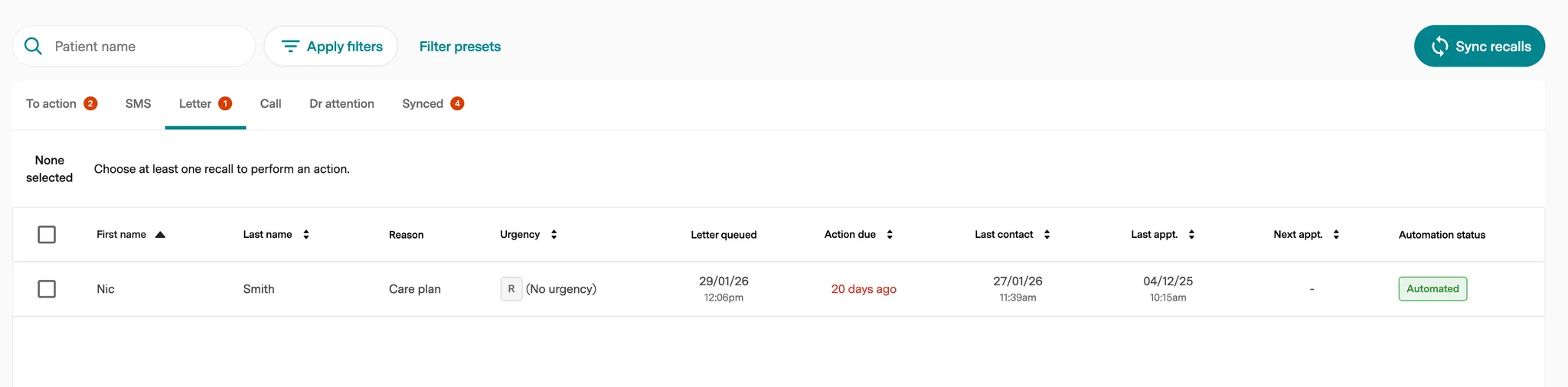
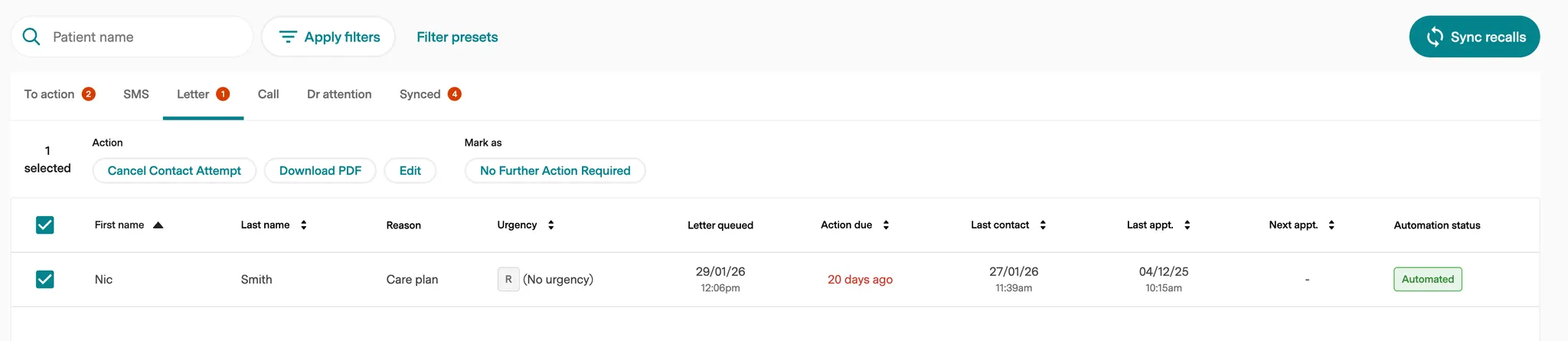
Available actions:
- Download PDF - Download letter for printing/mailing
- Edit - Customise letter content
- Cancel Contact Attempt - Mark as unsuccessful
- Mark as: No Further Action Required or reassign to another method
Dr Attention Tab
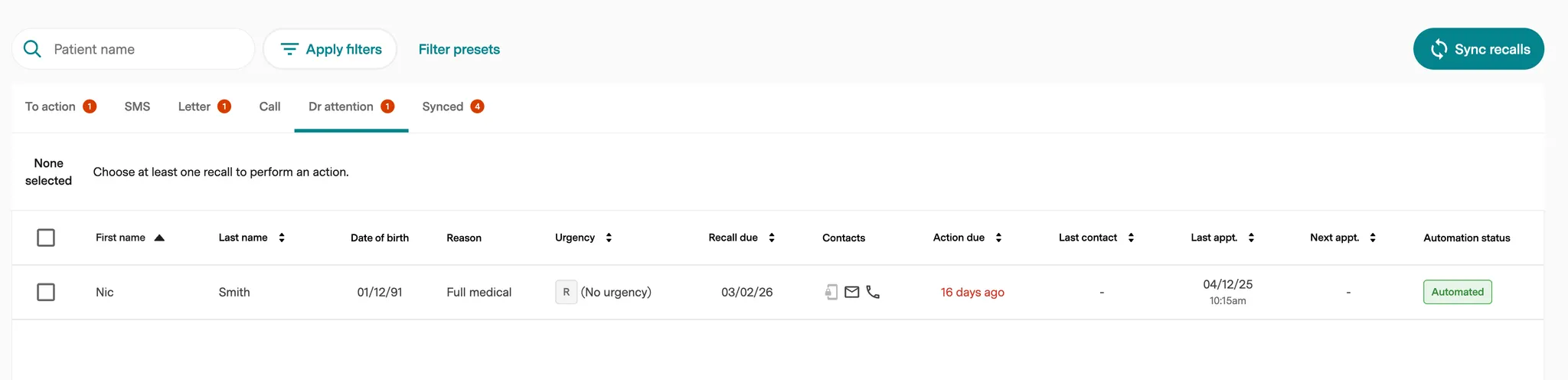
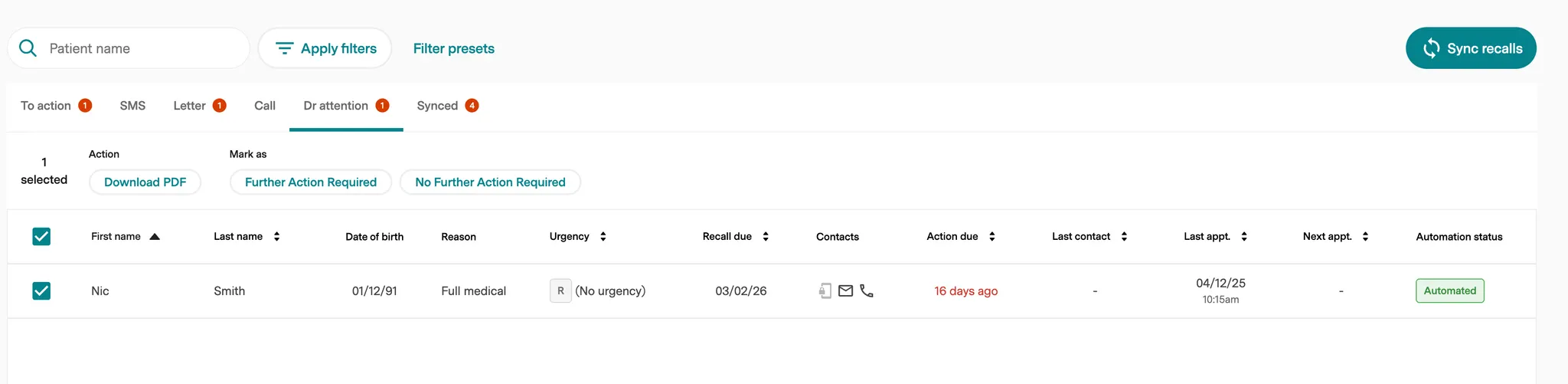
For recalls requiring clinical review (abnormal results, complex cases, etc.).
Available actions:
- Download PDF - Generate documentation for doctor review
- Mark as: Further Action Required | No Further Action Required
5. Selection Actions & Patient Details
Bulk Actions
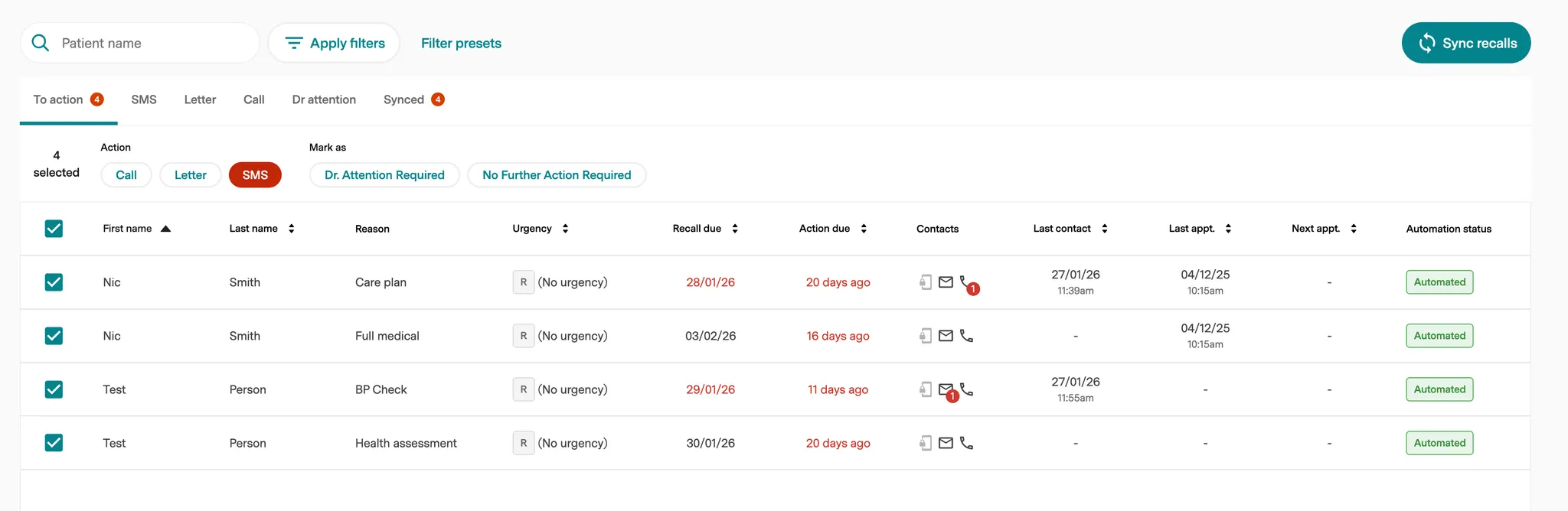
Select multiple recalls to process them together:
- Call / SMS / Letter - Assign to communication method
- Mark as: Dr. Attention Required | No Further Action Required
Patient Detail Panel
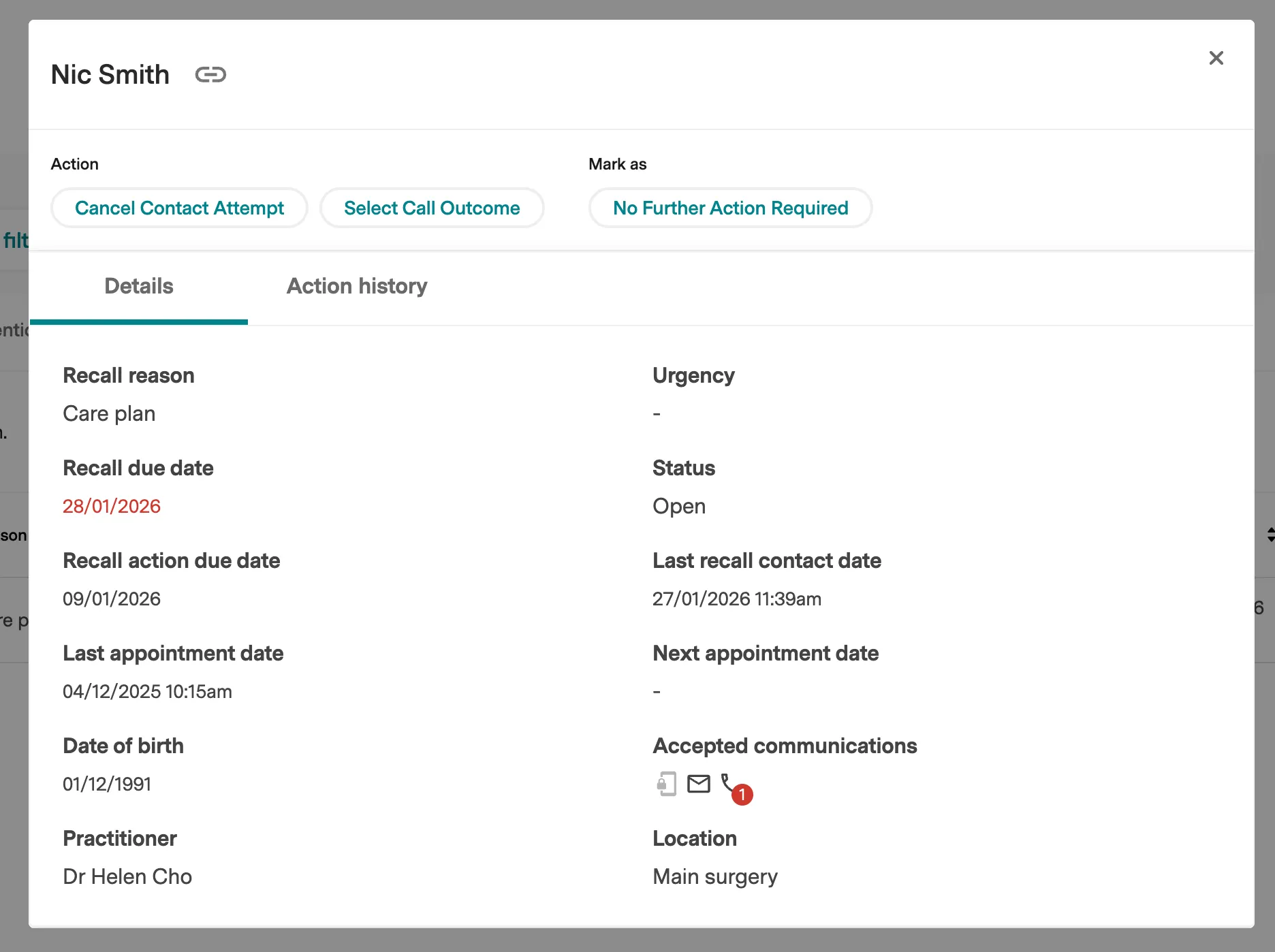
Click a patient name to open a side panel with:
- Quick action buttons at top
- Details tab: Recall reason, due dates, last/next appointments, DOB, practitioner, urgency, status, contact preferences, location
- Action history tab: Complete log of all actions
Patient Chat
.png?width=670&height=377&name=Untitled%20design%20(12).png)
Patient Chat shows the two-way SMS conversation with a patient about their recall, including messages sent automatically and any replies you send yourself.
.png?width=670&height=377&name=Untitled%20design%20(13).png)
Conversation indicators:
Blue indicator lines appear directly in the message history to mark two events:
- Recall · commenced — the automated conversation for this recall started.
- Recall · resolved — the recall was marked resolved.
Info tab:
Click any message to open the Info tab on the right. Under Linked records, you'll see the recall this conversation relates to, along with its status (for example, Resolved). Click the linked record to open its full Recall details (reason, urgency, due dates, practitioner, contact details, and automation status).
AI managed vs. Person managed:
Each conversation is either AI managed or Person managed, shown as a badge at the top of the conversation, with a Step in button to take it over yourself. If a conversation is set to Person managed and the system then sends a new automated message (eg. because a new recall has commenced) the conversation automatically switches back to AI managed.
Action History Tab
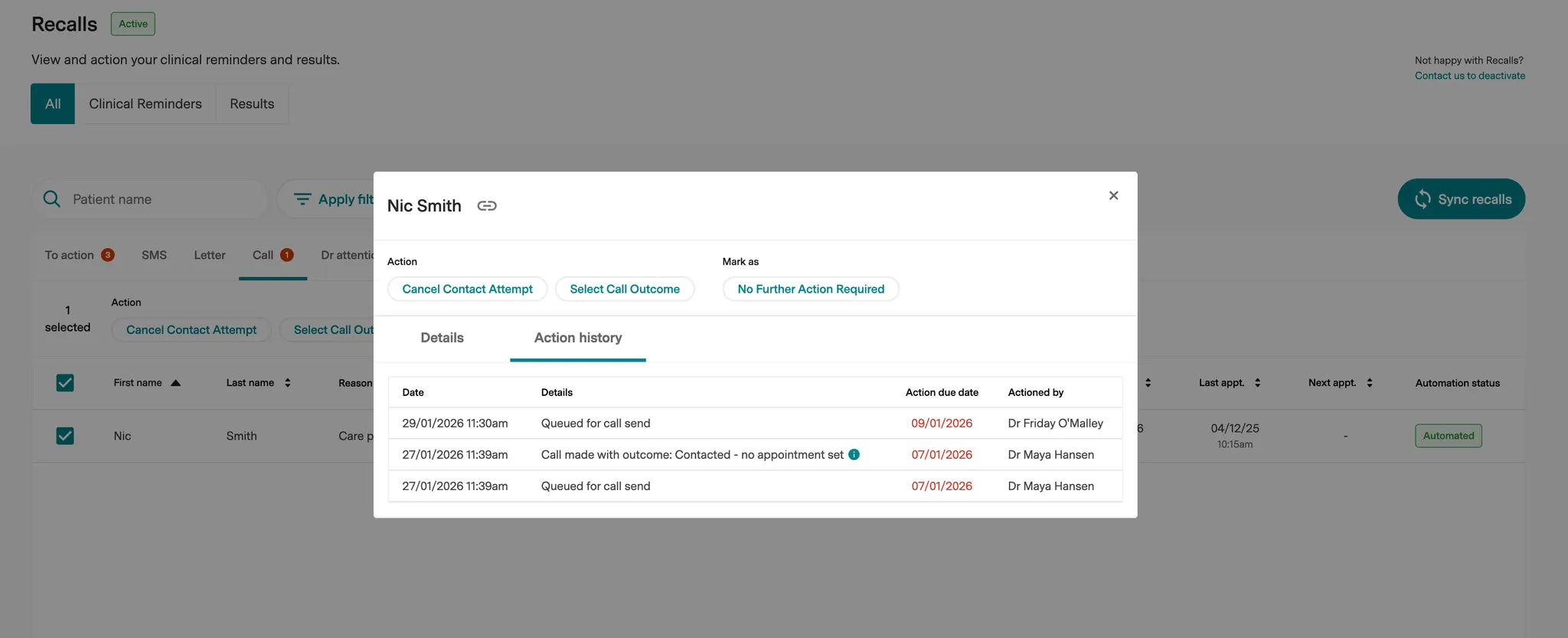
Shows Date, Details, Action due date, and Actioned by for every action taken on a recall. Prevents duplicate contact attempts and provides full audit trail.
Quick Action Reference
Cancel Contact Attempt: Logs unsuccessful contact attempt. Use when you can't reach the patient.
No Further Action Required: Closes the recall and removes from active queues. Use when resolved or no longer relevant.