
Have you received an email saying your Nookal connection has been lost? This usually means there is a problem with your Nookal API key. Patients cannot book with you online until it is restored.
Please Note: Once the connection is back, check your Healthengine profile to confirm your appointments are showing.
Page Contents
- Step 1: Check Your Integration Status
- Step 2: Create a New API Key in Nookal
- Step 3: Add the New Key in Practice Admin
- Step 4: Disable Your Old Key
- Step 5: Check Your Appointments Are Showing
- Contact Our Support Team
Step 1: Check Your Integration Status
- Log in to Practice Admin.
- Go to Account > Integration Setup.
- Check whether Integration Healthy? shows as Yes.
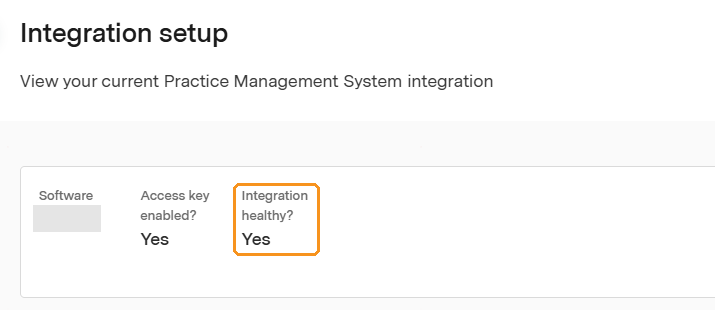
If it shows Yes and your appointments are showing, no action is needed. If it shows No, continue to Step 2.
Step 2: Create a New API Key in Nookal
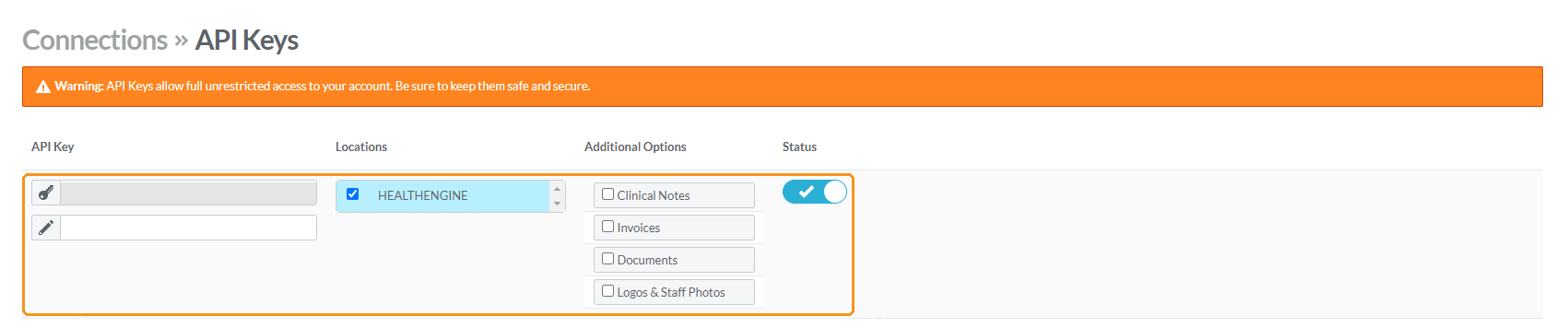
- In Nookal, go to Setup > Connections > API Keys.
- Add a new API key and name it Healthengine 2.
- Select the same Locations as your previous key.
- Turn the key's status on.
- Click Save Changes in the bottom right.
- Copy the token provided.
Please Note: Do not use Integrations > Healthengine > Configure in Nookal. The key it gives is in the wrong format.
Step 3: Add the New Key in Practice Admin
- In Practice Admin, go to Account > Integration Setup.
- Click Update configuration, then click Update API Key.
- Paste your new key and click Save.

After a few moments, refresh the page and check that Integration Healthy? shows as Yes.
Step 4: Disable Your Old Key
- In Nookal, go to Setup > Connections > API Keys.
- Set your previous Healthengine key to Key Disabled.
- Click Save Changes in the bottom right.
Step 5: Check Your Appointments Are Showing
Wait a few minutes, then check your Healthengine profile to confirm your appointments are showing.
If a location is missing, check it is ticked on your API key under Setup > Connections > API Keys in Nookal.
Contact Our Support Team
If your appointments are still not showing, our Support team is happy to help. To help us resolve the issue quickly, please have the following ready:
- your practice name
- whether you have created a new API key
- the locations or practitioners whose appointments are missing
For ways to reach us, see Need more support? Here’s how to contact us.
You may also find this article helpful: Nookal - Healthengine's Integration: Benefits & Troubleshooting