Vertical: Allied
PMS Eligible: Nookal
This article will go over the most common problems we see with Nookal and how you can attempt to troubleshoot them.
Benefits of the Integration for Your Practice
Seamless Connection: Our integration with Nookal is cloud-based, meaning we connect via API key. This eliminates potential issues related to hardware or server connections.
Time-saving: The integration automatically reads and publishes your availability while inserting booked appointments directly into your Nookal diary.
Online Cancellations: When a patient cancels through their Healthengine account or confirmation email, the booking will be removed from your Nookal diary and marked as cancelled in Healthengine.
Integration Publishing Limit
The maximum number of days the integration can publish in advance is 30 days.
Integration Setup
Create a New Api Key
IMPORTANT NOTE: Do NOT go to integrations> Healthengine> Configure, as that API key is not in the correct format.
To create a new API key or to replace an API key from Nookal, you will need to log in to Nookal, click on Setup > Connections > API Keys and click Generate API Key.
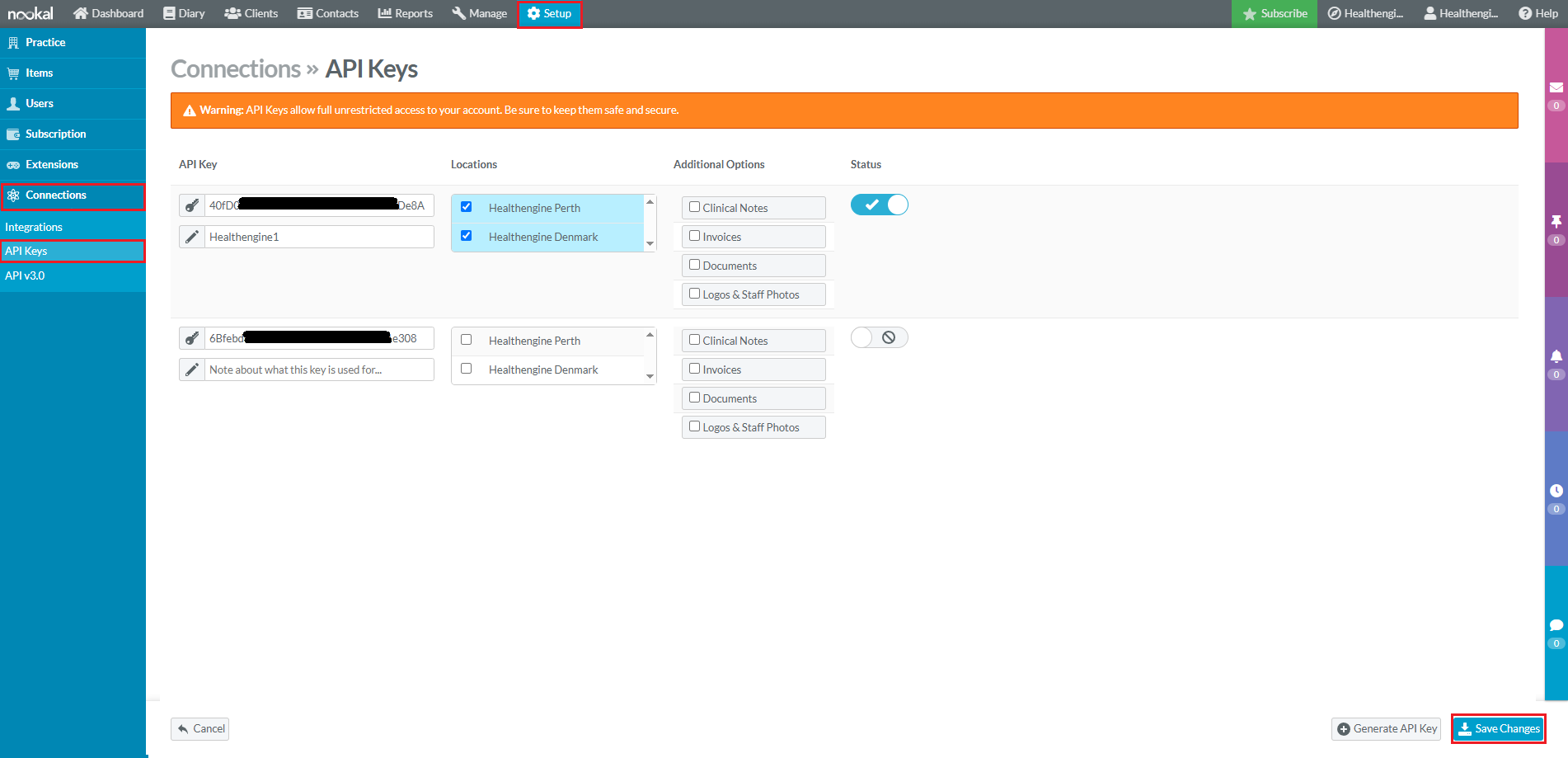
Then enter the name:
For a new New Api key: name it as Healthengine, select the Locations you need to grant access to (the same as the previous API key), and toggle the status on as shown below.
If you are replacing the API key: name it as Healthengine,2 select the Locations you need to grant access to (the same as the previous API key), and toggle the status on as shown below.
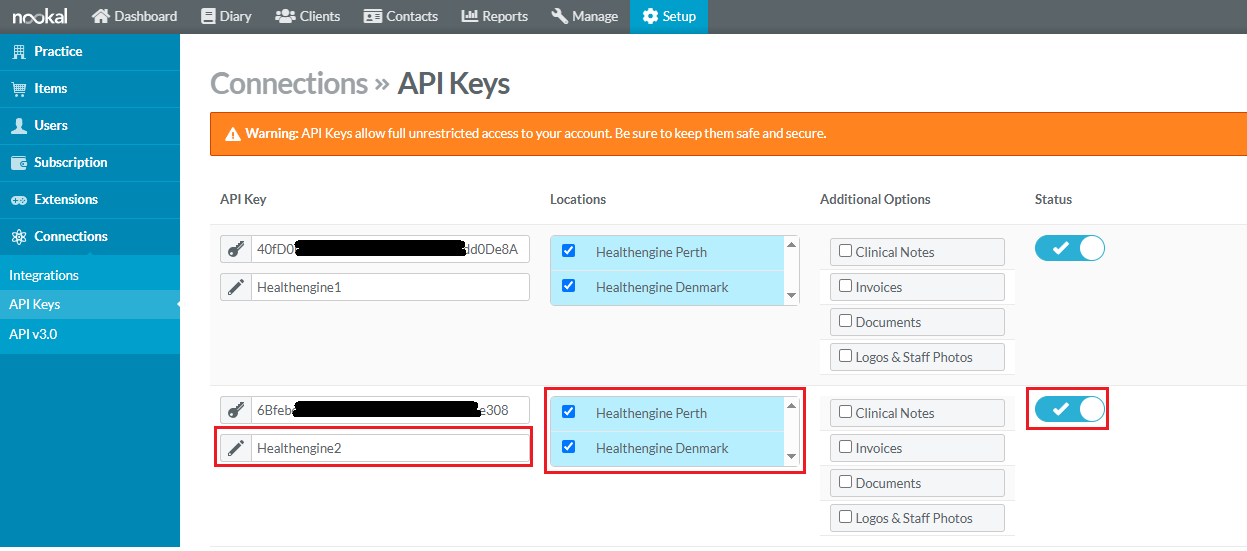
Then click on the Save Changes button in the bottom right, and copy the token provided tothe clipboard or leave the window open

Now that you have your API key, you will need to log in to Practice Admin, and browse to Account and then Integration Setup Account > Integration Setup and click on Update configuration
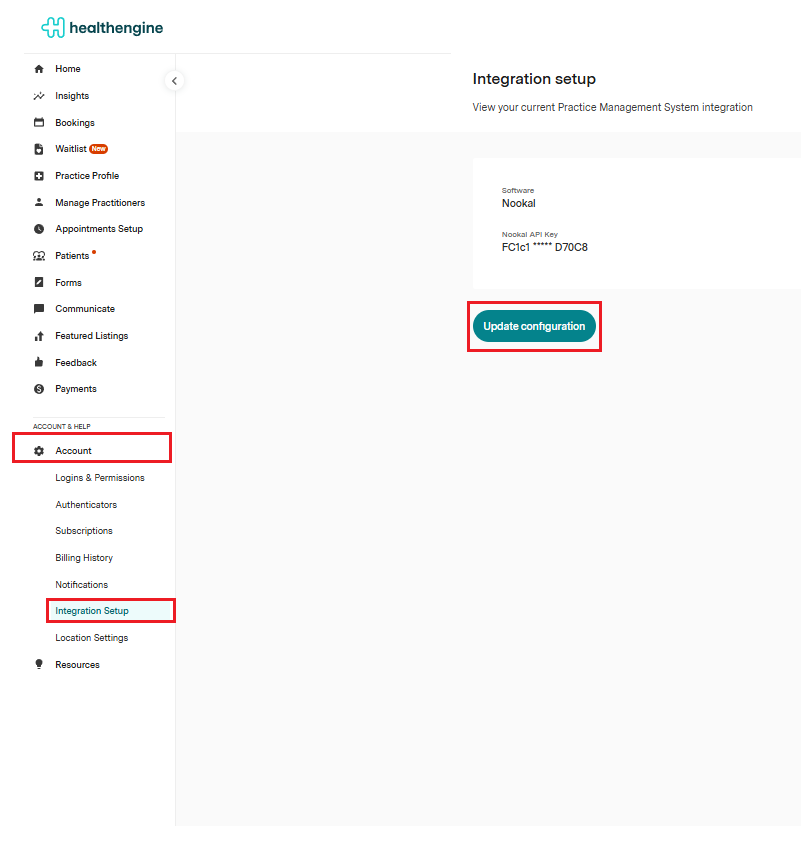
Then click on Update API Key
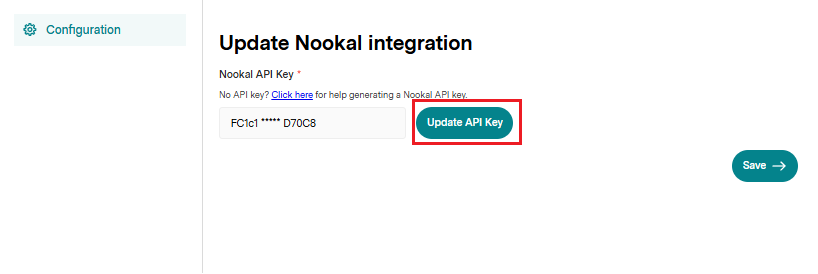
And paste the API key you obtained earlier from Nookal and click Save.
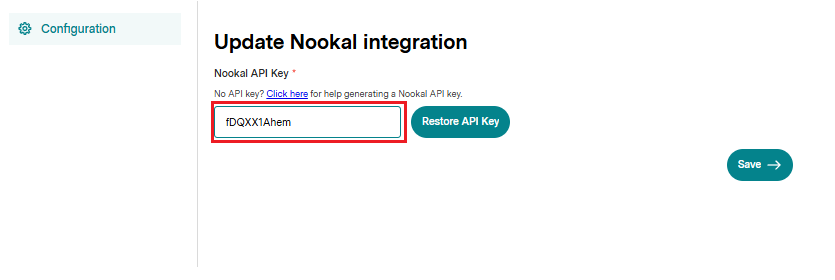
Congratulations, you have now updated your API key from Nookal into your Healthengine profile. You can confirm this is up and running by refreshing the Integration Setup page after a few moments, and you should see Integration Healthy? show as Yes.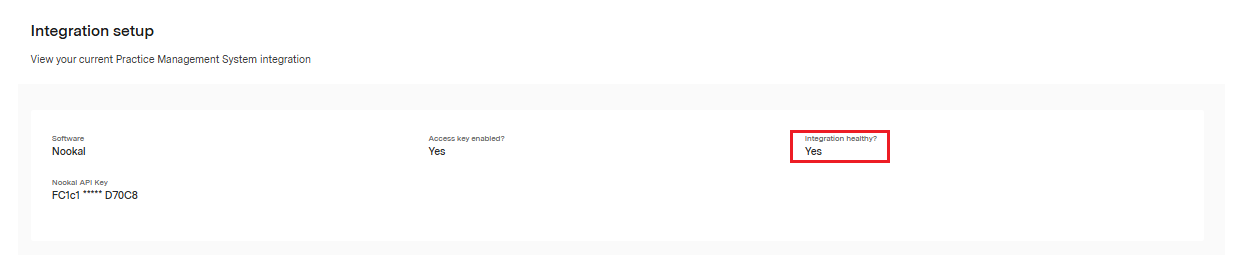
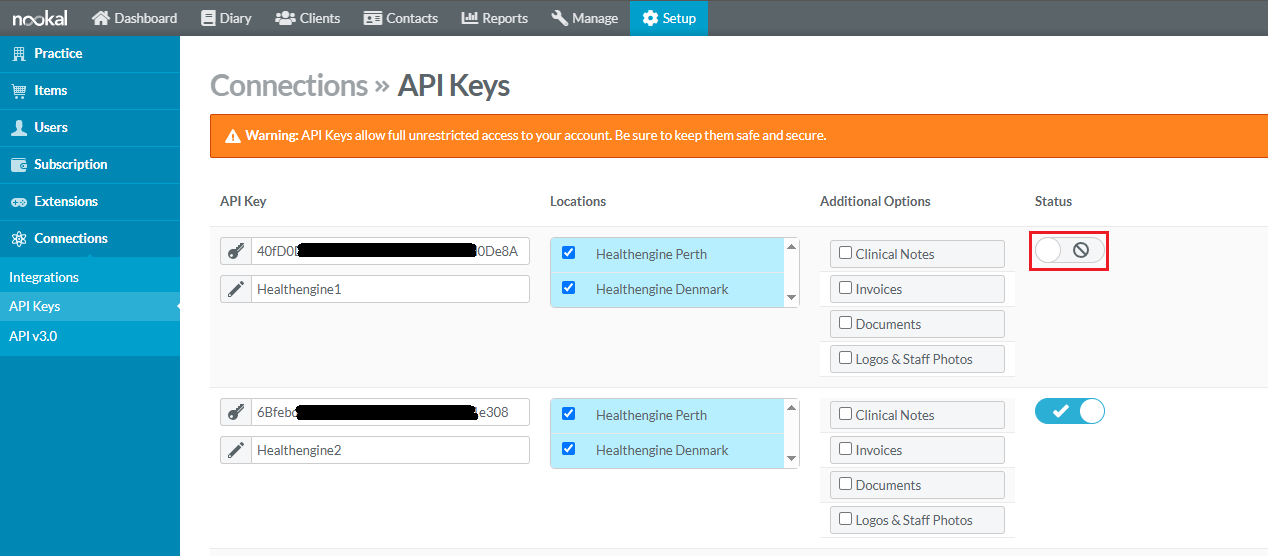
Now that it's up and running, you can go back and disable the old/previous Healthengine API key via Setup > Connections > API Keys as outlined in the first two steps and toggle the previous key to Key Disabled and click Save Changes down the bottom right.
Linked PMS Appointment Types
Our integration with Nookal requires that all the appointment types you have listed on Healthengine are linked to an appointment type in your Nookal software (known as Services).
- If you have a Healthengine appointment type created that is not linked to a Nookal service, the booking will fail.
- If your Healthengine appointment types are incorrectly linked to the wrong Nookal service, it can cause bookings to enter incorrectly into your appointment diary.
To link a Nookal service to a Healthengine appointment type, first navigate to Practice Admin, then select Appointments Setup -> Appointment Types.
Once you are in here, you will need to select the relevant practitioner you want to link up the services for. This is done in the top right corner under 'View appointment types for...' - simply click into this drop-down and select the relevant practitioner.
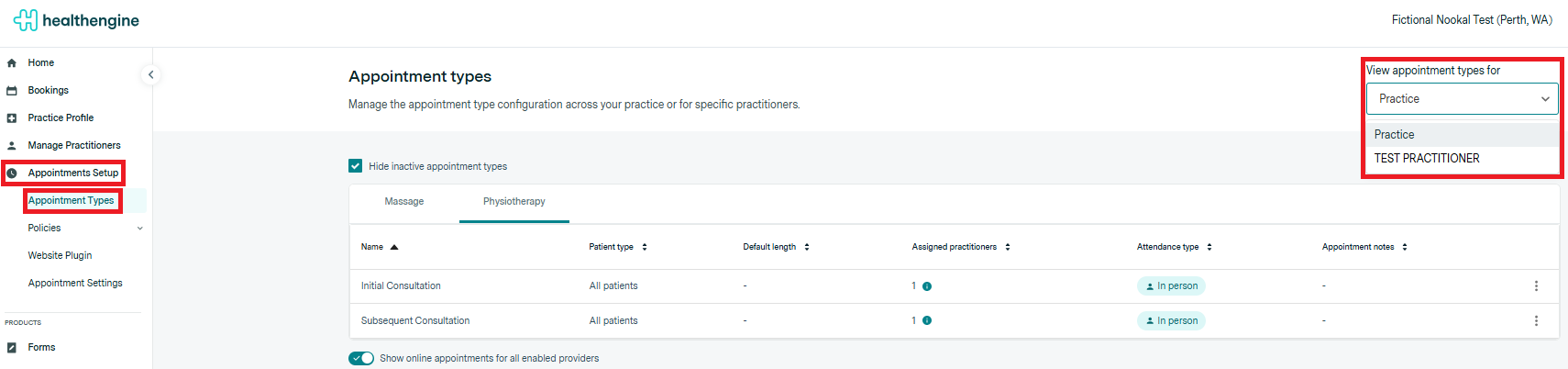
Once you have selected your practitioner, you'll see their list of appointment types. The Healthengine appointment types will appear under the 'Name' column, and your Nookal services will show under 'Linked PMS appt. type' once set.

↓

You also need to ensure that the appointment type length in Healthengine matches the length of the Nookal service you are linking it to. In Nookal, this is known as duration.


Adding a Linked PMS Appointment Type to a New Healthengine Appointment Type
If you are going through and creating new appointment types for a practitioner on Healthengine, you'll need to link the relevant Nookal service at the time of creation. We recommend having these ready to go prior to starting your Healthengine setup.
To link a Nookal service to a new Healthengine appointment type, click the 'Create new type +' button in the top right corner. Fill out the first three fields as you normally would (specialty, name, patient type & length), and the last step is where you can configure your Nookal service.
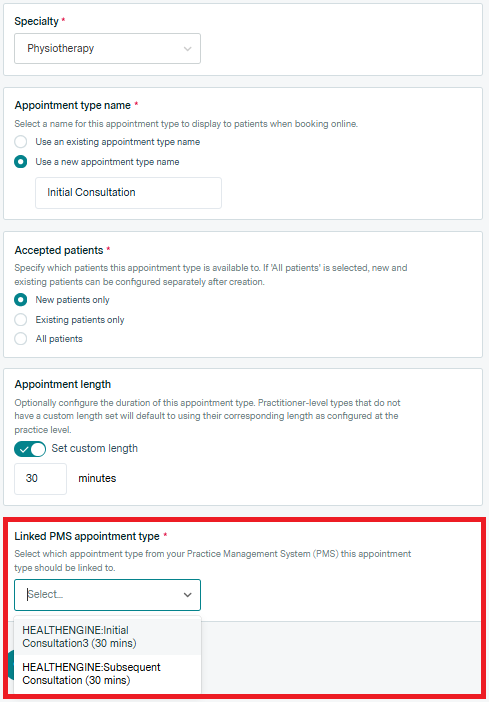
Please note: This is a required field for the Nookal integration. You will not be able to save your new Healthengine appointment type until this has been set.
Editing a Linked PMS Appointment Type on an Existing Healthengine Appointment Type
If you want to change the Linked PMS Appointment Type of an existing Healthengine appointment type, follow the same process above to get to the practitioner's appointment types you wish to edit.
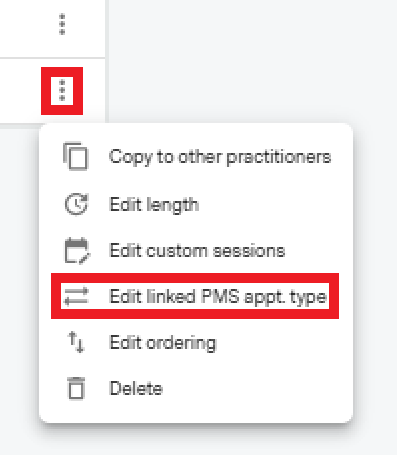
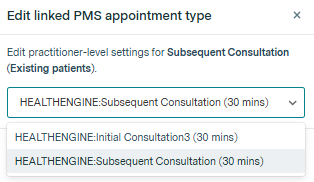
Once in here, you will see a list of their Healthengine appointment types. Click on the 3 dots at the end of the row on the appointment type you wish to edit. Select 'Edit linked PMS appt. type', which will then bring up a drop-down containing your Nookal services.
↓
My Nookal Services are not showing up in the Linked PMS Appointment Drop Down
If you don't see your Nookal services listed in the drop-down, you will need to do a refresh of your appointment types - you can do this using the 'Refresh appointment types' button, which is on each practitioner's appointment type page, and will sit below your appointment types list.
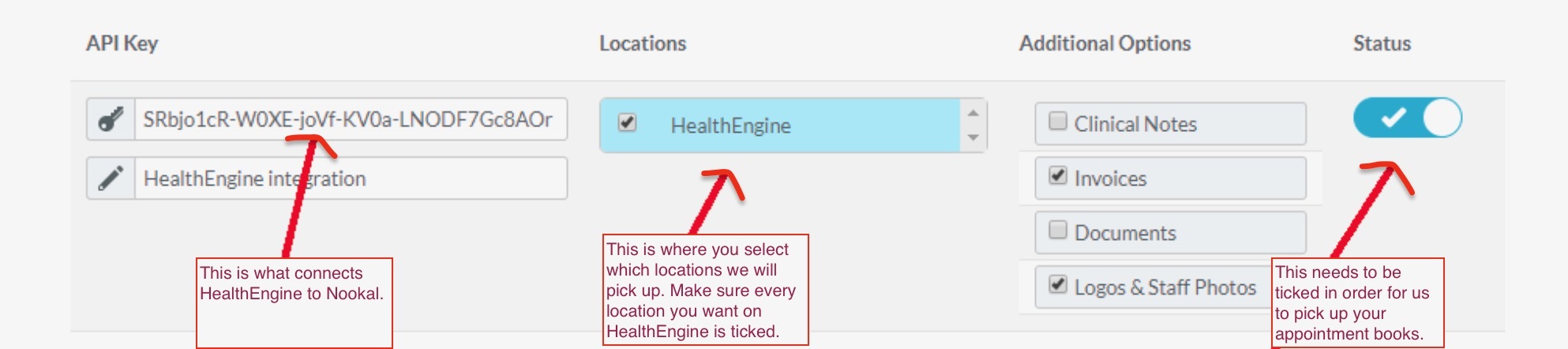
I have Multiple Locations, but I'm Only Picking up the Appointment Books for One Location
Each location you want on Healthengine needs to be ticked when creating the Healthengine API key in Nookal. To check if a location is ticked or not, go to the API keys area in Nookal and ensure the locations are ticked.
If you use each different location on a different API key, this will actually give you greater control over your availability on Healthengine as you will be able to connect and change appointment books in your Healthengine portal yourself at any time. Just ensure that you have given us the API key for each location you want online.