
Vertical: Dental
PMS Eligible: (SOE) Oasis
Healthengine's integration with Henry Schein 1 Oasis offers a seamless connection via API. This means no additional software installation is required, and there's no need to access server computers, minimising hardware or server-related issues.
Once set up, the integration will automatically publish your practice’s availability based on your system’s online booking setup and insert booked appointments directly into your practice diary, simplifying your booking process and saving time for your administrative team!
Benefits of the Integration for Your Practice
- We connect to your SOE software via API, meaning we do not require access to any server computers, and there is no software to install. This eliminates issues that can arise from hardware or server connections.
- The integration will automatically read and publish your availability and insert booked appointments into your Oasis diary.
Integration Publishing Limit
The default that your integration will publish is 30 days.
The maximum number of days the integration can publish in advance is 90 days.
Please reach out to our support team using the contact details at the bottom of this article to extend the publishing days.
Please note: Online cancellations are not supported. Patients will need to contact your practice to cancel or reschedule appointments. You can manually remove the cancelled appointment from the OASIS diary to make it available for another patient.
The Integration - How Does it Work?
Step 1 - Oasis Software configuration
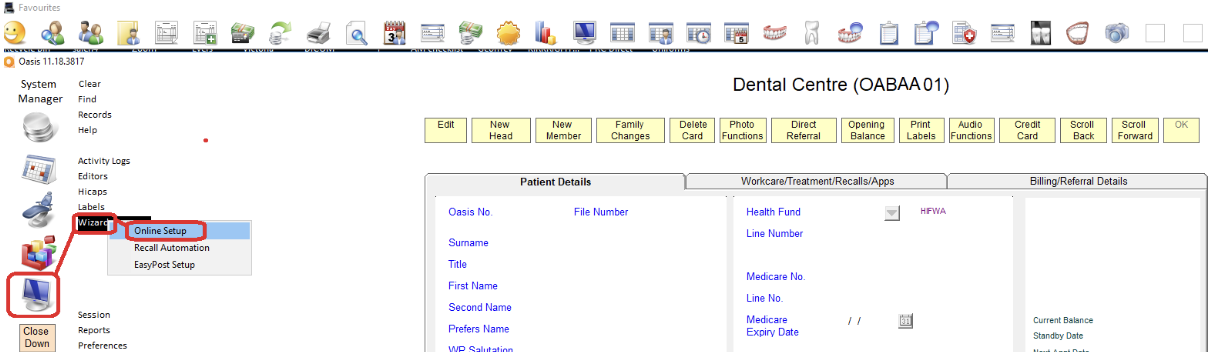
With Oasis, Healthengine syncs the availability from your Oasis Online Setup, reflecting the same availability shown in your practice's system. You can manage this availability directly in the Online Setup page of Oasis, and Healthengine will read it accordingly.
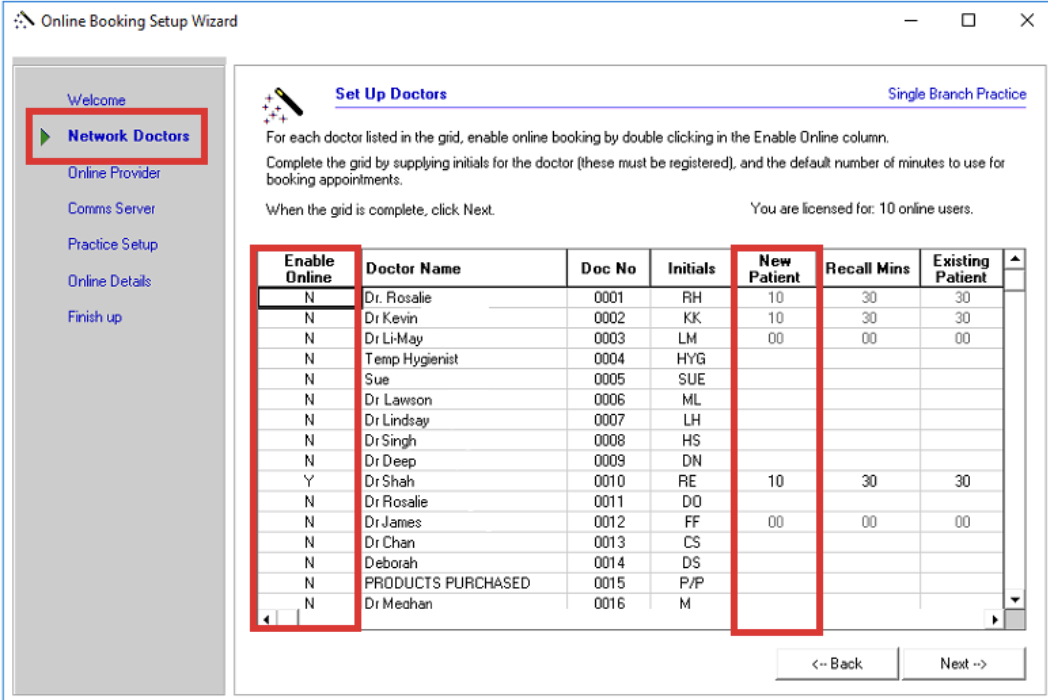
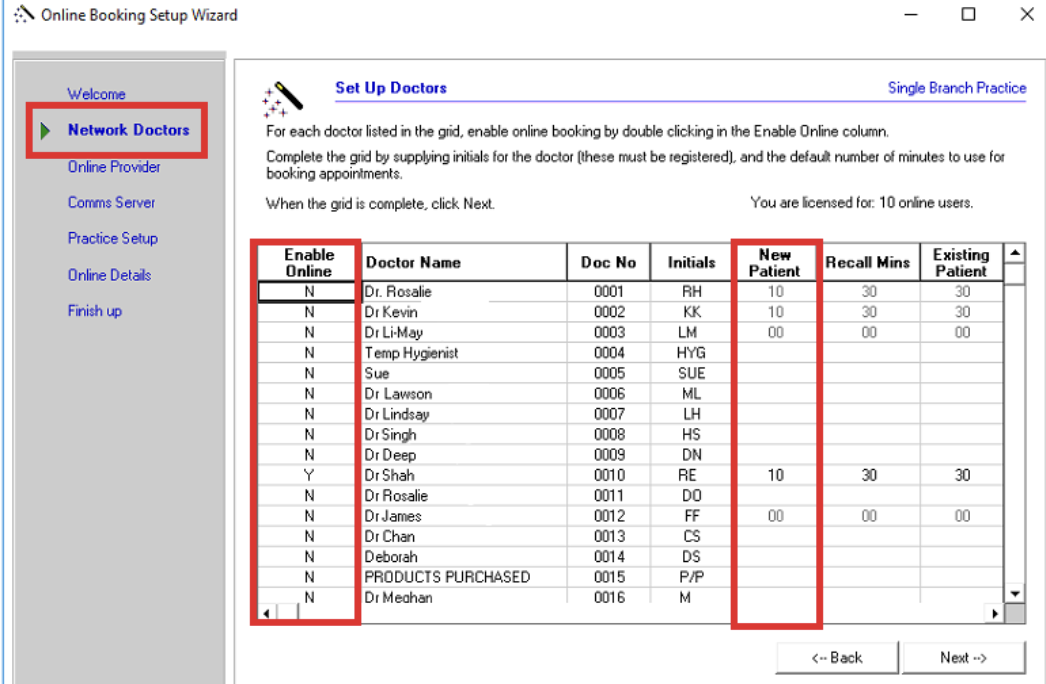
- Practitioner Setup: To use the integration, you need to specify which practitioners are enabled for online bookings and define their appointment lengths. Healthengine will read the appointment length from the ‘New Patient’ column in Oasis as the default appointment length. The availability is picked up based on the first appointment type listed in your Oasis 'Default Reasons for Visit'.
-
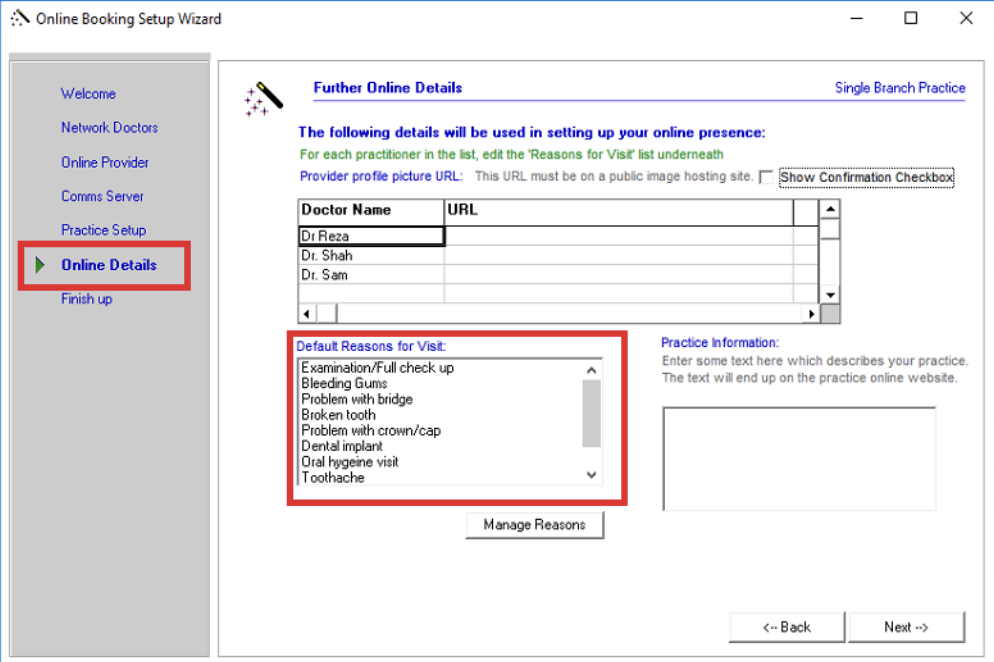
Matching Appointment Types and Lengths: You’ll need to link your Healthengine appointment types to those in the Oasis ‘Default Reasons for Visit’ list. Ensure the lengths match what is set in your Oasis Online Setup; otherwise, the booking will fail.
Top Tip: For easy setup, make sure that the appointment type names you set up in Healthengine exactly match those listed under Oasis -> Wizards -> Online Setup -> Online Details.
- Adding Bookings to the Oasis Diary: Once a patient selects an appointment type online, the integration will automatically insert the appointment into your Oasis diary with the correct time allocation..
Troubleshooting
Linking Appointment Types and Lengths
To link appointment types and ensure their lengths are correct:
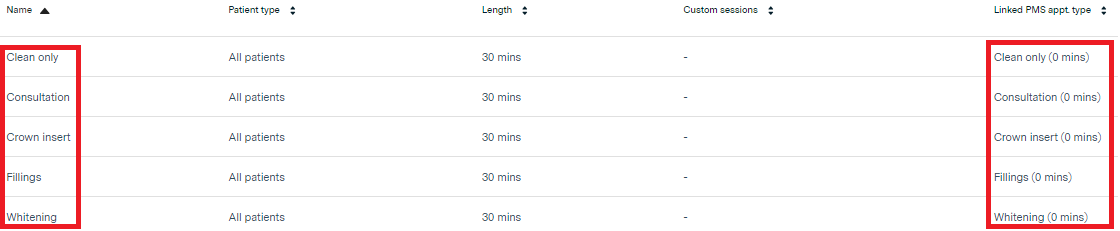
- In the Healthengine Practice Admin portal, navigate to Manage Practitioners -> Edit Appointment Types. Here you can see a list of your practice's appointment types and the associated lengths.
- For successful integration, each Healthengine appointment type must be linked to a corresponding appointment type (or Booking Reason) in Oasis, and the length must match. If the lengths do not match, the booking will fail.
Please note: You'll need to ensure this is done for every practitioner
Missing Booking Reasons or Practitioners
- If you don’t see your booking reasons in the Linked PMS Appointment dropdown list, use the ‘Refresh Linked PMS Appointment Types’ button in the Appointment Types page for each practitioner in your Healthengine portal. This will refresh your list of linked appointment types from Oasis.

- If a practitioner is missing from the Appointment Book list, ensure they are included in the appropriate Booking Reason in Oasis.
- If there is a Healthengine booking reason that has been created for you, simply add your practitioner or hygienist to that booking reason, and it should pull their appointment book through to your Healthengine portal.
- If you do not see a Healthengine booking reason, then your integration is using the first booking reason in the list as your default appointment type on Healthengine, or we have manually assigned a suitable default for you in the back end. (To pick up your practitioner's appointment books.)
Please Note: If you have marketing reasons set up, the integration will use your marketing booking reason as the default if no Healthengine reason is found.
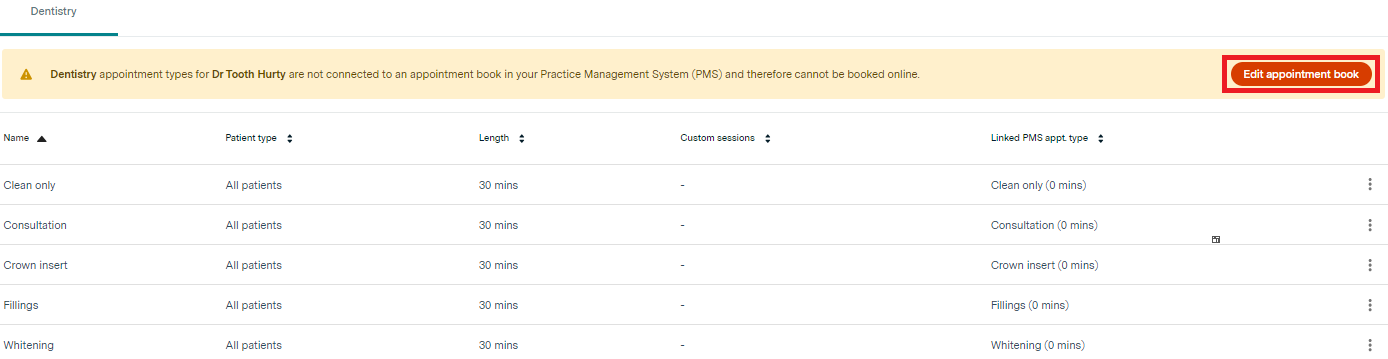
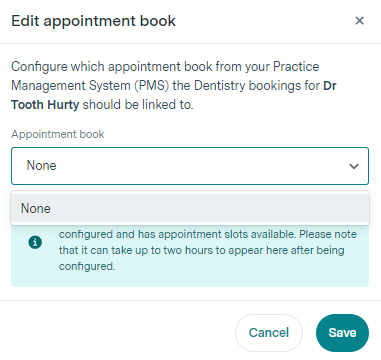
You will need to add your practitioners to that appointment type, so practices will typically use an 'other' type that can be applicable to all practitioners, or you can create a Healthengine booking reason and add all practitioners to that one so that it can accommodate both your dentists and hygienists. Make sure the Healthengine booking reason is written as shown:
In Oasis, you need a New Patient length set in your Online Booking Setup Wizard. You also need to ensure the practitioner has 'Enable Online' set to Y for us to pick up the appointment books.
Stacking Availability Issues
- If only some of your appointments are displaying online, it could be due to appointment stacking being disabled. If this feature is not ticked in your Oasis system, only the first available slot after a break will be published each day. This typically means only two slots will be available for booking—one in the morning and one after lunch. By enabling stacking, all available slots will be displayed.
- Also, ensure your default Booking Reason is longer than 30 minutes, as shorter reasons may not fit into available slots and will fail to display.
Other Considerations
Appointment Intervals
If all your appointment types have the same length, you can set your system to display appointment availability at that interval. For instance, if all appointments are 30 minutes long, you can show appointment times every 30 minutes.
However, if you have varying appointment lengths, choose an interval that works with all types, such as 10 or 15 minutes, to avoid conflicts.
Ensure that all changes to practitioner availability or Booking Reasons are correctly reflected in the Healthengine system to avoid issues with bookings.