
Vertical: Allied
PMS Eligible: Pracsuite
This article will go over how to get your Healthengine account integrated and read from your PracSuite software to publish availability.
We'll also cover problems we sometimes see and how you can attempt to troubleshoot them.
Getting Started
Prior to starting the process of integrating your PracSuite with Healthengine, you'll need to let our Support Team know so that they can get your account ready to go in the backend.
Requirements
- If setting up multiple Healthengine profiles/locations, the integration requires that each location must be set up in PracSuite as its own - they cannot be shared across profiles.
- The email you are using on your Pracsuite must also be included as a login for your Practice Admin Portal. If you are not aware of how to add logins, see this guide: here
- We cannot duplicate practitioner appointment books as this cloud-based integration expects each practitioner to be linked to one appointment book only, and for the appointment book to be unique.
- If your practice has one PracSuite instance/login but multiple Healthengine profiles, then you must ensure that each practitioner is only enabled at one location on Healthengine.
- All practitioner appointment types must be linked to a PracSuite appointment type.
- This should be completed once you have finished setting up the integration. We will cover more on this below.
Benefits
Seamless Connection: Our integration with Pracsuite is cloud-based, meaning we connect via API key. This eliminates potential issues related to hardware or server connections.
Time-saving: The integration automatically reads and publishes your availability while inserting booked appointments directly into your Pracsuite diary.
Online Cancellations: When a patient cancels through their Healthengine account or confirmation email, the booking will be removed from your Pracsuite diary and marked as cancelled in Healthengine.
Integration Publishing Limit
The maximum number of days the integration can publish in advance is 28 days.
Setting up the Integration
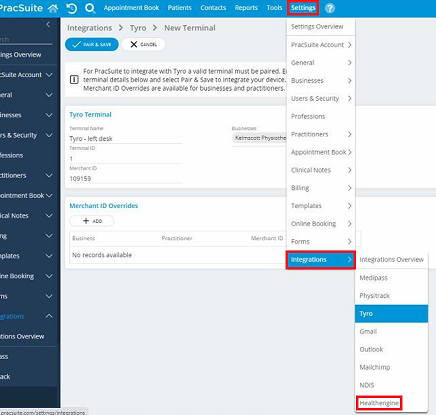
In PracSuite, go to Settings > Integrations > Click into Healthengine.
Add in your Practice ID. This can be found in the URL of your Practice Admin portal. It is a 5-digit number.
- E.g. https://healthengine.com.au/appointment/admin/12345/
Following on from this, add in the location/business you want to integrate, select your appointment types, and finally add your practitioners you wish to publish appointments for.
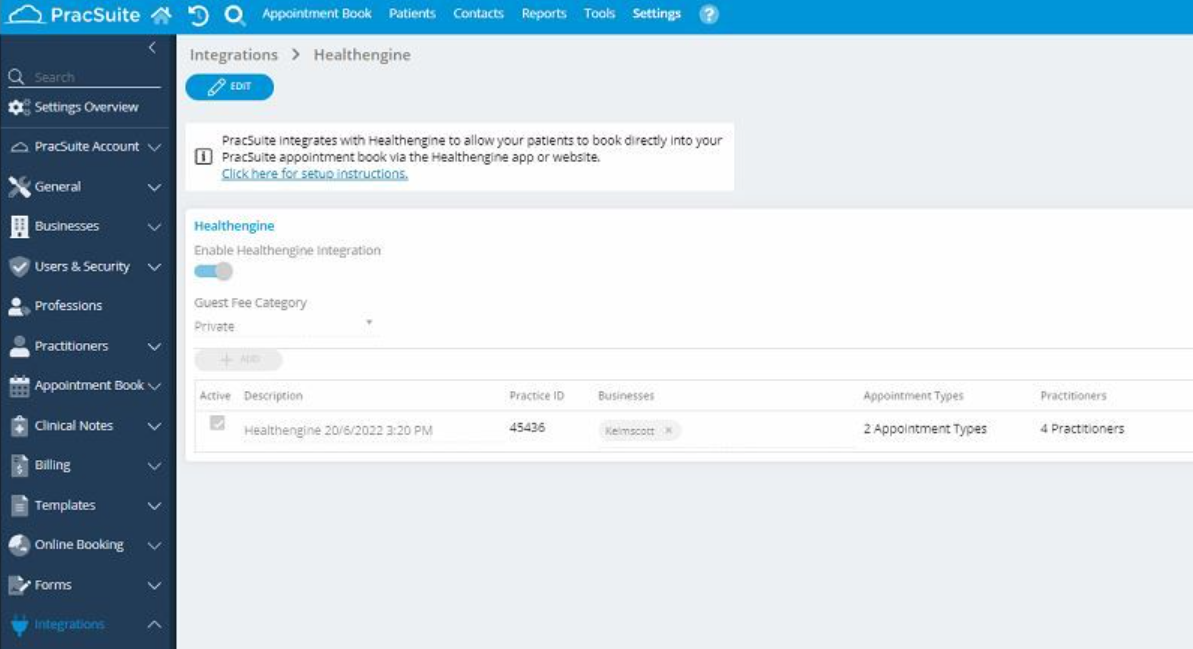
You should then be able to verify the integration by clicking on the tick icon at the end of the row, which will prompt you to log in to your Practice Admin portal and finalise the process. 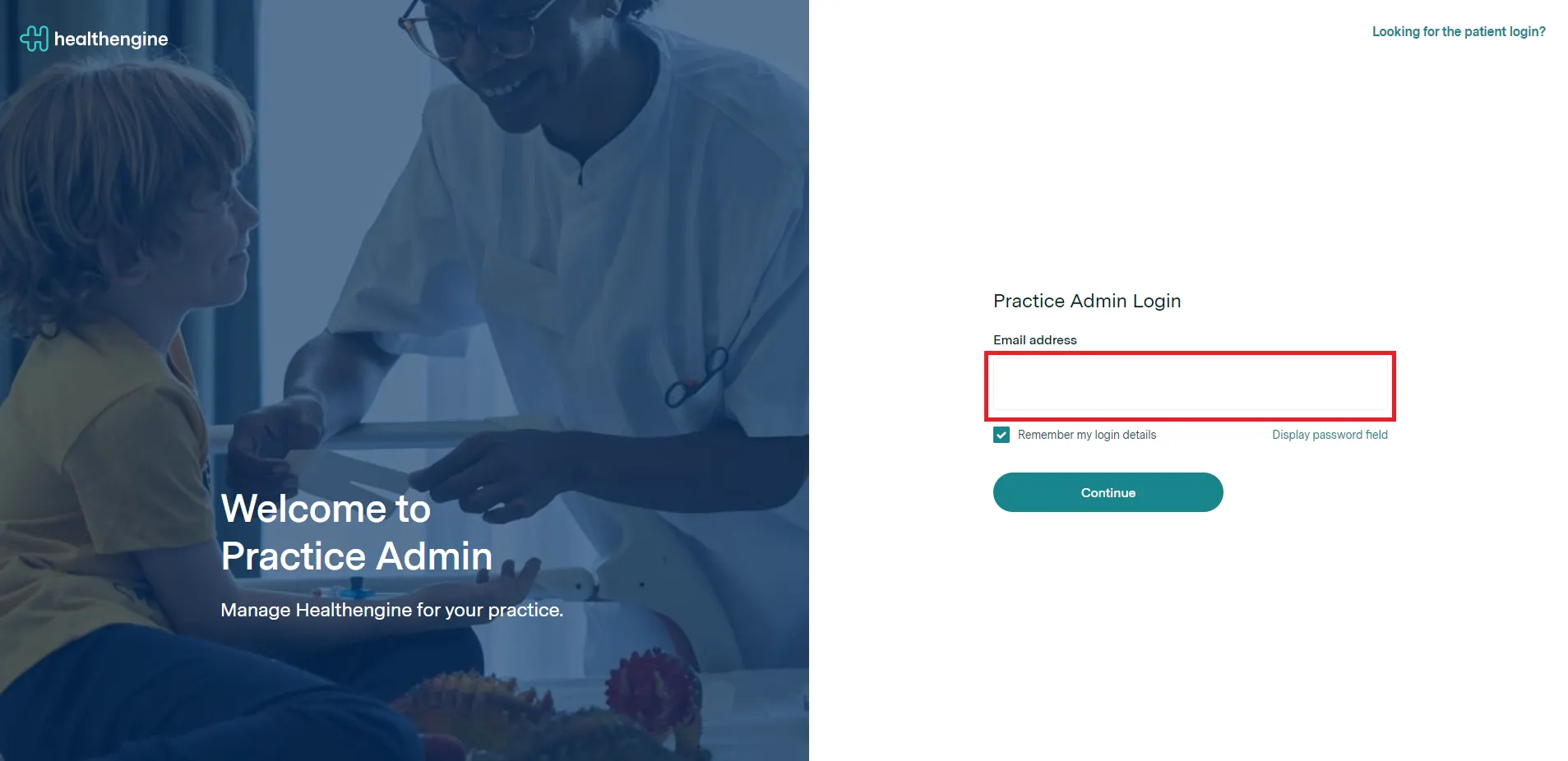
Once you have inserted your logins, you should see a menu showing like this, confirm it: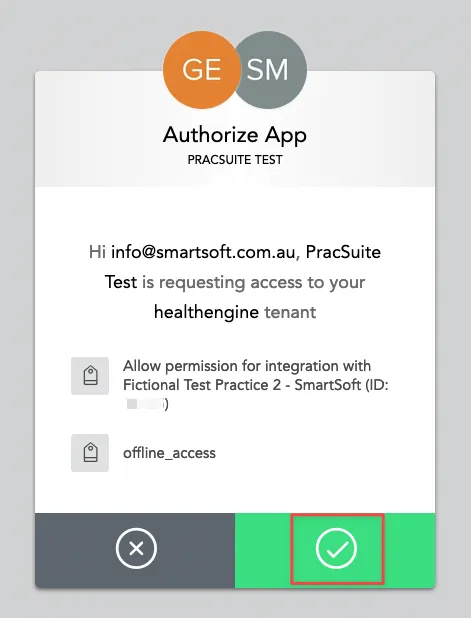
Once you have completed the integration, head into your Practice Admin profile to get your PracSuite appointment types linked up.
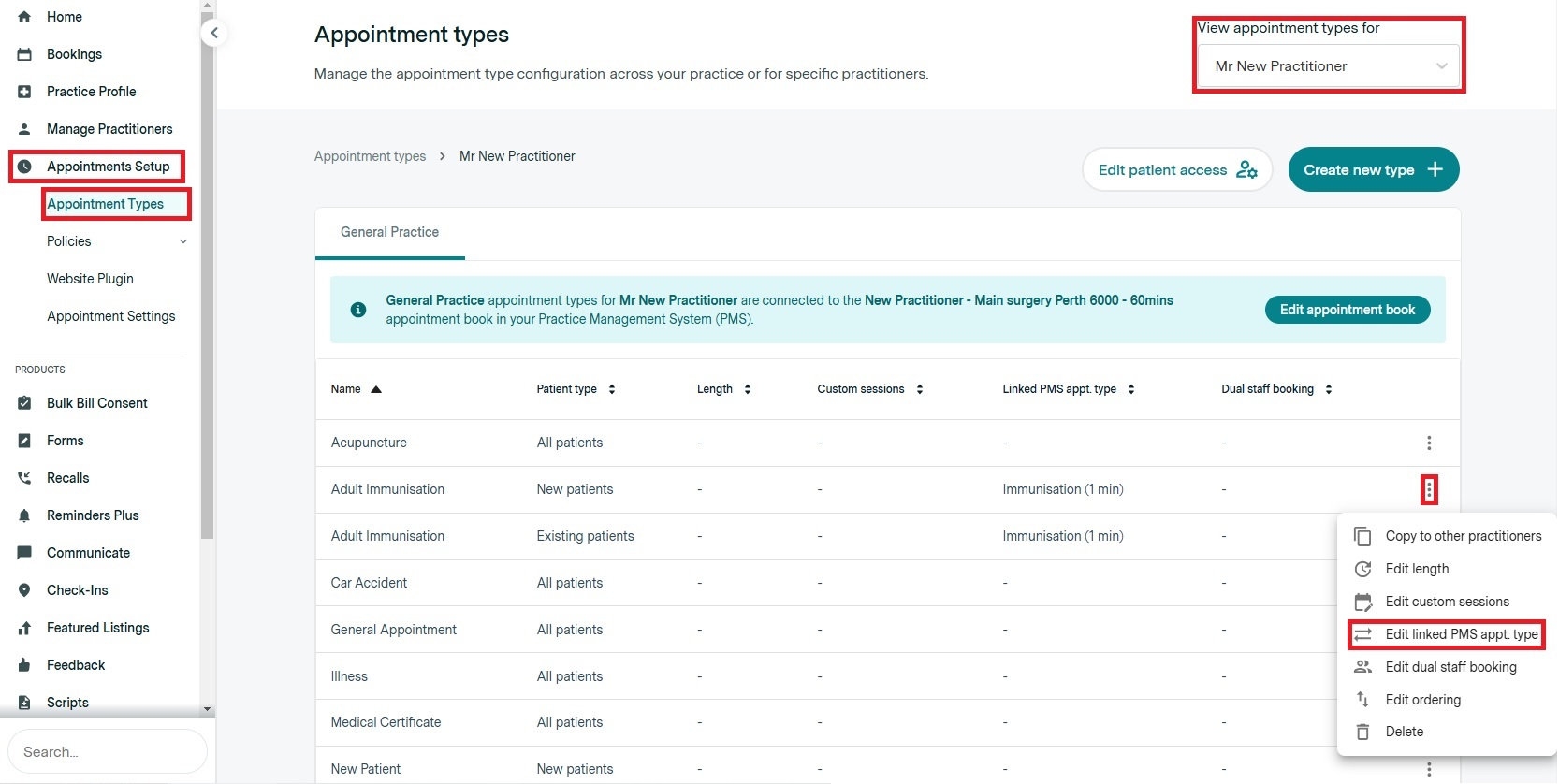
This is done under Appointments Setup > Appointment Types. In the top right corner, the page will default to the practice appointment types. Click into this drop-down menu and select a practitioner.
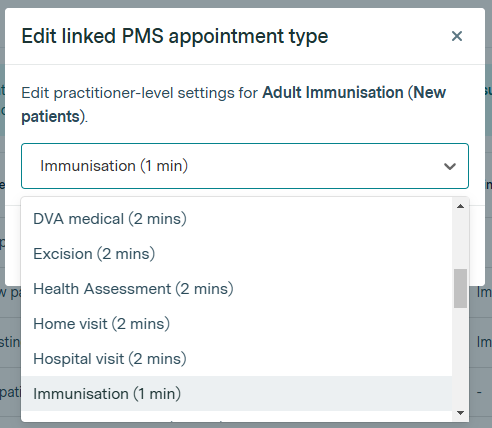
Select the 3 dots on the row of the appointment type you wish to edit, and click into 'Edit PMS Appointment Type. It's here you'll be able to select the relevant one from the drop-down menu that appears.
↓
Feel free to reach out to our Support Team if you require assistance or have any trouble.
Troubleshooting
Practitioner books are coming through, but not Publishing?
You can check that the practitioners are ticked on for online bookings under PracSuite > Settings > Integrations > Healthengine > Edit > Select the gear icon next to Practitioners, and ensure they are added to the list here.
If the practitioner is not showing in the list of practitioners under Integration, confirm they are not set up as a separate business/location.
Lastly, ensure you confirm the time and date that isn’t publishing:
- Exists as a schedule;
- Online appointments are showing as enabled for the practitioner
- Online appointments are showing as enabled for the schedule they wish to publish.
To confirm this, go into PracSuite > Settings > Practitioners > Rosters.
Booked Appointment Missing
For a more detailed log of appointment changes, such as who deleted an appointment, go to the Appointments tab of a patient file in PracSuite.
In the list of appointments, use the plus icon to reveal the full audit log for the appointment.
The audit log will expand to show the fields changed, as well as the old and new values.
Availability Missing
Availability is displayed based on the length of your default appointment type in PracSuite. This can cause appointments that are below this default length to not show, as well as cause 30-minute slots to only show as 1 slot, instead of 2 x 15-minute slots. To correct this, ensure you have your Appointment Lengths set up as the shortest length in PracSuite -> Settings -> Appointment Book -> Appointment Types -> Duration.
If you experience any issues, need assistance with making changes, or would like to organise some time to run through this integration, please reach out to our friendly Healthengine Support Team via phone, live chat or email support@healthengine.com.au.
Missing a New Appointment Type or a New Practitioner
Please ensure that within your Pracsuite, select Settings → Integrations → Healthengine → and the practitioner/appointment is added, and then follow the above steps.