
Vertical: General Practice, Dental, Allied, Specialist
PMS Eligible: N/A
Healthengine now partners with Tyro to provide our Payments Feature to customers.
Please note: You will only be eligible to apply for an account with Tyro if you have a Nurse Practitioner or General Practitioner actively working at the clinic.
Once you have accepted the agreement for your Payments subscription with Healthengine, the following process will occur.
Registering Your Practice with Tyro
- Healthengine will submit your supplied business and contact details to Tyro.
- You will receive an email from Tyro inviting you to complete the application, including uploading the required documentation (see below).
- If any extra information is required, Tyro will reach out to you.
- Your submission will be assessed by the Tyro team, and if approved, you will be provided a CAID number.
- Email this CAID number to support@healthengine.com.au and request it to be added to your Healthengine account.
Required Documentation:
Please prepare the documentation below to submit to Tyro:
- TGA Authorised Prescriber Letter; AND
- AHPRA Registration Numbers of each prescribing GP/ Nurse Practitioner (please submit a PDF document with practitioners full name & AHPRA Number)
Setting up Payment Configuration
Once you have provided this CAID number to Healthengine, our Support Team will then be able to connect your Healthengine profile with your Tyro account.
Please Note: Do not select the ‘Activate’ button in the Payments tab in the Practice Admin Portal. By our Support Team connecting the accounts, it will automatically activate the feature.
From here, the Support Team will advise once that has been completed, and you will need to set up your collection method & appointment pricing.
The options for the collection method are:
- Pre-payment - which requires a patient to enter their card details, and have the fee automatically taken from their account prior to the booking being confirmed and entered into your PMS and Practice Admin page.
- Post payment - which requires a patient to enter their card details and have their card checked as a valid card in order to make a booking, and then post appointment have their appointment fee manually collected,
- Deposits (or partial prepayment) - which requires a patient to enter their card details, and have the fee automatically taken from their account prior to the booking being confirmed and entered into your PMS and Practice Admin page.
- None (i.e you don’t collect a payment via HE, but can still do so via normal methods with your front desk).
To set these settings up, go to the Appointment Types tab in Practice Admin.
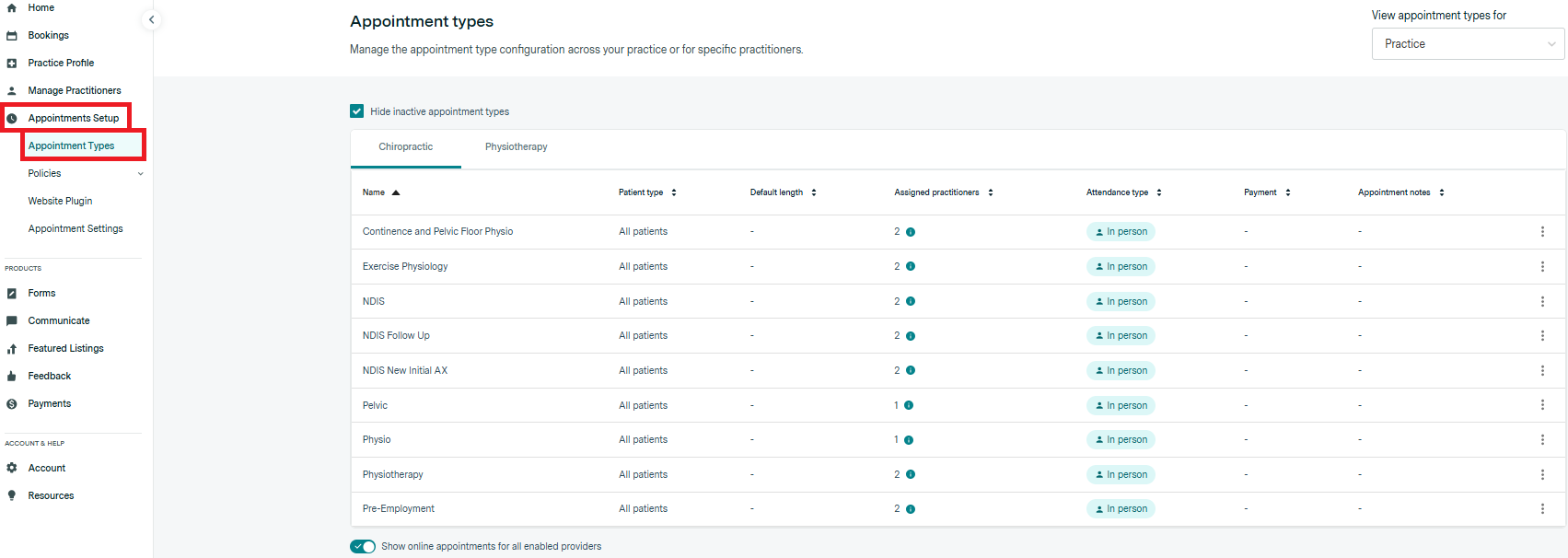
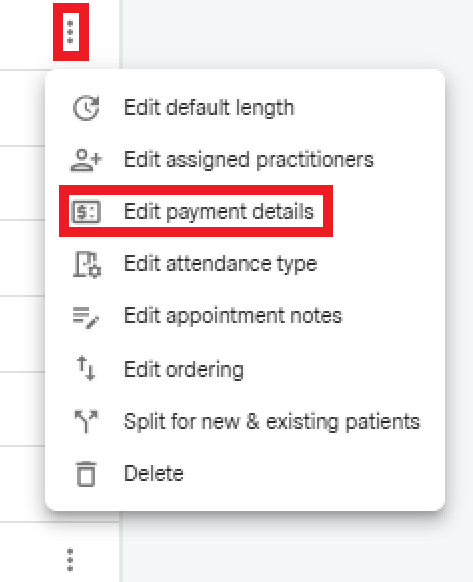
In the row of the relevant appointment type you want to add a payment to, click the three dots, then select 'Edit payment details'.
Click and activate the toggle next to “Set up payment details”
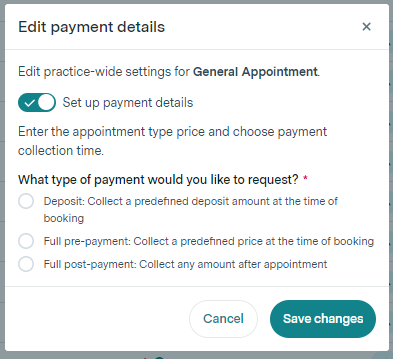
- Select your desired payment collection method (pre-payment, deposit or post-payment)
- If you select prepayment or deposit, you can enter the total amount payable for patients. You can alter the patient fee to cover this appointment type fee and transaction fee if you choose to.
- Please note: These methods will collect a payment during the booking process.
- If you select post payment, you don’t need to enter a price, as this is done as part of the collection process.
- Click 'Save changes'.
- Repeat this process for all the appointment types you wish to collect payments for. When enabled, the price column in the Bookings table will update to show either the price (if pre-pay or deposit), post-payment collection or blank.
- Please note: You can set up different payment collection methods for different appointment types.
Setting Up Payment messaging for your patients
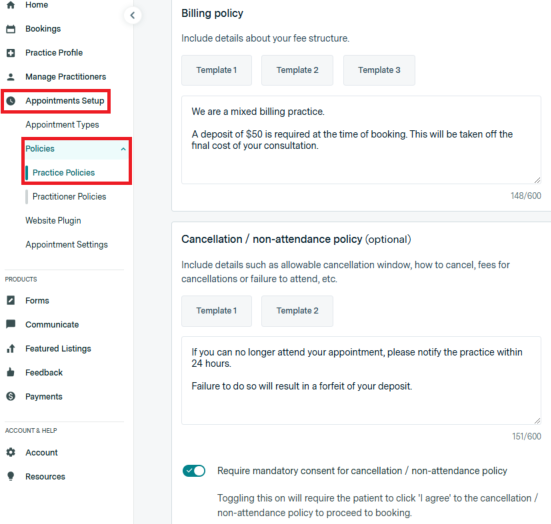
It is recommended that you also update your billing policy and cancellation policy information in your practice’s booking form to reflect the payment process to ensure your patients have the best booking experience, and to minimise any complaints with regard to Did Not Attend or late cancellation fees.
These settings can be edited in Practice Admin > Appointment Setup > Policies > Practice Policies.
Frequently Asked Questions
Already an Existing Tyro Customer?
Please ensure you notify Healthengine if you are an existing Tyro customer at the time of adding your subscription, so your new account can be linked with your existing account.
Any transaction-level reporting (to import into MYOB/XERO etc.) will be connected to your new account, and you will be able to access your eCommerce invoices via your existing portal.
Transaction Fees
A 2.2% Transaction Fee (excl. GST) is charged per appointment booked
Please Note: This transaction fee is charged to the practice, not the patient.
Patient Card Authorisations
A $1.23 Card Authorisation charge may be charged to the patient's card at the time of booking for Post-Payment appointments.
This fee is charged only to authorise the card before storing it against the booking, and will be cancelled pending authorisation.
Tyro Payments Deposit
Currently, the Tyro configuration is set to a weekly deposit, however for the first round of payments, this might be delayed. You should receive payments within the first two weeks.
Collecting, Waiving, Rescheduling and Refunding Payments
For information on collecting, waiving, rescheduling and refunding payments, visit our Help Centre article here.