
Verticals: GP, Dental, Allied, & Specialist
PMS: Not Applicable
We've given our Sidebar a facelift!
We've heard your feedback, and we've improved the display and navigation of our Sidebar by making the following changes:
- Separating the different functions from a single view into individual tabs
- Updating the icons on the Sidebar that link to sections of Practice Admin
- Restyled alert notifications in the Sidebar for practices that don't integrate with Healthengine
- New alert notifications in the Sidebar for practices that have a PMS integration with Healthengine
- Changing the Width & Docking Settings
- Downloading Sidebar
Separating the different functions from a single view into individual tabs
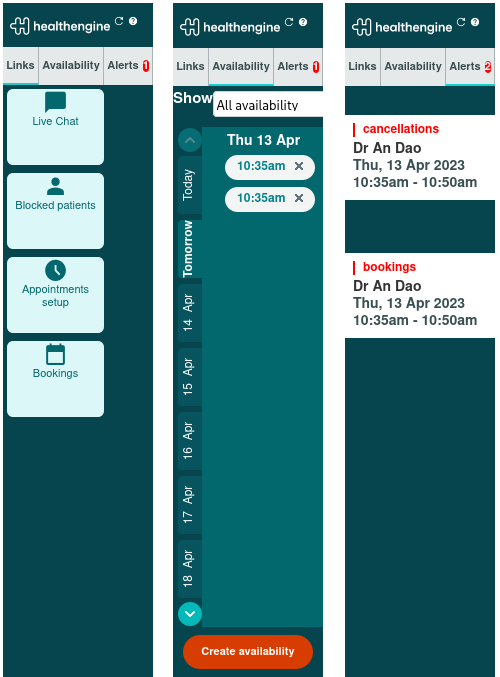
We've moved from a single display to now having 3 individual tabs to manage the different functions we have in Sidebar: icon links to Practice Admin pages, managing and viewing availability, and the alert notifications for bookings and cancellations.
- Links: This is where we house the icon that links to booking-relevant pages in Practice Admin.
- Availability: This is where you can view and manage your appointments per practice location; we've kept the same look and functionality, just moved it under an 'Availability' tab.
- Alerts: Your alerts relating to booking notifications and booking cancellations will be stored under this tab; we've added a handy red circle notification next to the label 'Alert' when a notification comes in, indicating how many notifications you have ready to address.
- We’ve also stopped the pulsing behaviour of incoming alerts in favour of adding a red circle, next to the Alert tab heading, containing the number of outstanding alerts to address.
Updating the icons on the Sidebar that link to sections of Practice Admin
We've reviewed the icon links to Practice Admin that appeared in the Sidebar, updated them to pages more relevant to your everyday needs and given them a makeover while we're there!
Your icon links are now:
- Live Chat: Talk with our friendly support staff or view relevant help centre articles to help you navigate your way through our self-serve portal.
- Blocked Patients: Do you have a patient who frequently doesn't show up to their appointments? Or one that currently has outstanding invoices, and you don't want them to book online until they've sorted their account? Here, you can add a patient's mobile number, and we'll prevent any online booking using that patient's mobile number. More information on this page can be accessed on ourBlocking a Patient from Online Bookings article.
- Appointment setup: This is where you manage your appointment types on a practice and practitioner level, along with practice policies and additional appointment-related features.
- Bookings: This will link to your bookings table in Practice Admin, where you can view all bookings, cancellations and rescheduled appointments.
- Patient Search: This is a mobile lookup page that populates all results relating to any Healthengine booking, reminder SMS or recall SMS that uses the specified mobile number. We will be adding more Healthengine product categories to these results over the upcoming months. More information on our Patient Search feature can be found on our Patient Search - What is it and how do I use it? article.
Restyled alert notifications in the Sidebar for practices that don't integrate with Healthengine
We've updated the look of the current booking and cancellation alert notifications to make it easier to distinguish different types of alerts, and it looks nicer!
New alert notifications in the Sidebar for practices that have a PMS integration with Healthengine
We have added some new alert notification types to our Sidebar for those practices that have an active integration with Healthengine and are using one of the following PMS types: Best Practice, Pracsoft/Medical Director or ZedMed.
The alert notifications relate to
- Alerts relating to patient record matching and creating new patient records in the PMS
- Alerts and functionality relating to New Patient Forms
If you're an integrated GP practice using Best Practice, Pracsoft/Medical Director or ZedMed and you'd like to know more about these new alert types, go to our Sidebar improvements - new alerts for integrated practices article for a walkthrough of what they look like and how to navigate them.
Changing the Width & Docking Settings
How to Change the Width Settings
Once you have downloaded and logged into your Sidebar, you'll be able to change the width settings of the application. In order to do so, follow the instructions below:
- In the bottom-right corner of your screen, find the white Healthengine (H) icon on your Windows taskbar, near the date and time.
- If you cannot see the icon, click the small up-arrow ^ to show all icons first.
- Right-click on the white Healthengine icon to open the menu.
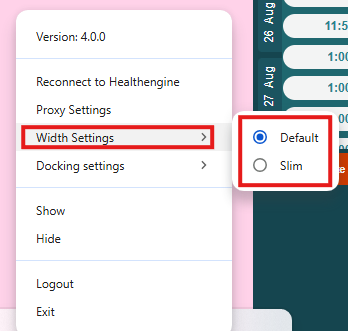
- Click Width settings → select your preferred size.
How to Change the Docking Settings
You also now have the option to choose whether you want your Sidebar application to be docked (anchored to the screen) or undocked (where it will be minimised behind other open tabs/applications). In order to set your preference, follow the instructions below:
- In the bottom-right corner of your screen, find the white Healthengine (H) icon on your Windows taskbar, near the date and time.
- If you cannot see the icon, click the small up-arrow ^ to show all icons first.
- Right-click on the white Healthengine icon to open the menu.
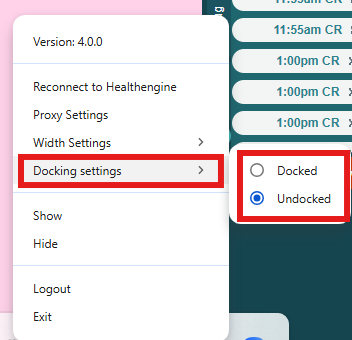
- Click Docking settings, then select Docked/Undocked.
Downloading Sidebar
You can always download the most updated version from your Practice Admin portal, selecting Resources-> Installation resources on the left-hand side of your screen.
Alternatively, here are some links:
- Windows sidebar
(Minimum requirements: Windows 7 or later, 110MB disk space, internet connection with port 443 allowed).
Click here to download the Windows Sidebar .
- Mac OS sidebar
(Minimum requirements: Mac OS-X 10.8 or later, 250MB disk space, internet connection with port 443 allowed).
Click here to download the Mac OS Sidebar .