
Vertical: GP, Dental, Pharmacy, Allied, and Specialist
PMS Eligible: Not Applicable
Healthengine's Sidebar is an appointment notification and manual publishing solution for practices without a Practice Management Software, or for those that we don't yet integrate with.
As a notification system, it is used in conjunction with the Healthengine Calendar to receive notifications when a patient books or cancels their appointment and allows you to update this in your practice software diary!
Sidebar can also remove availability both on a practice level and at the practitioner level.
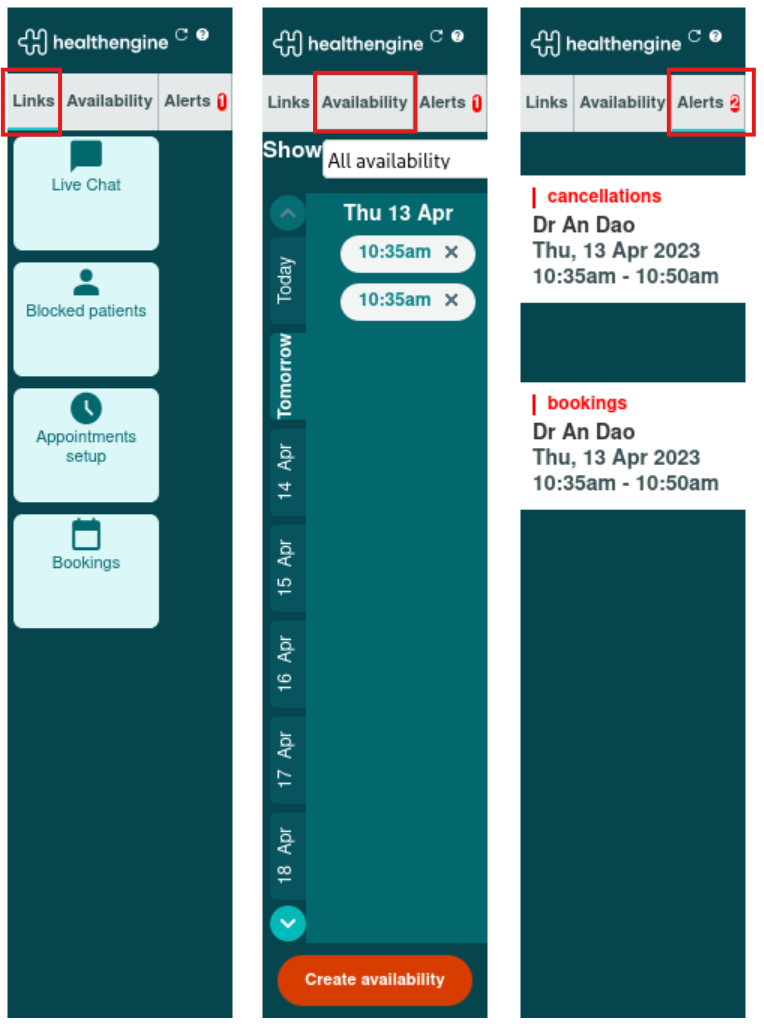
The sidebar has 3 individual tabs to manage the different functions we have in Sidebar: icon links to Practice Admin pages, managing and viewing availability, and alert notifications for bookings and cancellations.
The three individual tabs are:
- Links: This is where we house the icon that links to booking-relevant pages in Practice Admin.
- Availability: This is where you can view and manage your appointments per practice location; we've kept the same look and functionality, just moved it under an 'Availability' tab.
- Alerts: Your alerts relating to booking notifications and booking cancellations will be stored under this tab; we've added a handy red circle notification next to the label 'Alert' when a notification comes in, indicating how many notifications you have ready to address.
Important Note:
Availability created in the Sidebar will not pull through to display in your Calendar page. We strongly recommend that practices stick to using Calendar to upload availability, and Sidebar as a notification tool & to remove availability.
Download
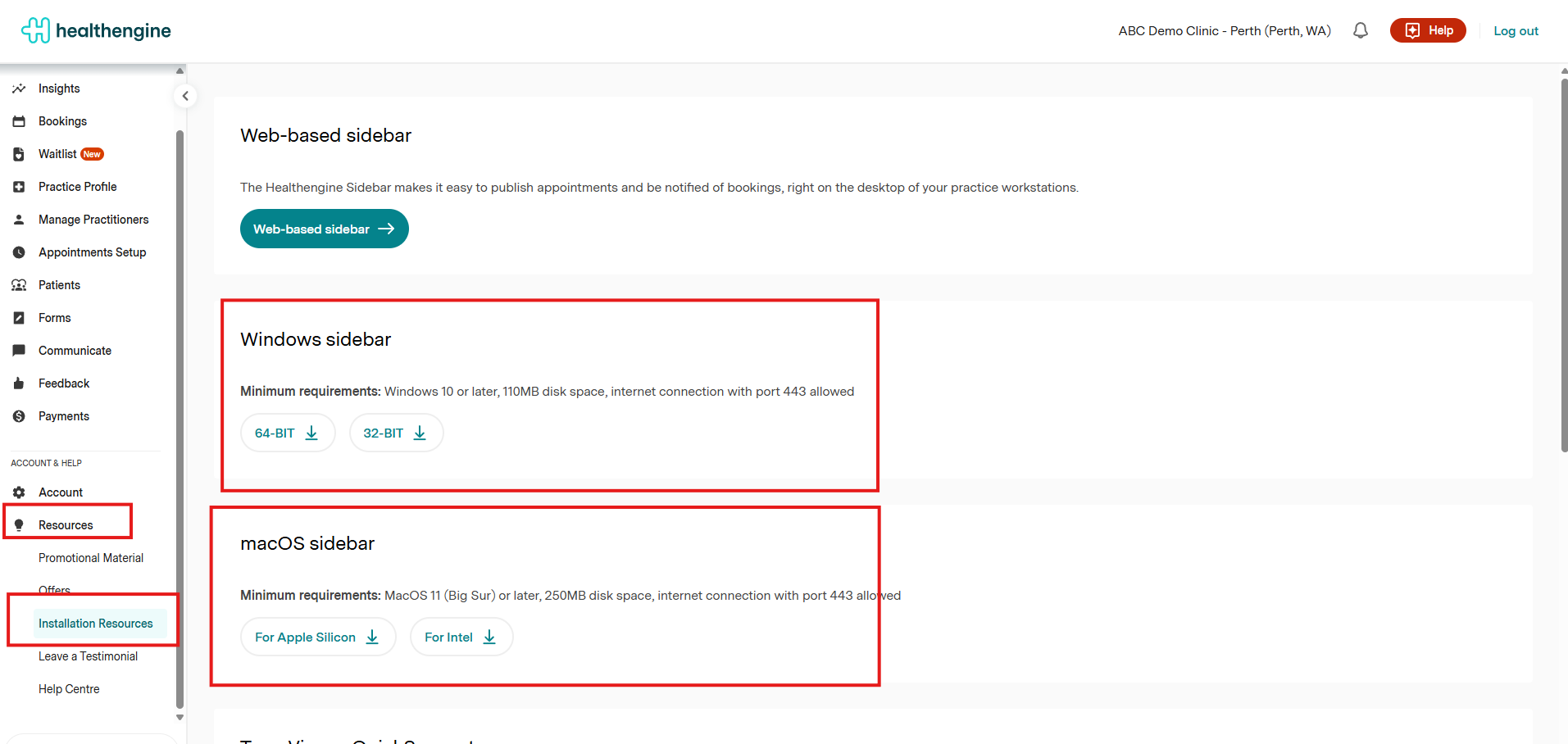
You can download the Sidebar from our downloads page here, or you can navigate to 'Resources' in your Practice Admin and then select 'Installation Resources'.
From here, you have the opportunity to download the 'Appointment Sidebar' for Windows and Mac, or use our Healthengine web-based version, which will open in a new browser tab.
Login
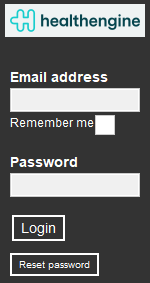
To log into your Sidebar, simply open the application or web-based version and enter your Healthengine email address and password - this should be the same login details you use for your Practice Admin portal.
Refreshing and Logging Out
You can refresh the Sidebar at any time by simply clicking on the refresh button in the top right corner of it. This will update your Sidebar with any new practitioners you may have added in your Practice Admin portal since initially downloading the Sidebar.
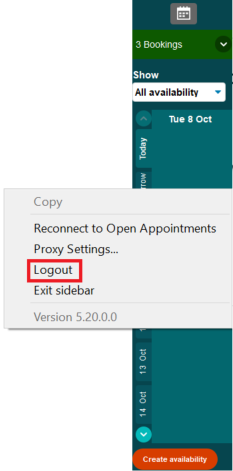
To log out of your Sidebar, right-click anywhere on the Sidebar and select logout. It is recommended that you leave the Sidebar logged in at all times; you may need to log out if you manage multiple practices.
Browsing your Availability
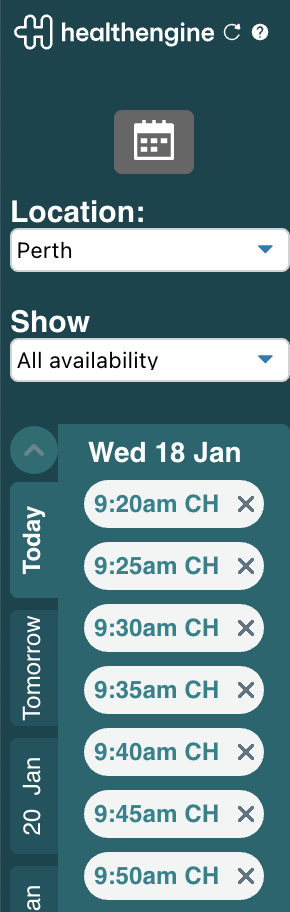
Browsing your availability schedule allows you to see the available times you have set up in your Sidebar for patients to book online!
If you haven't created a schedule on your Calendar, please visit our guide: How to Manage Availability in Calendar.
- You can browse availability by day (today or tomorrow) or by week.
- You can also filter the availability to view by 'Location', 'Specialty', 'Practitioner', and 'All Appointments' availability.
Removing your Availability
To remove availability, simply find the available time you wish to remove and click the 'X' button next to it, as seen in the image below. Please wait a moment for the time to disappear from the Sidebar screen, and then it will also be removed from the Healthengine website.
When an appointment is booked over the phone or in person, click on that available time in the Sidebar to ensure it is removed from the Healthengine website too - this will help you avoid any double bookings.
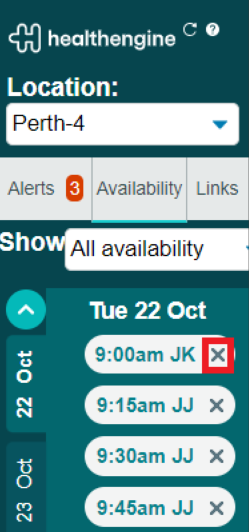
Please Note: Calendar availability deleted via the Sidebar is treated as a 'booked appointment' and will need to be republished via the schedule in 'Appointments setup' in your Practice Admin portal.
Receiving a Booking made on Healthengine
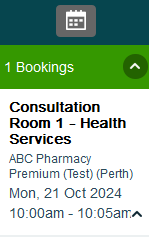
When an appointment notification appears, click on the green box and enter the patient's details into your appointment book. Following this, click the 'mark as complete' button at the bottom of the details when you're done.
It's important that you move any booked appointments over into your practice appointment book first thing in the morning, before you start taking calls and booking in further patients. This will help avoid any double bookings.
Receiving a Booking Cancellation
If a patient cancels an appointment they have booked through Healthengine, you will receive a notification on your Sidebar. Click the arrow to see the patient's details and then remove that availability from your own appointment book so the time is free for someone else to book.
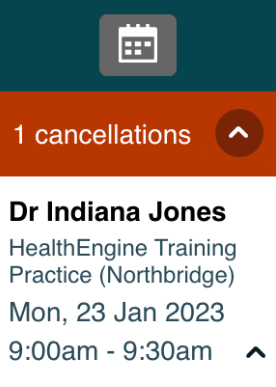
If you wish to republish that same appointment time online for someone else to book, you can press the 'Republish Appointment' button at the bottom of their details, and that available time will reappear on your Sidebar automatically, ready for someone else to book.
Manage Availability from Practice Admin
In the Practice Admin, you can complete similar functions as inthe Sidebar itself, such as creating and deleting appointments as well as setting up recurring schedules to save you administration time. To access your Practice Admin, click on the Healthengine logo.
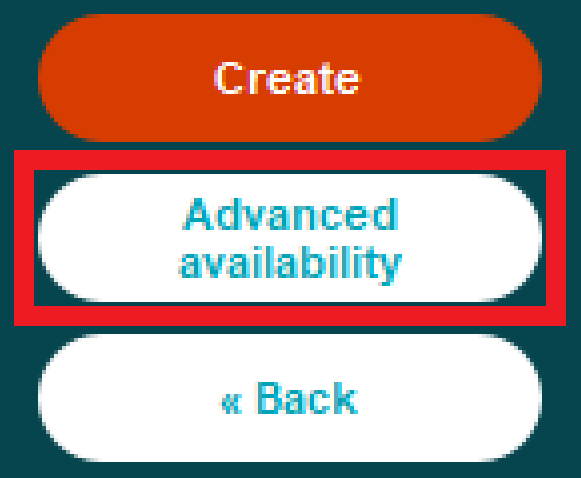
You can also go straight to the Appointments setup page within Practice admin by clicking on the 'Advanced Availability' button in the create availability screen.
Multi-Location Practices
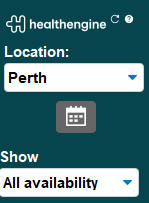
If you have your Practice Admin login linked to multiple practice locations, you will also see a location drop-down menu that allows you to move between your different locations to publish or remove availability as needed.
Please note: Different locations are identified by the suburb of the practice, not the practice name.
Changing the Width & Docking Settings
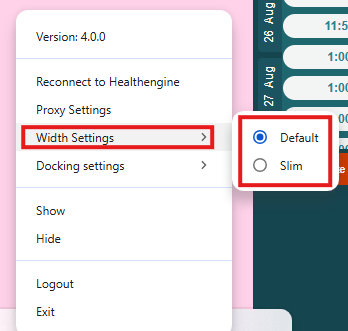
How to Change the Width Settings
Once you have downloaded and logged into your Sidebar, you'll be able to change the width settings of the application. In order to do so, follow the instructions below:
- In the bottom-right corner of your screen, find the white Healthengine (H) icon on your Windows taskbar, near the date and time.
- If you cannot see the icon, click the small up-arrow ^ to show all icons first.
- Right-click on the white Healthengine icon to open the menu.
- Click Width settings → select your preferred size.
How to Change the Docking Settings
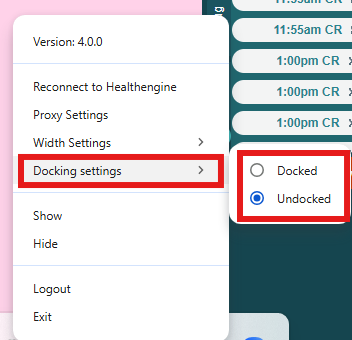
You also now have the option to choose whether you want your Sidebar application to be docked (anchored to the screen) or undocked (where it will be minimised behind other open tabs/applications). In order to set your preference, follow the instructions below:
- In the bottom-right corner of your screen, find the white Healthengine (H) icon on your Windows taskbar, near the date and time.
- If you cannot see the icon, click the small up-arrow ^ to show all icons first.
- Right-click on the white Healthengine icon to open the menu.
- Click Docking settings, then select Docked/Undocked.
Creating Availability
Rather than using the sidebar to create availability, we highly recommend publishing availability via our Calendar feature, which you can learn more about in our Help Centre article, How to Manage Availability in Calendar.
However, if you choose to create availability via Sidebar instead of Calendar, this will publish appointments as a practice rather than per practitioner and is the only way to do so.
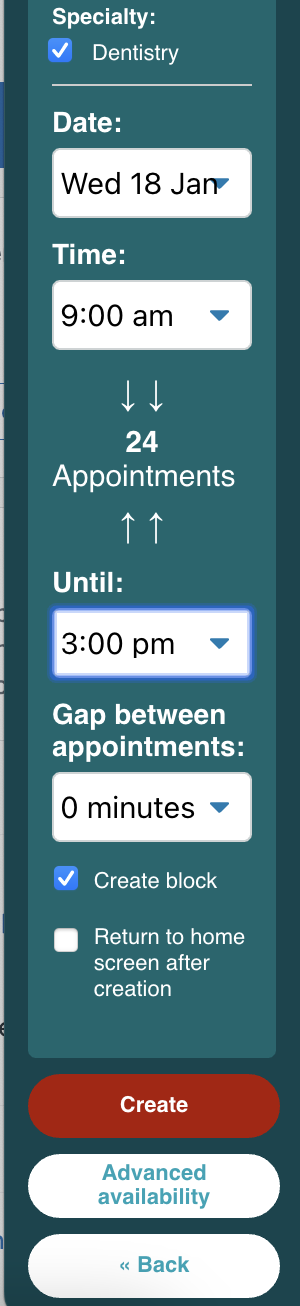
To create a new available time slot in Sidebar, click on 'Create Availability' and specify the following (using drop-down selections):
Appointment length
This is also known as the slot length in your own practice software or diary - you want all the appointment types you have created in your Practice Admin portal to be divisible by this number. You can read more about appointment types in our Help Centre article, Adding, Editing and Removing Appointment Types.
For Example: If you have an appointment type set as 30 minutes and your availability is in 15-minute slots, it will take two of those slots for the 30-minute appointment.
Practitioner (if applicable)
If no practitioner is selected, the appointment will be created on a practice level and will only appear on your practice profile and not a practitioner's profile.
You can then specify the 'Speciality' (if applicable) and finally the date and time of the appointment.
Following this, you simply need to select 'Create' to finalise these appointment slots and click 'Back' when finished.
You can also create a block of availability, for example, a full day of 30-minute slots.
To create a block, you must tick the 'Create Block' checkbox and specify a start and end date. The sidebar will display the number of slots within the block. Remember to click 'Create' to finalise the block and 'Back' when finished.
Please note: Availability that has been created in the Sidebar will not appear in the Calendar on the Appointments setup page of your Practice Admin.