
Vertical: GP
PMS Eligible: BP, Pracsoft
What are Smart Transfers?
When your AI Receptionist answers an incoming call and the caller needs a person, it doesn't just hand over a ringing phone. Before the call reaches you, it creates a smart handover — a summary card in Practice Admin that tells you who is calling, why they called, and what's already been collected (identity, reason for call, appointment preferences).
The result: you pick up already informed. No asking the patient to repeat themselves, and no "cold start" while you work out what they need. You'll find handovers under AI Receptionist → Live Calls.
Using the Live Calls screen
The screen has three main areas:
- Expected calls (next 30 minutes) — total calls expected, how many are likely to be transferred to you, and your average completion time, so you can gauge whether you're keeping up. These are projections; for what is happening right now, use the live wait times in Transfers in queue.
- Transfers in queue — your live work list. Each card shows the caller's name (or "Unknown Caller"), a waiting timer, and a short reason. Click a card to open it. The number of callers waiting and the wait times shown here reflect what is happening on the phones right now, so you can trust them when deciding who to pick up next.
- Call details — the expanded view: patient details, reason for call, conversation summary, and any preferred appointment or practitioner mentioned.
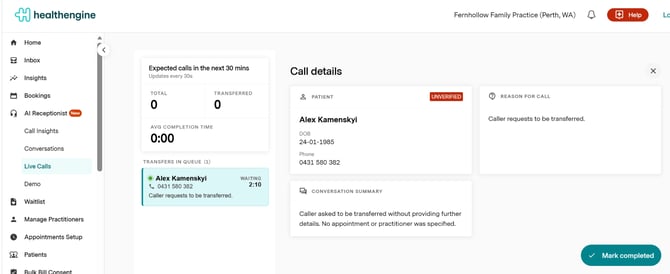 The Live Calls screen: queue on the left, full call context on the right.
When the call ends, the card closes itself. You do not have to do anything to clear it. Your queue stays tidy without extra clicks.
Mark completed is still there and is now optional. Use it when you want to clear a card before the call has finished, or when you have dealt with the request another way and want it off your list straight away.
If a call isn't answered
Sometimes there's nobody available to take a transferred call. When that happens, the AI Receptionist takes a voicemail instead of leaving the caller waiting. Helen transcribes the voicemail and notifies the practice, so the message doesn't get missed.
Verified vs Unverified callers
Each card shows a status badge:
- VERIFIED — the AI Receptionist confirmed the caller's name and date of birth (three points of ID). No need to verify identity again.
- UNVERIFIED — matched by phone number only, which isn't fully reliable. Confirm identity yourself before acting.
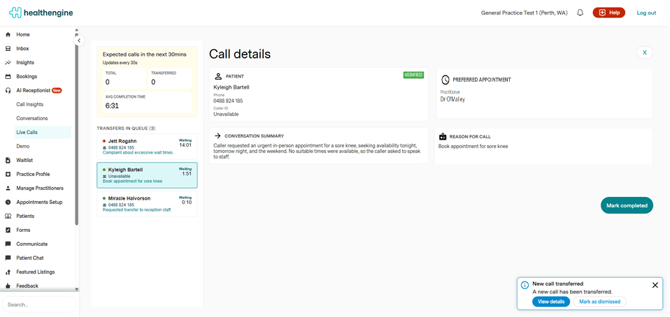 A Verified caller. Note the "New call transferred" alert in the corner.
How to enable notifications (important)
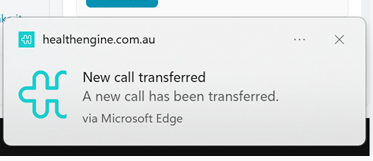
Most people miss this step. Without it you won't get an alert when a call is transferred. You'd have to keep the Live Calls screen open and watch it. With it on, a pop-up appears on top of all your windows (even when the browser is minimised, or you're in your clinical software) the moment a call comes through.
To turn it on:
- Go to Account → Notifications.
- Click the Real-time tab (next to "Email" and "Updates and offers").
- Scroll to the very bottom of the list.
- Switch on "New AI Phone Call Transfers".
- Click Save.
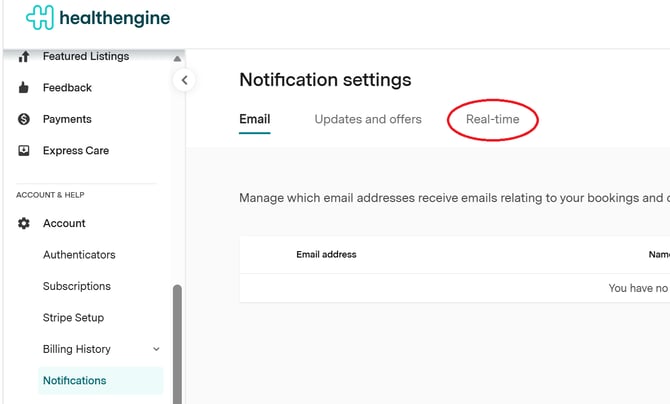 Step 2: the Real-time tab in Notification settings.
Now, whenever a call is transferred, you'll get a pop-up alert. Click the pop-up and it takes you straight to that call's details, with the right call already open.
If notifications don't appear
The setting above is only half of it — your browser also has to be allowed to show alerts. If pop-ups aren't coming through:
- Allow notifications in your browser. The first time, your browser asks permission to show notifications from
healthengine.com.au— choose Allow. If you dismissed or blocked it, re-enable it in your browser's site settings. - Keep the browser running. It can be minimised, but it must stay open (not fully closed) to deliver alerts.
- Re-check the toggle. Return to Account → Notifications → Real-time and confirm "New AI Phone Call Transfers" is on and saved.
Quick reference
| Task | Where |
|---|---|
|
See transferred calls |
AI Receptionist → Live Calls |
|
Read full context for a call |
Click the card → Call details |
|
Clear a handled call |
Closes automatically when the call ends, or click Mark completed |
|
Turn on pop-up alerts |
Account → Notifications → Real-time → "New AI Phone Call Transfers" → Save |