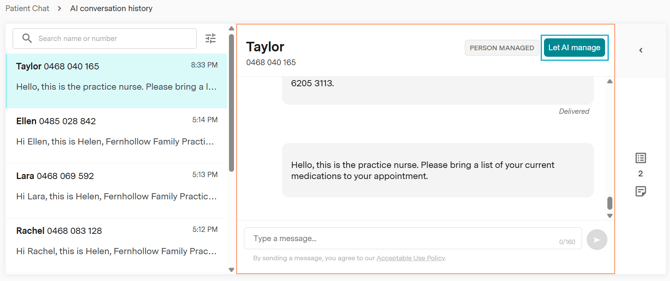
Patient Chat gives your practice one place to view and manage AI SMS conversations.
Messages are sent and received using a dedicated mobile number for your practice. This allows patients to reply directly to your messages and gives your team visibility of the complete conversation.
In Patient Chat, your team can:
- view messages sent to, and received from patients
- reply directly to patients
- view additional information about the patient and conversation
Patient Chat currently includes conversations created through Smart Recalls. As more features become available, their conversations will also appear here.
Find a patient conversation
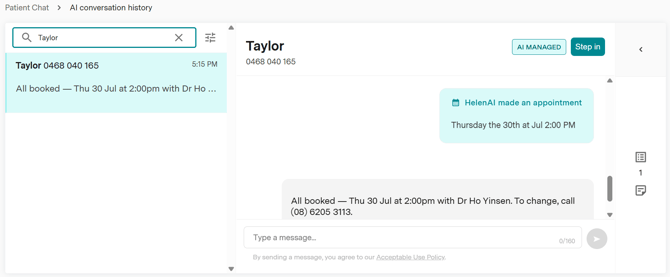
To search for a conversation:
- Open Patient Chat in Practice Admin.
- Select the search field.
- Enter the patient’s name or mobile number.
- Select the patient from the search results.
View notes and recall details
Select any message in the conversation to open the information panel on the right-hand side.
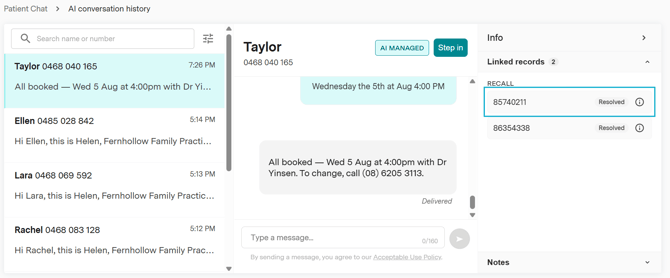
From this panel, you can:
- view notes added by practice staff
- see the patient’s recalls that have been sent an AI SMS
- select a recall to view its full details
The recall details include the same information you would see when viewing the recall in the Recalls section of Practice Admin. This allows you to review the context of the conversation without leaving Patient Chat.
Understanding conversation management
Each conversation is either:
- AI Managed
- Person Managed
AI Managed
When a conversation is AI Managed, Helen can respond to the patient’s messages.
Helen may not respond when a reply is not required, for example, if Helen confirms a booking is made and the patient replies with an emoji.
Person Managed
When a conversation is Person Managed, practice staff can respond to the patient.
Helen will not send any further replies until the conversation is returned to AI Managed, or if a new recall SMS is triggered.
Conversations your practice starts begin as Person Managed.
Take over a conversation
There are two ways to change an AI Managed conversation to Person Managed.
Select Step In
Select Step In when you want Helen to stop responding to the patient.
You do not need to send a message immediately. Once you select Step In, the conversation becomes Person Managed and Helen will not respond to any new patient messages.
Send a message
You can also take over a conversation by sending a message.
- Open the patient’s conversation in Patient Chat.
- Enter your message.
- Select Send.
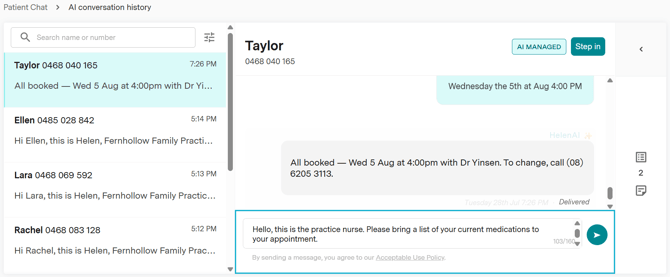
Sending a message automatically changes the conversation to Person Managed. You do not need to select Step In first.
Return a conversation to AI Managed
When your team has finished assisting the patient, return the conversation to AI Managed so Helen can respond to future messages.
- Open the patient’s conversation.
- Select Let AI Manage.
You can use Let AI Manage on any Person Managed conversation, including one your practice started. Helen will then handle the patient's replies.