
Vertical: General Practice, Dental, Allied, Specialist
PMS Eligible: Best Practice, Communicare, Consult, Genie, Medtech, Pracnet, Pracsoft, Practice 2000, Zedmed, Helix, CorePractice, D4W, Dentally, Oasis/Exact, Praktika, CareStack, Zavy 360, Back In Motion, Optomate, PPMP, Sunix, CorePlus, NOOKAL, Cliniko, MMex, PracSuite, Xestro, Front Desk, Gentu
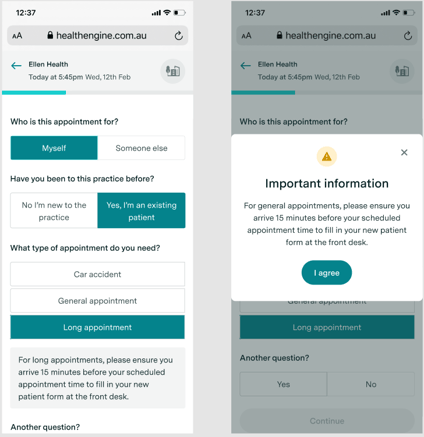
What does appointment type-specific messaging look like?
In order to ensure that your patients are getting timely and relevant information from you regarding their appointments, HealthEngine’s online booking platform allows you to display custom messages of default appointment types within the booking flow.
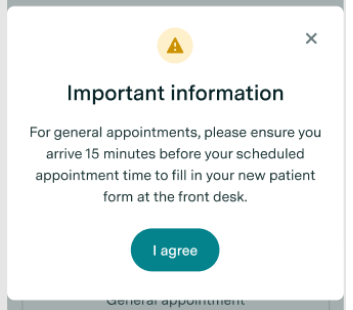
Patients will either see the disclaimer-type message (“Display only” type), which appears as a grey text box under the appointment type options for the user to read, or the consent-required-type messaging (“Requires consent” type), which appears as a pop-up that they must agree to to be able to proceed to make a booking. This is based on a setting which you can control in your Practice Admin account (see instructions below).
IMPORTANT: This functionality is available for Allied, GP, Specialist and Dental. It is not available for Pharmacies and PAMS.
For Pharmacies (Non corporate), please reach out to our support team via chat, email or phone. For corporate pharmacies, please also contact our support team to discuss available options.
You can write up to 300 characters in the box to provide any information for patients to know when they are booking that appointment type. There are a few exceptions to what is allowed to be shown on the Healthengine network. These include things such as:
- Text that does not relate directly to the services and practitioners provided by your practice.
- Marketing of products and services of another business.
- Content or messaging that may compromise a patient’s health care choices or is not in the patient’s interest.
- Any material that is libellous, defamatory, discriminatory or otherwise malicious or harmful to any person or entity.
- Any phone numbers or external links to encourage patients to book with your practice outside of Healthengine.
- Content or messaging that may lead to the patient acquiring or undergoing a health service that they may not need.
- Any messaging in an unethical or coercive manner.
HealthEngine continuously moderates content on our platform. If your messaging doesn't align with our guidelines, we'll contact your practice to request a change. In serious cases, we may update the content directly and notify you of the change, along with the reason it was not suitable.
How to add a new message
In order to write a new custom message for your patients, first log in to Practice Admin.
On the left-hand side navigation bar, click “Appointment setup”.
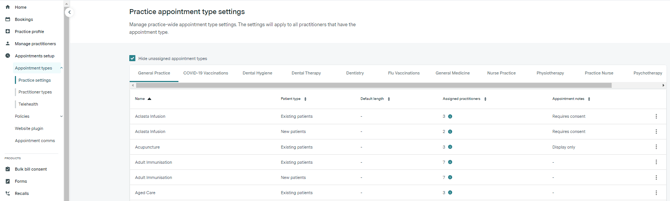
You will see a table that lists all of the appointment types available to be booked under different specialties and for which patient type(s) they are available.
This table shows which appointment types already have appointment messaging in the “Appointment notes” column, either as “Requires consent”, blank (...) or “Display only” based on your configuration.
The messaging can be customised based on appointment type and patient type, so you can have different messaging for existing patients attending a telehealth appointment versus for new patients, for example.
To create a new message, click the three vertical dots on the far right next to the appointment type / patient combination you want to write a message for, and select the "Edit appointment notes" dropdown option.
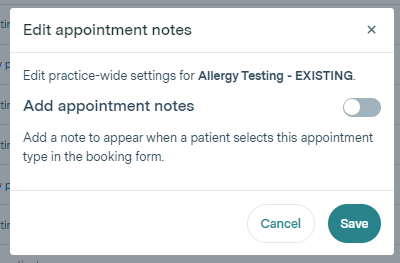
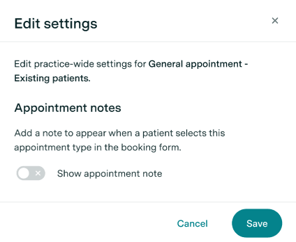
You will be presented with a pop-up box that requires you to click the grey toggle to make the note active. If you wish to remove the note in the future, you can do so by unticking this toggle.
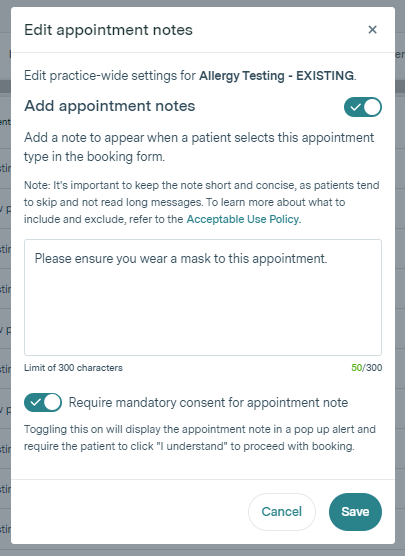
When you click on the show appointment note on settings, the box will expand, and you can enter your message.
Select if you want this note to appear as a pop-up or as text in your booking form. A mandatory note requires the patient to click "I accept" in order to proceed with the booking.
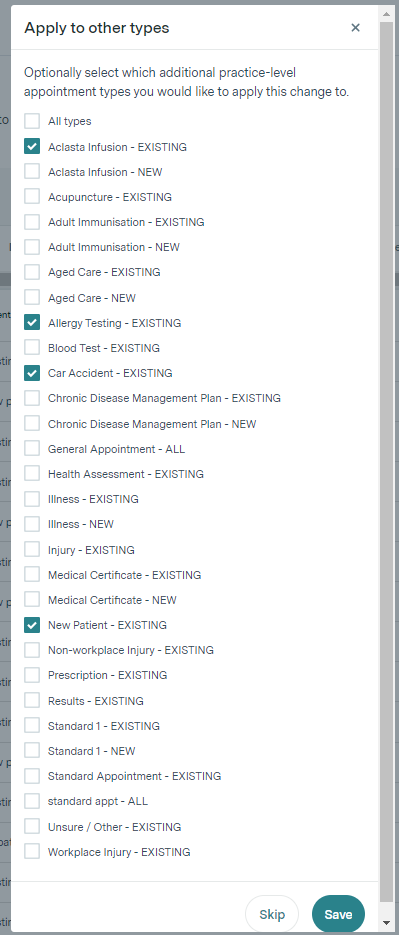
If you wish to bulk update multiple appointment types with the same message, you can do so by clicking on the relevant appointment types on this page and then clicking 'Save'.
If you just want the note to apply to one, click 'Save'.
You can also set the message to require consent, which means the message appears as a pop-up and the patient must click “I agree” to be able to continue making a booking. By default, the message will be set as 'display only'.
Click Save to ensure your messaging is saved. These changes are made live immediately on the Healthengine network, so you can check to see them straight away.
How to delete a message
- If you want to delete a message that is shown in the booking form, navigate from the left-hand side navigation bar to “Appointment setup” and select "Edit appointment notes".
- In the table, find the appointment type message you want to remove. Make sure you check that you are deleting the right message based on the appointment type and patient type (new or existing).
- Once you find the right appointment type message, click the pen icon to edit it. In the pop-up that appears, click the toggle off so it looks like what is shown below.
-
Click ‘Save’. These changes will be live and appear immediately on the Healthengine platform.
How to edit your messages
If you want to edit a message text or message type, navigate from the left-hand side navigation bar to “Appointment setup”, select the pencil icon of the relevant appointment type, and click on "Edit Appointment notes".
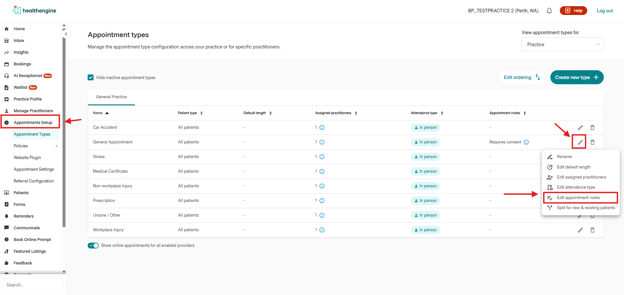
- In the table, find the appointment type message you want to edit. Make sure you check that you are editing the right message based on the appointment type and patient type (new or existing).
- Once you find the right appointment type message, click the pen icon to edit it. You can now change the text shown, and change the message from the “Display only” type or the “Requires consent” type.
- Once you are done, click save. These changes are live and appear immediately on the Healthengine platform.
Moderation Process
HealthEngine continuously moderates content on our platform. If your messaging doesn't align with our guidelines, we'll contact your practice to request a change. In serious cases, we may update the content directly and notify you of the change, along with the reason it was not suitable.
Continued violation of the self-serve messaging policy can result in your practice’s access being revoked.For more information on the self-serve messaging policy, or to appeal a moderation decision, please contact HealthEngine support.