
Vertical: Allied, Specialist
PMS Eligible: Xestro
This article will go over the most common problems we see with Xestro and how you can attempt to troubleshoot them.
Getting Started
Prior to starting the process of integrating your Xestro with Healthengine, you'll need to let our Support Team know so that they can get your account ready to go in the backend.
Benefits of the Integration for Your Practice
Seamless Connection: Our integration with Xestro is cloud-based, meaning we connect via API key. This eliminates potential issues related to hardware or server connections.
Time-saving: The integration automatically reads and publishes your availability while inserting booked appointments directly into your Xestro diary.
Online Cancellations: When a patient cancels through their Healthengine account or confirmation email, the booking will be removed from your Xestro diary and marked as cancelled in Healthengine.
Integration Publishing Limit
The default that your integration will publish is 30 days.
The maximum number of days the integration can publish in advance is 365 days.
Please make sure to contact Xestro support to ensure that your practice settings are configured correctly to publish a year in advance.
Please reach out to our support team using the contact details at the bottom of this article to extend the publishing days.
Setting up your Integration
In Xestro - click on Admin tile (bottom right-hand corner) - then 'Integrations' from the menu on the left.
Click on Healthengine and add the Healthengine Prac Id.
This will get you to log into your Healthengine Practice Admin Portal to authorise the integration.
IMPORTANT: If you have multiple locations, this Xestro page should allow you to link each Xestro location to its individual Healthengine ID. If that menu doesn't provide this option, please reach out to Xestro support to check if your logins are set to allow this for other locations.
After that, appointment types must be configured for Healthengine in Xestro through the Admin menu, select Appointment Book, and select Appointment Types (at the top of the card).
Whichever appointment types you want Healthengine to read from or for patients to book in, it needs to have Healthengine added to the 'options' menu for that appointment type.
Please see the section below for more instructions.
Appointment Type Setup in Xestro
First, check what appointment types you want to publish online - in the below example, we just want to publish 'AVAIL'.
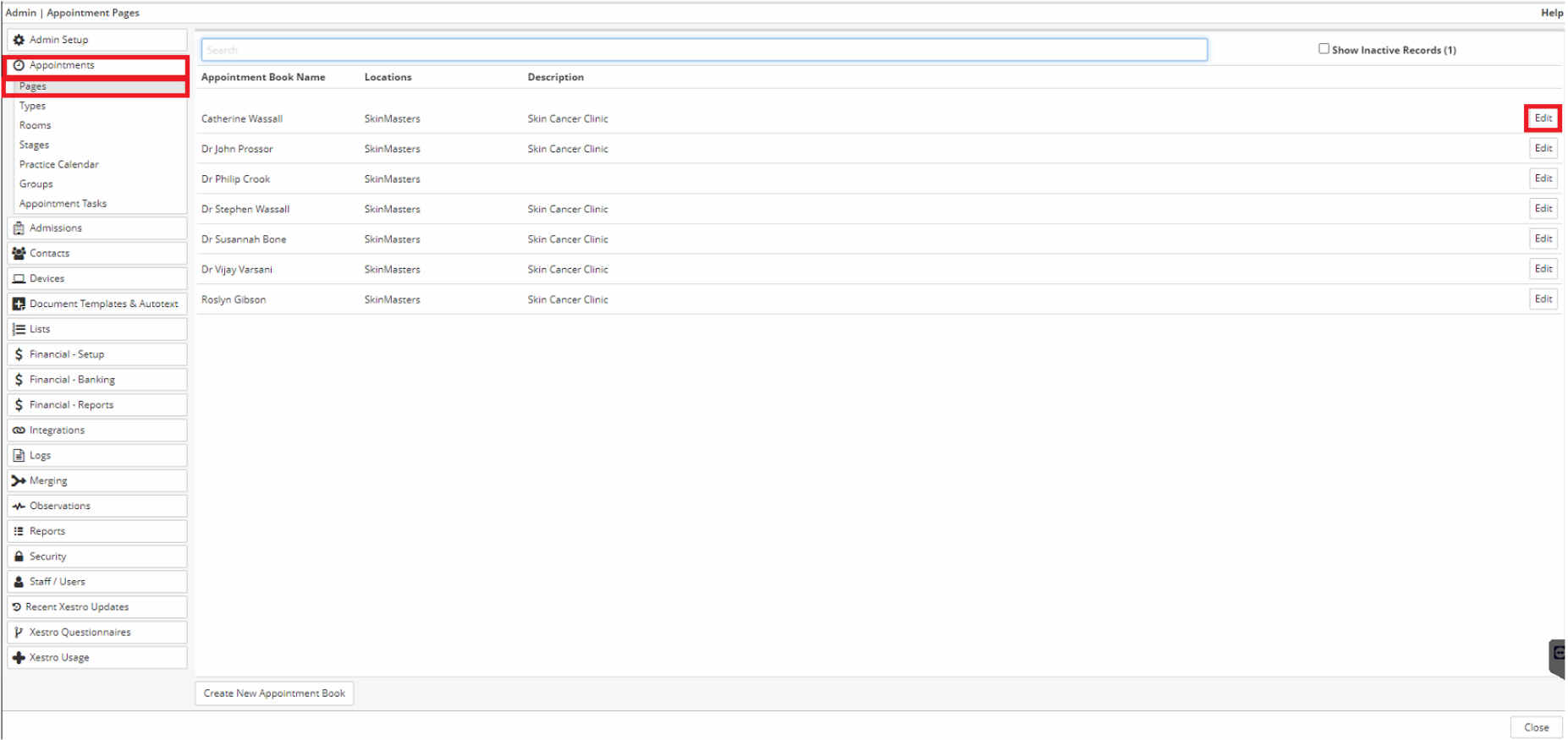
Then go into Appointments -> Pages -> Edit for each practitioner they wish to publish online
Go to Appointment Types, where you then want to click on 'Options' and enable Healthengine for that appointment type.
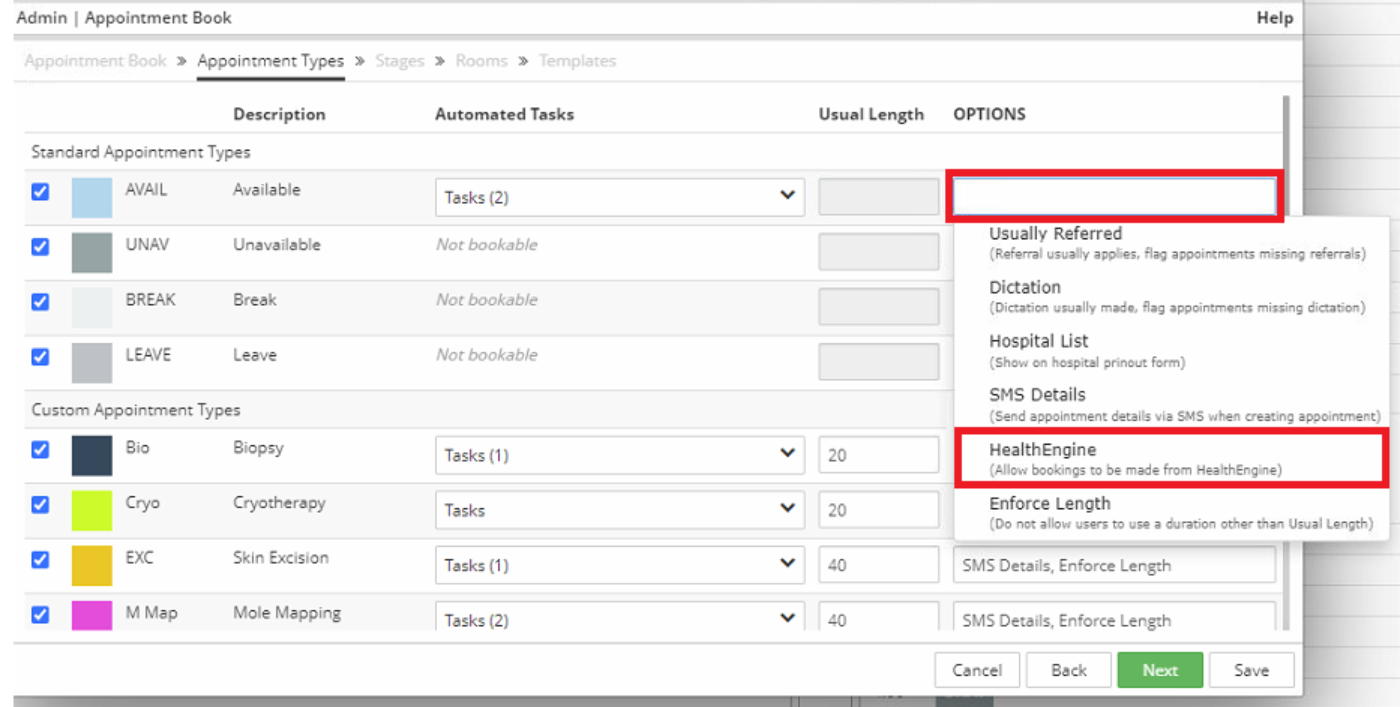
Please Note: You must be integrated in order to save the Healthengine option for your appointment type.
Bookings Failing
There are a few different reasons this could happen. We'll break them down below.
Only Allow Same Type Bookings
Remaining in the same Appointment Types page above, once you have added Healthengine as an option, you should see an 'Online Bookings' tab appear in the menu along the top. Click 'Next' to get to this page, and ensure that 'Only allow same type bookings' is unchecked.
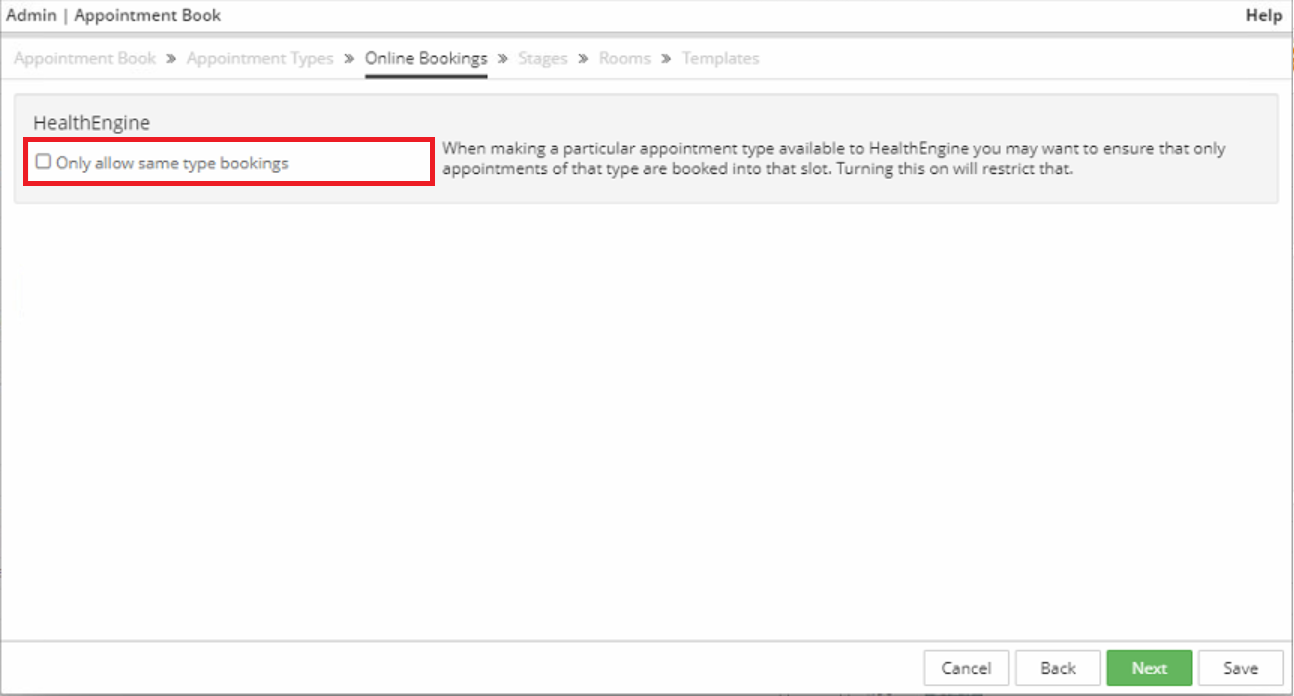
If it is enabled, then (in this example) only Healthengine appointment types linked to 'AVAIL' would be bookable in slots painted with 'AVAIL' in Xestro.
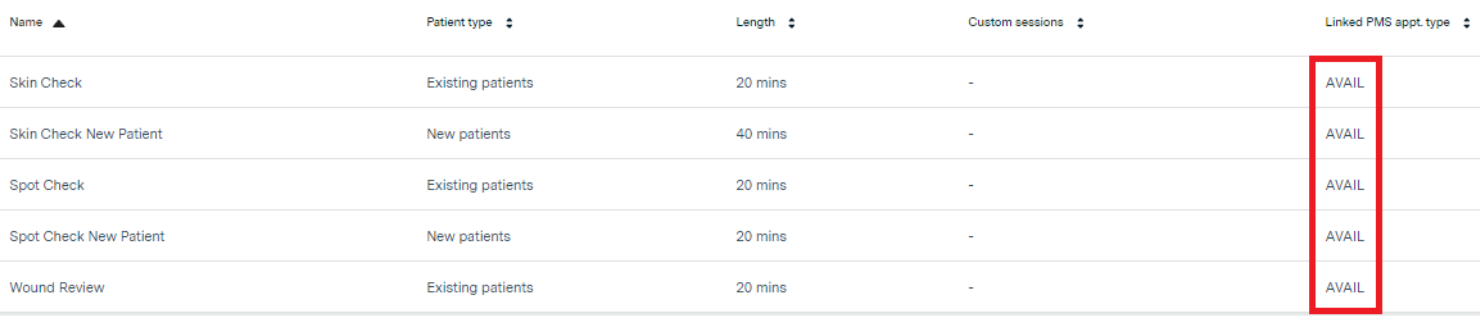
You can use this setting to restrict certain appointment types at certain times, and it requires all appointment types to be linked correctly on Healthengine, for you to have those appointment types enabled for Healthengine Bookings, and painted or created in your Xestro calendar.
Publishing Under Multiple Specialties for one Practitioner
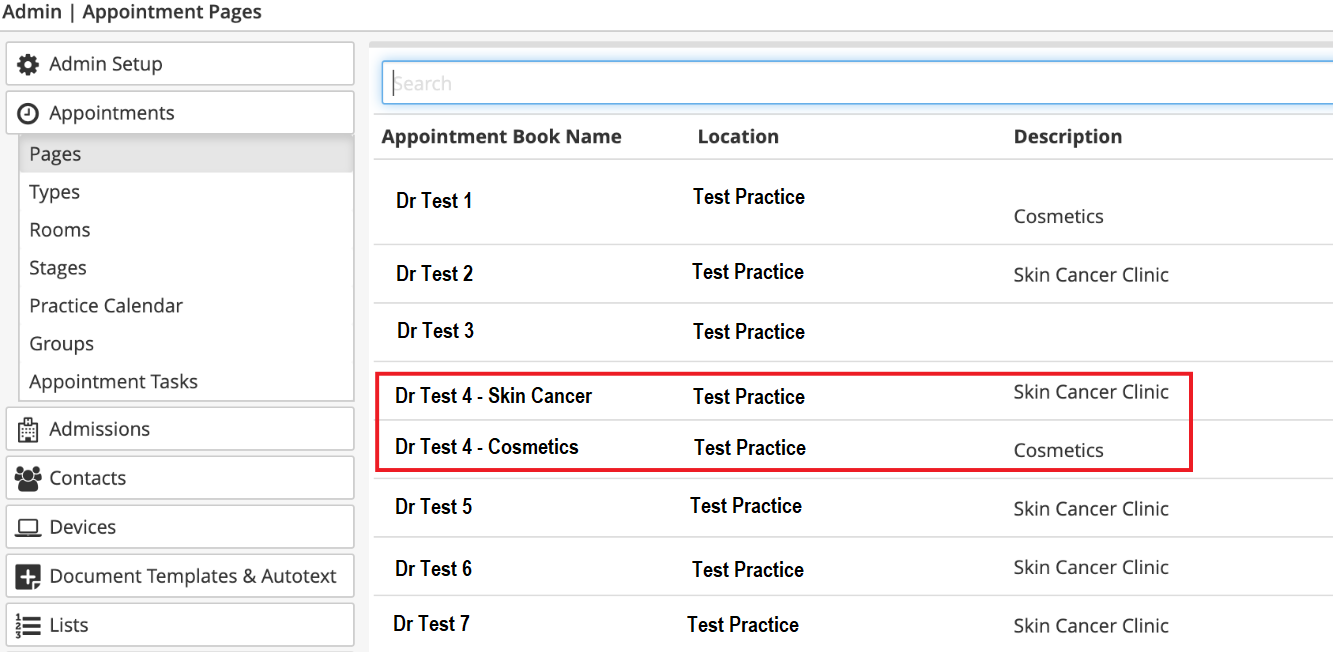
As we are unable to duplicate practitioner appointment books on our end for this integration, you will need to ensure Xestro have them set up under each speciality they want to offer and that each name is unique. Once this has been done for you, let us know, and we will be able to assist with connecting up their relevant specialties.
Appointment not Divisible by Appointment Length
You'll need to check that your appointment lengths on Healthengine are divisible by the minimum appointment length in Xestro.
Please Note: You do not have to have this set in Xestro, but if you do, it will need to be reflected in your Healthengine appointment types.
Connection Down
The main thing to check here is if one of your Healthengine logins has been removed, as the user that is logged in to your Practice Admin portal to approve the integration needs to exist.
To re-authorise your Xestro integration with Healthengine, login into Xestro and click on the Admin tile in the bottom right-hand corner.
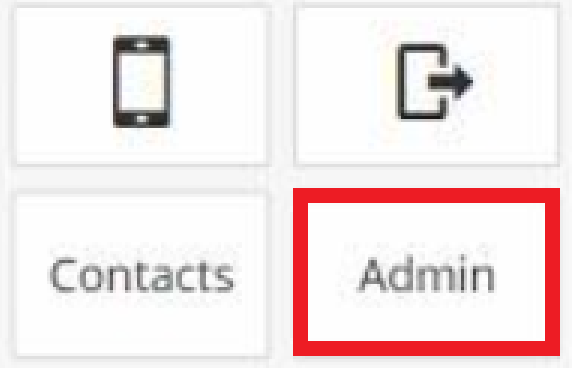
Once in the Admin page, select the Integrations tab and locate Online Booking -> Healthengine.
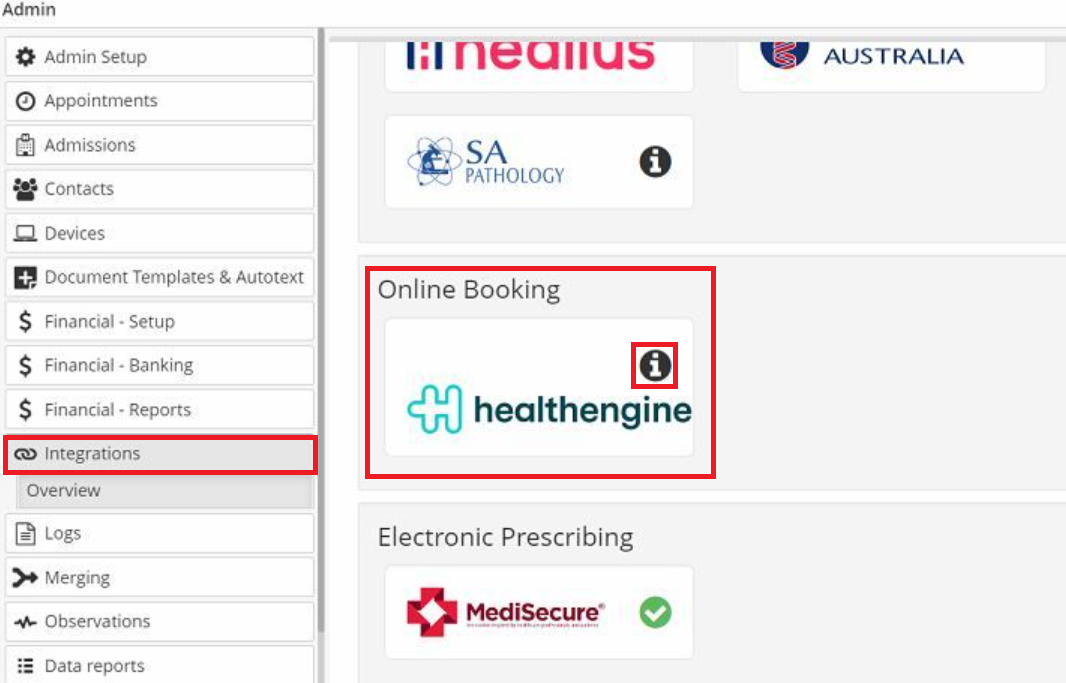
Click here, which should prompt you to log in to your Practice Admin portal. You'll be asked to reverify the integration, and from there, you should see it restore within a few minutes.
Feel free to reach out to our Support Team if you would like any assistance or have any trouble.
Missing Availability
The most common reason for missing availability is either:
- Slots have not been created to publish in Xestro or
- Slots have been created, but they are not enabled for Healthengine bookings.