Vertical: General Practice, Dental, Pharmacy, Allied, Pharmacy
PMS Eligible: N/A
If you have recently added a practitioner and need to tailor their appointment types to your practice, Practice Admin allows you to edit this at any time!
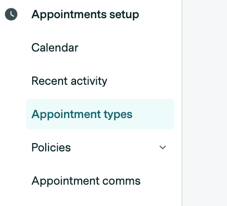
To add, edit or remove an appointment type from a practitioner, simply navigate to 'Appointments setup' and then 'Appointment types' in your Practice Admin Portal.
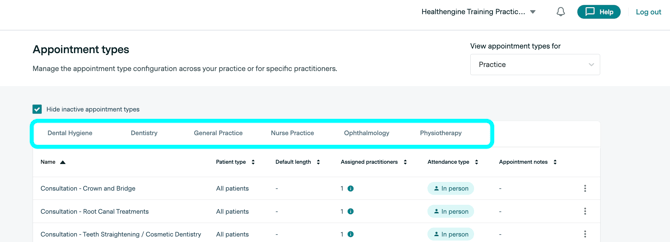
You will then come to a page that lists all the specialties added to your practice's profile at the top (as shown outlined in blue below), and any appointment types added for each specialty are shown when you select it:
How to Add an Appointment Type
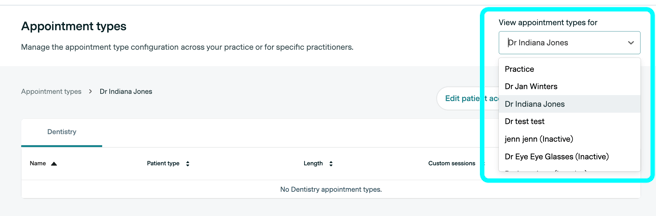
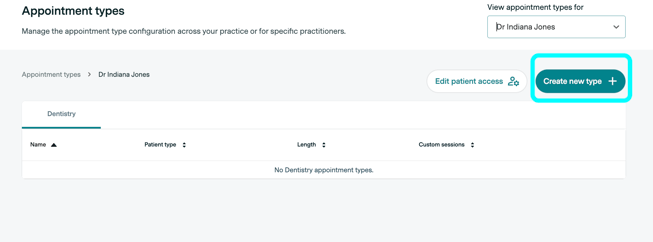
To add an appointment type to a practitioner, first select the practitioner from the menu (shown outlined in blue below).
Next, click the Create New Type button.
This will then display the following screen, allowing you to set up the appointment type.
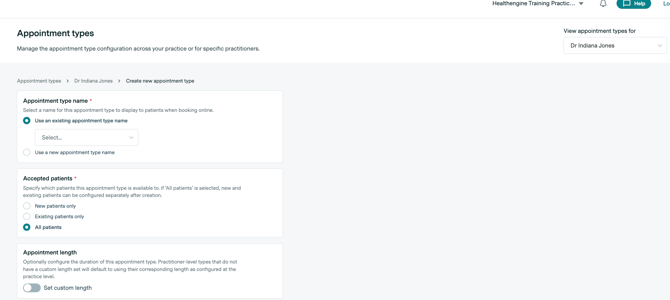
The first box for Appointment type name allows you to either select from a list of appointment types already added (for GP, it is an extensive list of all GP types, not just the ones listed at your practice), along with the option to use a new appointment type name that allows you to freely type your appointment type name.
The second box allows you to choose whether that appointment type is displayed as an option for all patients, or just those who say they have visited your practice before, or only those who say they are new to the practice.
The third box allows you to set the length of the appointment type.
If you are using certain integrated software, you may also see a fourth box that allows you to link your Healthengine appointment type to an appointment type from your integrated software. Linking to a PMS (practice management software) appointment type is required for certain cloud-based integrations in order for the appointment to be able to be inserted into your diary. Please see our troubleshooting guides for your software to determine if that is required for you.
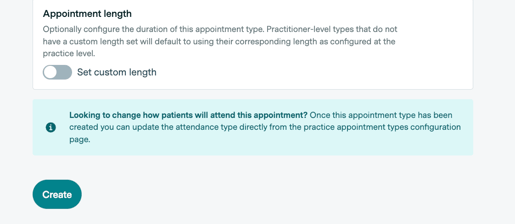
To save your changes and create the appointment type, click the 'Create' button in the bottom left-hand corner of the page, as shown below.
Please note: Ensure that any variation of appointment length is in multiples of your standard appointment length/slot length in your appointment diary. For example, if your standard appointment length is 15 minutes, you would want to publish appointments that are either 15, 30, 45 or 60 minutes, etc.
How to Remove an Appointment Type
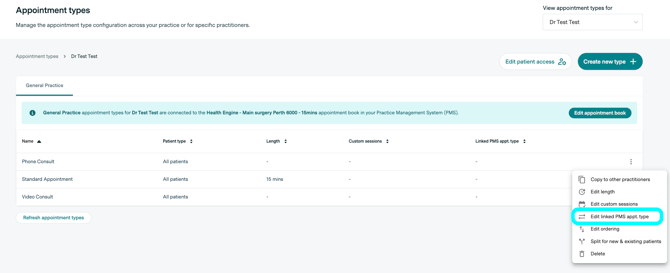
To remove an appointment type, first select the practitioner you wish to remove it from, then click the three dots to the right of the appointment type you wish to delete. You will see a list of preferences you can set for that appointment type, as shown below, and the last option shown is to delete it.
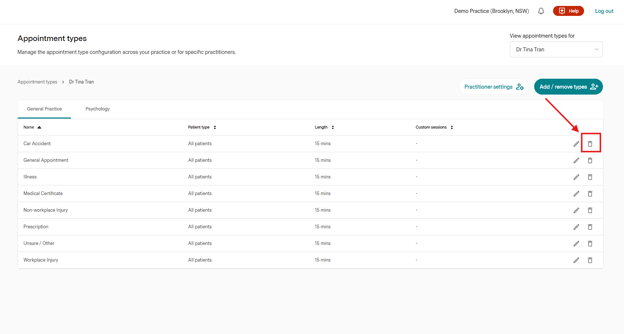
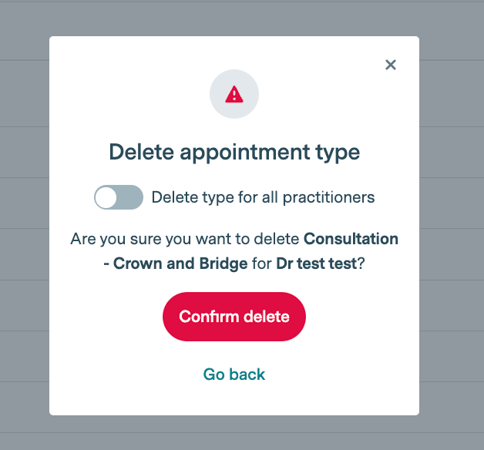
You will be asked to confirm if you'd like to delete this appointment type, and if you would like to delete it from all practitioners at the same time, use the toggle as shown below. Then click Confirm delete.
About Linking Appointment Types
If you are using a Practice Management Software (PMS) that is integrated with HealthEngine, you will also be able to link the appointment types from your PMS to the appointment types that Healthengine displays online.
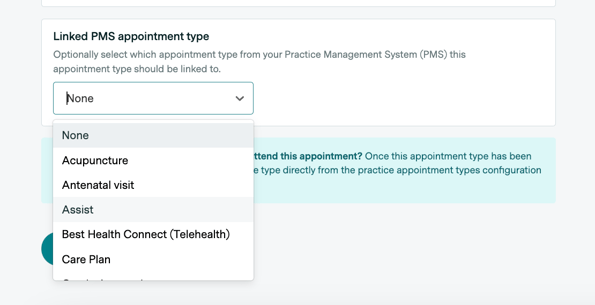
To do this, when adding an appointment type, simply select the drop-down box underneath the heading 'Linked PMS appointment type' as shown below and select an appointment type that is found in your PMS.
This means that if a patient books that appointment online, it will enter into your software as the appointment type listed in your Practice Management Software.
IMPORTANT: The link PMS is mandatory for the below softwares (PMS), in order to have successful bookings, here is a list including the troubleshooting guides:
Dental4Windows
Oasis
Hs1 Exact
Dentally
Core Practice
Praktika
Dentrix Ascend
Helix
Nookal
Xestro
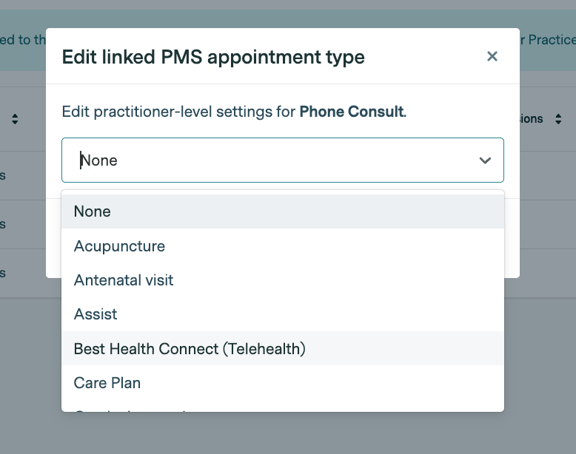
You can also link to a PMS type or change the linked type using the 3 dots next to an appointment type that you have already added, and select edit linked PMS appt type.
This will present you with a pop-up that allows you to select from your PMS types to link.
How to Change the Attendance Type on an Appointment Type
This will help ensure patients are aware of how their appointment will be facilitated (E.g. In Person, Phone or Video), and can assist your practice in offering more ways to provide your services.
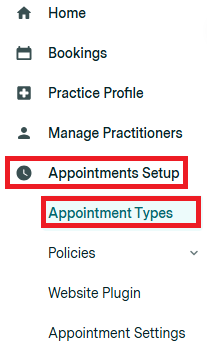
To get started, log in to your Practice Admin portal, click on Appointment Setup and the menu below Appointment Types.
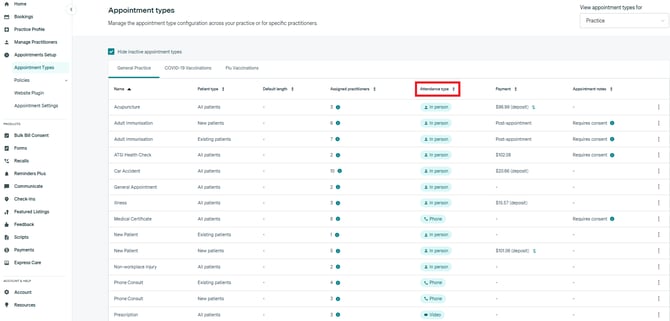
In this menu, you will see all the appointment types your practice offers, ordered alphabetically.
Under the Attendance Type column, we can see the attendance type for each individual appointment type.
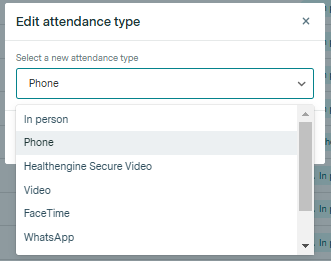
To edit the attendance type for any of your appointment types, select the 3 dots at the end of its row, and click 'Edit attendance type'.
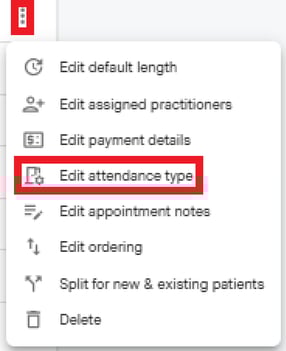
You'll then see a drop-down menu pop up, which you'll be able to click into to change the attendance type.