
Please note: In order to keep track of all of the appointments you've booked through HealthEngine, you must be logged in when booking appointments so that they're created against the history of your account.
Appointments booked in practice or meanwhile you are not logged in will not display on the app.
How to view upcoming appointments?
Upcoming appointment can be seen at the home page of your screen as well in my Health section.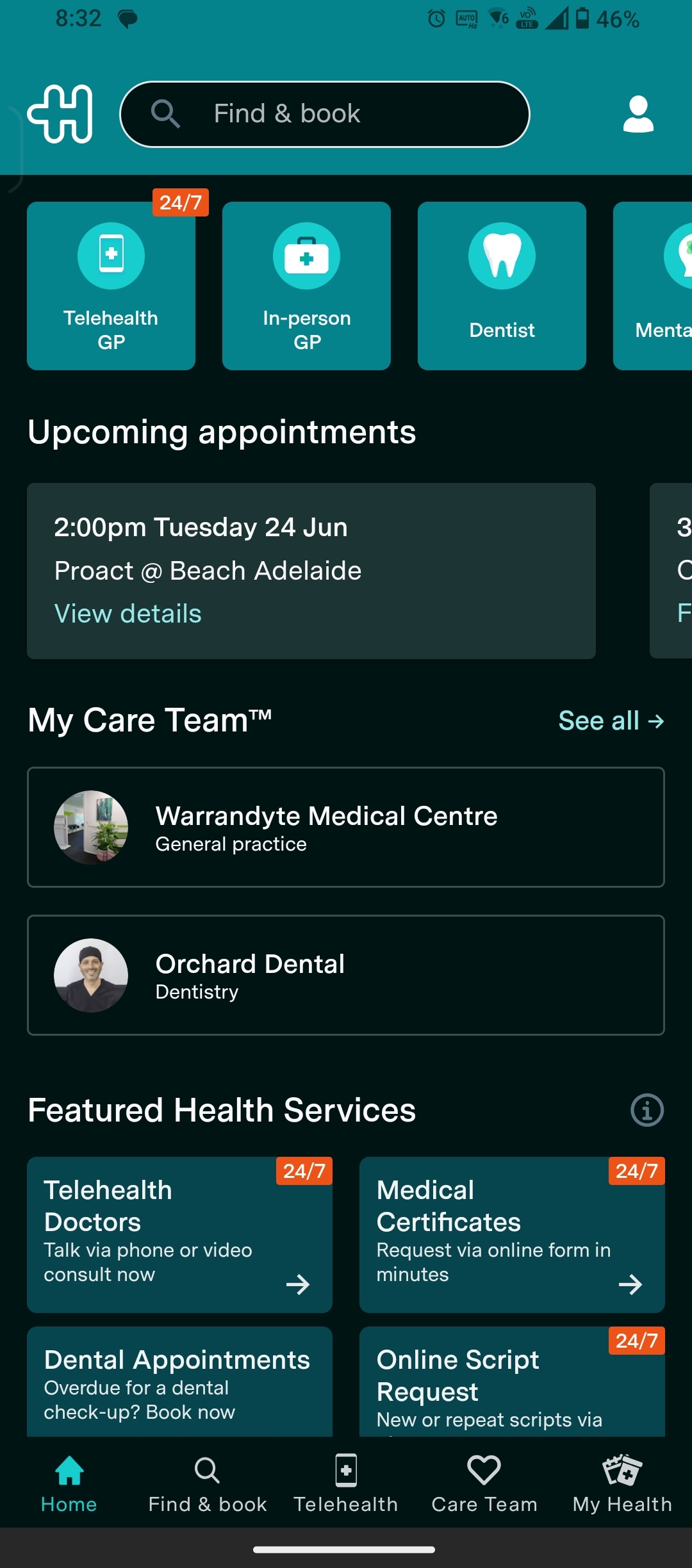
At the bottom right side of the screen, tap on the 'My Health' button. From here, you can see your current, upcoming, and previous HealthEngine appointments listed.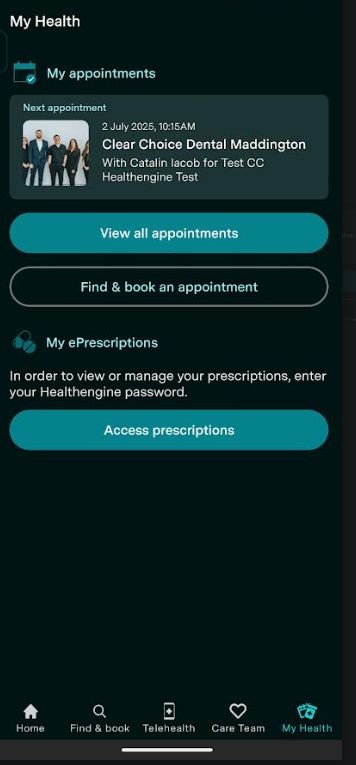
A booking moves from the Upcoming appointments to Current appointments 15 minutes prior to the appointment time. (With the exception of video consults which move to 'Current appointments' 5 minutes prior to the appointment time.)
If one of your upcoming appointments requires you to complete a form before your appointment, you will see the icon below displayed next to the booking.
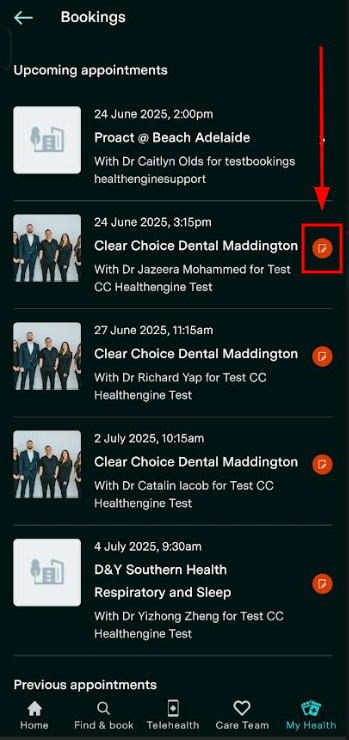
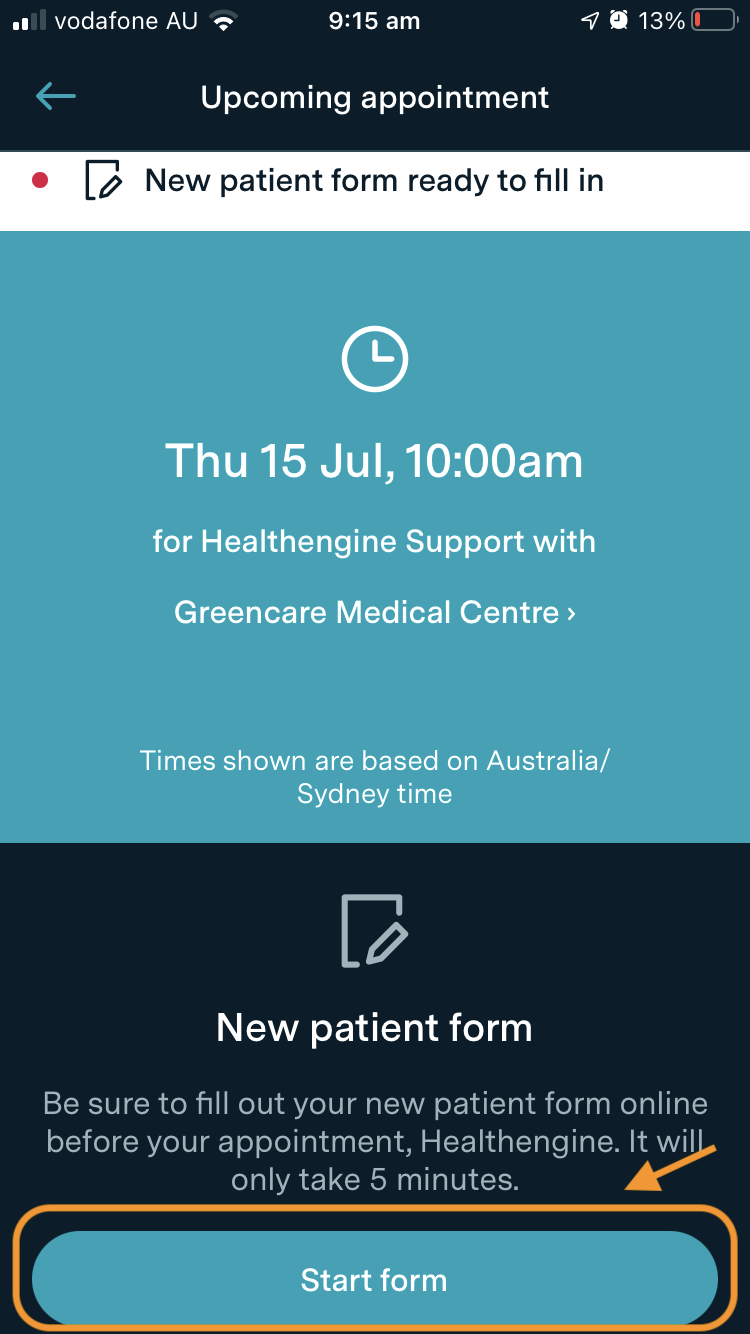
Click into the booking, and you will see a button for you to complete your form online. These forms are sent to the practice securely and viewed in their practice admin portal with your booking details, or if their software allows, integrated into your patient file at the clinic.
How to edit or cancel an appointment booked when logged in?
If your practice settings permit that and if no payment was involved at the time of the booking, you can also cancel or reschedule appointments from this area.
To do this, click the booking and scroll down and you will see options such as cancel, reschedule, or call practice.
IMPORTANT: Be aware that each practice can set their own individual cancellation period in which patients are able to use this function to cancel online. If you do not see the cancel option, you may be outside the practices cancellation period and must call the practice instead.
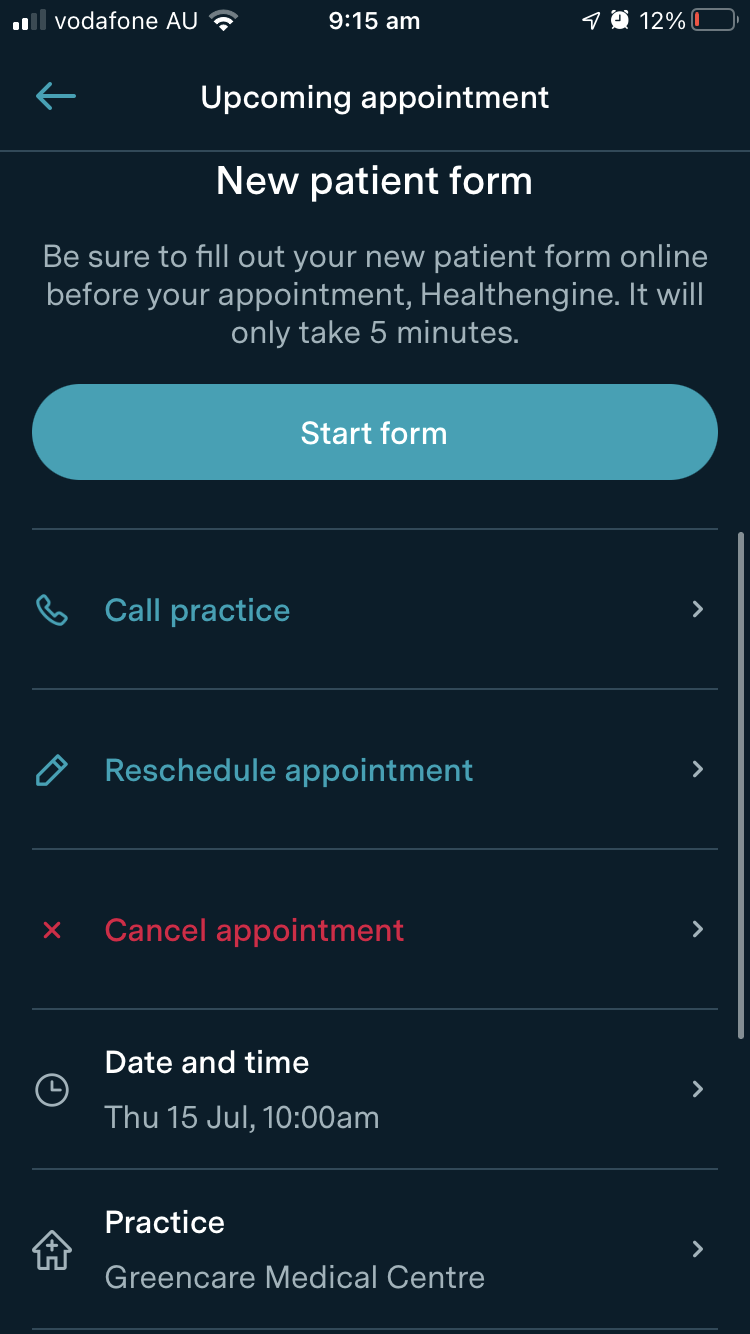
You will also see further options below this with arrows you can click on.
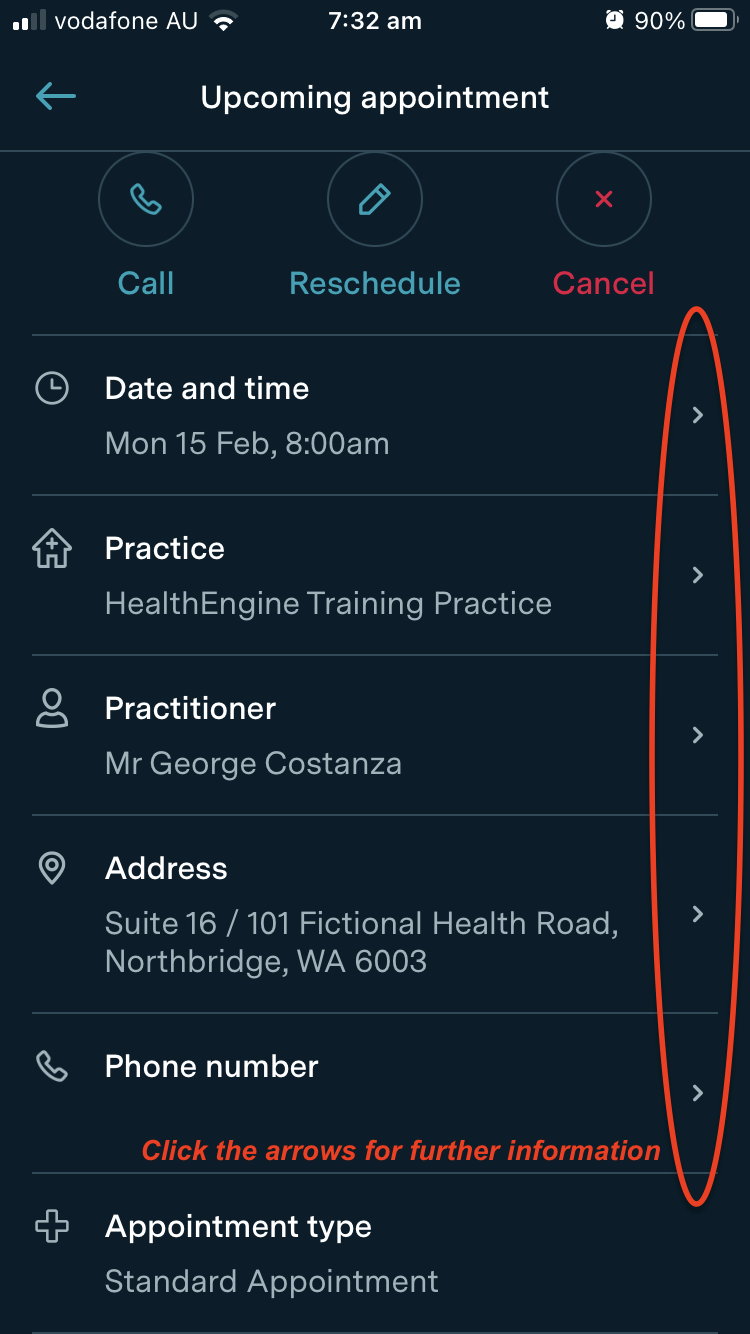
- If you click the arrow next to phone number you can call the practice.
- If you click the arrow next to the practice address you can view it in on a map.
- If you click the practitioner name you will go to their HealthEngine profile where you can learn more about your practitioner.
- If you click the practice name you will go to their HealthEngine profile where you can learn more about the practice.
- If you click the date and time you can add the appointment to your calendar.
If your practices software does not allow changes or cancellations you will not see the cancel and reschedule options and will need to call the practice to cancel, but you will see a disclaimer at the top of the selected booking:
Previous bookings
To see a record of your previous bookings, keep scrolling down until you see Previous Appointments below your upcoming appointments in the Bookings tab.
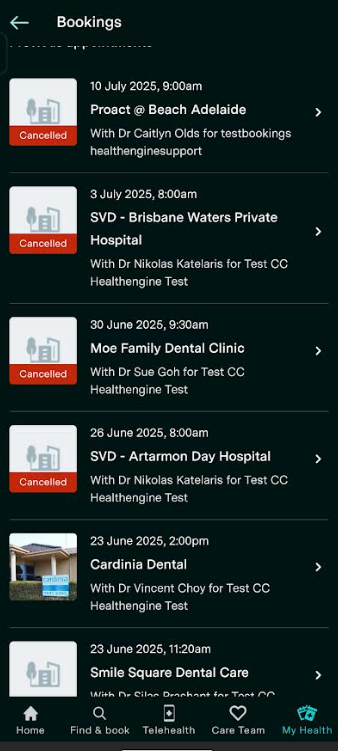
You will see the list of all previous appointments under your account, regardless of the profile used. It will also indicate whether that appointment has been cancelled or not. Please note this will only indicate if it has been cancelled through your HealthEngine account, not with the practice directly.
If you are unsure about the status of your booking, please reach out directly to the medical practice using the contact details on your booking.