
This article details the process you go through to add yourself to a waitlist and respond to your waitlist requests. You can only access the Waitlist feature if your practice has enabled this feature.
Accessing the Waitlist
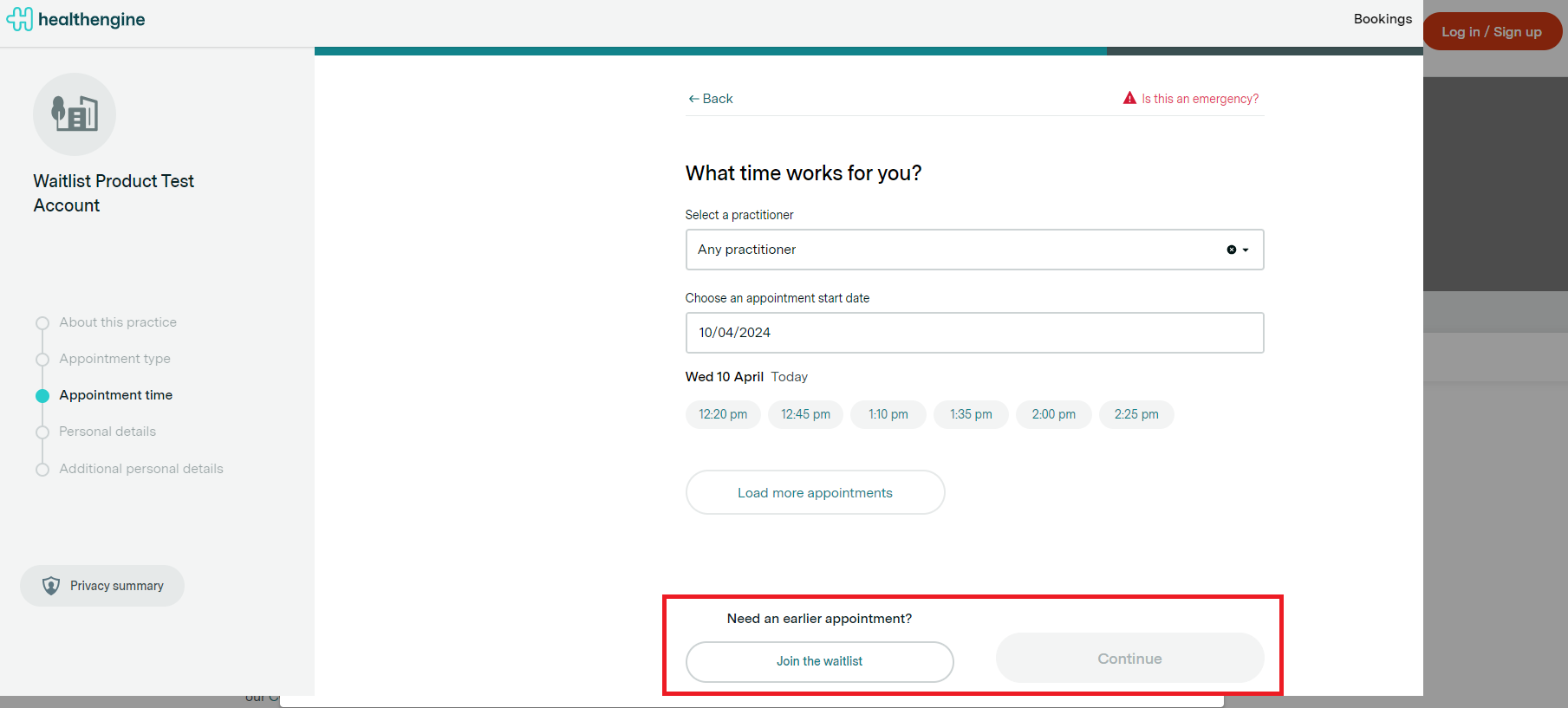
When the patient access preference is turned on, there are various ways for you to add yourself to the practice's waitlist. You can join the Waitlist from the following locations in both the web and the app:
- The appointment time selection page in your practice's booking flow, when you click the "See all appointments" button
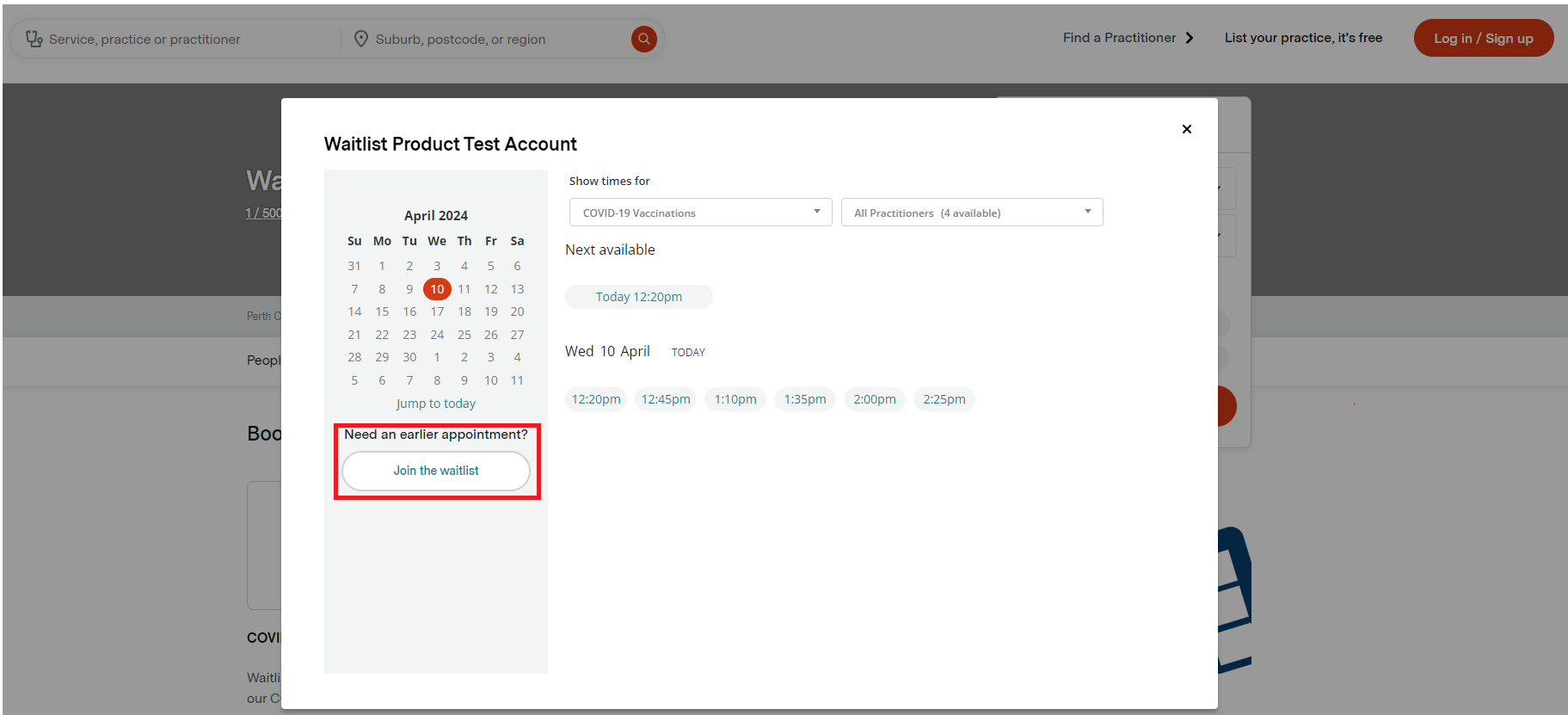
- The appointment time selection page in your practice's booking flow, when you haven't selected a time to start with
- The website widget booking page
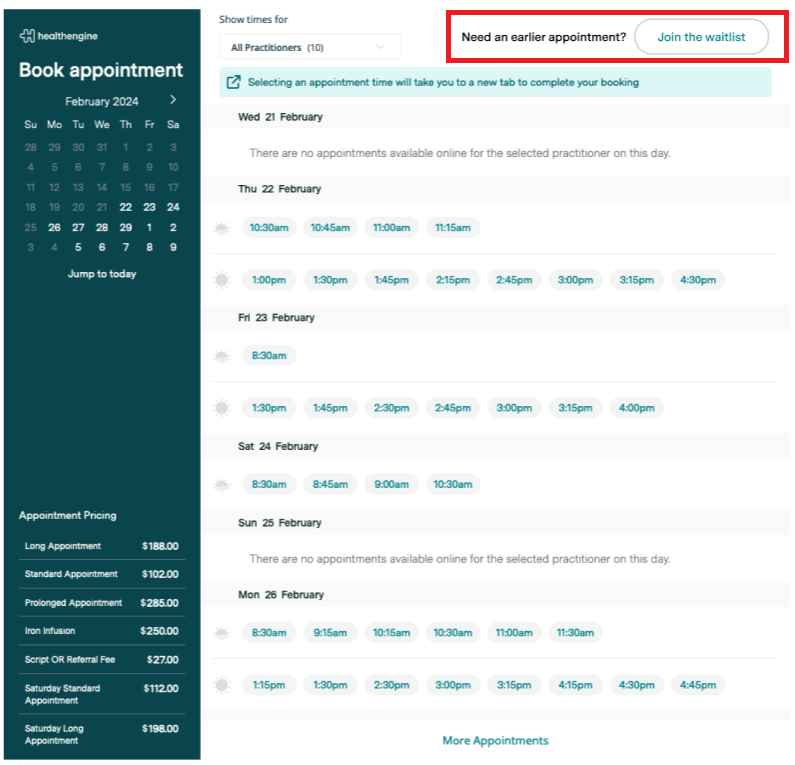
When you click on the waitlist button, you are taken to a page that allows you to add your details and submit a waitlist request.
Making a Waitlist request submission
When you want to make a waitlist request, you are taken to a form to complete. The first page contains questions regarding your name and contact details.
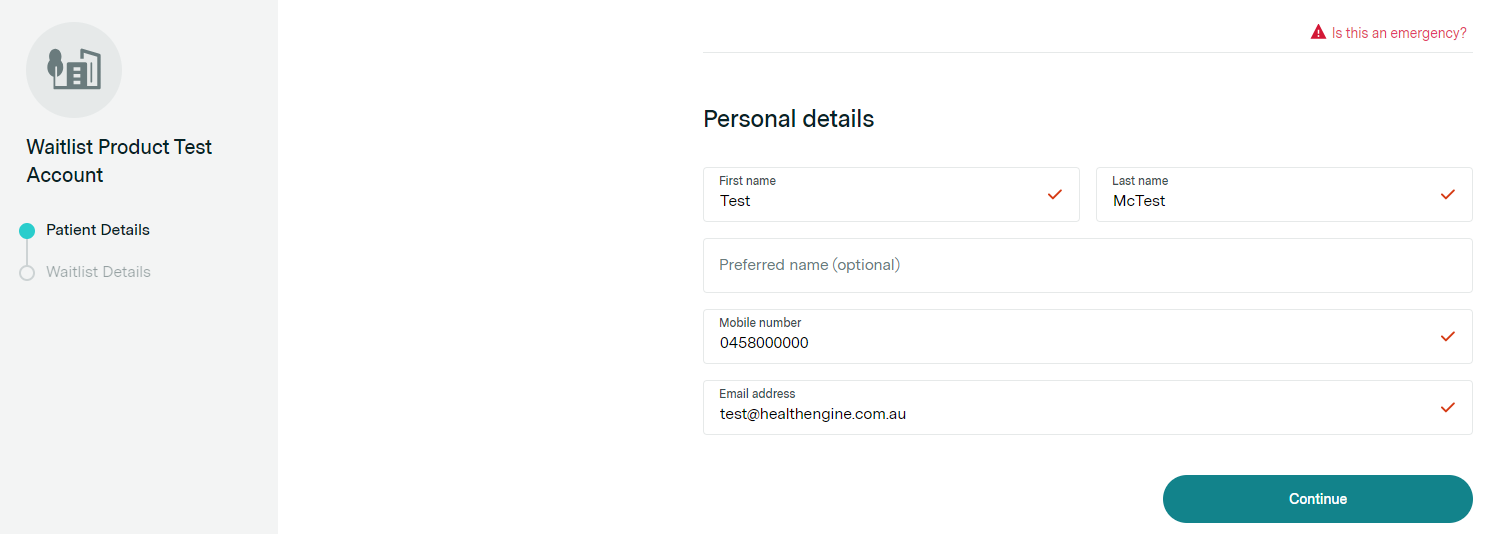
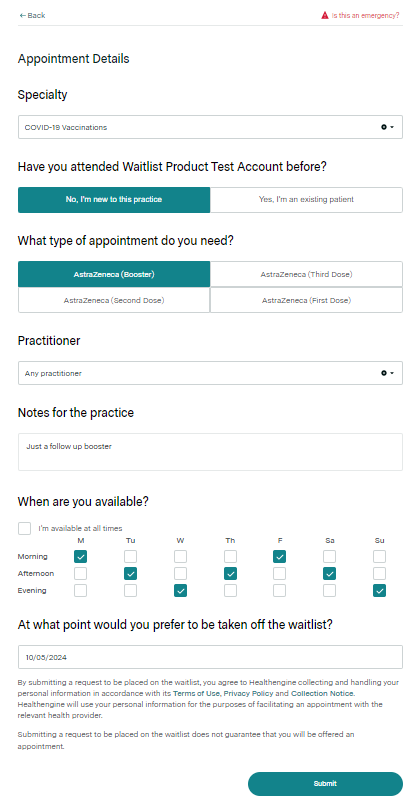
The second page contains information about the type of appointment and speciality you want, if you have a preferred practitioner, if you have any additional comments you'd like to leave and what date and times you are available.
You are also asked if there is a date you'd like to be removed from the waitlist. You can only be on the practices waitlist for 6 months at a time before you will need to create a new request.
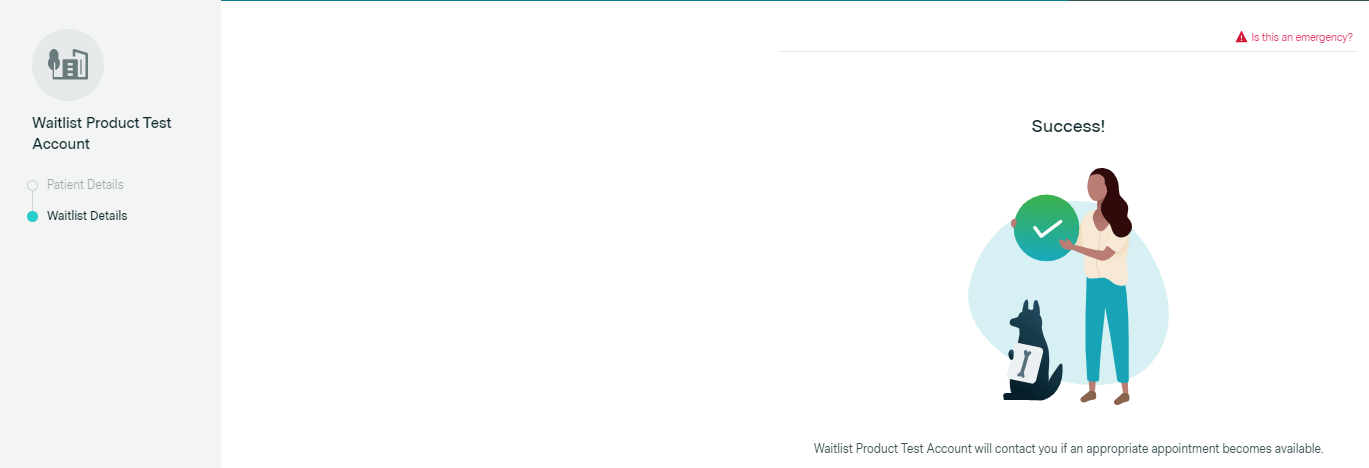
Once you submit a request, you will see a success page.
This submission is not a guarantee of an earlier appointment.
Receiving a message to book an appointment
Once an appointment has become available, you will receive a text message or SMS. The message will look like below, which directs you either to the practice profile or to the booking form to make a booking.
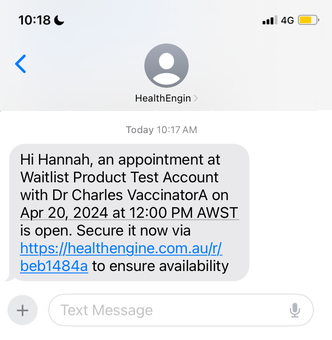
If, as part of the message, a time was set for the appointment, you will have that date and time pre-filled as part of your booking and will see the practice policies page first. If the time is only broadly set to a window of morning, afternoon or evening, you will be asked to select a suitable time.
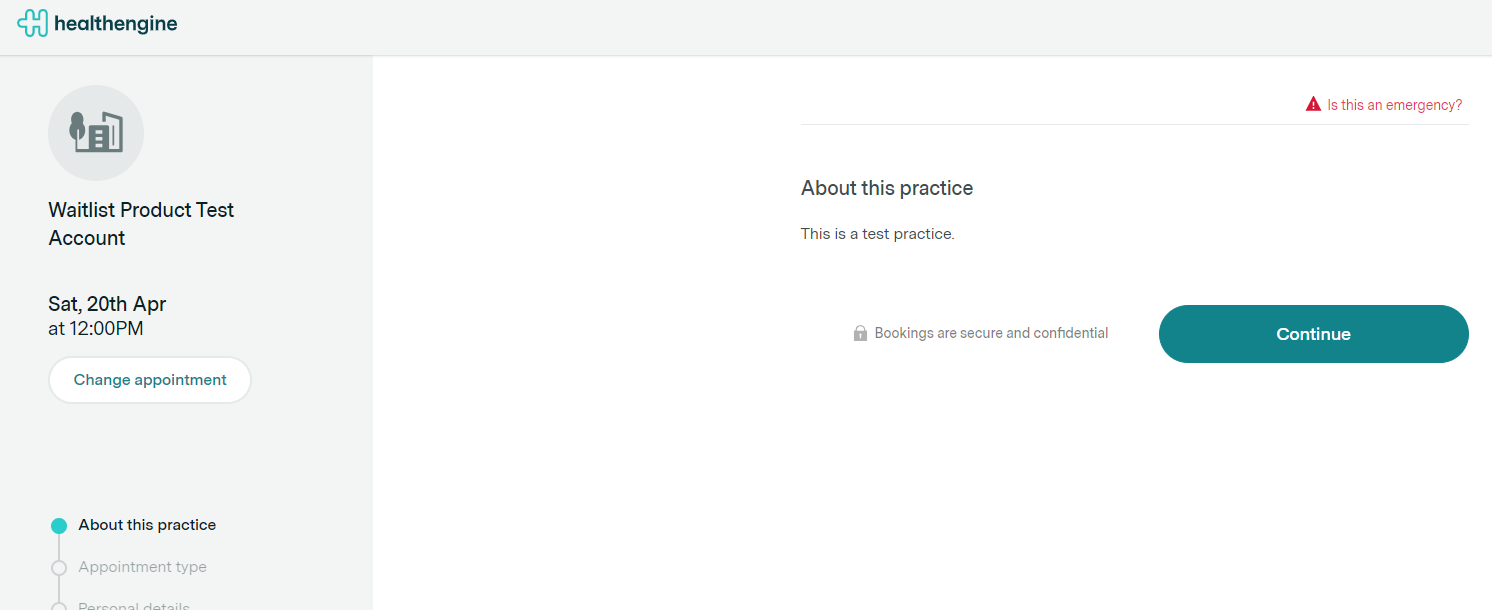
If the appointment time and date you selected are still available, you can continue with the booking form as usual and finish your booking, including any extra payment or eligibility steps.
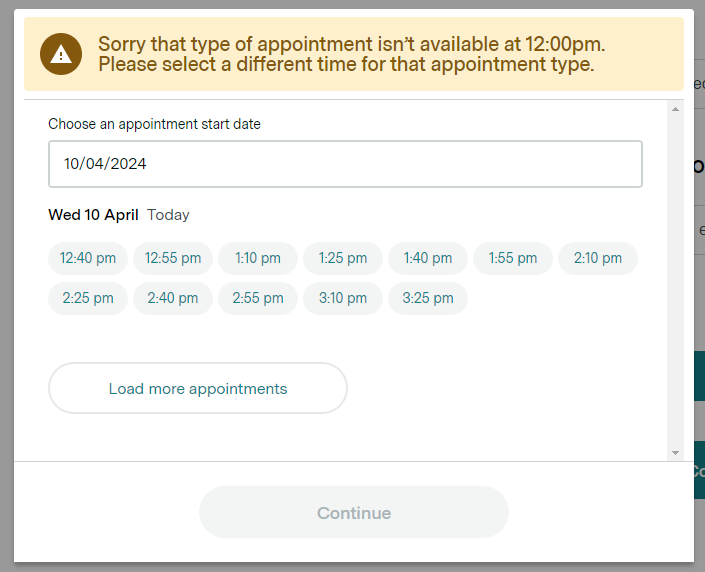
If that appointment time and date are no longer available, you'll be prompted to choose a new time from the list of available options. After that, you can continue with the booking form as usual.
Waitlist from the Healthengine app
You can add yourself to the waitlist via your profile on the app or the web, following the same process as above.
How do I remove myself from a waitlist?
Please reach out to the medical practice directly; they will be able to log in to their Healthengine Practice Admin Portal and remove you from their list.
Please note that Healthengine doesn't have access to this list and cannot remove you.
Frequently Asked Questions
Can I be on more than one Waitlist at a time with different practices?
Yes! There is no reason you can't be on multiple waitlists at different practices, regardless of whether they are the same speciality (i.e., 2+ GP practices) or in different specialities (i.e., one GP, one dentist, one physio).
I received a text message to book an appointment, but it's now unavailable. What happened?
The slots available for patients from a waitlist are not reserved and are subject to other patients booking them online in order to allow the practice to best manage their patients and fill cancellations. If you received a text message and see that the time is no longer available, you will be prompted to pick another date and/or time.
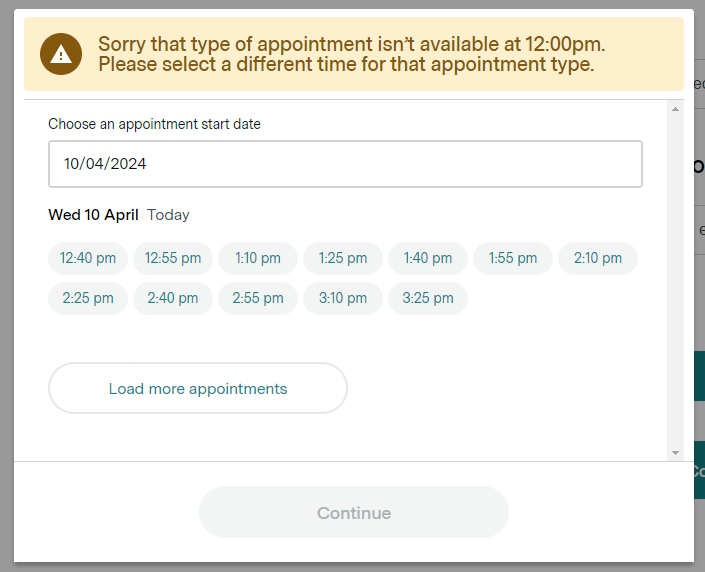
If none of these dates or times suits you to make a new booking, you can close the page.
You are still on the waitlist until your waitlist request expires.
I've received a text message to book an appointment, but I'm not available. What happens?
If you receive a waitlist slot you cannot attend, you don't need to action the message. You still remain on the waitlist until you either book an appointment and are manually removed from the waitlist or your Waitlist request expires.
What happens if I ignore a text message?
Depending on individual practice policies, some practices might only offer a certain number of waitlist slots to a single patient before they attempt to contact other patients. Others might continue to message you whenever an appointment becomes available, but all practices aim to fulfil their patient requests in a timely fashion.
How long do I have to answer a text from my practice?
As the link you are sent directs you to a booking form or practice profile that is available to other patients, there is no "expiry" for the link, but the slot can be booked by other patients. We recommend you respond to your waitlist SMS as quickly as possible to avoid disappointment.
Why can't I submit a request as a new patient?
Some practices only offer appointment types for existing patients or may not be accepting new patients. In these cases, you won't be able to add yourself to the waitlist, and you'll see an error message explaining that the practice doesn't offer those appointment types.
Do Waitlist entries expire/ How can I remove myself from the waitlist?
Yes, as a patient, you can choose a date—up to 6 months in advance—when you'd like to be removed from the practice waitlist.
If you want to remove yourself from the waitlist of a particular practice, please contact your medical practice directly and ask them to remove you from their Healthengine Practice Admin portal under the "Waitlist" section.
IMPORTANT: Healthengine cannot remove you from a medical practice's waitlist, as we do not have access to that list for privacy reasons. Please contact the medical practice by phone to request removal.
Do I need to select a practitioner?
No problem. We understand that some patients prefer to see a specific practitioner, while others are happy to book the next available appointment with any practitioner. When you join the waitlist, you can choose whether you have a preferred practitioner or select "Any Practitioner."
Can I make an appointment and be on a waitlist at the same time?
Yes, you can make a booking and then add yourself to the waitlist so the practice can contact you if an earlier appointment becomes available. We suggest booking your appointment first and then joining the waitlist. It's also a good idea to set the expiry date of your waitlist entry to match your appointment date, so you’ll be automatically removed from the waitlist at the right time.
If you’re offered an earlier appointment, we recommend cancelling your original booking or making sure you still need it. This can help you avoid any cancellation or Did Not Attend fees.
Why can't I see certain appointment types?
Based on your chosen specialty, practitioner, and whether you’re a new or existing patient, the practice may provide different appointment options that best fit your needs. For instance, some practices offer a "New Patient Initial Consultation" appointment only to new patients, giving them extra time for their first visit. This type of appointment isn't available if you select "existing" as your patient type.
To help ensure you get the appointment you want, we recommend choosing practitioners, specialties, and appointment types that align with your preferences.