
Some email systems use different tools to summarise the information in the booking confirmation you received.
This functionality is only accessible from your end, and it is not sent or set up by Healthengine directly.
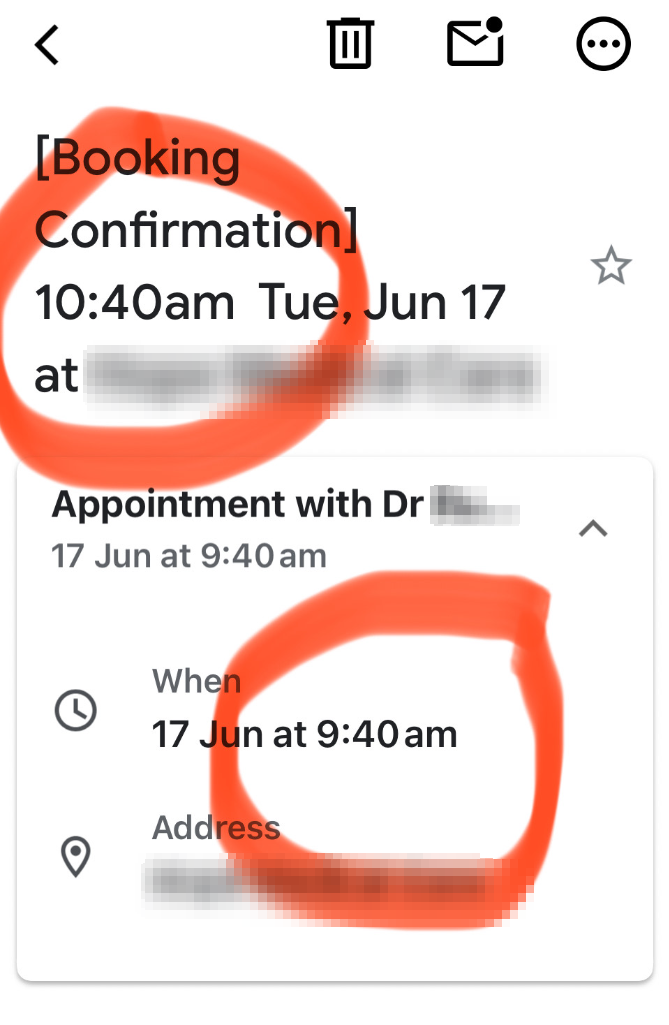
Please search your email settings and try the following solutions:
For Google:
-
Open Google Calendar: Go to Google Calendar on your computer.
-
Click the gear symbol and select "Settings". Select the 'Time Zone' Section: In the settings menu, find the "Time zone" section under "General".
-
Click the menu and select your desired primary time zone.
For Yahoo:
Access the Calendar:
1. Open Yahoo Mail and click on the Calendar icon.
- Open Settings: In the Calendar view, find and click the Settings icon.
- Select Calendar Options: From the Settings menu, choose "Calendar Options".
- Choose Time Zone: Locate the "Time Zone" dropdown menu and select the correct time zone for your current location.
- Confirm: Wait for the confirmation message "Settings successfully saved" to appear, then click "Back to Calendar".
For different emails, please contact the support team of your email provider.