Vertical: General Practice, Dental, Pharmacy, Allied, Specialist
PMS Eligible: N/A
Are you looking to add a new user to your current list of Practice Admin logins or potentially change your existing login? Fortunately, this is a self-serve feature that you can utilise at any time!
How to Add a New Login
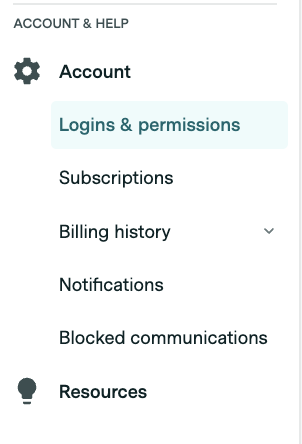
To add a new login to your Practice Admin, simply log into your Practice Admin and navigate to 'Account', then select 'Logins & Permissions'.
In the box provided, add the desired email address, then click 'Send Invite'. An email will be sent to the address provided with a link to create a new password for their Practice Admin login.

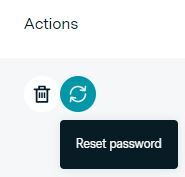
Please Note: This password link is only valid for 24-hours. If the new user has not set a password within this time, you will need to navigate to Logins & Permissions again and select the refresh icon underneath 'Actions' in line with their email.
If you'd like the new login to be able to add or remove users from Logins & Permissions, tick the 'Edit Users' box.
If you'd like the new login to be able to edit your Healthengine Practice Profile and practitioners, tick the 'Edit Profile' box.

Please note: If you have multiple locations on Healthengine and you would like the new user to have access to all your locations, you must follow these steps for each location.
Removing a Login
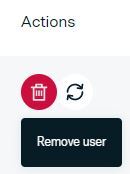
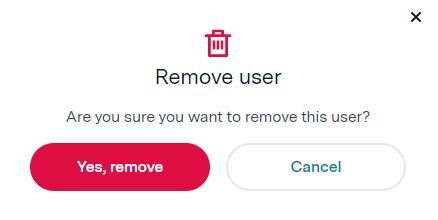
To remove a login from your Practice Admin, simply click on the bin icon underneath 'Actions' in line with the email, as seen below: